Knowledge base
1000 FAQs, 500 tutorials and instructional videos. Here, there are only solutions!
Manage users for an address from Mail Infomaniak
This guide explains how to manage other users who access a mail address from the Infomaniak Mail web app (online service ksuite.infomaniak.com/mail).
Other ways to manage access (e.g., from the Mail Service) are presented in the main guide.
Manage users with access to the email address
When an email address is created within a Mail Service, you can, among other things:
- add yourself so that you can view it on Infomaniak,
- add another user from the Mail service or from the Mail web app so that they can view it on Infomaniak.
To easily manage these different access methods later, access your Infomaniak email:
- Click here to access the Infomaniak Mail web app (online service ksuite.infomaniak.com/mail).
- Click on the Settings icon in the top right corner of the interface.
- Check or select the relevant email address from the drop-down menu in the left-hand menu.
- Click on Shared with:
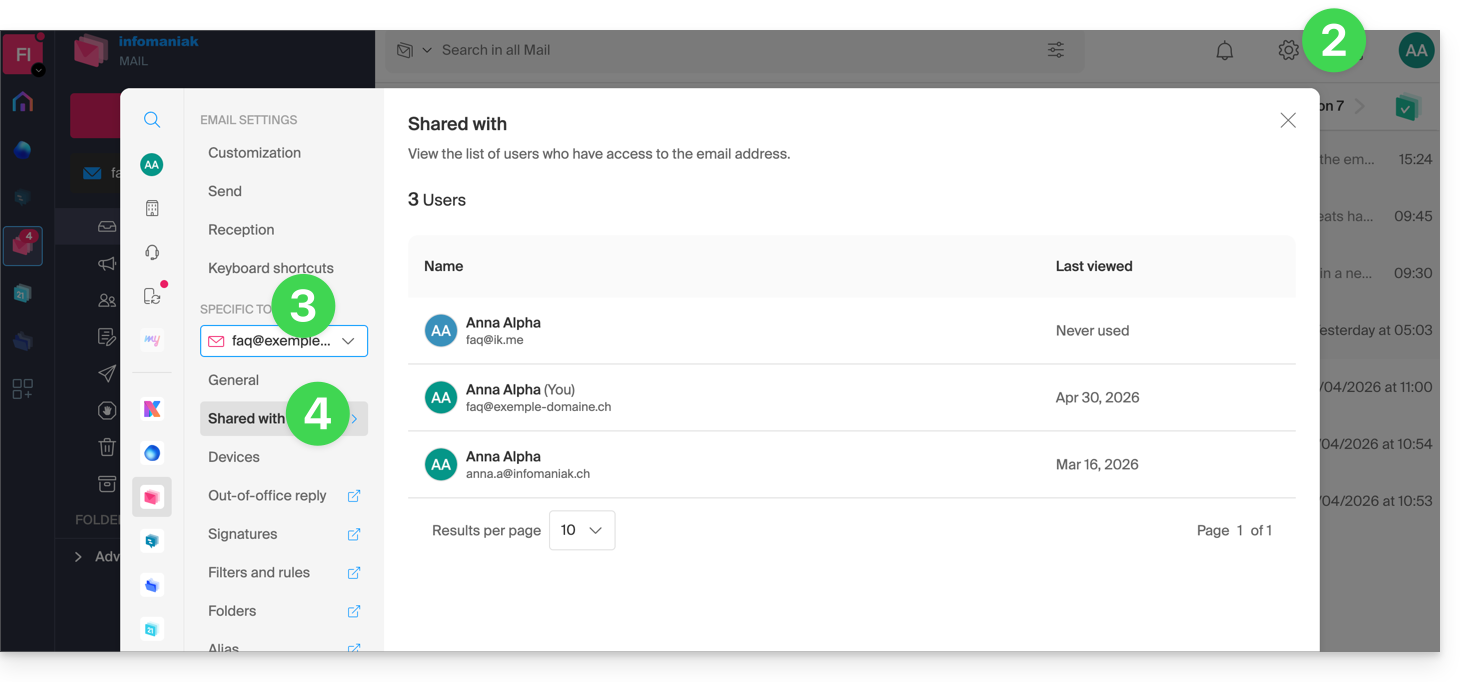
- Here, the list is purely informative because the email address in question is managed within another Organization – no action is possible.
Get information, add a user, or remove them…
In the case of a mail address managed by you (or for which you have obtained sufficient rights), more options are available to you:
- The Manage button allows you to go directly to the user management section for the relevant Mail Service.
- Click on the action menu ⋮ to the right of the user to access quick actions:
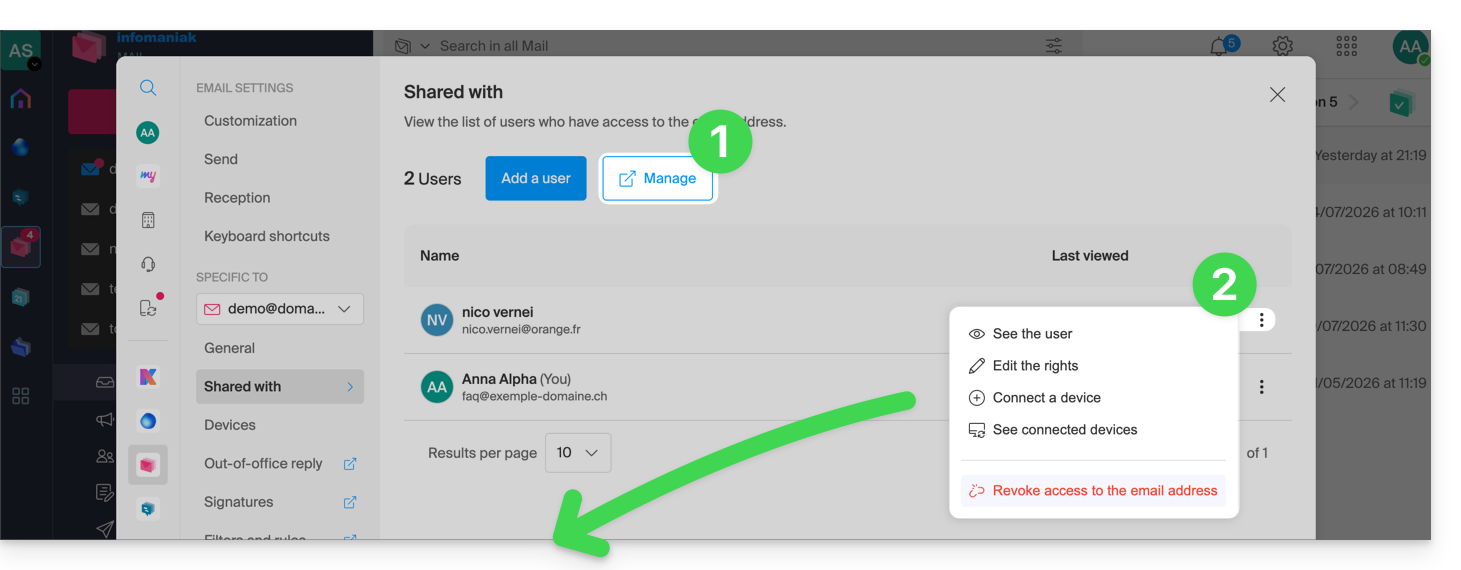
- Get details about the user.
- Edit the user's permissions.
- Connect (or allow the user to connect) a device (by creating a password).
- View the connected devices (which have a previously created password).
- Revoke access for the user in question.
From the same page, using the Add a user button, you can grant a user access to view and use the email address. See this other guide.
Shortcut
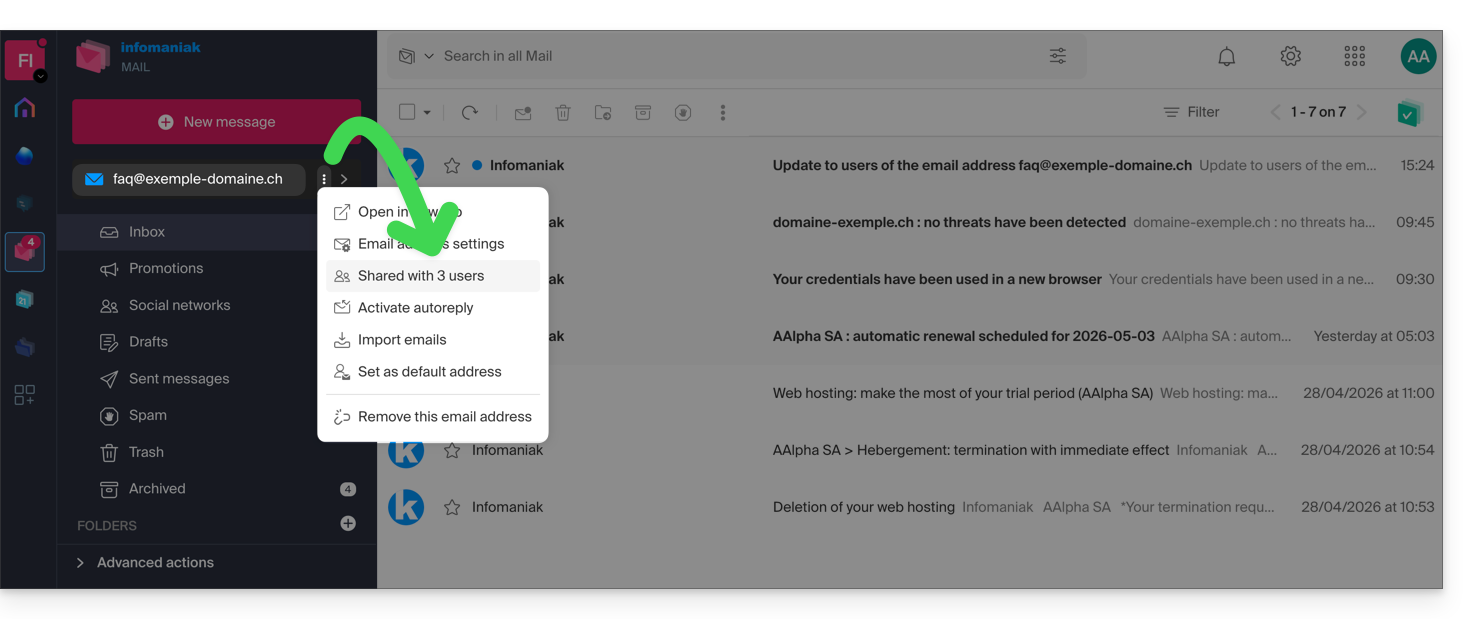
You can also access the settings directly from the home page:
- Click on the action menu ⋮ to the right of your email address.
- The number of shares is displayed; if you click on the item, you will be taken to the management page described above:
Link to this FAQ: https://faq.infomaniak.com/1390
Has this FAQ been helpful?