Knowledge base
1000 FAQs, 500 tutorials and instructional videos. Here, there are only solutions!
Ticketing: Add a donation system
This guide explains how to set up donations (as part of the Infomaniak ticketing system).
Introduction
- By offering donations, you provide customers with the opportunity to support your organization or event.
- Online donations will be subject to a commission to cover banking fees.
- Donation campaigns can have the status active or inactive, but will remain visible in all cases at the checkout, along with the gift cards.
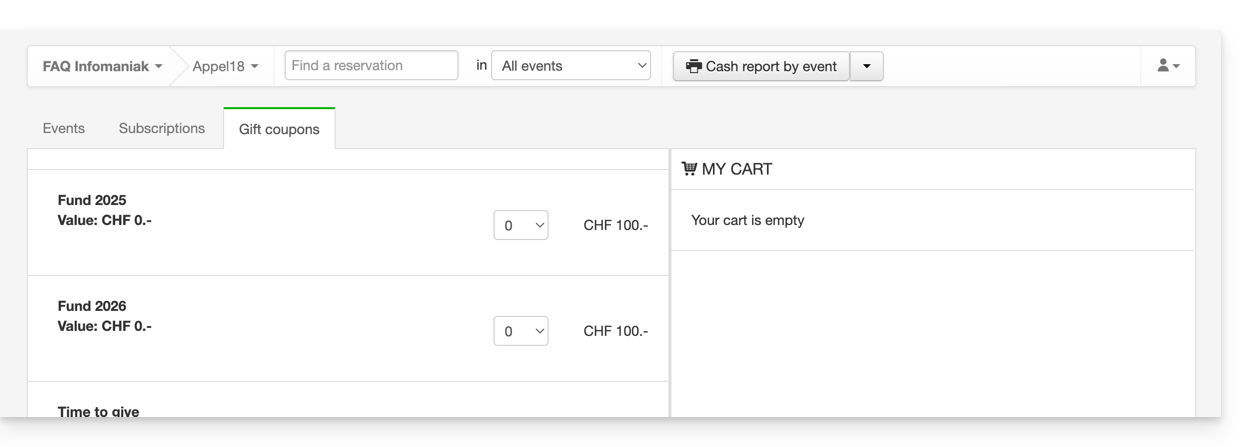
Setting up donations
To do this:
- Click here to access the management interface for your product in the Infomaniak Manager (need help?).
- Click directly on the name assigned to the ticketing system for the event.
- Click on Schedule in the left-hand menu.
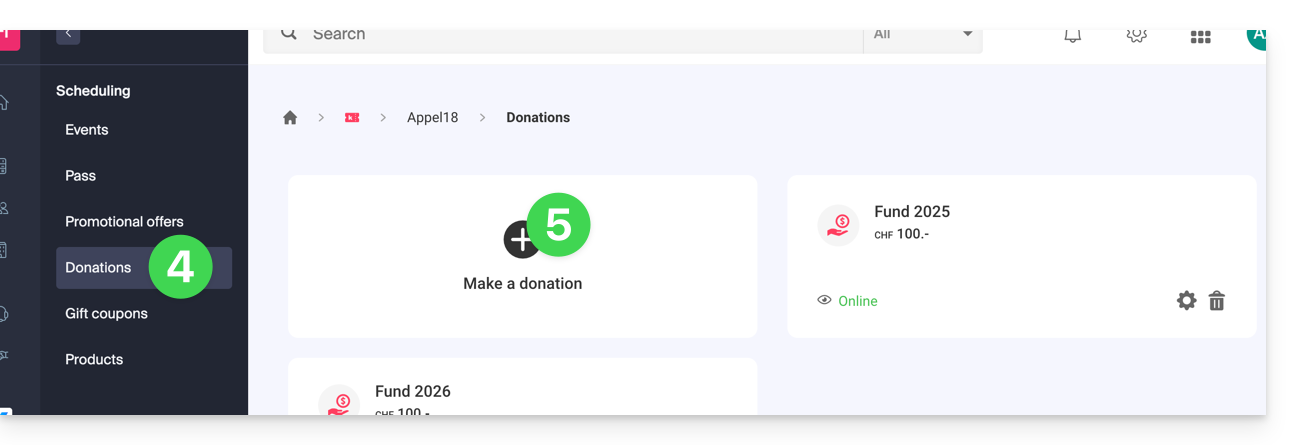
- Click on Donations in the left-hand menu.
- Click on Add a donation:
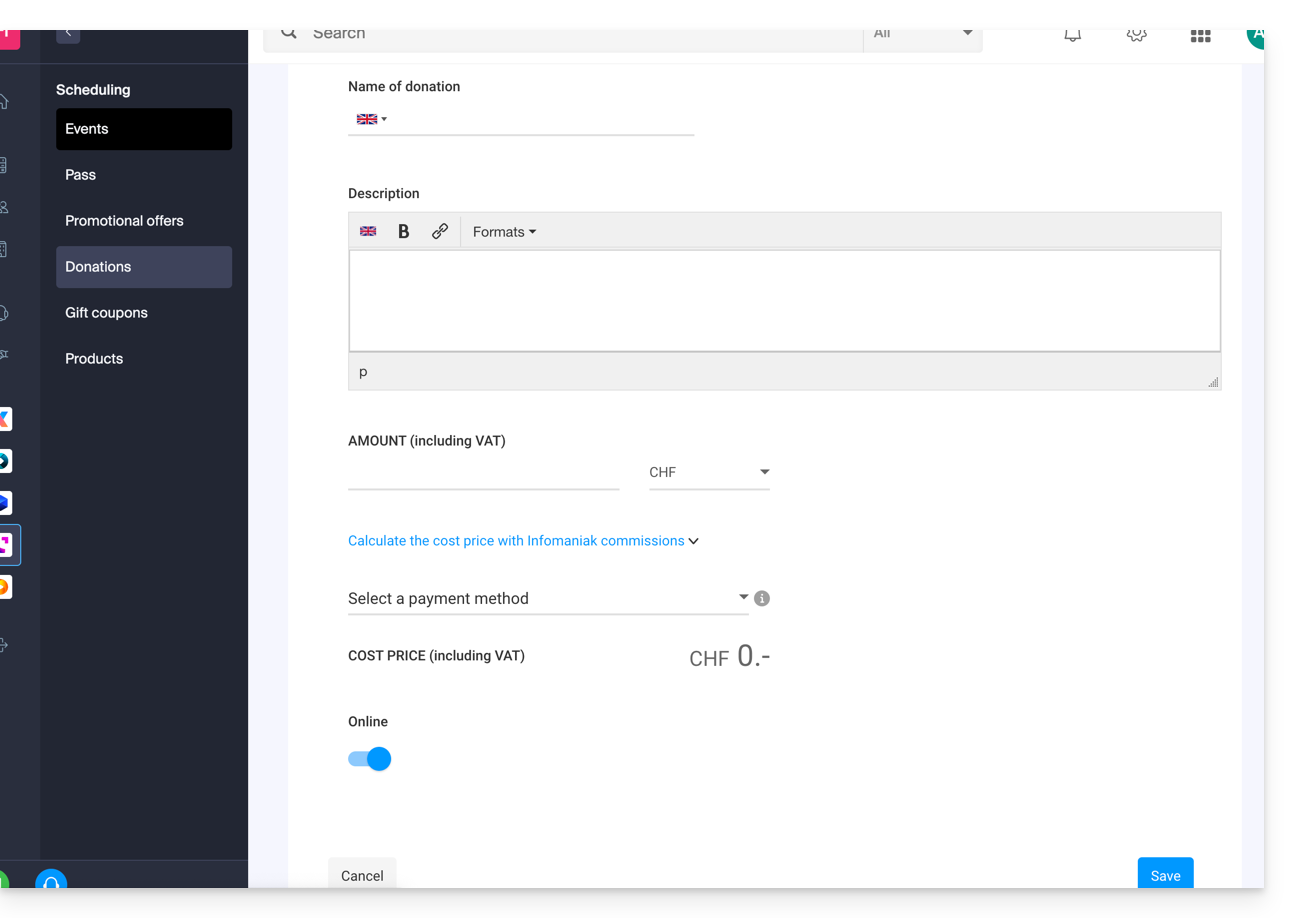
- Fill in the fields in the wizard, then click the Save button at the bottom of the page:
Link to this FAQ: https://faq.infomaniak.com/1367
Has this FAQ been helpful?