Knowledge base
1000 FAQs, 500 tutorials and instructional videos. Here, there are only solutions!
Manage Infomaniak Mail mobile app notifications
This guide concerns the notifications that you can receive with the Infomaniak Mail mobile app (application for iOS/Android smartphones or tablets).
Receive notifications based on a specific email address
The Infomaniak Mail mobile app allows you to manage multiple email addresses, and you can choose to receive notifications for only some of your email addresses and not others.
To access the notification settings in the app, please refer to this other guide.
Troubleshooting…
… on iOS
In the settings of the Infomaniak Mail mobile app, check that notifications are enabled for the email address in question: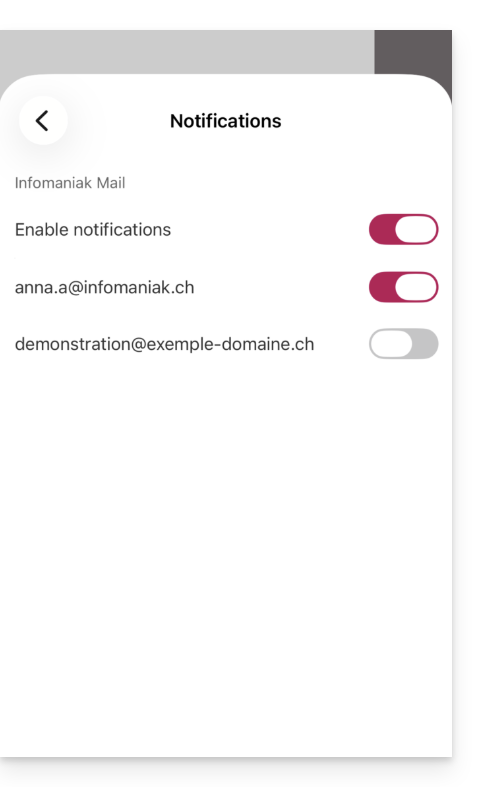
… on Android
On Android devices, especially Samsung devices with One UI 6.1 and later, the system settings screen for notifications no longer allows you to specify which of your email addresses should trigger a notification by default: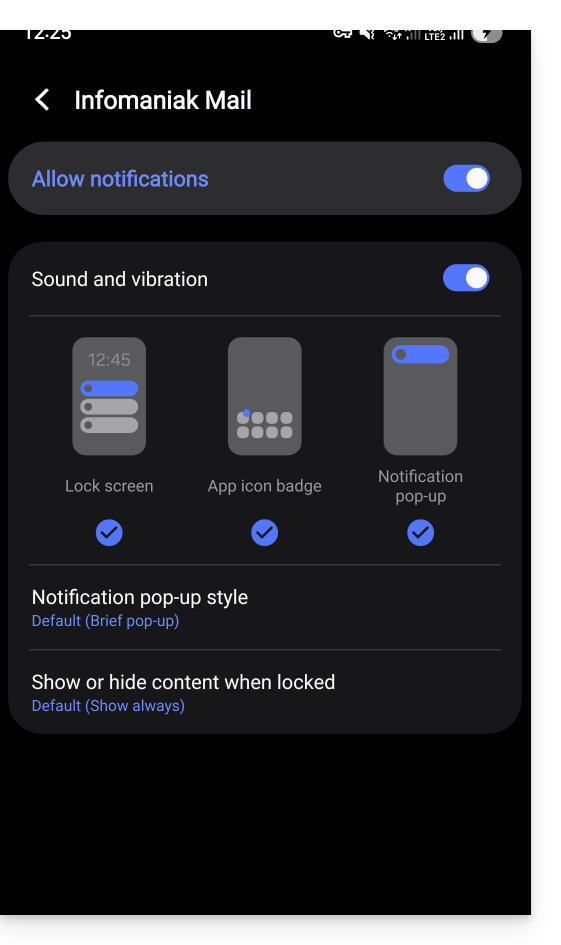
The solution is to enable this from the main Android notifications page by clicking on “Advanced settings” at the bottom of the window…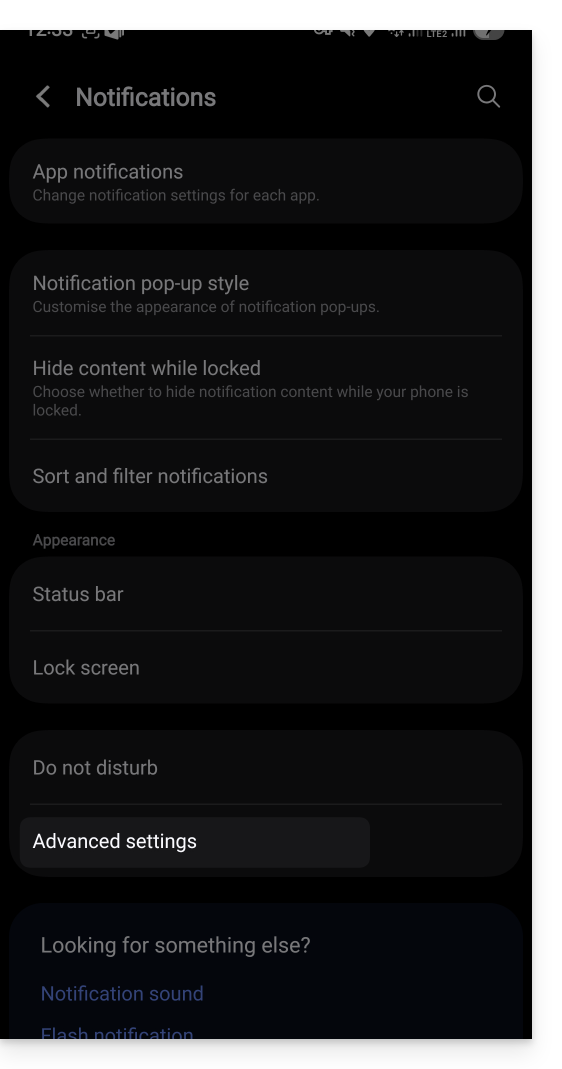
… the “Manage notification categories for each application” option: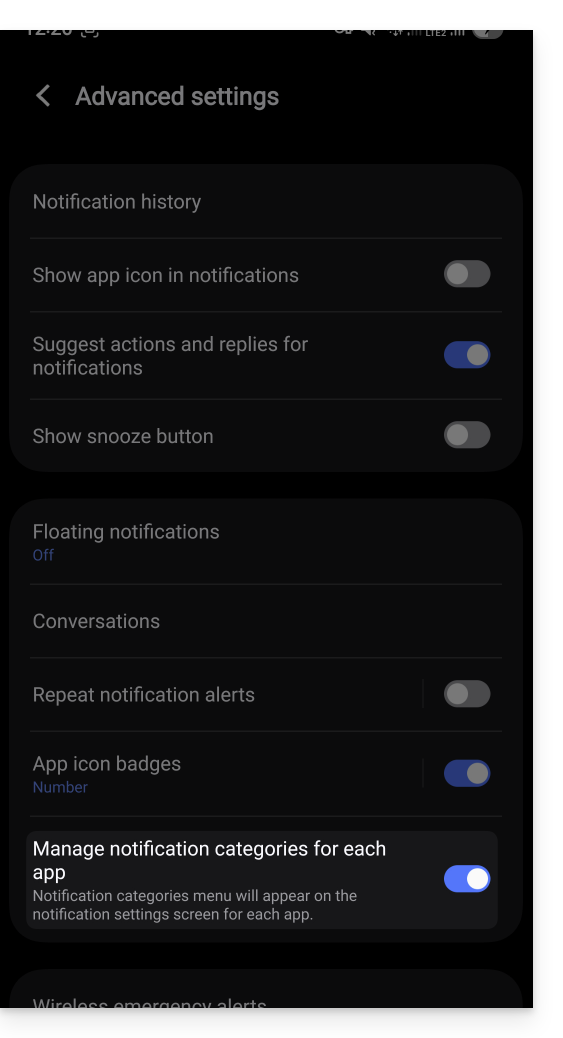
Then, go back to the Infomaniak app’s notification page and you can tap on “Notification categories”…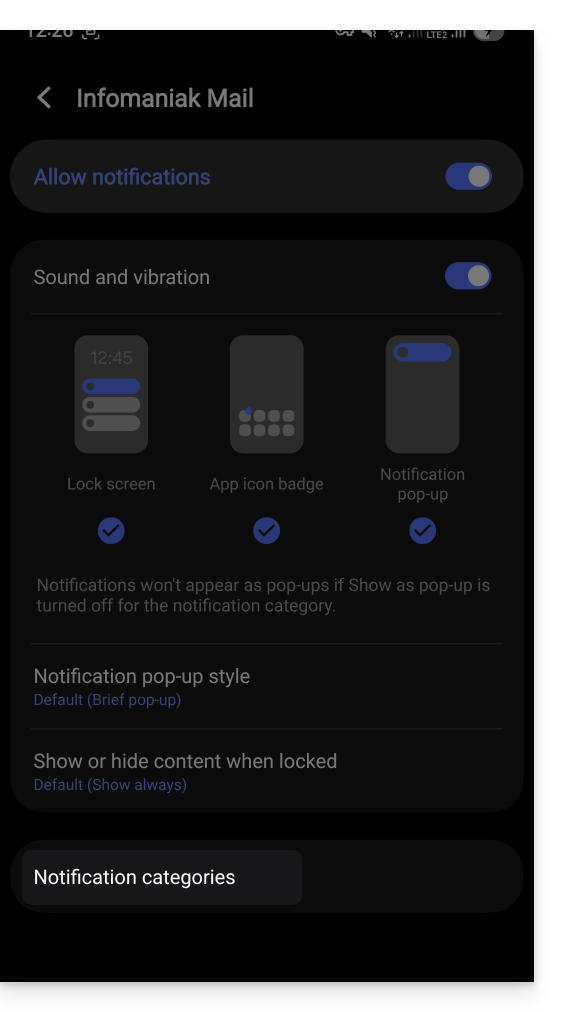
… to restore the option to choose specific notifications per email address: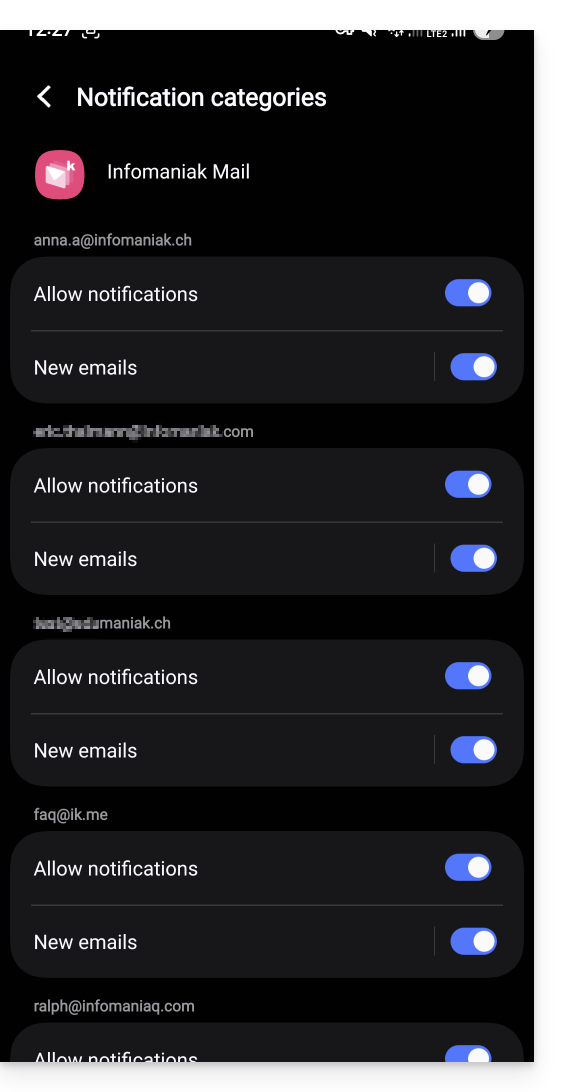
Receive all notifications
If you have enabled notifications for the app on your mobile device, you will receive a notification for each new message that arrives.
Troubleshooting…
If you see a new message arriving in your inbox, but it hasn't triggered any notifications on your device, there may be several reasons.
- Start by opening the application to make sure it's working, and update it if necessary.
- Open another application or turn off the device screen (if the Infomaniak Mail application is open, in the foreground, and the screen is on, the device may not send any notifications).
- Send a new test message to your email address to trigger a notification.
- Is the test message in your inbox? Indeed, a message that goes to spam or another folder may not trigger any notifications.
… on Android
- Have you waited several tens of minutes? Indeed, quick notifications (like push notifications) require going through a Google service to function, but some devices that do not use Google services (like Fairphone) may experience notifications arriving at much longer intervals.
Link to this FAQ: https://faq.infomaniak.com/1364
Has this FAQ been helpful?