Knowledge base
1000 FAQs, 500 tutorials and instructional videos. Here, there are only solutions!
Manage default user permissions for email
This guide explains how to define the default permissions for all email account users, so they can manage more or fewer configuration settings in the Infomaniak Mail web app (online service ksuite.infomaniak.com/mail).
Introduction
- These permissions may include assigning an additional password, setting up an alias, etc.
- Refer to this other guide for the complete list.
Global configuration
Define default settings
To define the default permissions that will be automatically selected when the administrator applies the “global configuration":
- Click here to access the management of your Mail Service in the Infomaniak Manager (need help?).
- Click directly on the name assigned to the Mail Service in question.
- Click on Global Configuration in the left-hand menu:
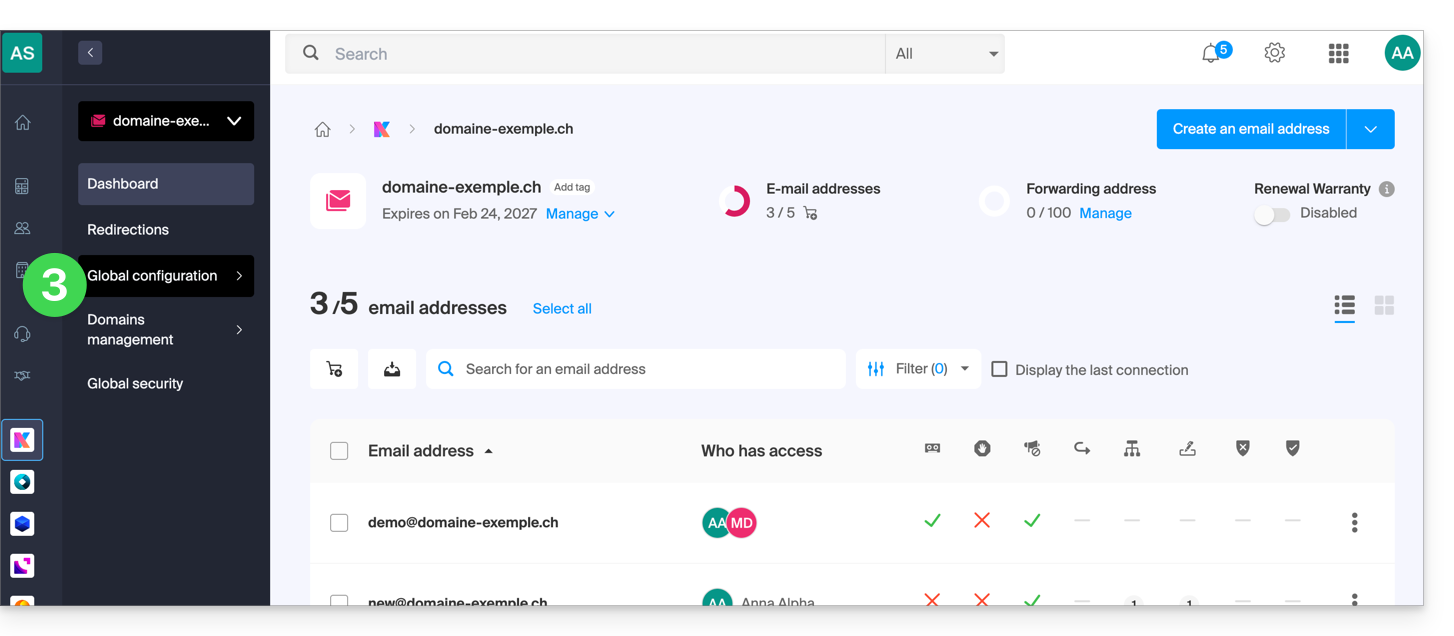
- Click on Filters and permissions.
- At the bottom, enable or disable the permissions to be granted when creating new email addresses:
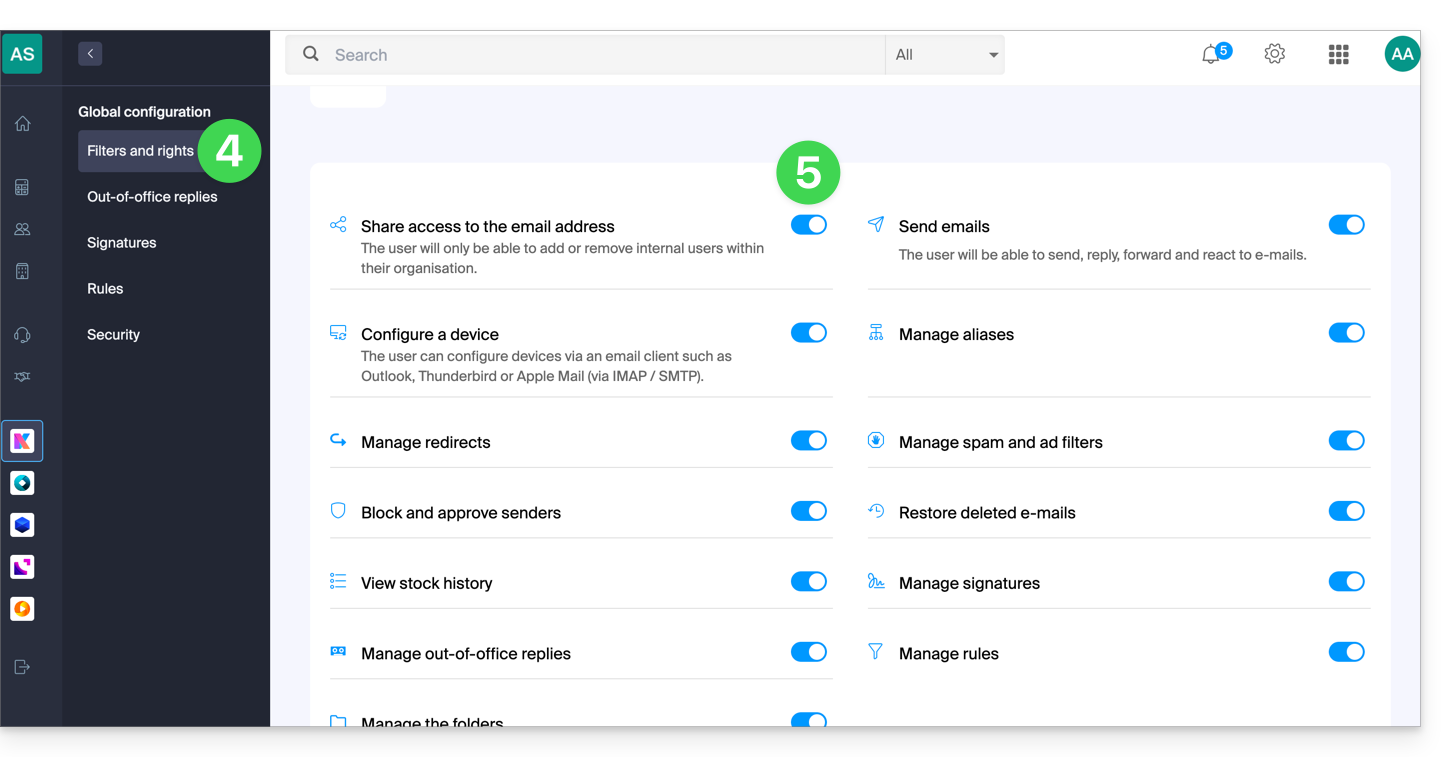
Global configuration when creating a mail address
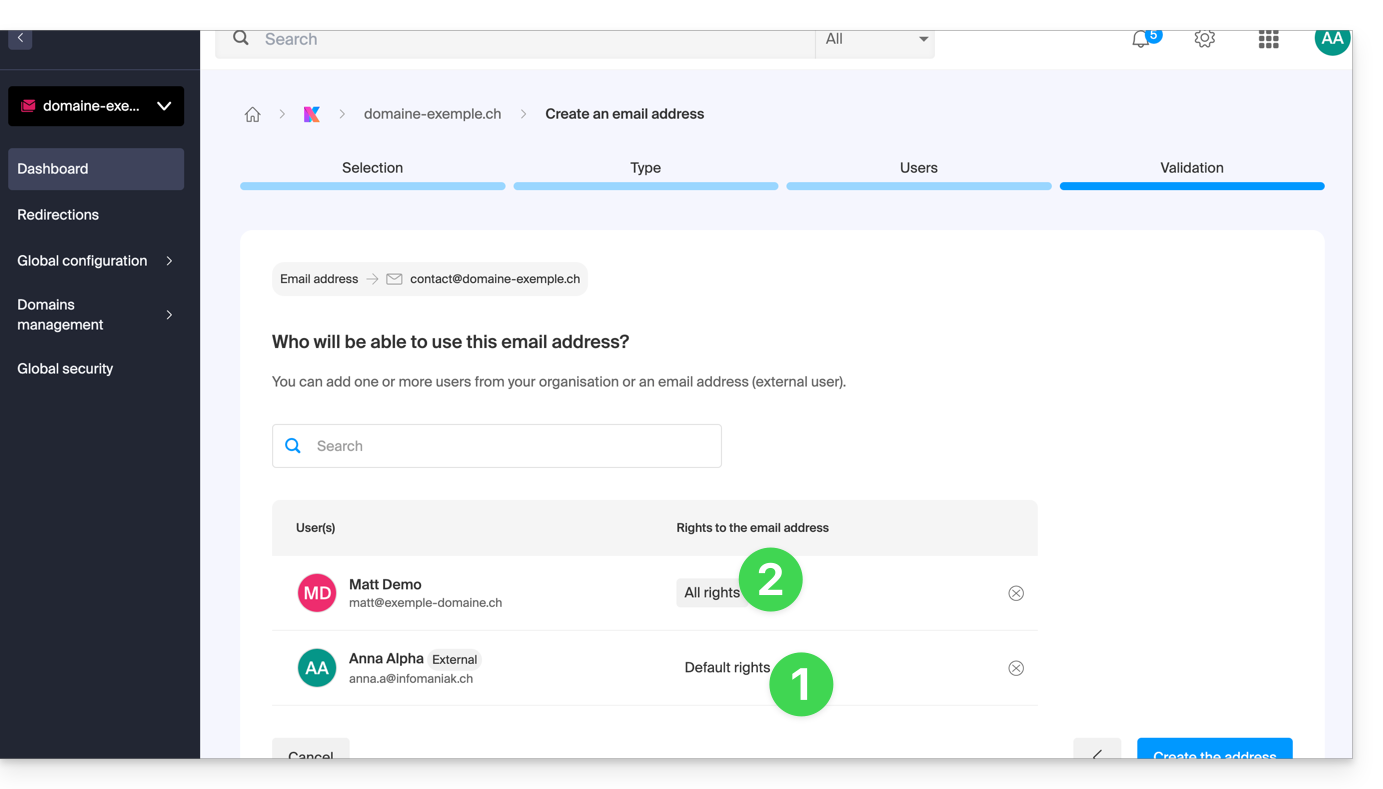
If a new mail address is created for one or more third-party users:
- The permissions defined in the Global Configuration will be automatically pre-selected during the wizard step, and the text "default rights" will be displayed.
- It is of course possible to modify the various permissions for different users on a case-by-case basis by clicking on the rights indicator:
Apply the global configuration to existing addresses
To apply this global configuration to existing email addresses in a Mail Service (which will then apply to all users concerned, listed in the Users column):
- Click here to access the management of your Mail Service in the Infomaniak Manager (need help?).
- Click directly on the name assigned to the Mail Service in question.
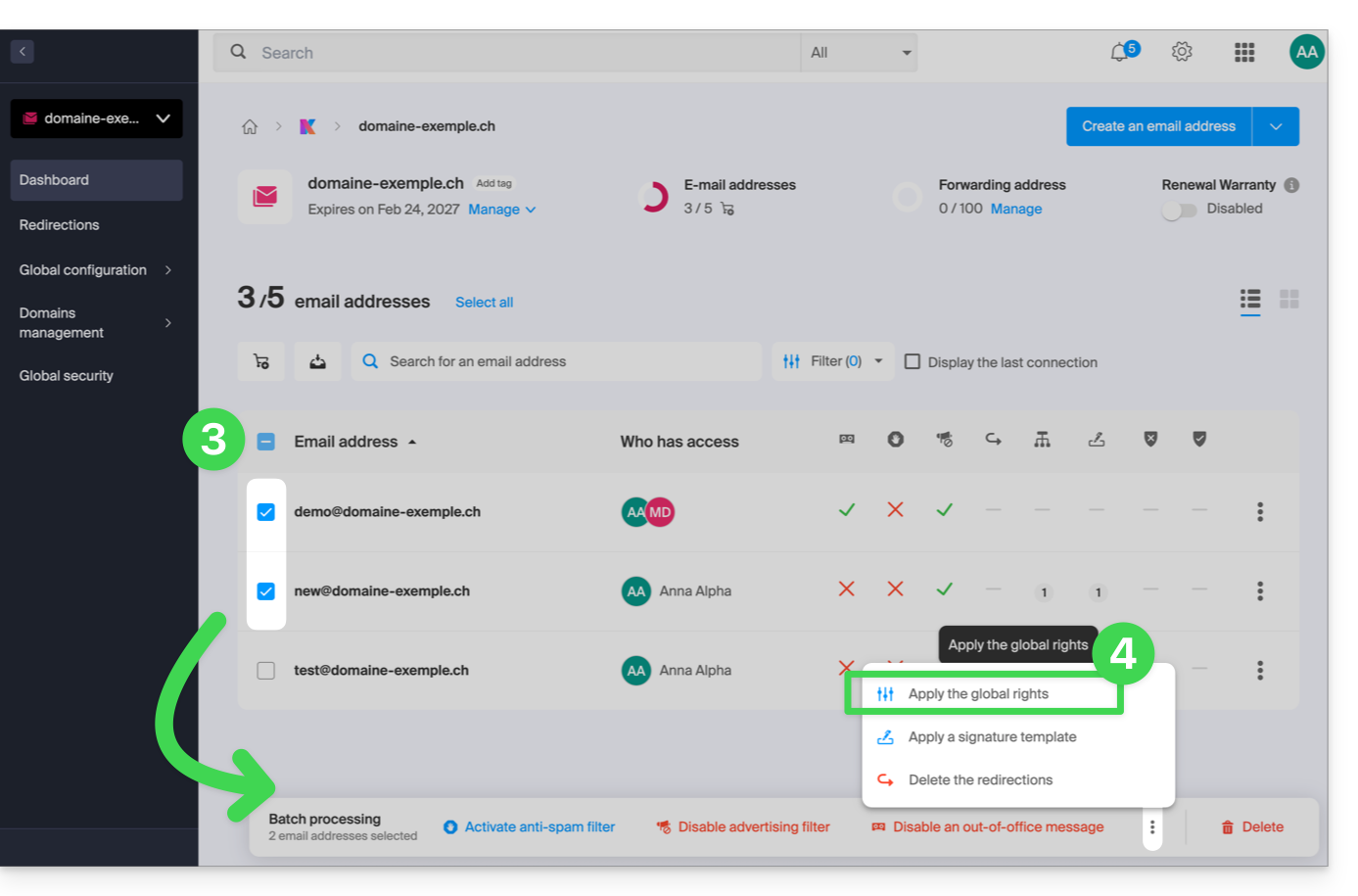
- Select the email addresses concerned by checking the boxes to the left of each line.
- Click on Apply global settings at the bottom of the screen (by clicking on the action menu ⋮ first, if necessary):
Apply the global configuration when managing permissions granted to a user
To automatically and quickly apply this global configuration when you edit a user's permissions for an email address (refer to the chapter “Manage permissions granted to a user” at the top of this other guide), then click on the button dedicated to this purpose: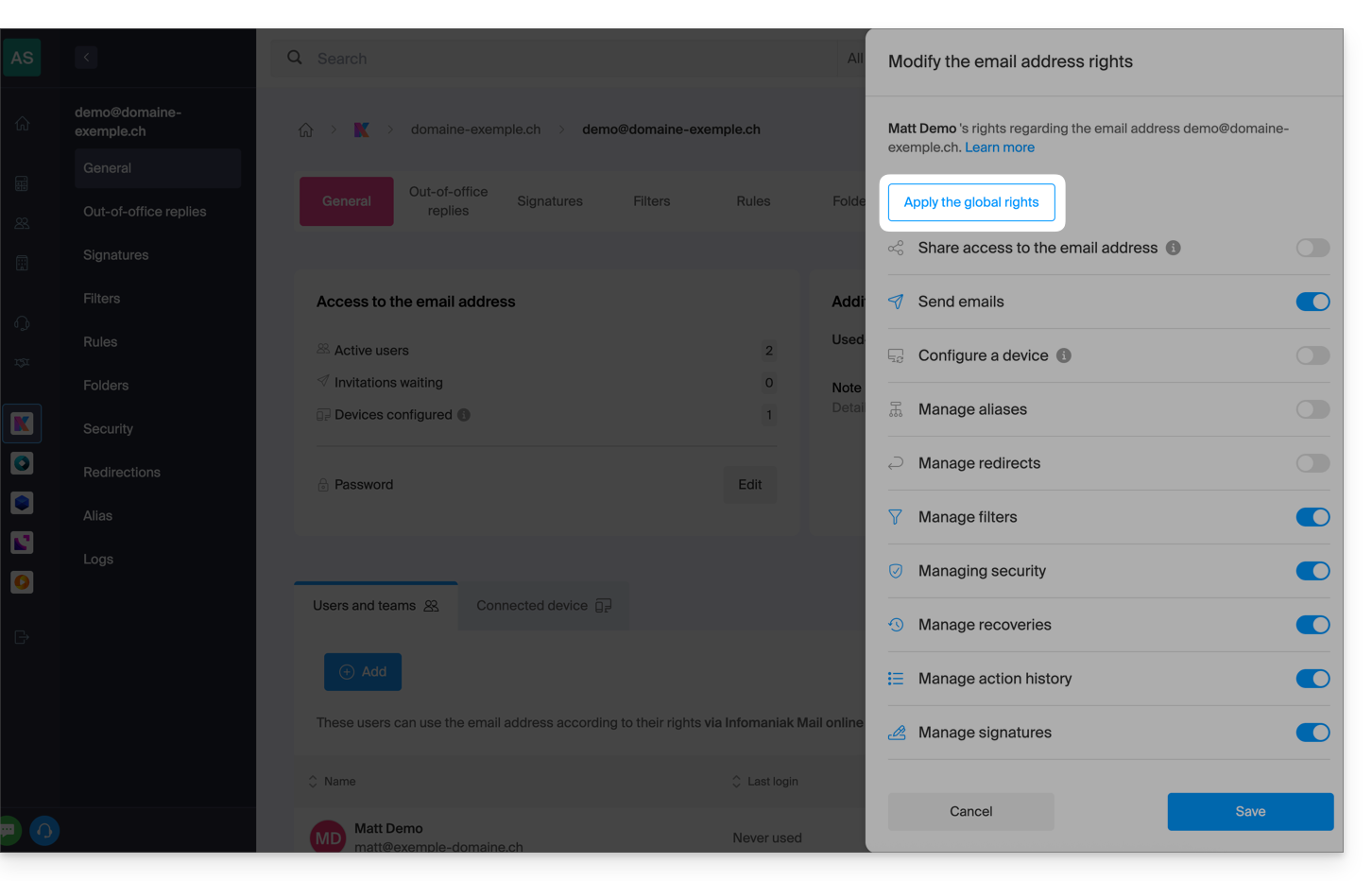
Link to this FAQ: https://faq.infomaniak.com/1232
Has this FAQ been helpful?