Knowledge base
1000 FAQs, 500 tutorials and instructional videos. Here, there are only solutions!
Translate the content of an email in Mail Infomaniak
Update 10/12/2026
This guide details the automatic translation service integrated into the Infomaniak Web app Mail (online service ksuite.infomaniak.com/mail).
Introduction
- The Infomaniak Web Mail app (online service ksuite.infomaniak.com/mail) includes an automatic translator for both reading and writing, supporting French, German, English, Italian, and Spanish.
- This AI solution does not rely on a third-party service (DeepL, Google Translate, etc.) contacted via API; instead, it is hosted, operated, and partially trained by Infomaniak.
Translate the text…
… while writing
To automatically translate a message you are writing into a foreign language:
- Click here to access your emails in your Infomaniak kSuite (❓: help).
- Write a new message without sending it.
- Select the text to translate.
- Click on Translate:
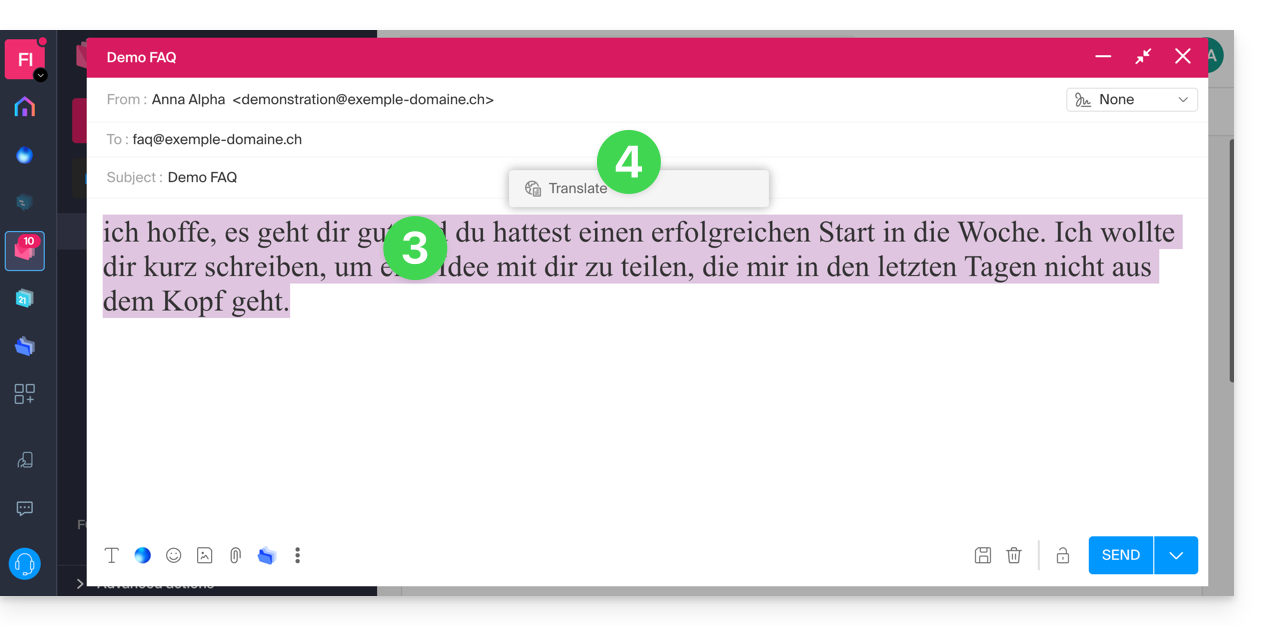
- Modify the languages if necessary.
- Click on Apply translation:
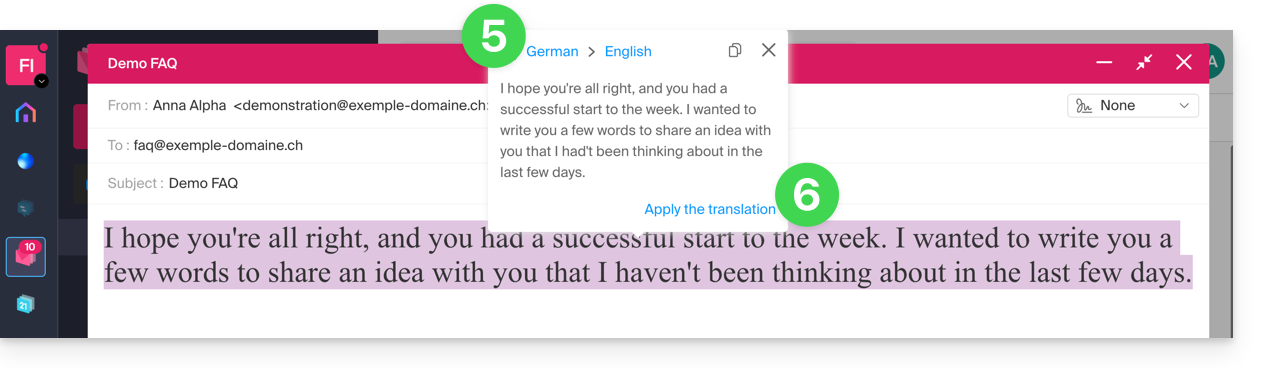
… while reading
To automatically translate a received message written in a foreign language into your language:
- Click here to access your emails in your Infomaniak kSuite (❓: help).
- Check the email to be translated.
- Select the text to be translated.
- Click on Translate:
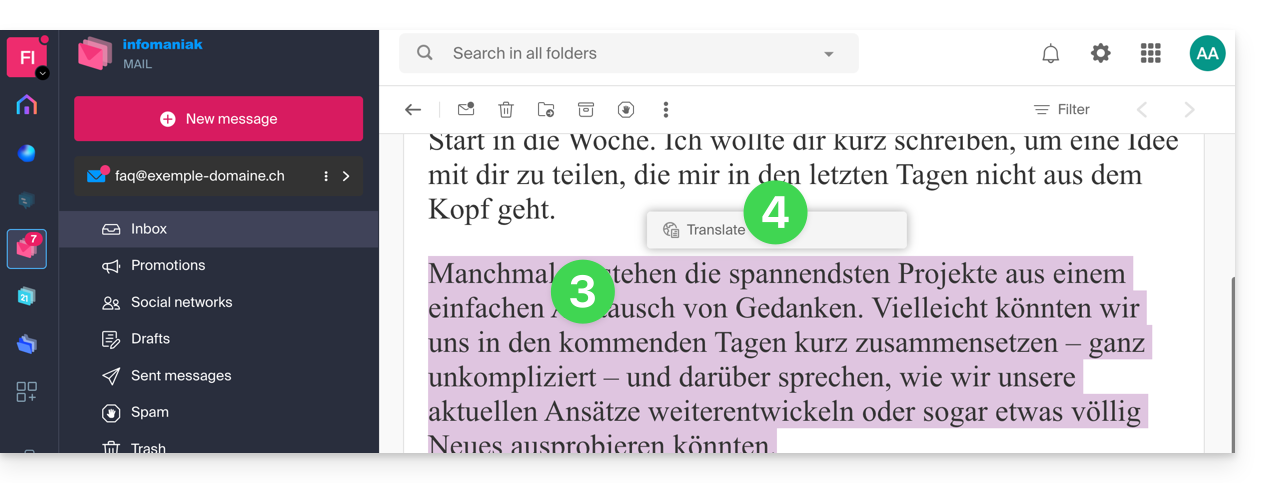
- Click on the name of the languages to change the languages used.
- You can also copy the translated text to your clipboard to use it later:
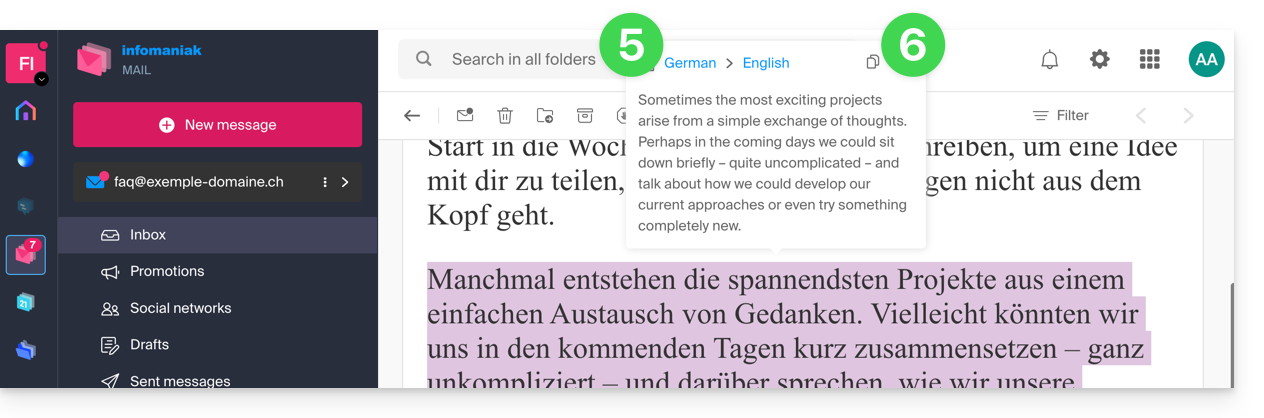
- You can also enable the visibility of the translation icon (❓: help):
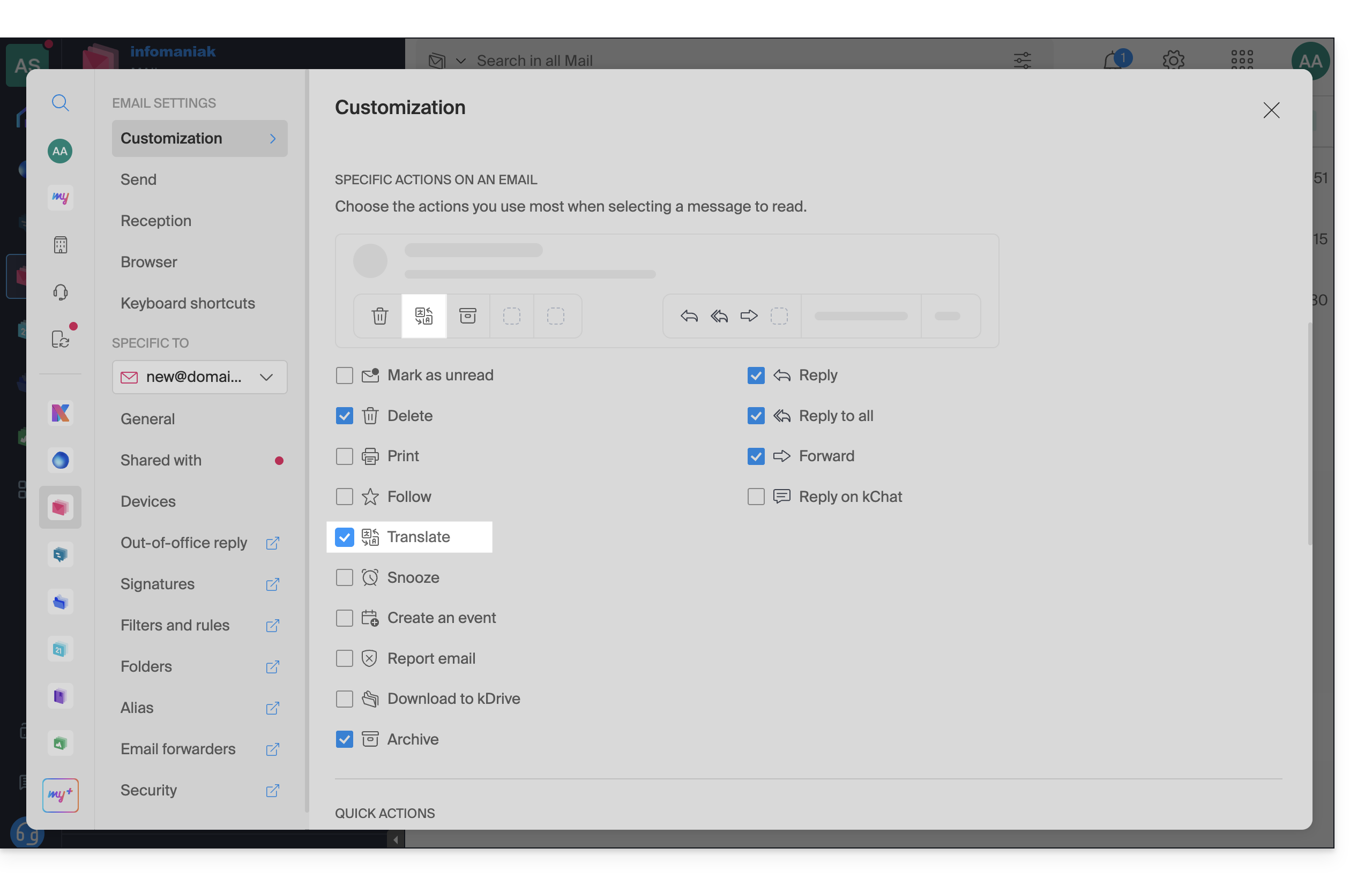
- In this case, you can translate an email from the toolbar of the received message:
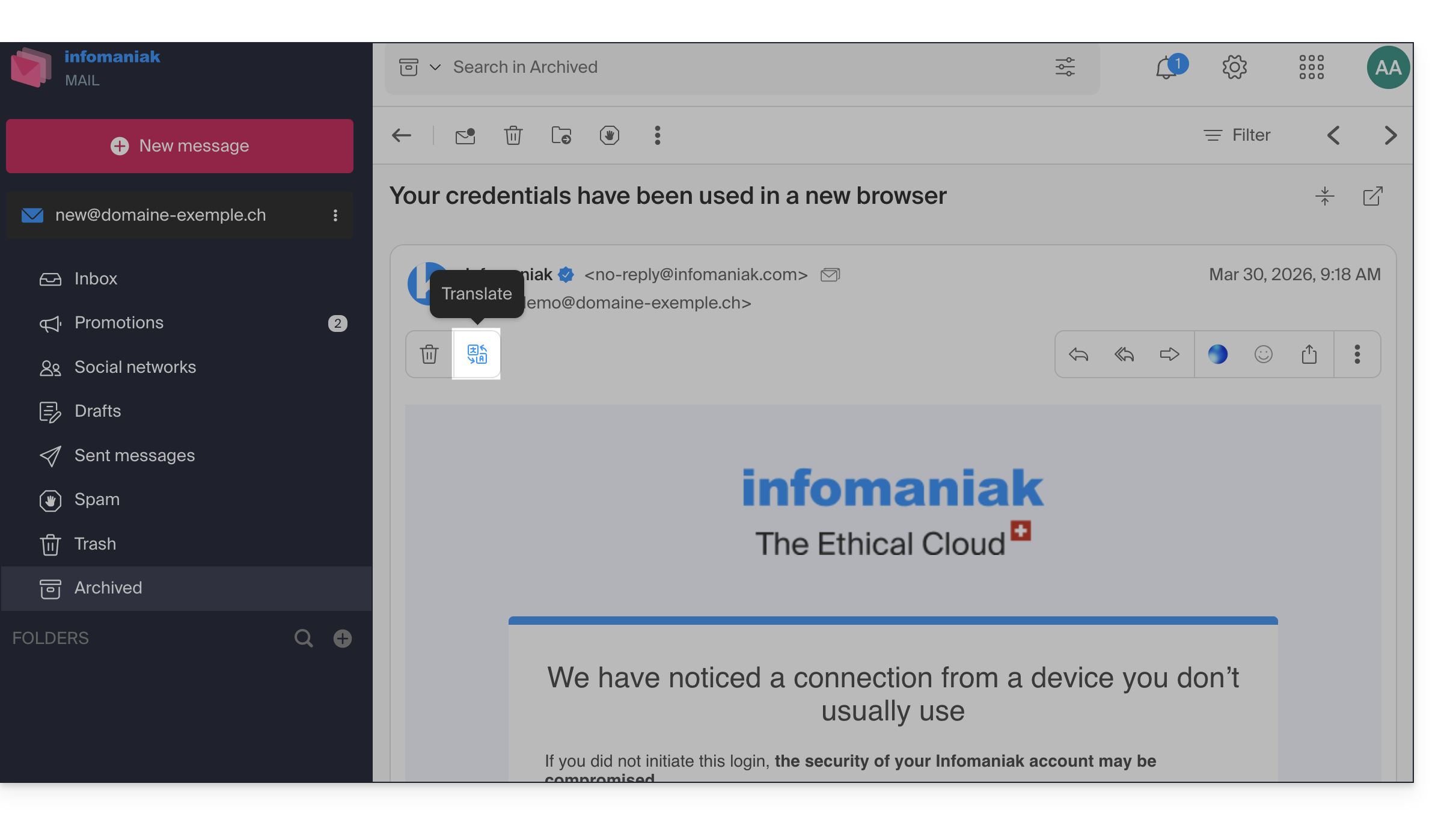
- In this case, you can translate an email from the toolbar of the received message:
Disable the translator
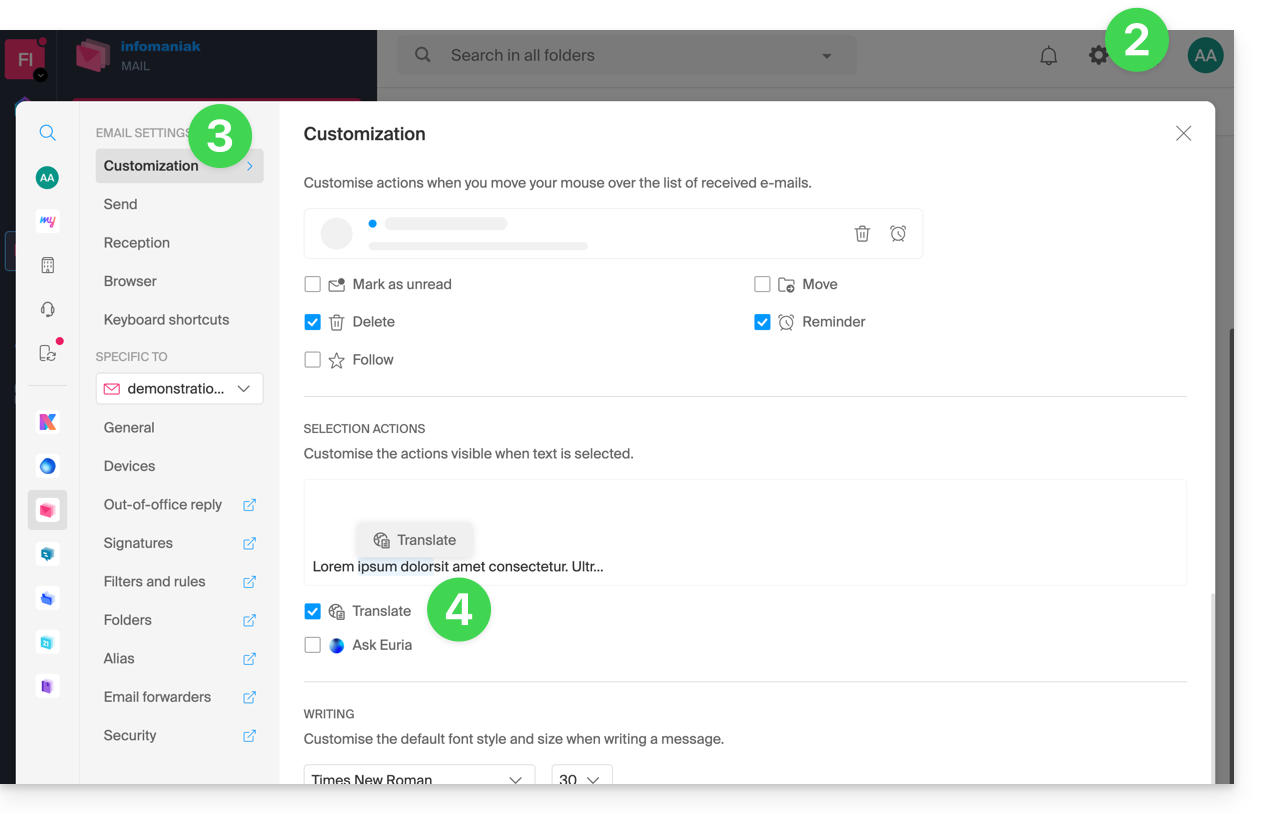
You can configure the elements (translations / Euria) that are displayed when you click on your message:
- Click here to access your emails on your Infomaniak kSuite (❓: help).
- Click on Settings in the top right corner.
- Click on Customization in the left-hand menu.
- Check or uncheck the actions you want to trigger with a click:
Link to this FAQ: https://faq.infomaniak.com/1215
Has this FAQ been helpful?