Knowledge base
1000 FAQs, 500 tutorials and instructional videos. Here, there are only solutions!
Manage Mail Infomaniak notifications
Update 10/13/2026
This guide explains how to receive notifications when new emails arrive using the Mail Infomaniak web app (online service ksuite.infomaniak.com/mail).
Introduction
- The Infomaniak Mail web app is compatible with browsers such as Chrome, Edge, Firefox, Opera, Safari, etc., which offer visual alerts when a new message arrives in the background.
- The Infomaniak Mail mobile app (iOS / Android) also allows you to take advantage of your mobile device's notification capabilities (❓: help).
Display a notification in the browser
To enable browser notifications when a new message arrives:
- Click here to access your emails on your Infomaniak kSuite (❓: help).
- Click on Settings in the top right corner.
- Click on Browser in the left-hand menu.
- Activate the toggle switch to Display a notification when new emails are received:
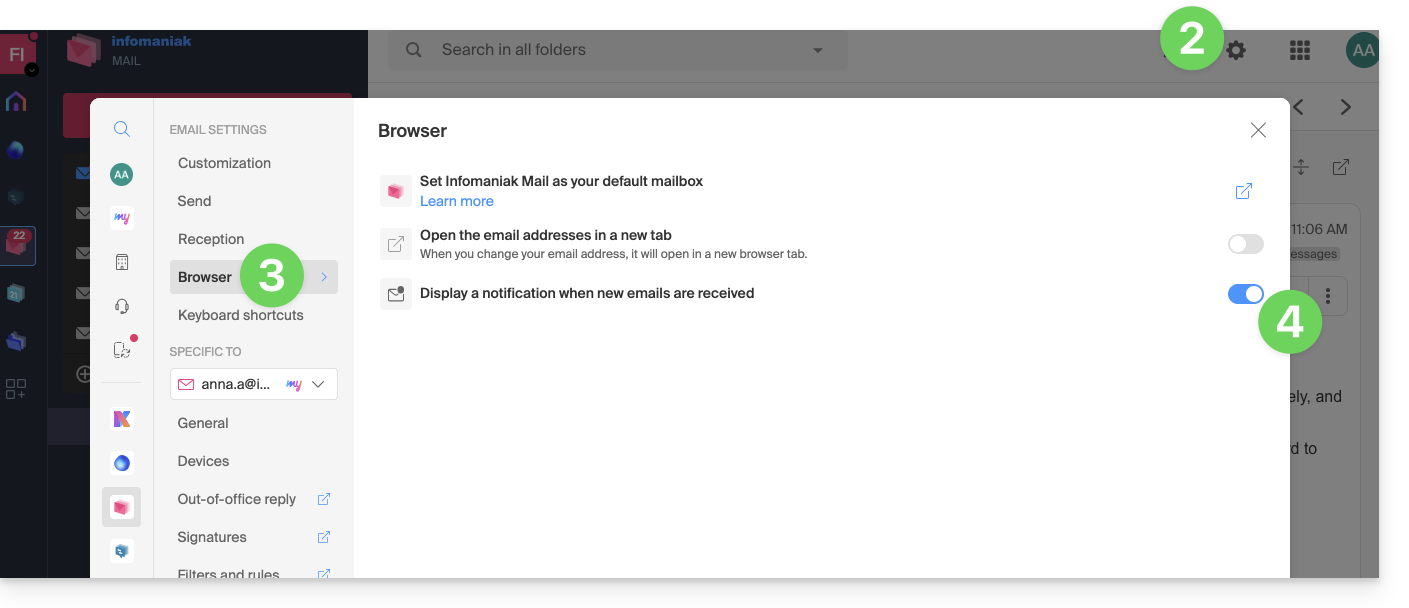
To disable this feature, toggle the button off.You will also need to remove the notification permission directly in the browser (see its editor's documentation).
Allow browser notifications…
… on Safari (❓: help)
- Open Safari.
- Click on Preferences and select Websites, then Notifications.
- Find the ksuite.infomaniak.com/mail website and select Allow.
… on Firefox (❓: help)
- Open Firefox.
- Go to the main menu and select Preferences or Settings.
- In the left-hand panel, go to Privacy & Security.
- Scroll down to the Permissions section.
- Click on the Settings button to the right of Notifications.
- Go to ksuite.infomaniak.com/mail and select Allow.
… on Google Chrome (❓: help)
- Open Google Chrome.
- Click on the More ⋮ menu in the top right corner, then click Settings.
- Go to Privacy and Security, then click on Site Settings.
- Click on Notifications and choose to allow notifications:
- Allow a site: next to the Allow option, click on Add. Enter the URL: https://ksuite.infomaniak.com/mail, then click on Add.
… on Microsoft Edge
- Open Microsoft Edge.
- Click on the menu in the top right corner, then click on Settings.
- Go to the Cookies and site permissions menu.
- Click on Notifications:
- Allow a site: next to the Allow option, click on Add. Enter the URL: https://ksuite.infomaniak.com/mail, then click on Add.
Link to this FAQ: https://faq.infomaniak.com/1168
Has this FAQ been helpful?