Knowledge base
1000 FAQs, 500 tutorials and instructional videos. Here, there are only solutions!
Access the server via FTP using an application
This guide explains how to manage files on a Web Hosting account using an FTP software/client.
Introduction
- To easily and quickly manage the files on your web hosting without having to install an application or enter FTP credentials, use the Web FTP (❓: help) in the Manager (it allows you to change file ownership and compress/decompress
zipfiles). - Regarding protocols supported by Infomaniak (FTP, SFTP, etc.) depending on your hosting plan (Starter, Node.js, etc.), please refer to this other guide.
Settings to provide for FTP software
Prerequisites
- Create an FTP / SSH account (❓: help).
- Install an FTP software/client such as Filezilla, Cyberduck, Commander One, Transmit, etc.
Regardless of the FTP software/client you use, the 3 essential parameters for configuring FTP access are always:
- Hostname: FTP server address
- username: FTP account name
- password: FTP account password
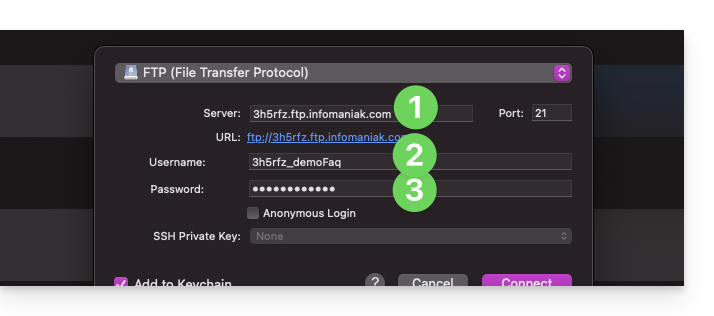
Get your hosting login details
You can find all the information in your Infomaniak Manager:
- Click here to access the hosting & website management section in your Infomaniak Manager (❓: help).
- Click on the name of the relevant hosting.
- Click on FTP (or FTP / SSH) in the left-hand menu.
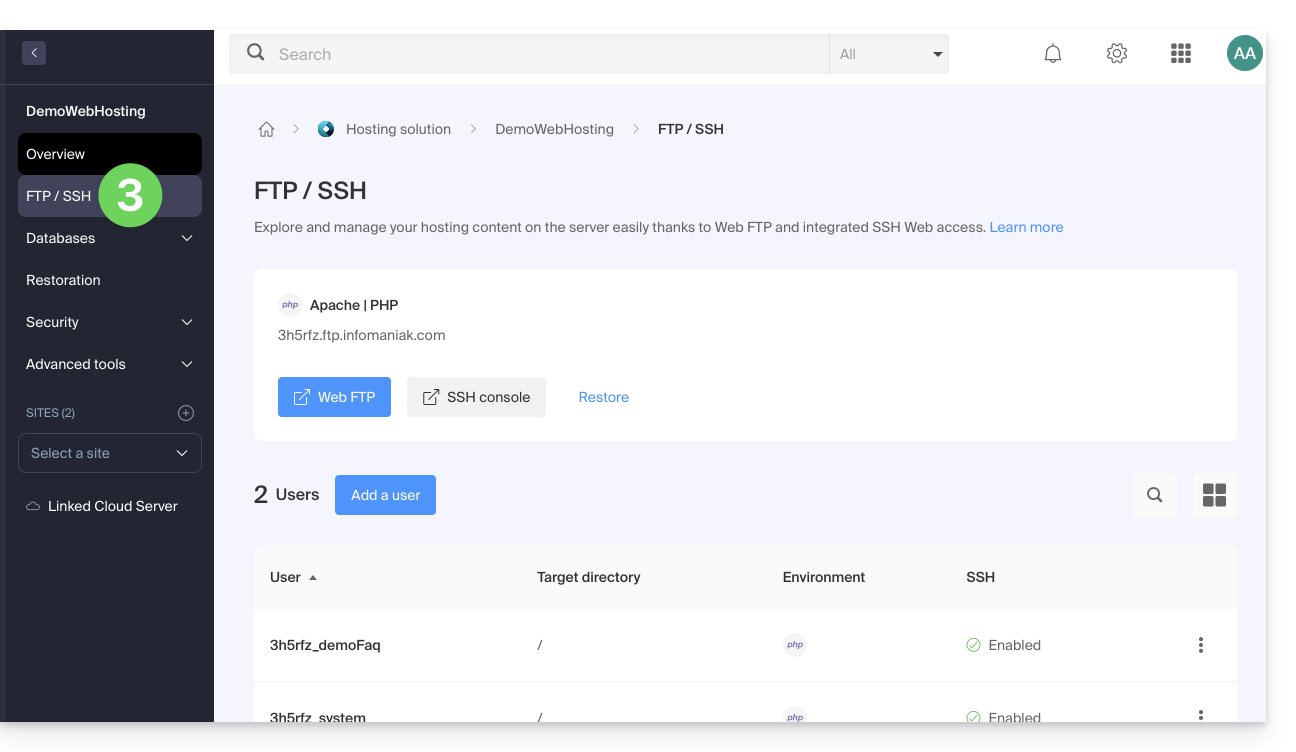
1. FTP hostname
The hostname to use in your FTP software/client is specified at the top of the page obtained in step 3 above, and an icon allows you to copy the address to the clipboard.
Starter plan - basic web page
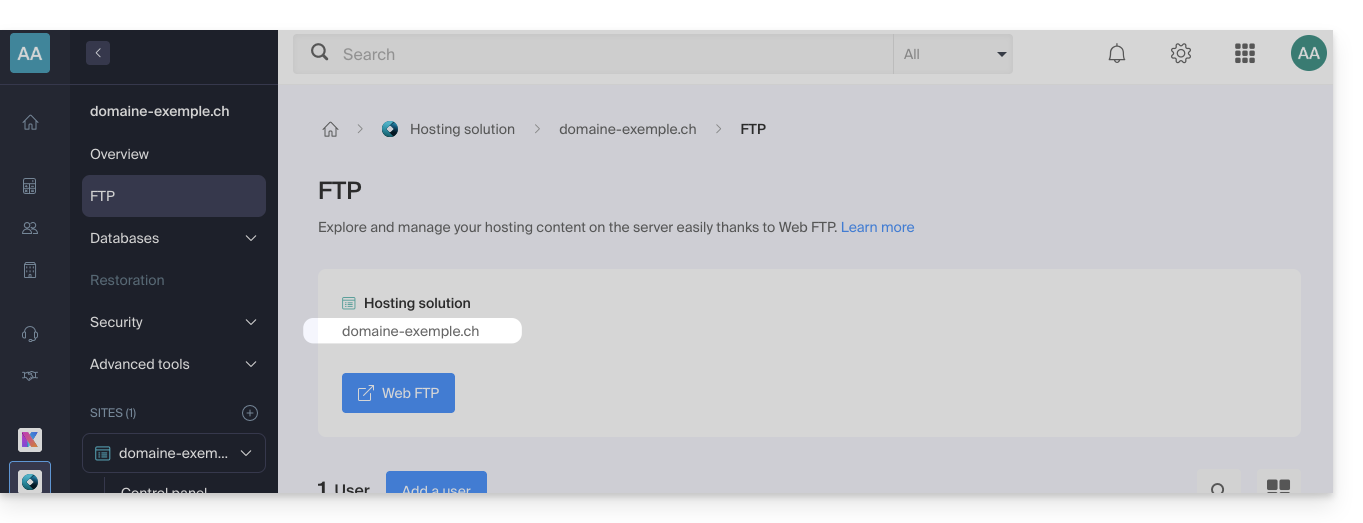
If the domain indicated is not working (e.g., it does not point to the hosting's IP address), use the IP address as the hostname, in the format 123.45.678.123 (refer to this other guide).
Paid Web Hosting
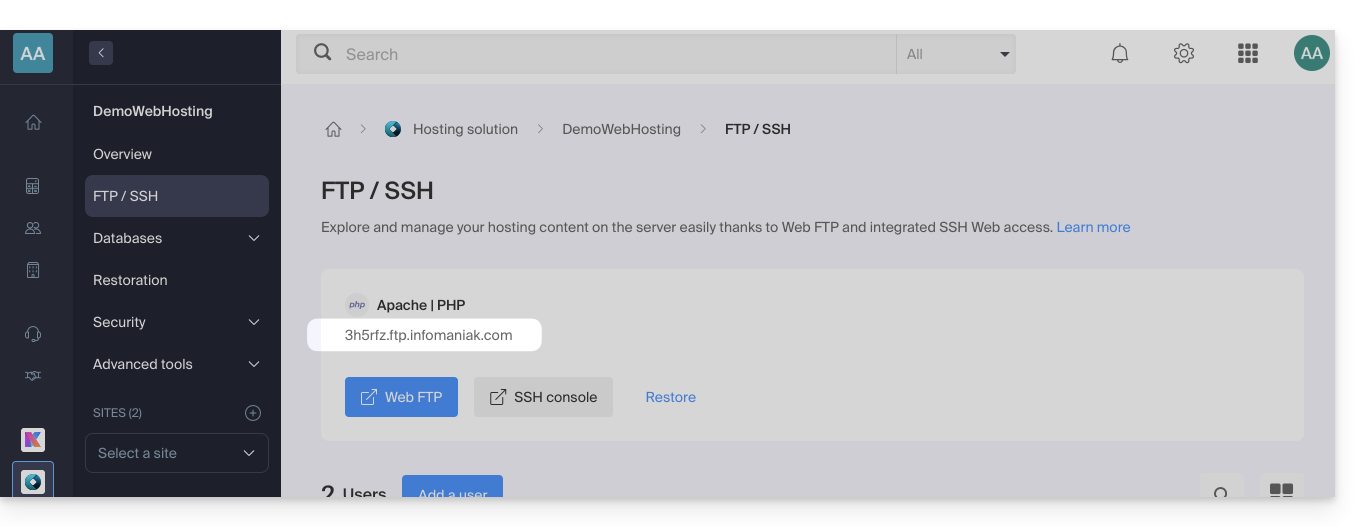
Use the hostname in the format xyzb.ftp.infomaniak.com, for example.
2. FTP Username
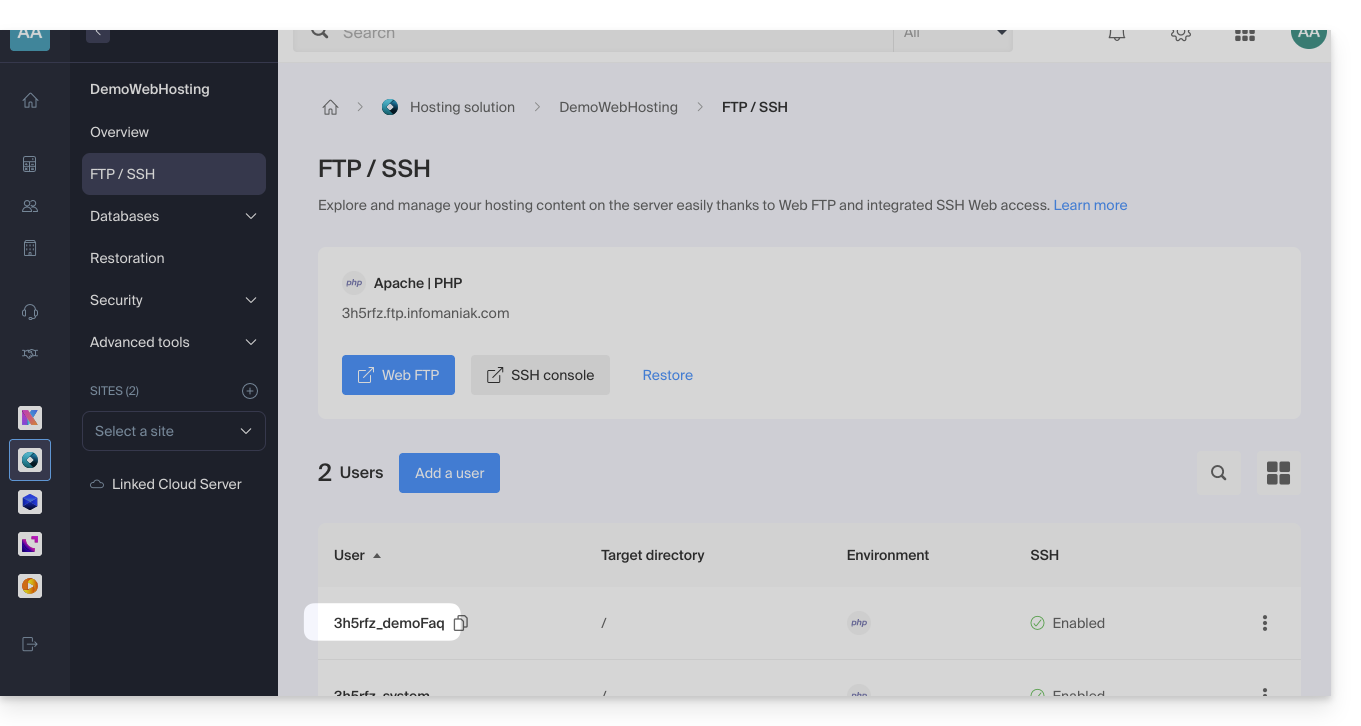
The username is the name of the account to be created in your Manager: xyzb_abcdefg for example.
3. FTP user password
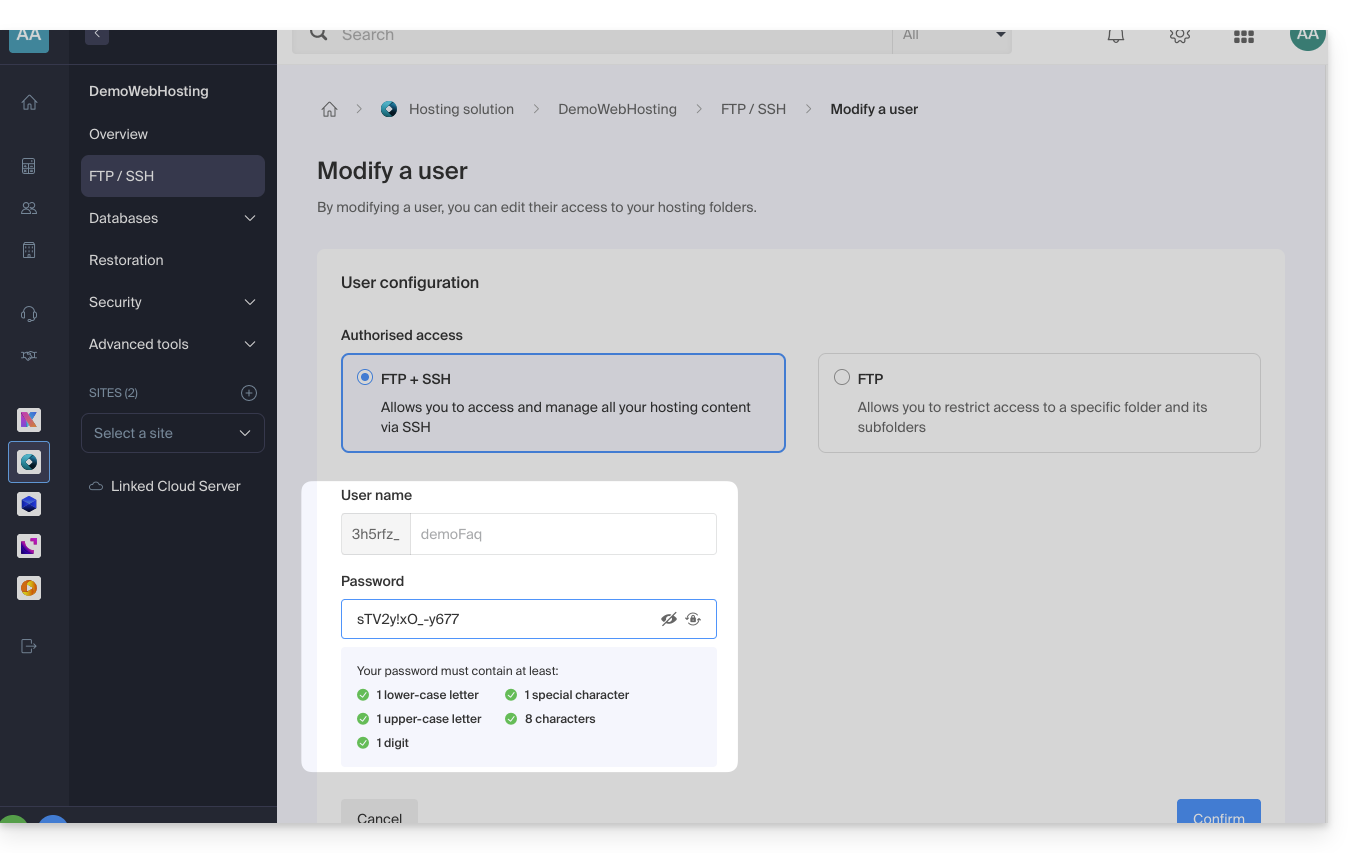
The FTP user password is set by the creator of the FTP account. If you forget it, edit the FTP account by clicking on it and set a new password.
It is not possible to display an existing password; you must set a new password if you no longer have the currently defined password.
Once the connection is established…
After entering the 3 required parameters, your FTP application should display the file structure of your hosting account: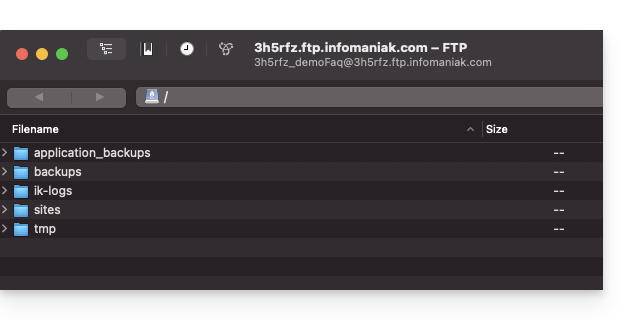
Link to this FAQ: https://faq.infomaniak.com/1083
Has this FAQ been helpful?