Knowledge base
1000 FAQs, 500 tutorials and instructional videos. Here, there are only solutions!
Show all email addresses in Mail Infomaniak
Update 08/04/2026
This guide explains how to centralize the display of your various Infomaniak email addresses when you have multiple accounts and email services.
Display email addresses from all your Organizations
One approach is to display the global Mail web app for all Organizations to which your Infomaniak account is linked:
- Click here to access the Infomaniak Mail web app (online service ksuite.infomaniak.com/mail).
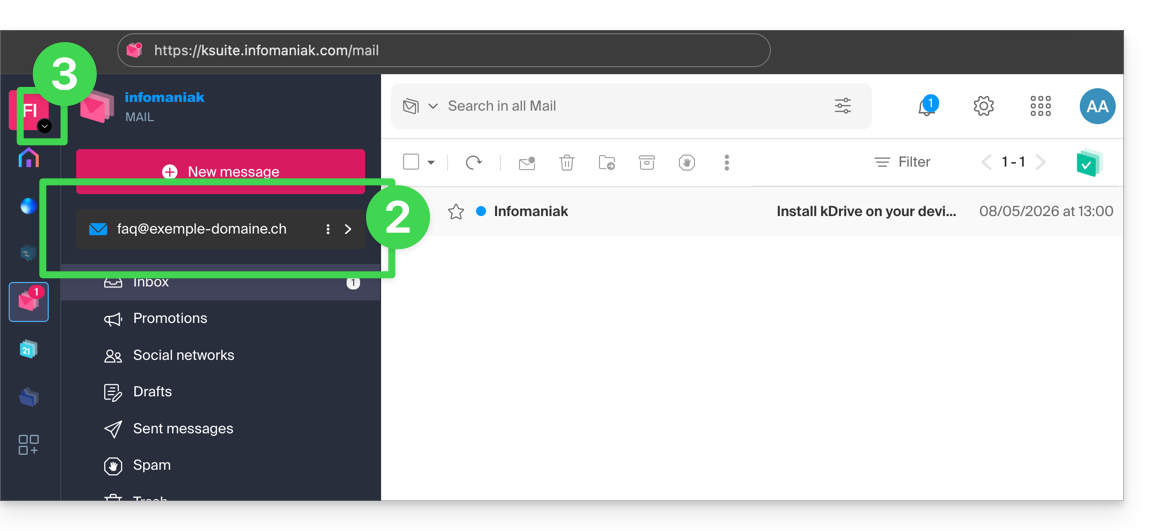
- Then, click on the chevron to the right of the displayed email address.
- The other addresses of the Organization for which you have permission will be displayed.
- If you have access rights to other existing addresses on other Organizations that your user has access to, click on the chevron to the right of the active Organization:
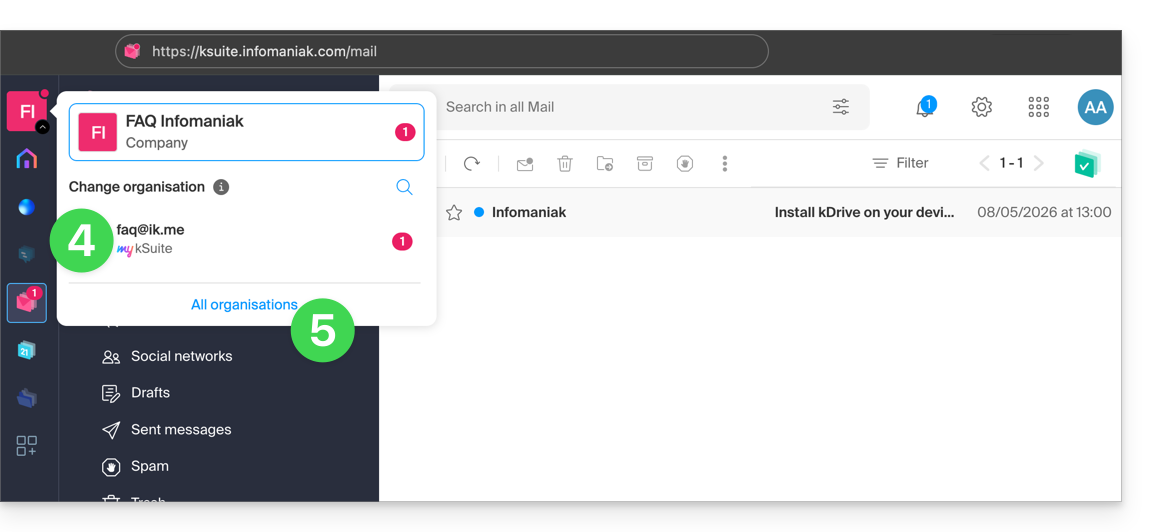
- You can click on another Organization (my kSuite, for example) to display only that specific email address…
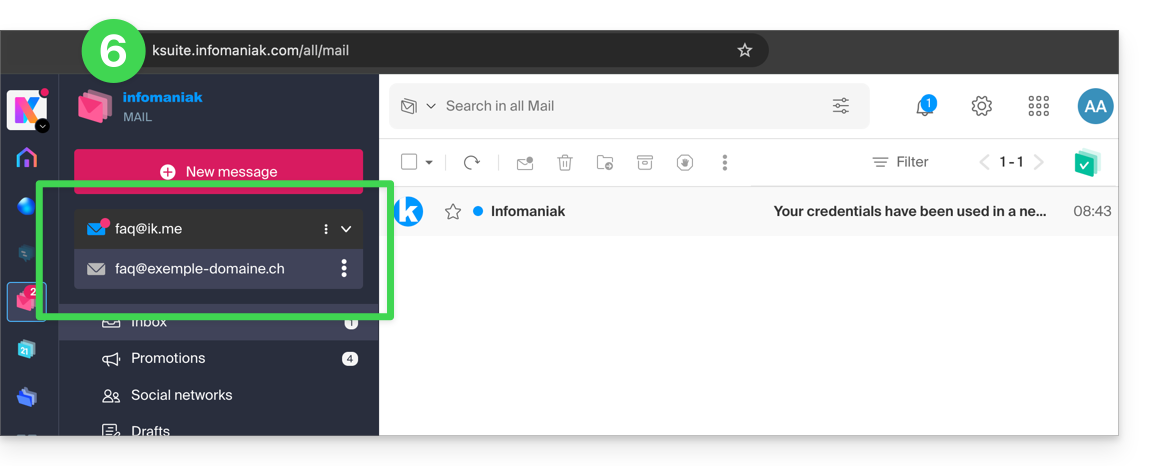
- Or, you can click on All Organizations to display all email addresses in the interface:
- The shortcut for this common view is https://ksuite.infomaniak.com/all/mail:
If an email address you know is not visible:
- Check in the top right corner that you are logged in with the correct Infomaniak account.
- If you are the administrator of the address,make sure you have correctly added the address to Mail Infomaniak.
- Otherwise, check with the administrator of the email address to ensure that, with your current Infomaniak account login credentials, you have the necessary access rights to that email address.
If, on the other hand, you want to remove an address from the list, please refer to this other guide.
Link to this FAQ: https://faq.infomaniak.com/108
Has this FAQ been helpful?