Knowledge base
1000 FAQs, 500 tutorials and instructional videos. Here, there are only solutions!
Create and define a default calendar in Infomaniak Calendar
Update 10/12/2026
This guide explains how to create an additional calendar in the Infomaniak Calendar web app (online service ksuite.infomaniak.com/calendar) and then set it as the default.
Introduction
- Defining a default calendar, for example, allows you to speed up the creation of new events because you will no longer need to change the calendar in which your next event will be saved each time.
- You can only set as default calendars that you directly own.
Add a new calendar
To create an additional calendar:
- Click here to access the Infomaniak Web app Calendar (online service ksuite.infomaniak.com/calendar).
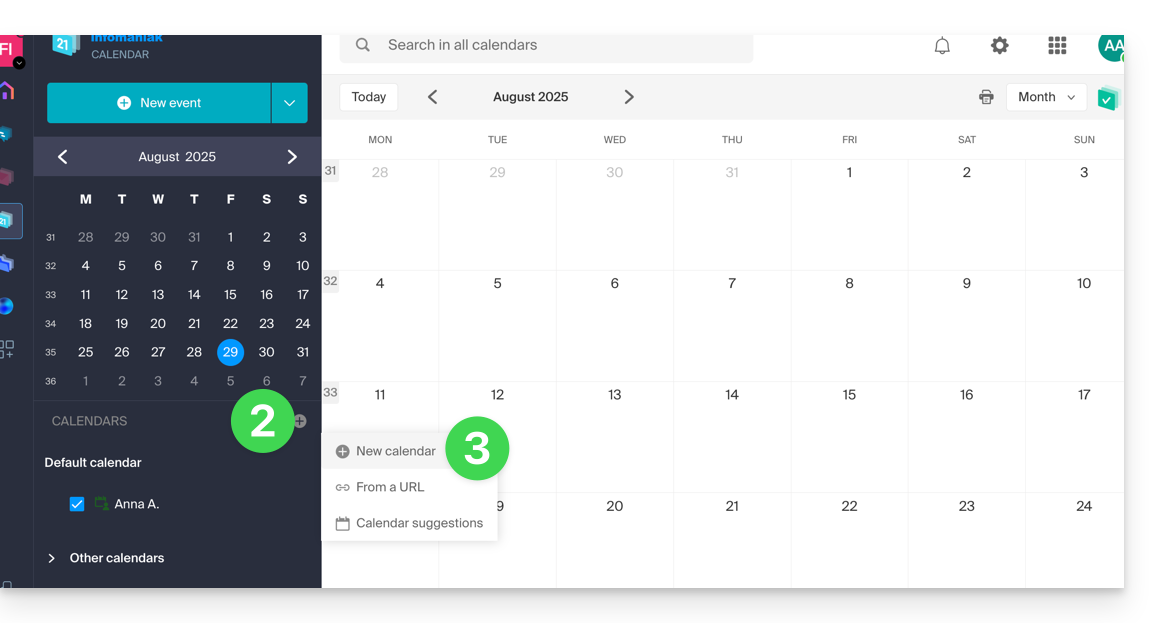
- Click on in the left-hand menu.
- Click on New calendar:
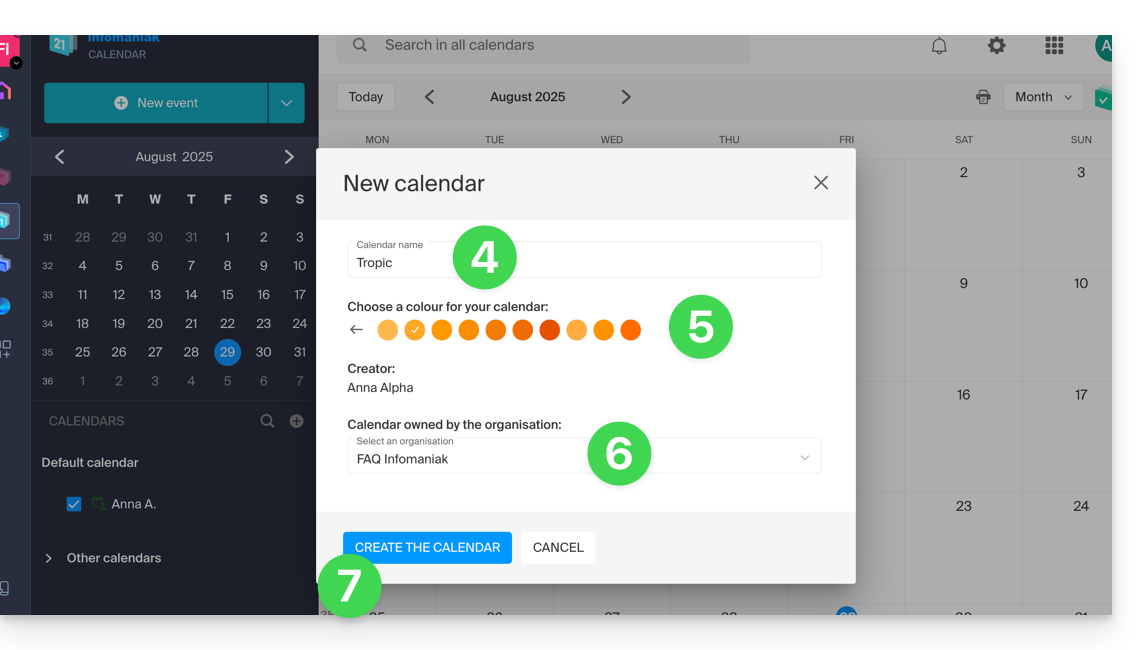
- Enter a name for the calendar.
- Choose a color.
- Choose one of your Organizations in which to create the calendar.
- Click the button to create the calendar:
Modify the default calendar
To set one of your calendars as the default:
- Click here to access the Infomaniak Calendar web app (online service ksuite.infomaniak.com/calendar).
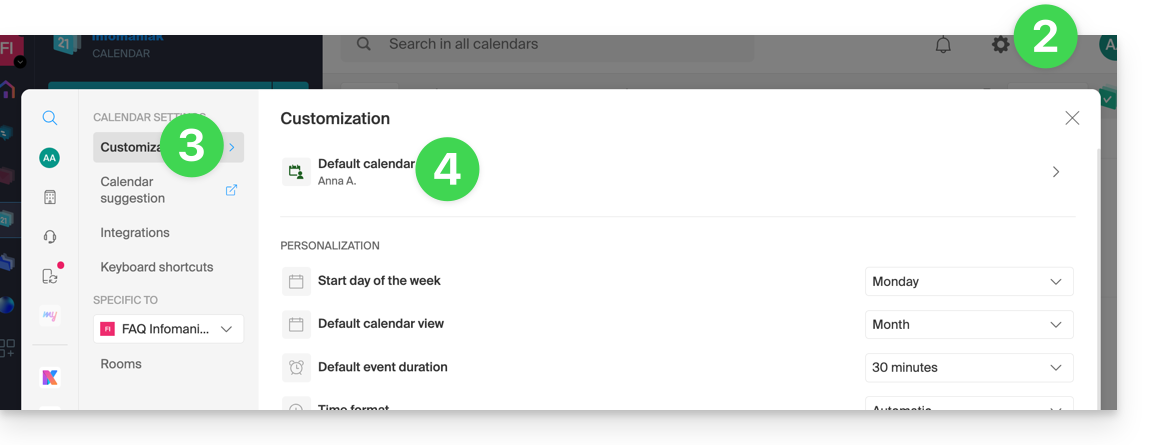
- Click on Settings in the top right corner.
- Click on Customization in the left-hand menu.
- Click on the default calendar to open the selection menu:
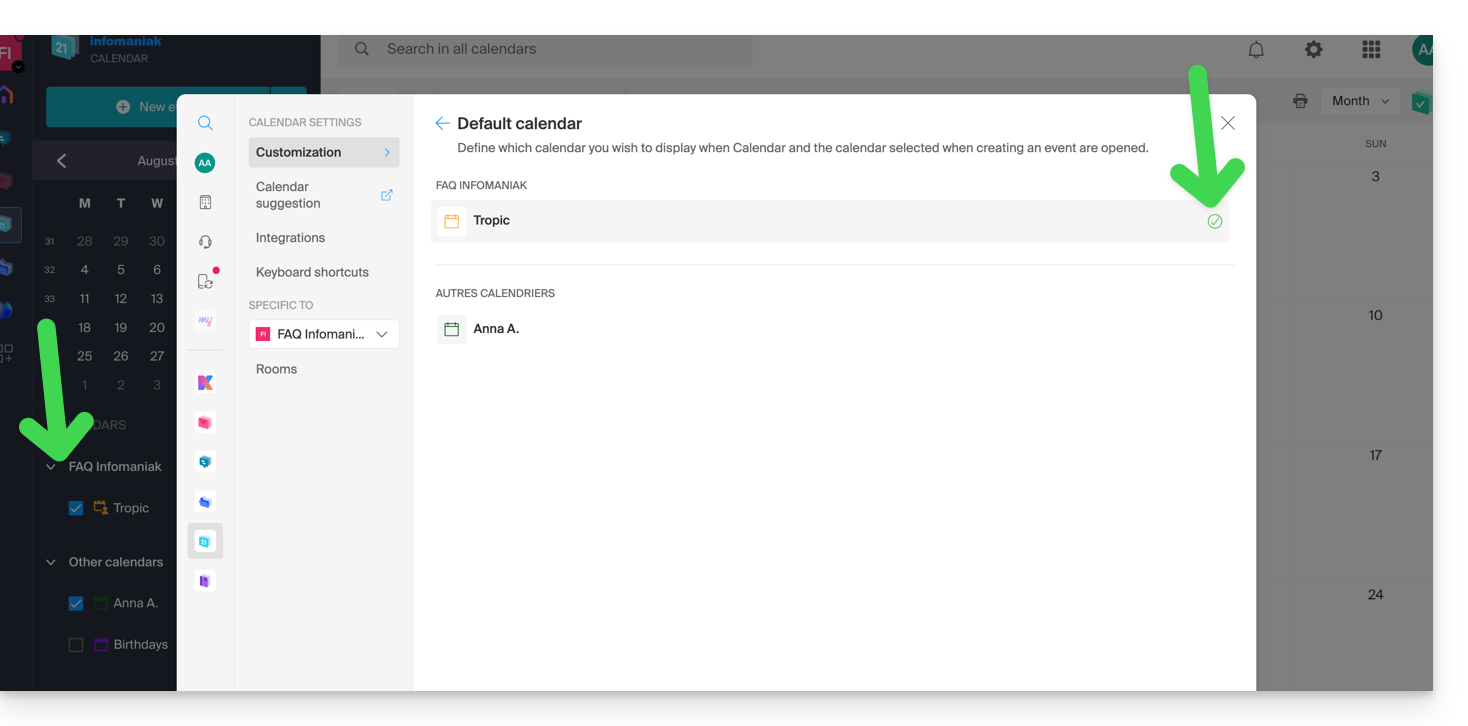
- Choose the desired calendar in the Default Calendar field; it will be placed in the first position in your calendar lists:
Link to this FAQ: https://faq.infomaniak.com/1078
Has this FAQ been helpful?