Knowledge base
1000 FAQs, 500 tutorials and instructional videos. Here, there are only solutions!
Display and forward email headers
This guide explains how to view and forward email headers.
Introduction
- An email consists of a header (
header) and the actual content of the message (body). - Most email software/clients do not directly display the headers, but displaying or forwarding them allows Infomaniak support to identify the problems encountered.
- Email headers (= source) provide various information, such as:
- the sender
- the recipient
- the date
- the subject
- the servers involved in the transmission between the sender and the recipient:
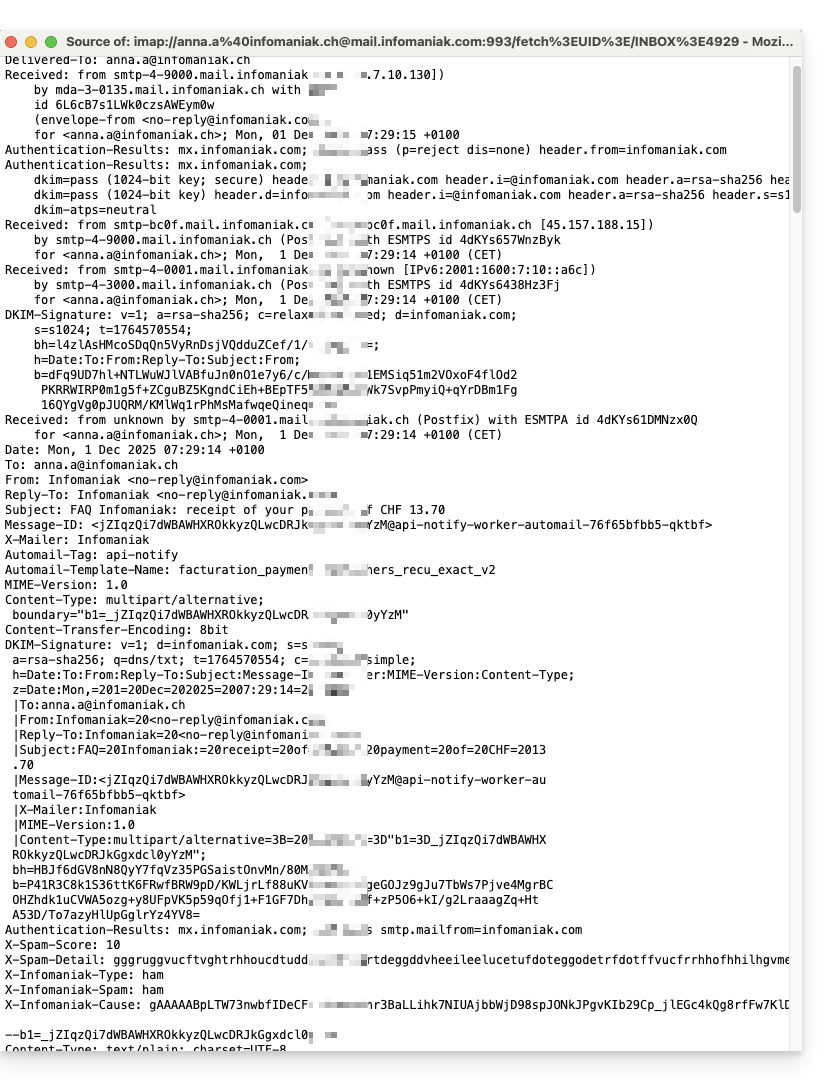
Display headers in Mail Infomaniak
To view the headers of an email from the Infomaniak Mail interface:
- Click here to access the Infomaniak Mail web app (online service ksuite.infomaniak.com/mail).
- Open the relevant message and click on the action menu ⋮ on the right.
- Click on the menu for other actions.
- From the menu that appears, select View Headers:
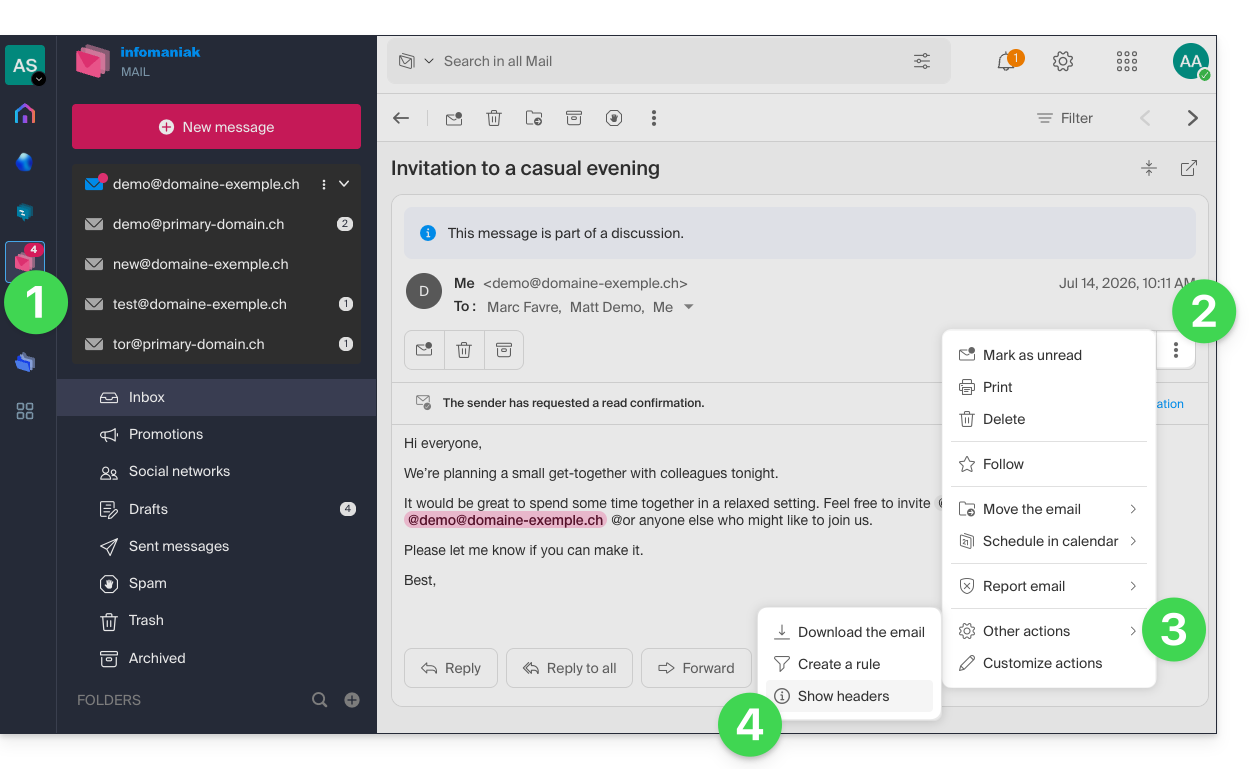
- Repeat the operation to hide them:

To display headers using external email software/clients, please refer to this other guide.
Forwarding email headers
To forward the headers of an email, in response to a support request or to the recipient of your choice, simply…
- …copy and paste the headers displayed using the method described above.
- … forward the email message.
However, to ensure that the headers are included, it is essential to forward the message not in the body of the message, but as an attachment only. The attached email will typically be in .eml format, and this file contains all the necessary headers.
A third method for fully transmitting emails is explained in this other guide.
Link to this FAQ: https://faq.infomaniak.com/1055
Has this FAQ been helpful?