Knowledge base
1000 FAQs, 500 tutorials and instructional videos. Here, there are only solutions!
Export an SSL certificate
This guide explains how to download or export an SSL certificate from the Infomaniak Manager.
Introduction
- Downloading the certificate produces a file in
.zipformat. - The archive contains the
.keyand.crtfiles (as well as_windows.pfx&.protected.keydepending on the certificate type):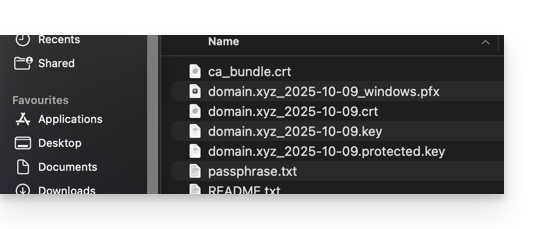
- It is recommended to store this certificate and its private key in a secure location, as the latter could be used to access your encrypted data.
Export or download an SSL certificate
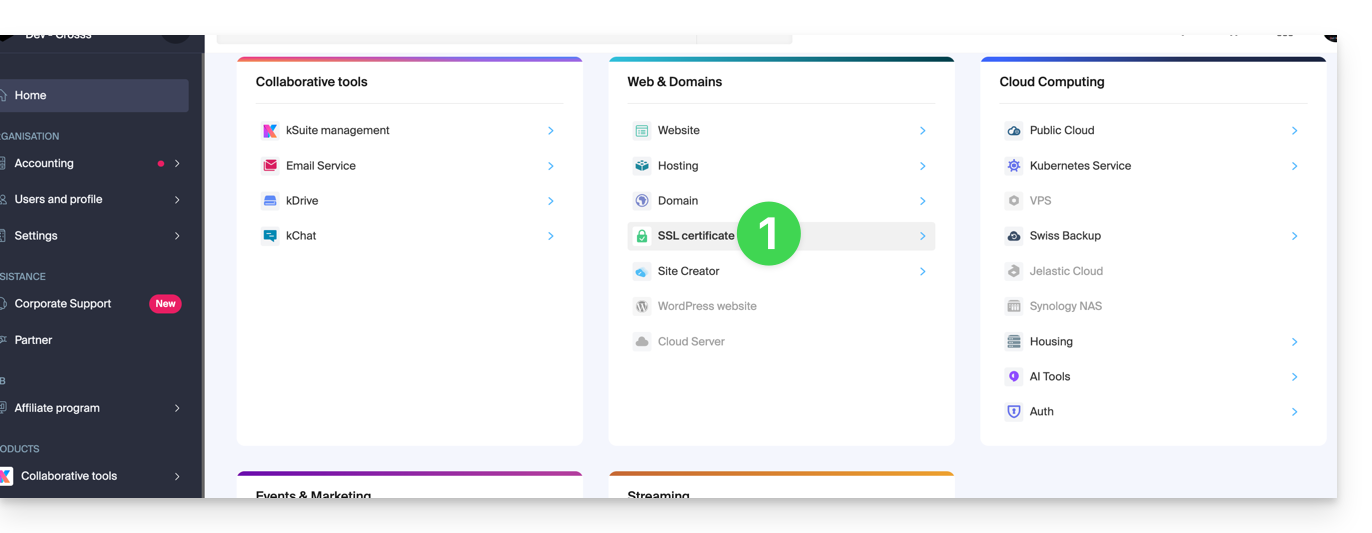
To access your certificate management:
- Click here to access your product management in the Infomaniak Manager (need help?):
- Filter your certificate types if needed by clicking on the dedicated icon.
- Display the different types of certificates, such as Let's Encrypt, Sectigo DV & EV...
- Add the certificates that should be displayed.
- Apply the filters:
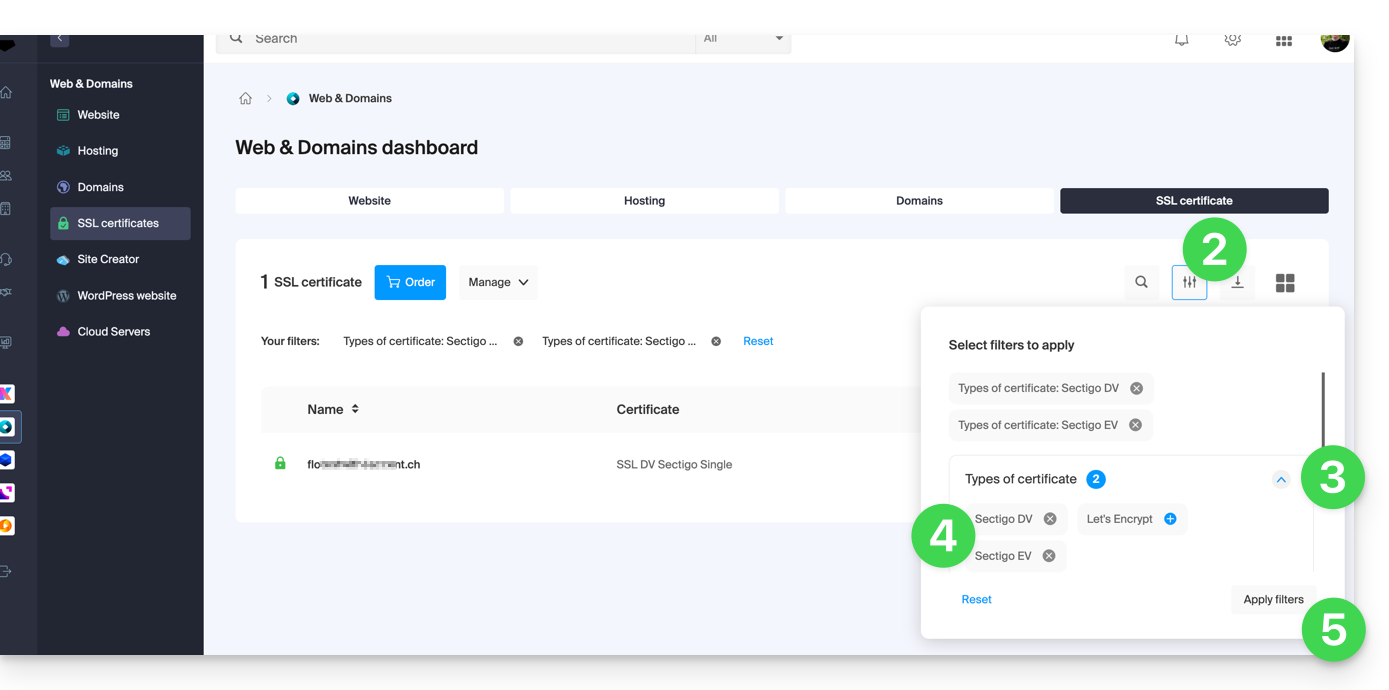
- The table now only displays the certificate types you have selected.
Export a Let's Encrypt certificate
- Click directly on the name assigned to the Let's Encrypt certificate in the list:
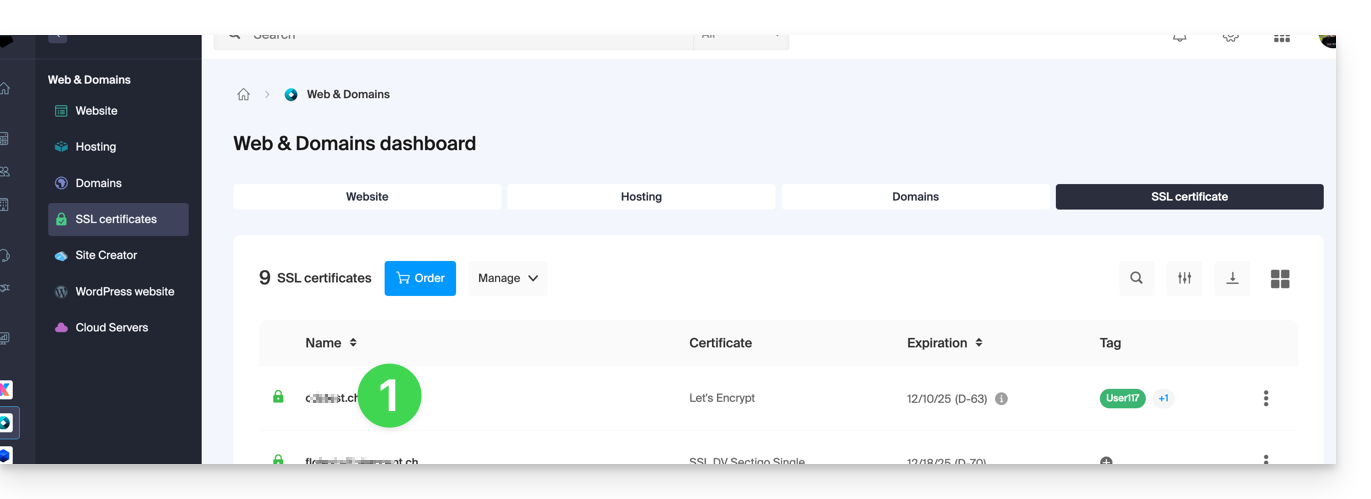
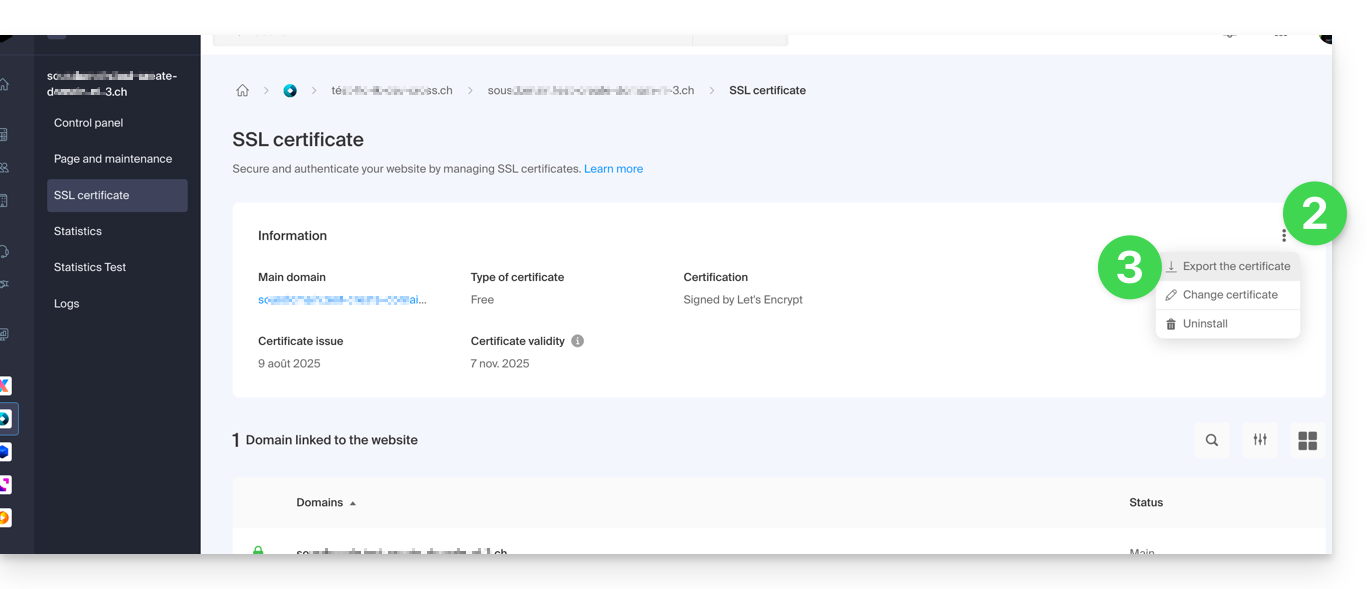
- Click on the action menu ⋮ to the right of the item in question in the table that appears.
- Choose Export the certificate and follow the instructions to download the archive to your device:
Exporting a Sectigo certificate
- Click directly on the name assigned to the certificate in the certificate list.
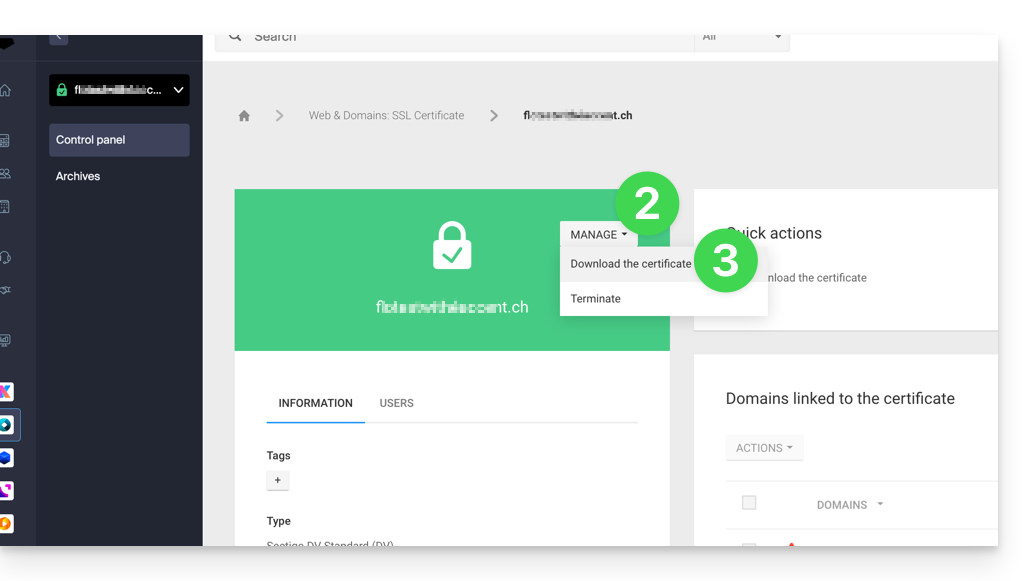
- Click on the Manage button.
- Click on Download the certificate and follow the instructions to download the archive to your device:
Link to this FAQ: https://faq.infomaniak.com/1034
Has this FAQ been helpful?