Knowledge base
1000 FAQs, 500 tutorials and instructional videos. Here, there are only solutions!
Access databases from outside the network
This guide details how to manage access and security for your databases (MySQL, MariaDB, and MongoDB) on a managed Cloud Server.
Introduction
- The firewall is accessible in your Manager even if no Apache site is configured (useful for projects exclusively using Node.js, for example).
- Regarding access to MySQL databases from another Infomaniak web hosting account, please refer to this other guide.
- Regarding MongoDB:
- To ensure the security of your data, the system will block saving if you attempt to disable
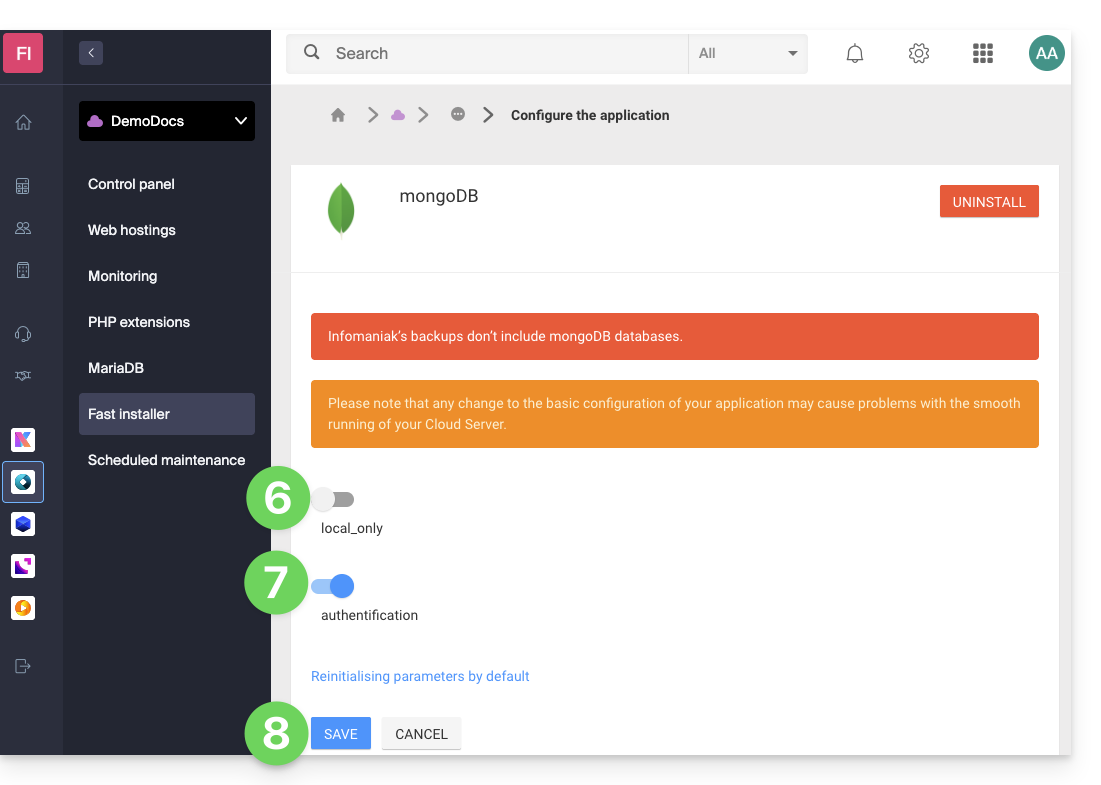
local_onlymode without enablingauthentication. - Infomaniak's automatic backups do not include MongoDB databases.
- To ensure the security of your data, the system will block saving if you attempt to disable
Allow outbound access (Infomaniak → external)
From an Infomaniak Web Hosting or Cloud Server, requests to external databases are allowed by default without any port restrictions.
Allowing incoming access (external → Infomaniak)
To access your databases from outside, you must have a Cloud Server and open the corresponding ports in the firewall of your server:
- MySQL / MariaDB: port
3306(TCP) - MongoDB: port
27017(TCP)
Configure remote access for MongoDB
By default, MongoDB only accepts local connections.
Before making your instance public (remote access), you must create a user within your database.
To enable remote access via Fast Installer, you need to adjust the configuration while adhering to strict security rules.
- Click here to access the management of your Cloud Server in the Infomaniak Manager (need help?).
- Click directly on the name assigned to the Cloud Server in question.
- Click on Fast Installer in the left-hand menu.
- Click on MongoDB.
- Click on the action menu ⋮ to the right of the instance and choose Configure.
- Disable the
local_onlyoption. - Enable the
authenticationoption. - Save the changes:
Link to this FAQ: https://faq.infomaniak.com/1017
Has this FAQ been helpful?