Knowledge base
1000 FAQs, 500 tutorials and instructional videos. Here, there are only solutions!
Manage contacts in Infomaniak Contacts
This guide explains how to add or delete contacts in the Infomaniak Contacts web app address books (online service ksuite.infomaniak.com/contacts).
Add a new contact
To add a new contact entry to an address book:
- Click here to access the Infomaniak Contacts web app (online service ksuite.infomaniak.com/contacts).
- Click on New contact in the top left corner.
- Choose the existing address book to which you want to add the contact:
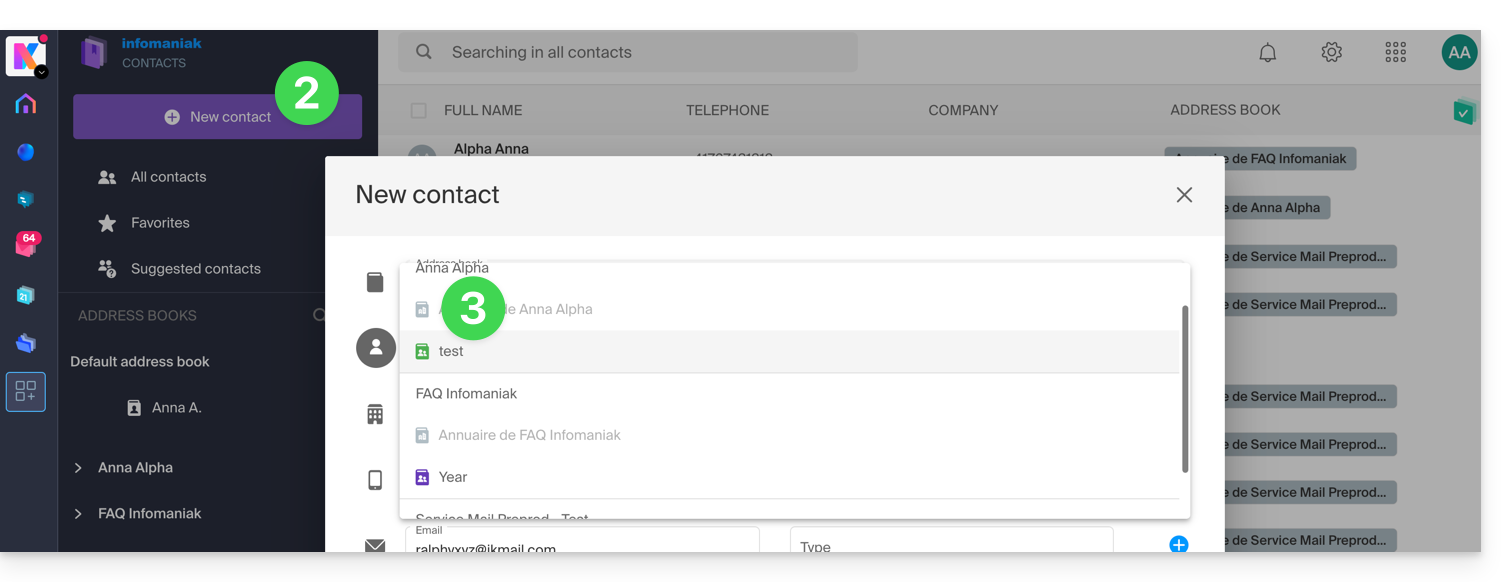
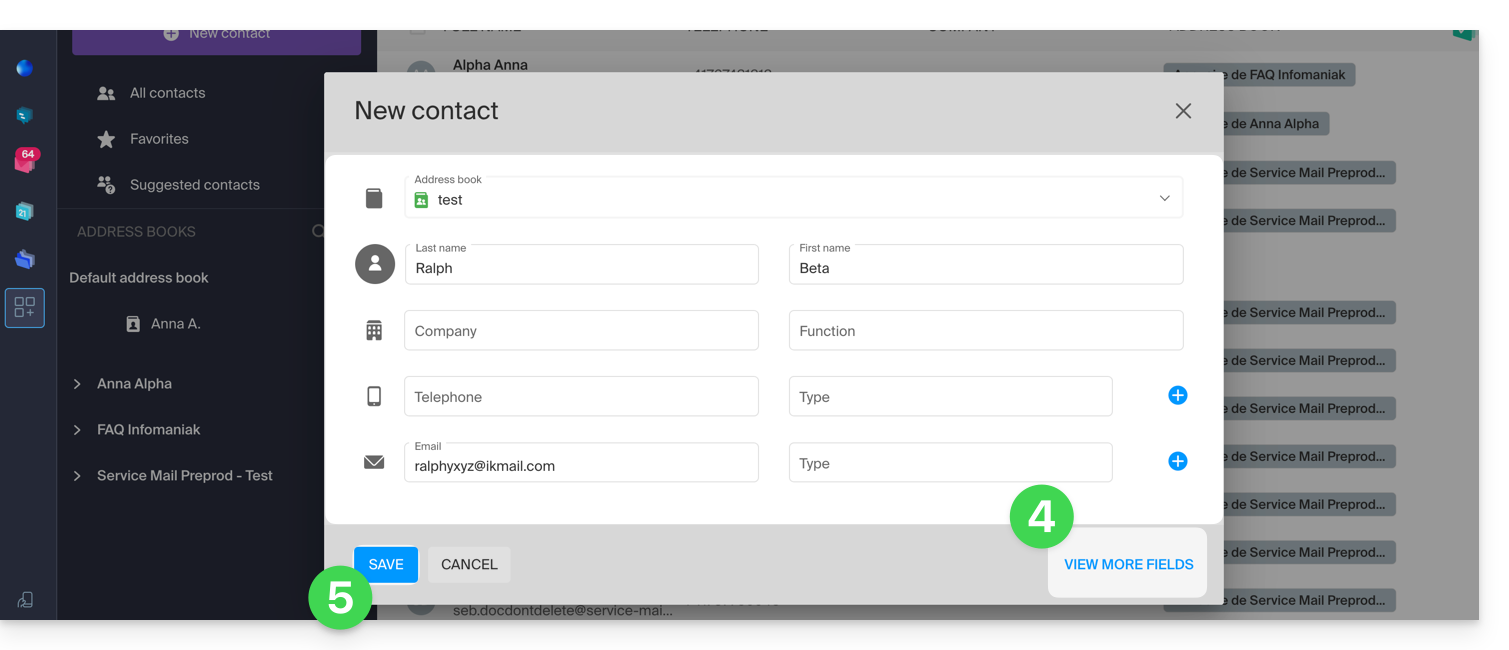
- Fill in the main information (or additional information using the link at the bottom right).
- Validate with the Save button:
Add from frequently used contacts
You can populate an address book from the frequently used contacts suggested by the app (based on your use of the Web Mail app). The name/first name/email will be pre-filled if available:
- Click here to access the Infomaniak Contacts web app (online service ksuite.infomaniak.com/contacts).
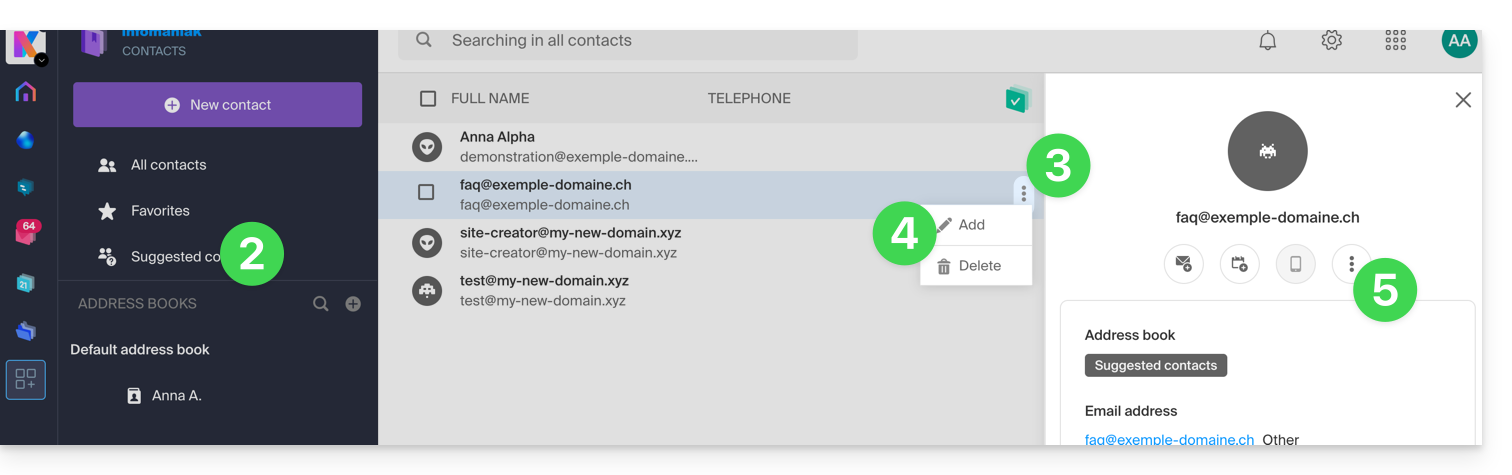
- Click on Suggested contacts in the left-hand menu.
- Click on the action menu ⋮ to the right of the contact in question.
- Click on Add to add the contact to an existing address book.
- You can also click on the action menu ⋮ in the right-hand sidebar:
- Complete the contact information if necessary, then click on Save.
To add all suggested contacts at once:
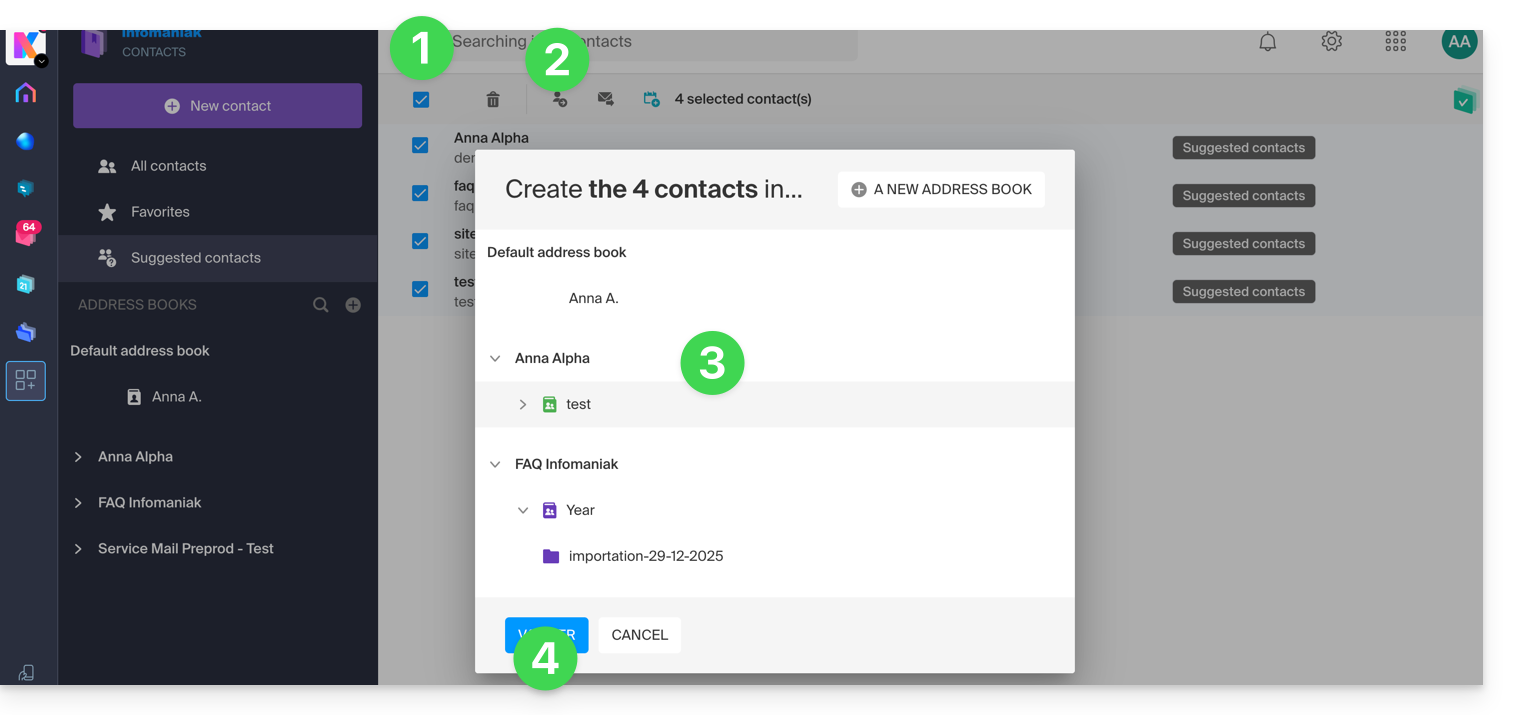
- Click at the top of the column to select all contacts.
- Then click on the icon that appears at the top of the table.
- Choose the existing address book to which you want to add the contacts.
- Click the button to save all selected contacts:
Delete one or more contacts
To remove a contact from your lists:
- Click here to access the Infomaniak Contacts web app (online service ksuite.infomaniak.com/contacts).
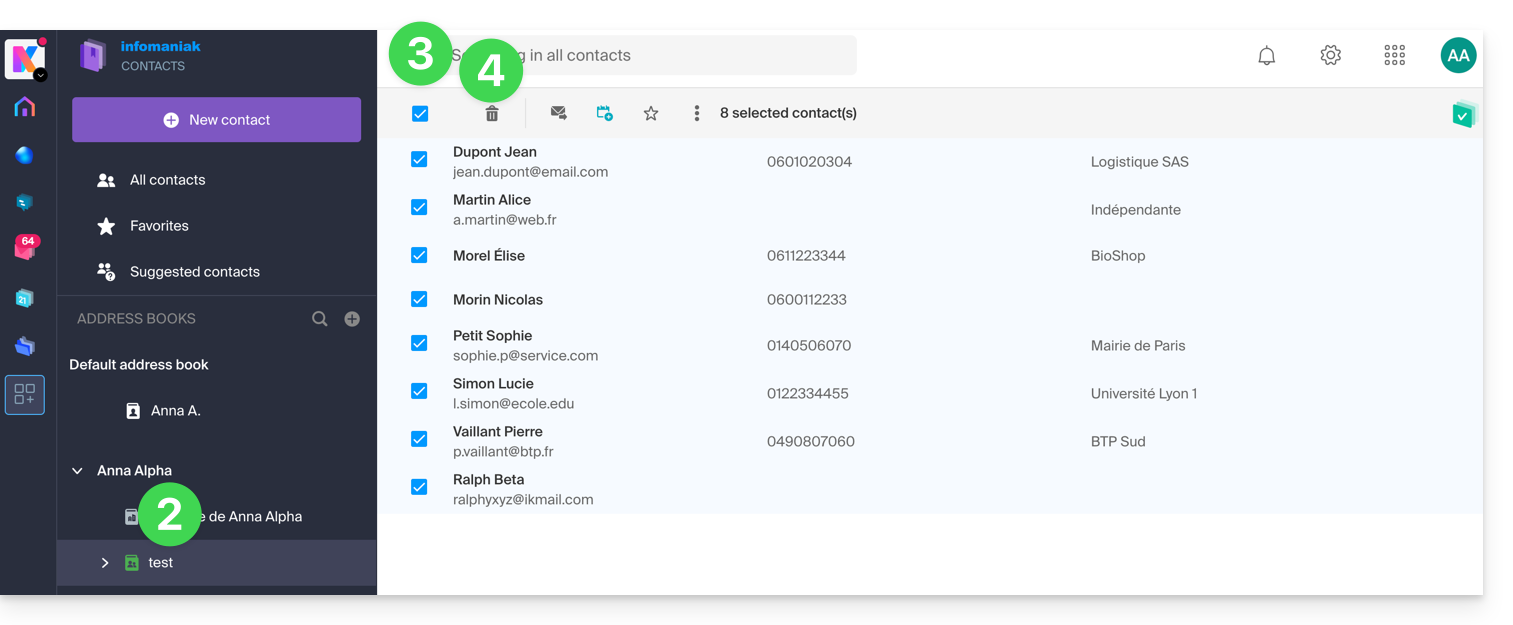
- Select the address book from which you want to delete your contacts:
- Select the contact(s) to delete.
- The Trash Can icon will appear at the top of the column, allowing you to delete the selected contacts:
Please note that displaying all contacts does not always allow deletion, especially if some of them are Organization contacts for which you are not an administrator.
Link to this FAQ: https://faq.infomaniak.com/996
Has this FAQ been helpful?