Knowledge base
1000 FAQs, 500 tutorials and instructional videos. Here, there are only solutions!
Export an email to kDrive
This guide explains how to save an email (as if you were downloading) but directly to your kDrive.
Preamble
- Save in a few clicks a message received on an address of your Infomaniak Mail Service, this in
.emlformat readable directly within your kDrive interface. - To export all emails from an email address, refer to this other guide.
- To export email attachments, refer to this other guide.
Add an email to kDrive…
… from the Infomaniak Mail Web App
To export the email message of your choice to your kDrive:
- Click here to access the Infomaniak Mail Web App (online service ksuite.infomaniak.com/mail).
- Open the email you want to save.
- Then click on the share icon at the top of the concerned message to add to kDrive:
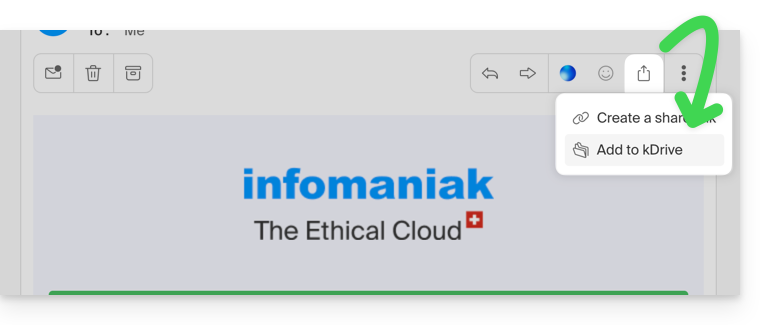
- Then click on the share icon at the top of the concerned message to add to kDrive:
- Otherwise, you can also click on the Add to kDrive icon at the top of the concerned message:
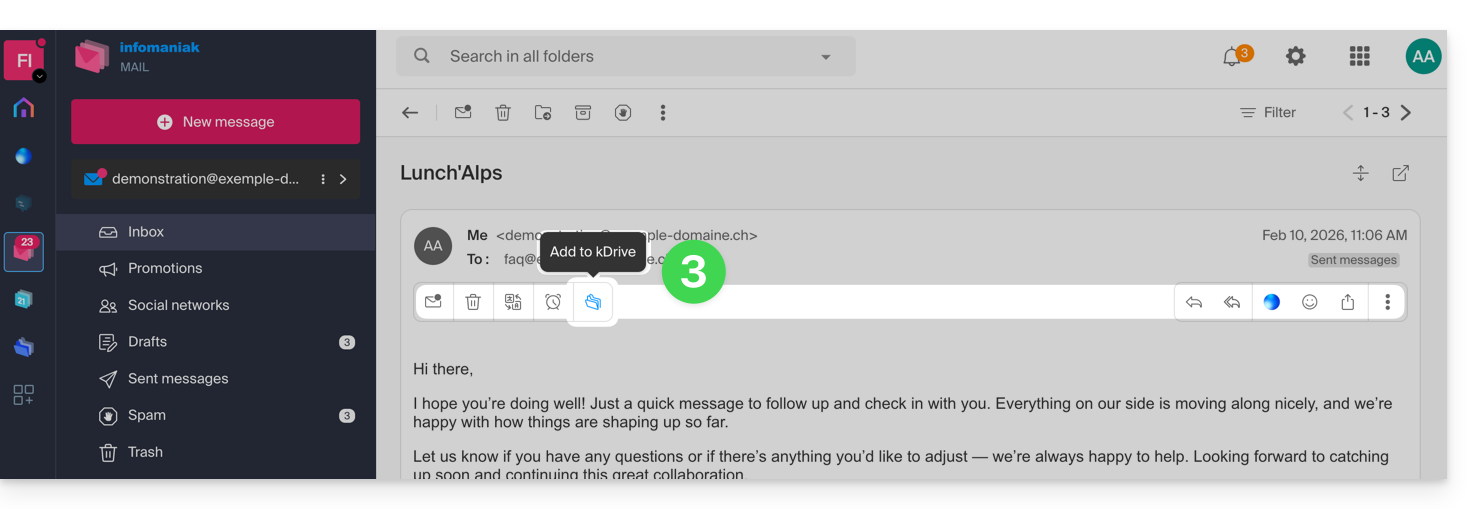
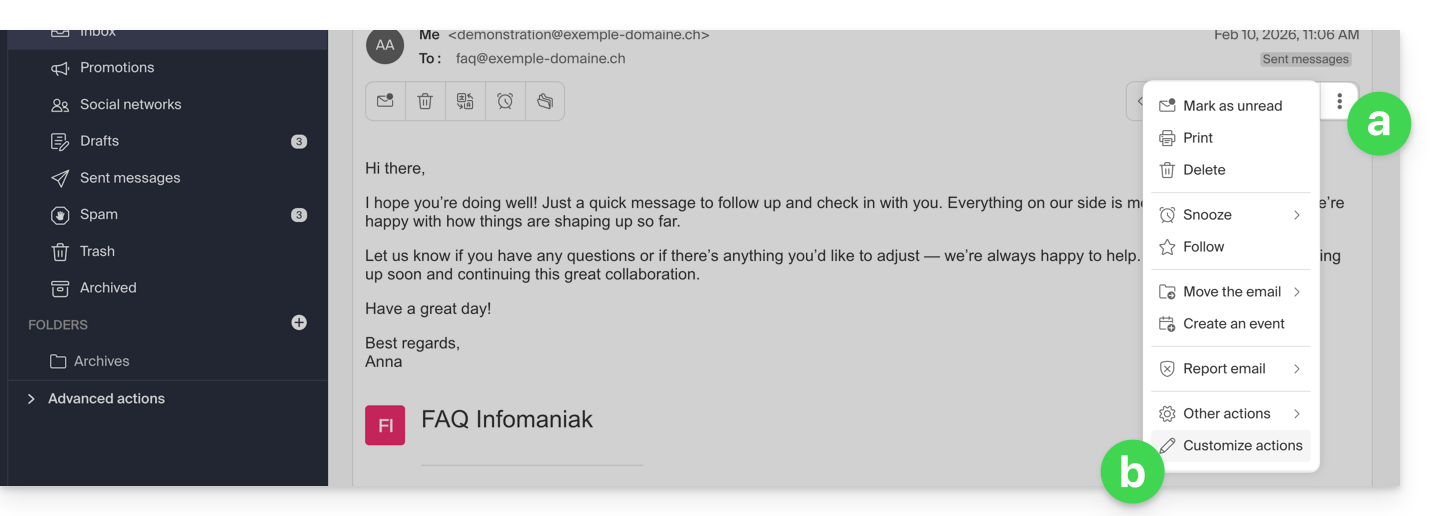
- If the icon is not visible, click on the action menu ⋮ on the right.
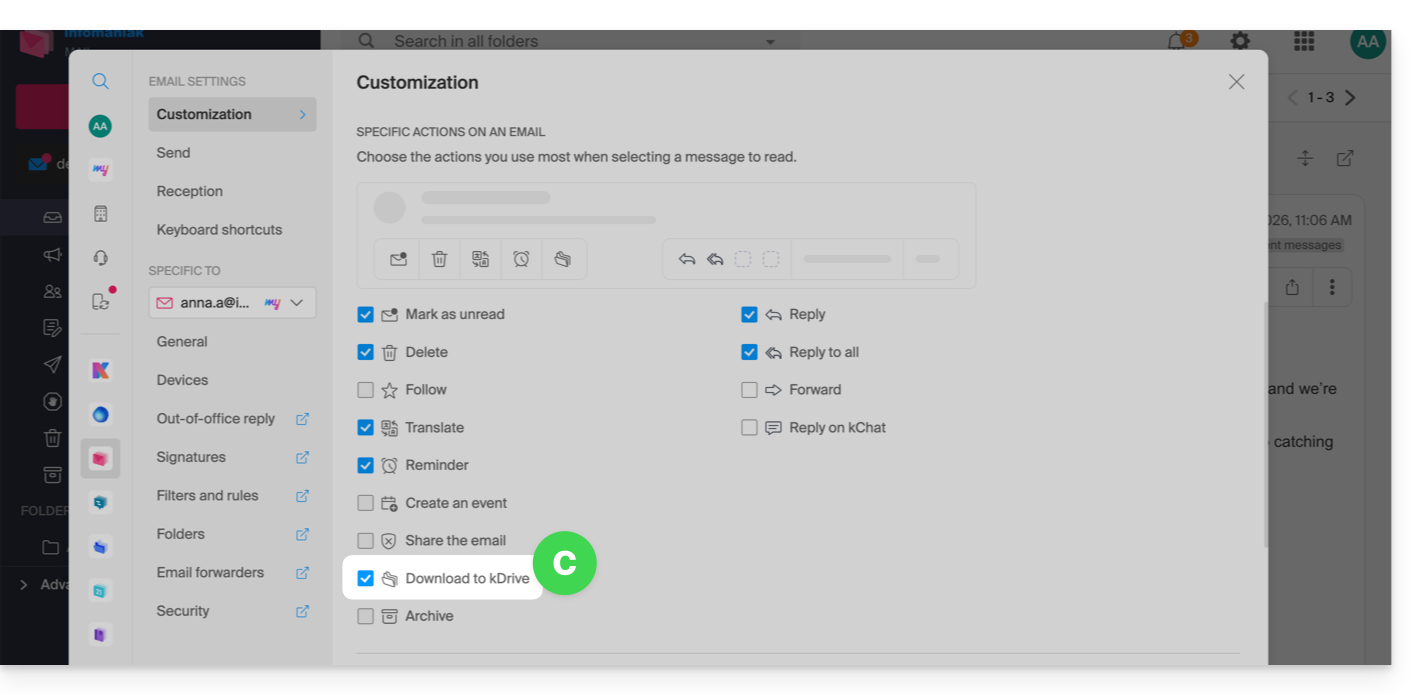
- Then choose to customize the actions:
- to add the desired action:
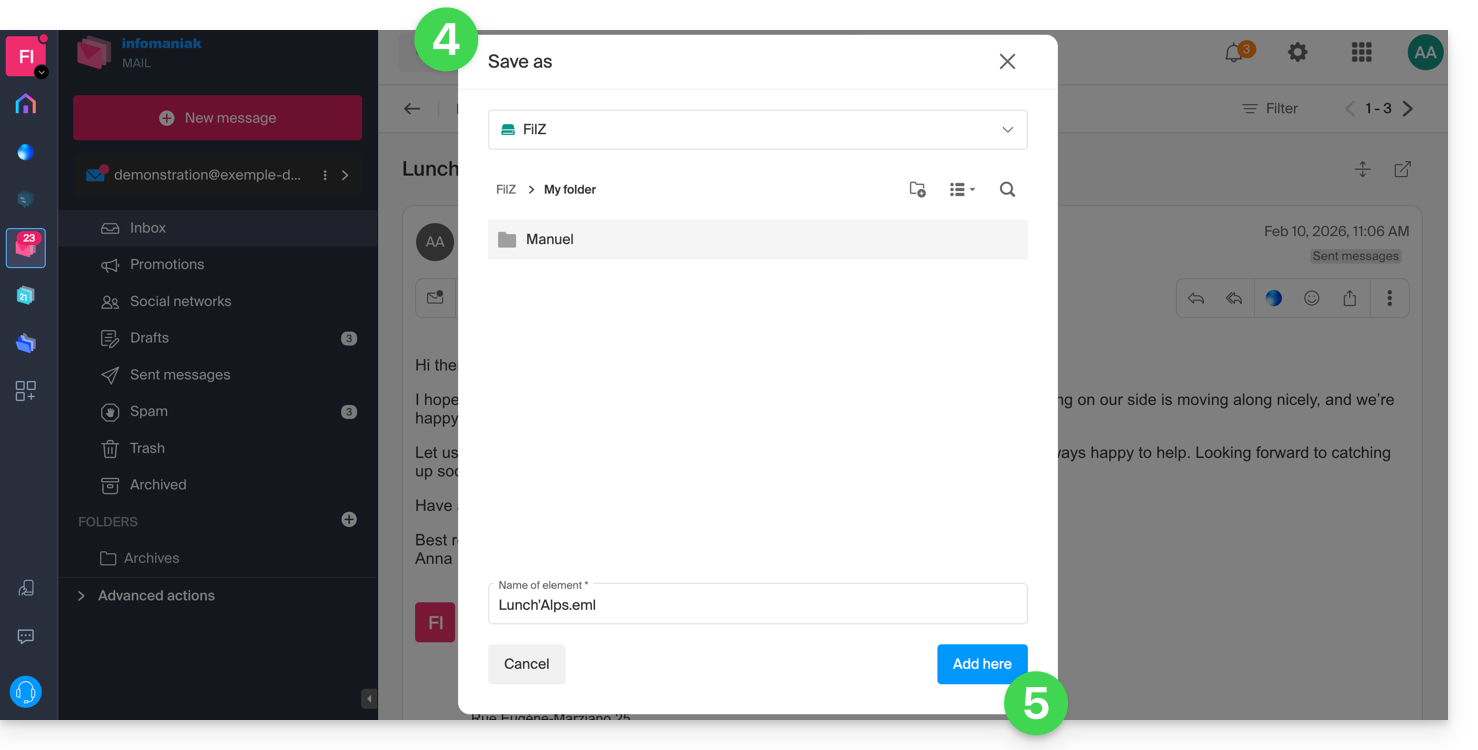
- Choose the kDrive (among those to which you are attached by your Organization) and the desired location on it to save your file - if you rename it, keep the
.emlextension to be able to read it directly in the kDrive interface. - Click on the Add button.
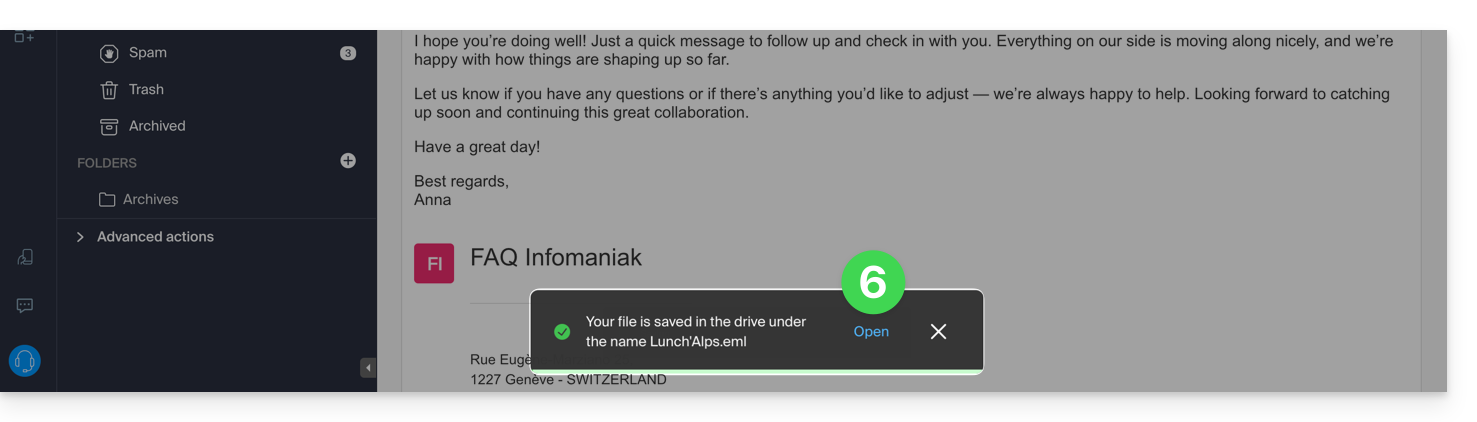
- A message at the bottom of the screen notifies you of the progress of the recording and allows you to go directly to the email save location:
- The saved email can be viewed on kDrive as if you were reading it on Mail directly.
… from the Infomaniak Mail mobile app
To do this:
- Open the email in question on the mobile app Infomaniak Mail (application for iOS / Android smartphone or tablet).
- Click on the action menu ⋮ located at the top right of the displayed email.
- Choose Save to kDrive and follow the same procedure as above in step 4.
Link to this FAQ: https://faq.infomaniak.com/973
Has this FAQ been helpful?