Knowledge base
1000 FAQs, 500 tutorials and instructional videos. Here, there are only solutions!
Create a unique event in the Infomaniak Web Calendar app
This guide explains how to add a simple new unique event to a calendar/schedule in the Infomaniak Web app Calendar (online service ksuite.infomaniak.com/calendar).
Preamble
- To create a recurring event / regularly recurring event, refer to this other guide.
- To schedule/meet meeting between multiple users and find the best slot, refer to this other guide about the appointment booking assistant.
Add a new event
To schedule a unique event in a calendar managed by Infomaniak:
- Click here to access the Infomaniak Web app Calendar (online service ksuite.infomaniak.com/calendar).
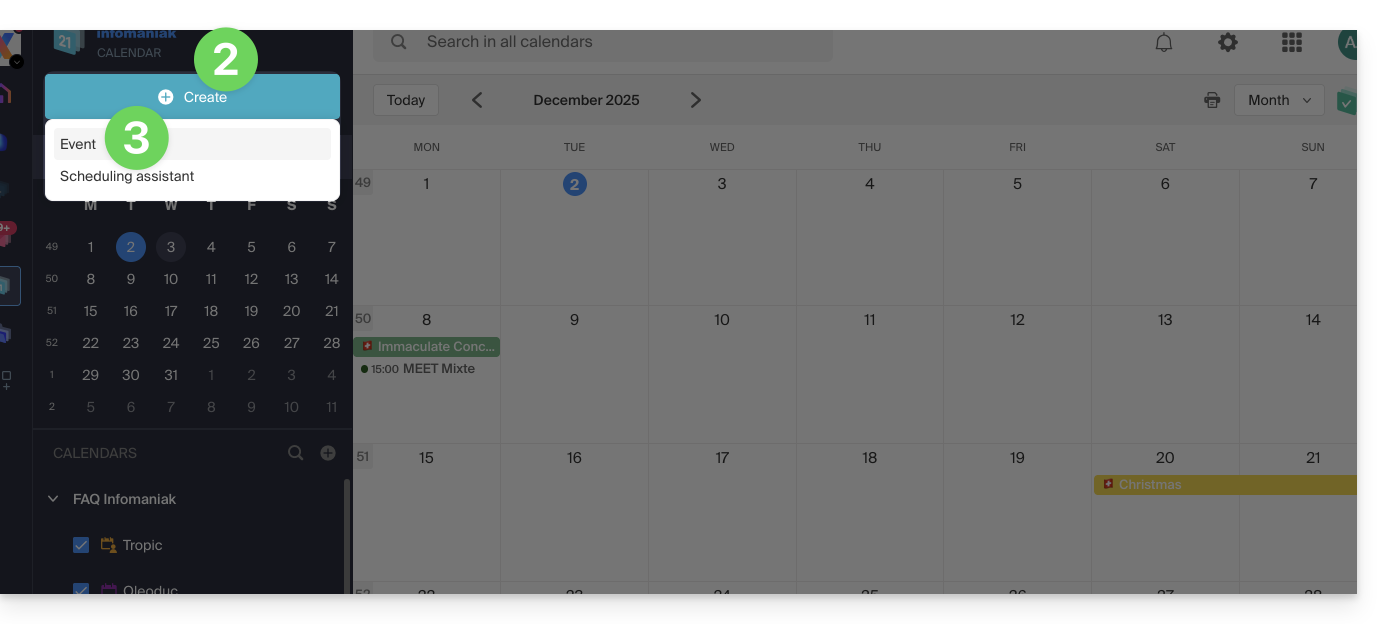
- Click the Create button at the top left.
- Click on Event:
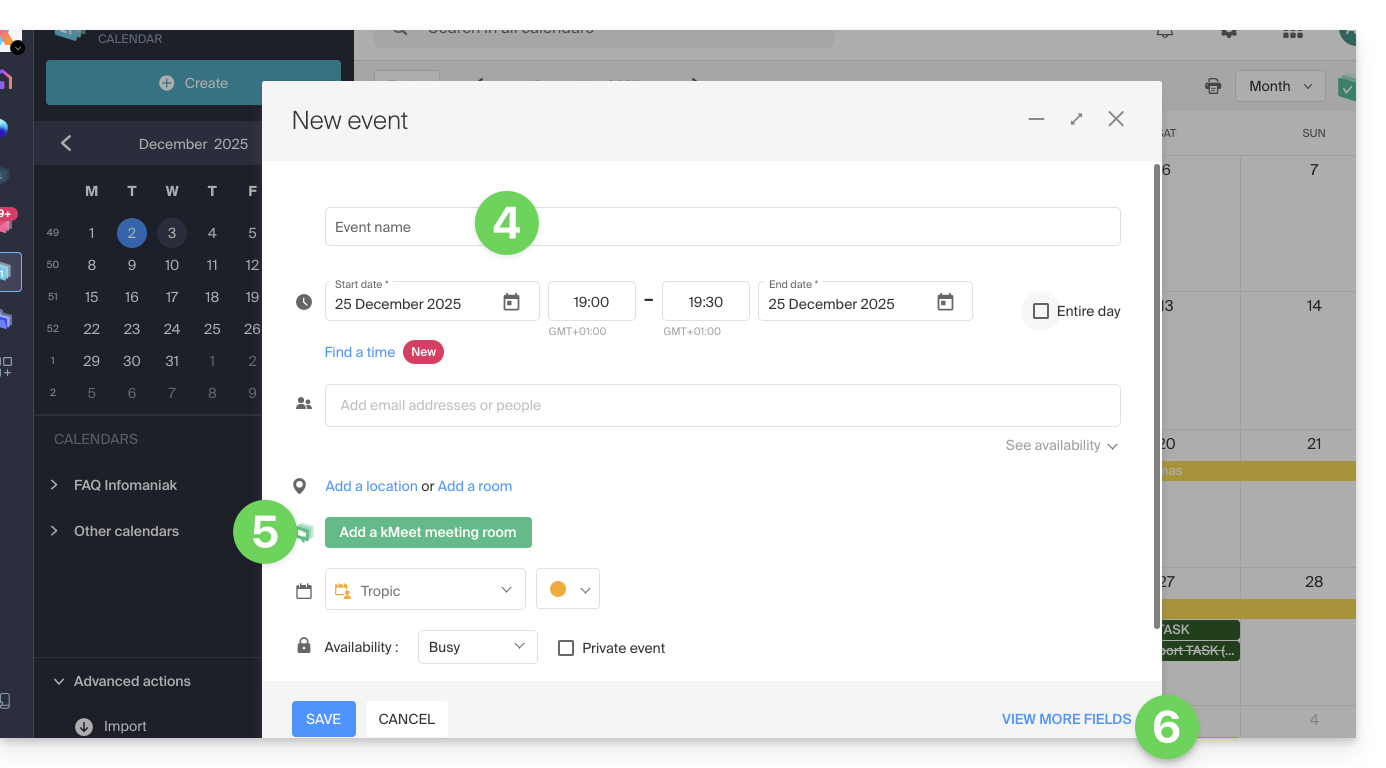
- Fill in the most important fields, such as the title (subject), date/time or duration, possible participants (see below), location, agenda concerned, event color…
- Click the green button to add a kMeet link if the event corresponds to a meeting between several people.
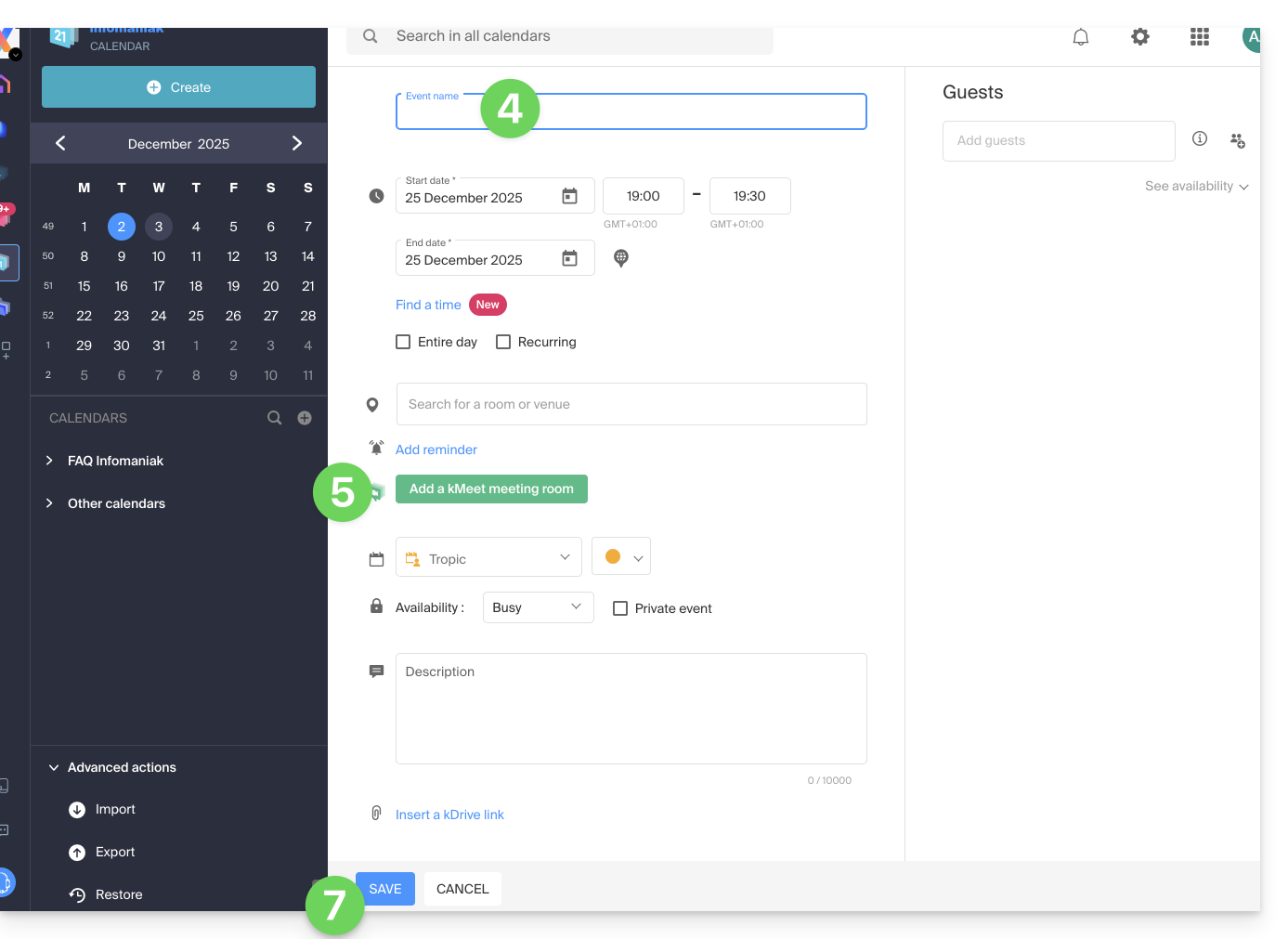
- Display additional fields by clicking on SHOW MORE FIELDS at the bottom right (and some of these fields may be automatically reused in case of follow-up):
- Click on SAVE to add the event to the selected calendar:
You can also click directly on the calendar to add a new event by dragging the mouse pointer over the desired time period.
To add an attachment from kDrive to your events on Calendar, refer to this other guide.
To add reminders to your events on Calendar, refer to this other guide.
Add participants to the event
To invite users, add their name or email address when creating the event or afterwards: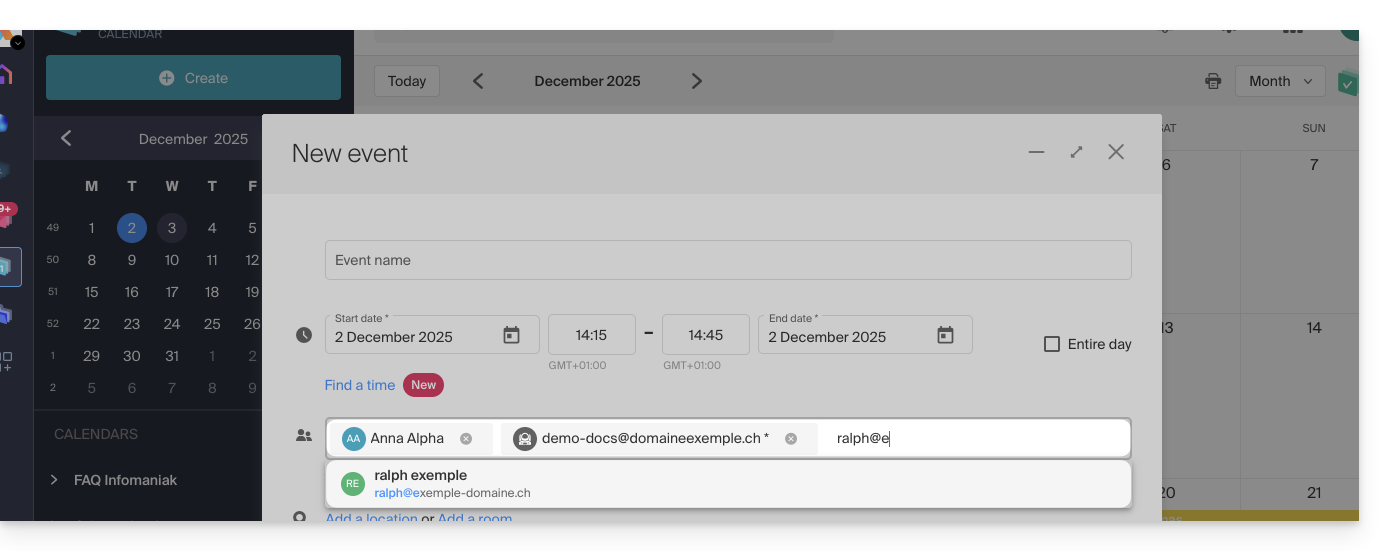
You will be informed of their presence or refusal if they follow the procedure sent to them by email when the event is created.
Any update to a scheduled event is also sent by email to all participants.
Automatically find the best time between participants
Before creating the event and therefore before sending invitations to participants, it is possible to determine the best time that suits everyone based on each person's availability (e.g., other appointments in their calendars) — this is based on the availability of the guests (not the organizer):
- Click here to access the Infomaniak Web app Calendar (online service ksuite.infomaniak.com/calendar).
- Click the Create button at the top left.
- Click on Event.
- Choose a date and time that would suit you for the event.
- Add the participants.
- Click on the dropdown menu below the participants to find the time immediately available for all participants closest to the initially desired time:
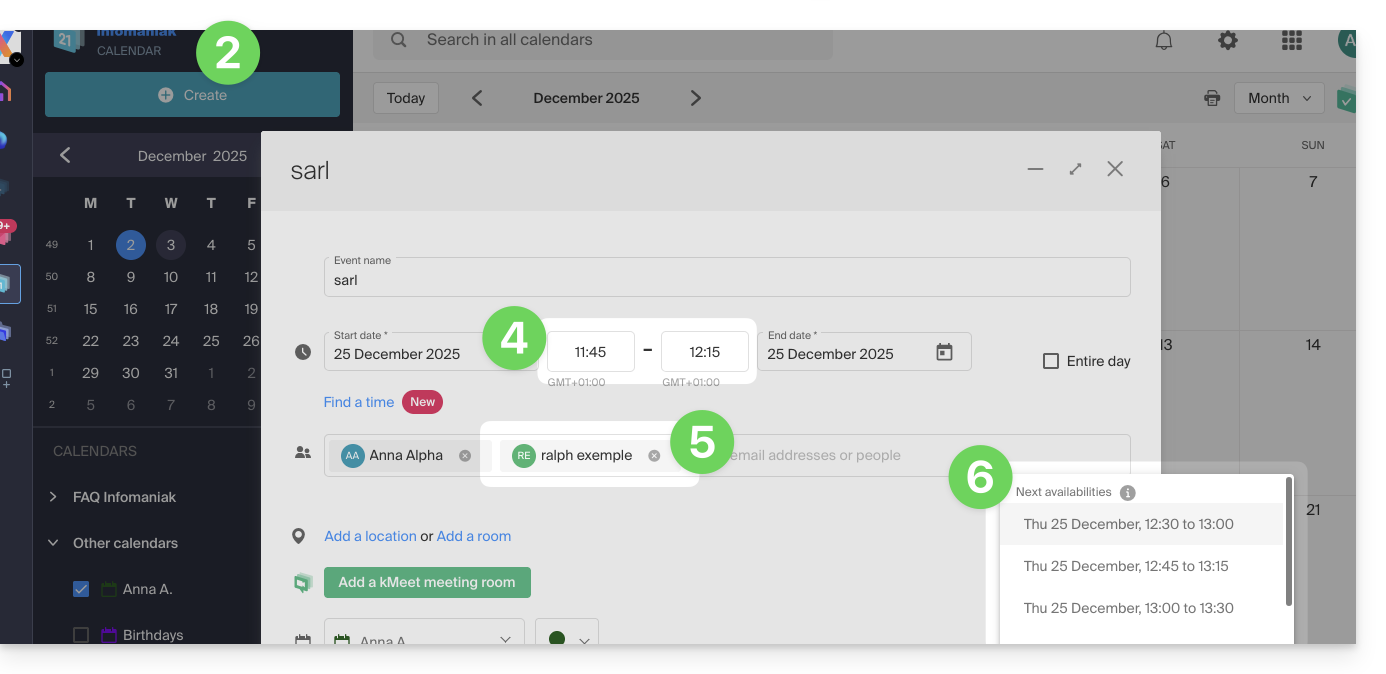
In the example above, 11:45 is not suitable for a one-hour meeting because Ralph already has a 30-minute appointment scheduled in his calendar at 12:00, so the system suggests 12:30, the closest time when all guests will be available.
An asterisk * next to a participant means that the user's availability is unknown because…
- … either the person invited by their email address is not an Infomaniak user: no user account exists with the specified email address…
- … or the invited person does not share their availability: they do not share their calendar at least in read mode with the meeting organizer or have not transferred their calendar to at least one of the organizer's Organizations…
Note, an all-day event (like a memo stating a day of teleworking, for example) will prevent the tool from correctly finding availability.
Meeting room
Refer to this other guide if you are looking for information about meeting rooms that can be preconfigured to link an event to a location of this type.
Link to this FAQ: https://faq.infomaniak.com/956
Has this FAQ been helpful?