Knowledge base
1000 FAQs, 500 tutorials and instructional videos. Here, there are only solutions!
Manage devices (passwords) from Mail Infomaniak
Update 08/04/2026
This guide explains how to manage the passwords for an email address from the Infomaniak Mail web app (online service ksuite.infomaniak.com/mail).
Other access and management options are presented in the main guide.
Prerequisites
- You must have permission to manage devices: it is possible that the Mail Service administrator has removed this permission from their admin account.
Add or remove a connected device
Create and display a new password to add the email address to your computer, mobile app, etc.
To manage the password for an email address already linked to your Infomaniak Mail web app:
- Click here to access the Infomaniak Mail web app (online service ksuite.infomaniak.com/mail).
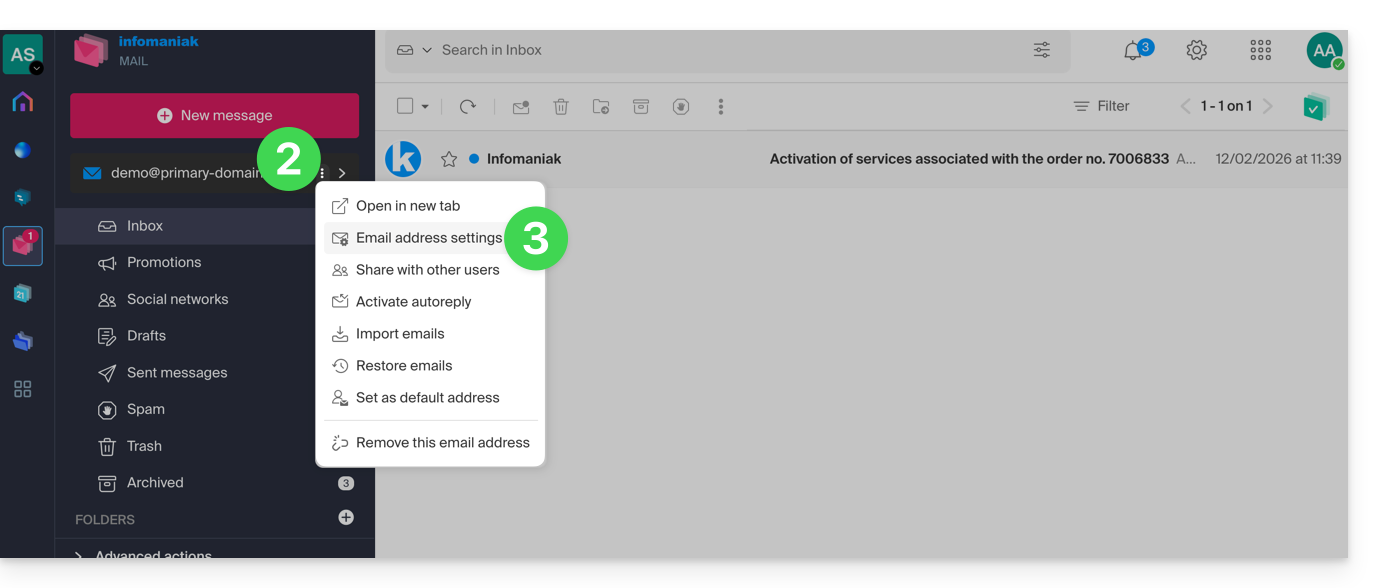
- Click on the action menu ⋮ to the right of the email address in question.
- Click on Address settings:
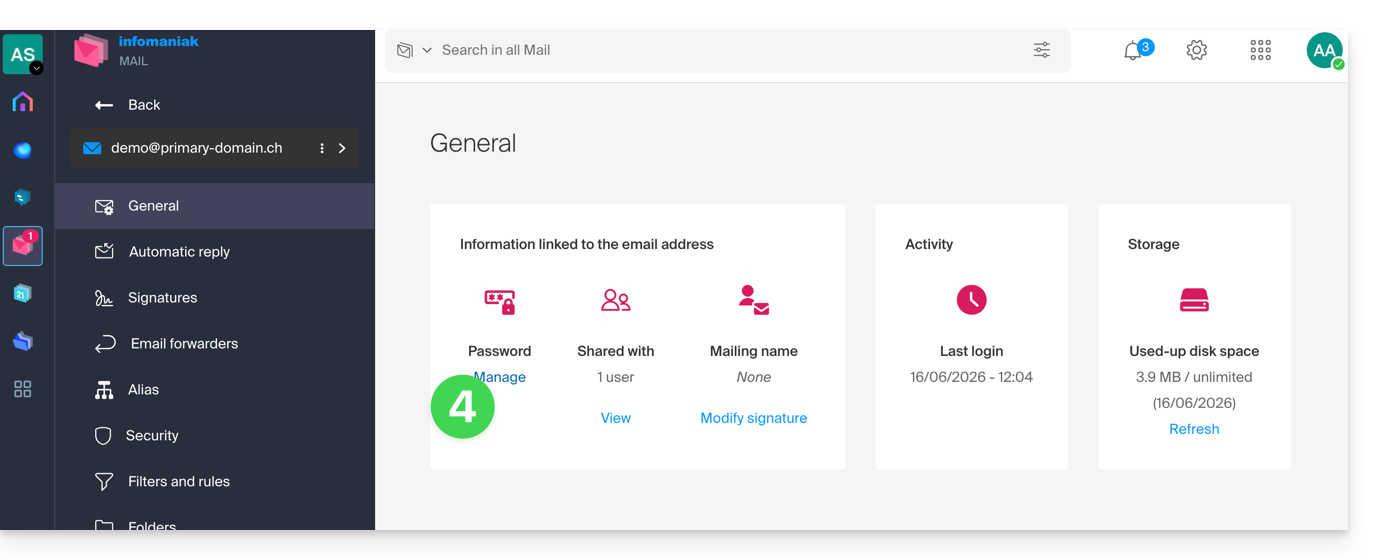
- Click on Manage password:
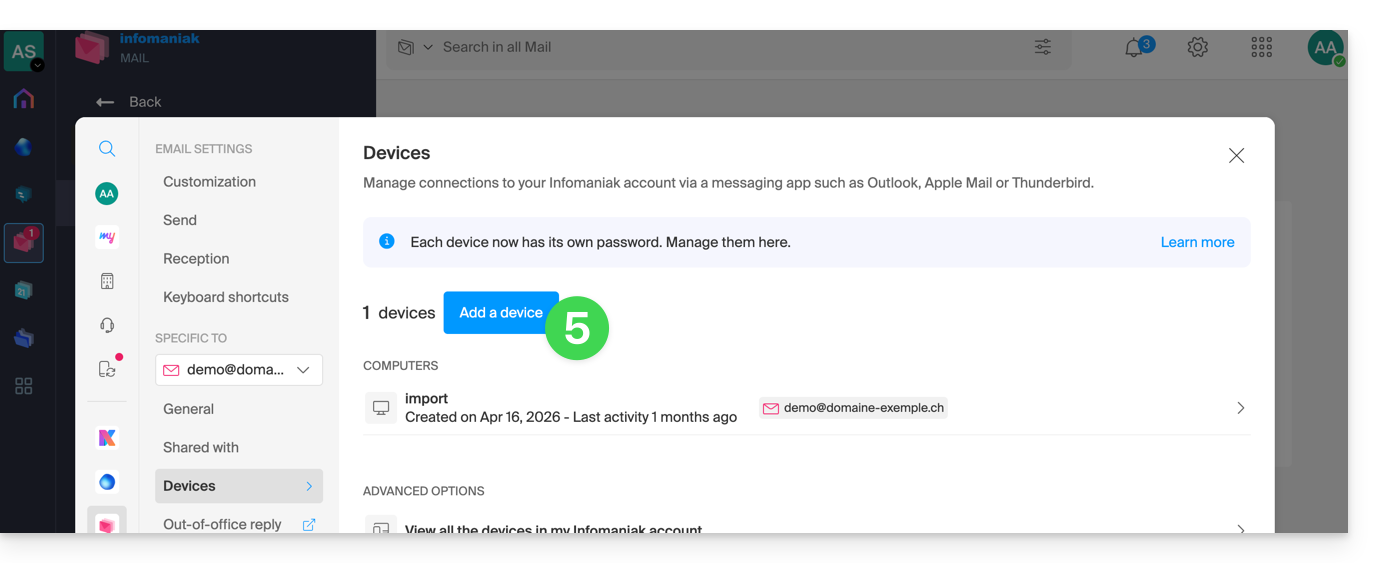
- Click on Add a device:
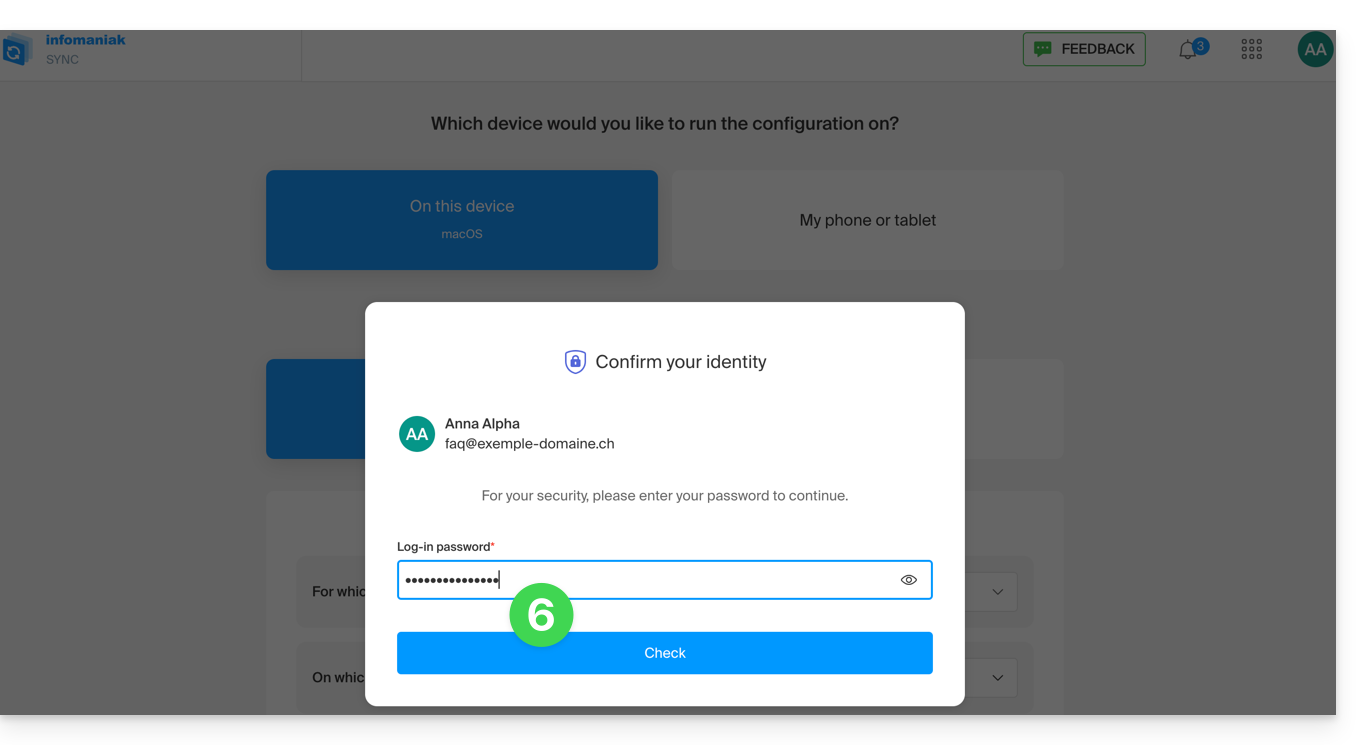
- Enter the password to log in to your Infomaniak account if prompted:
- The configuration assistant will then open on the MAIL section; check or select the relevant email address from the drop-down menu.
- Select “new device” from the drop-down menu:
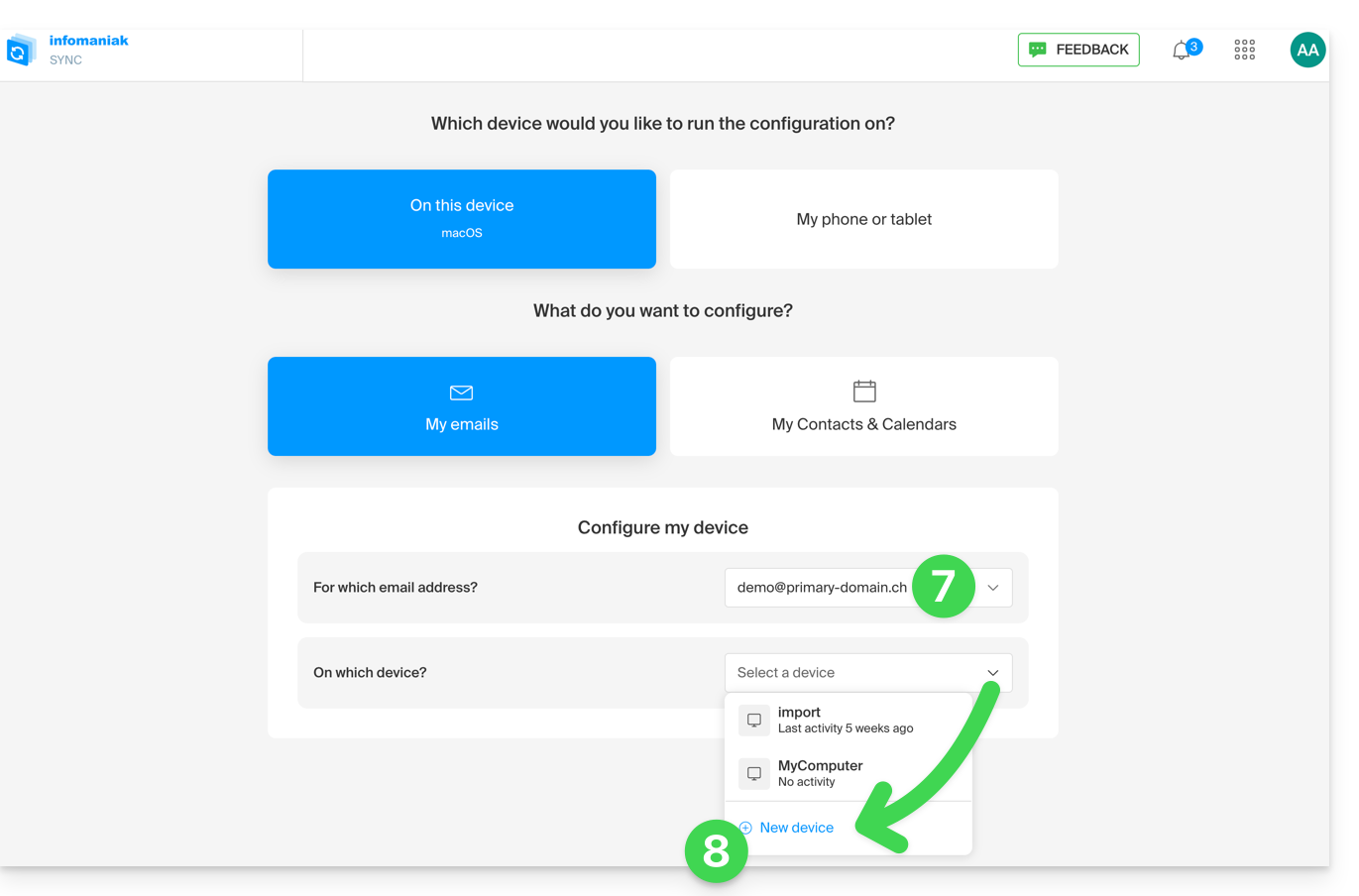
- Give the device a description.
- Click on the tab that corresponds to your needs (either the procedure for Apple Mail, or any other IMAP/SMTP configuration).
- Scroll down and click the button to generate a password:
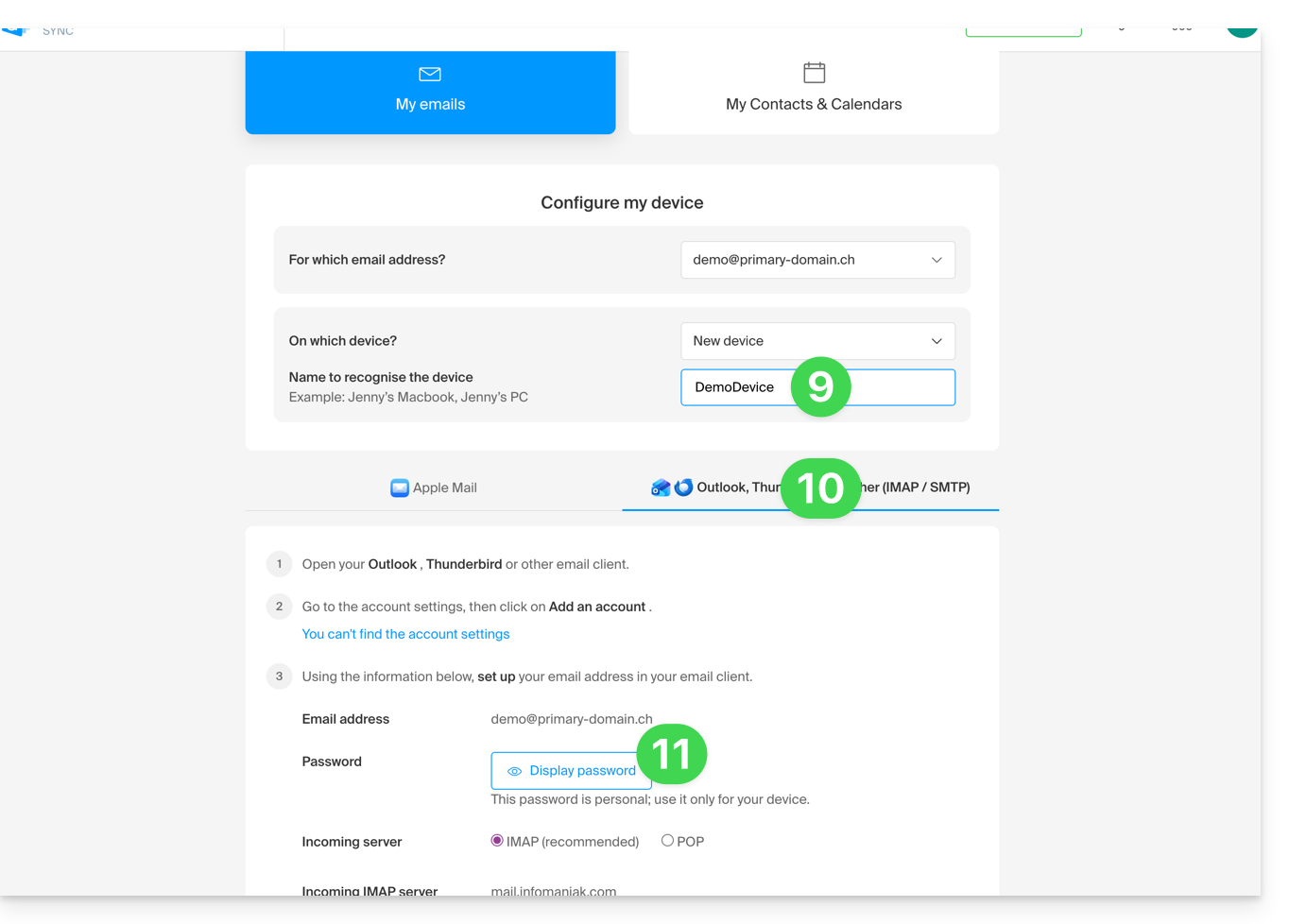
- A new password is created and displayed:
- you can modify it by clicking the button, but don't forget to save it:
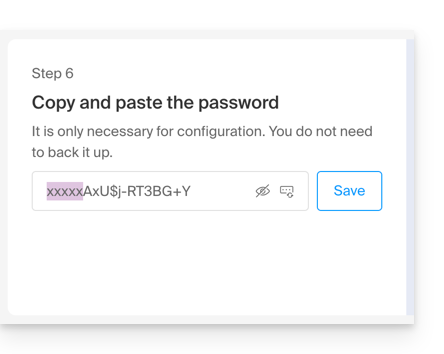
- you can modify it by clicking the button, but don't forget to save it:
- Then, copy it and store it securely (e.g., in a password manager); it will no longer be possible to view it afterward.
Delete a password to cut off access from a computer, mobile app, etc.
You can manage the created/used access permissions at any time:
- Click on the Settings icon in the top right corner of the interface.
- Check or select the relevant email address from the dropdown menu in the left-hand sidebar.
- Click on Devices in the left-hand sidebar.
- Click on the device in question:
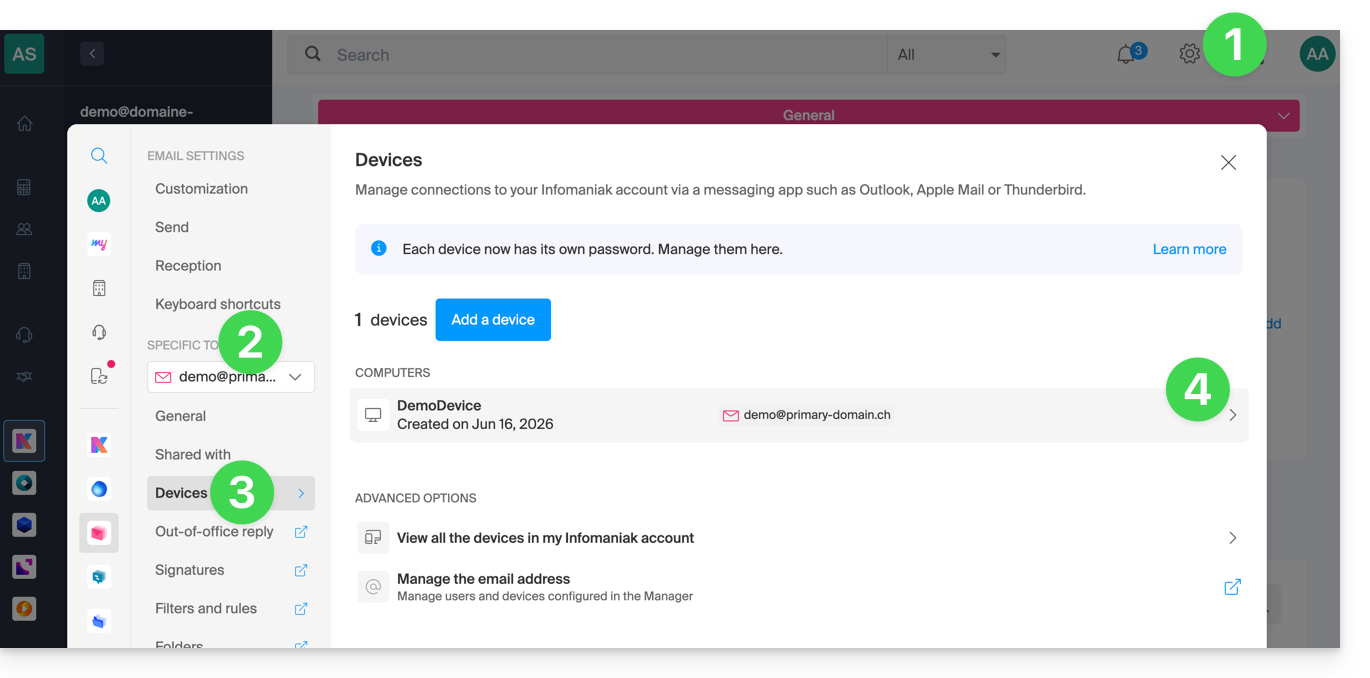
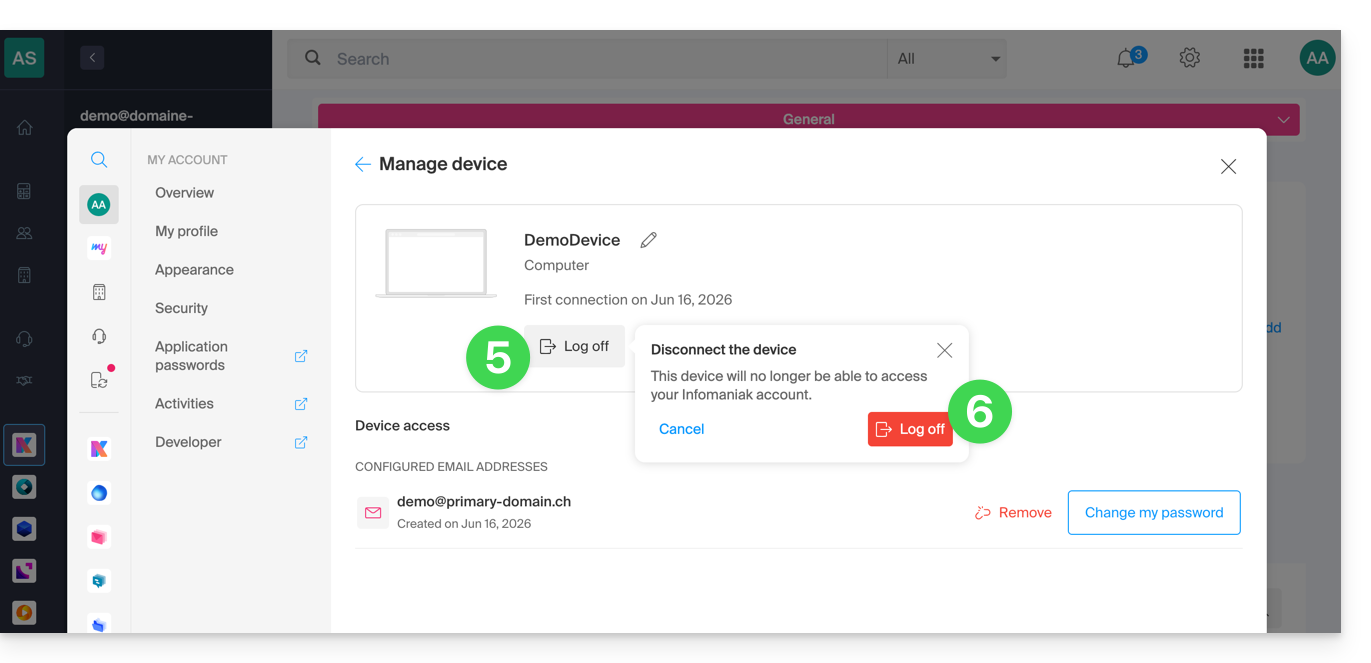
- Click on the button to disconnect the device.
- Confirm the disconnection of the device in question:
Link to this FAQ: https://faq.infomaniak.com/711
Has this FAQ been helpful?