Knowledge base
1000 FAQs, 500 tutorials and instructional videos. Here, there are only solutions!
Manage devices (passwords) from the Infomaniak Web Mail app
This guide explains how to manage the passwords for an email address from the Infomaniak Mail web app (online service ksuite.infomaniak.com/mail).
Other access and management options are presented in the main guide.
Prerequisites
- You must have permission to manage devices: it is possible that the Mail Service administrator has removed this right from their admin account.
Add or remove a connected device
Create and display a new password to add the email address to your computer, mobile app, etc.
To manage the password for an email address that is already linked to your Infomaniak Mail web app:
- Click here to access the Infomaniak Mail web app (online service ksuite.infomaniak.com/mail).
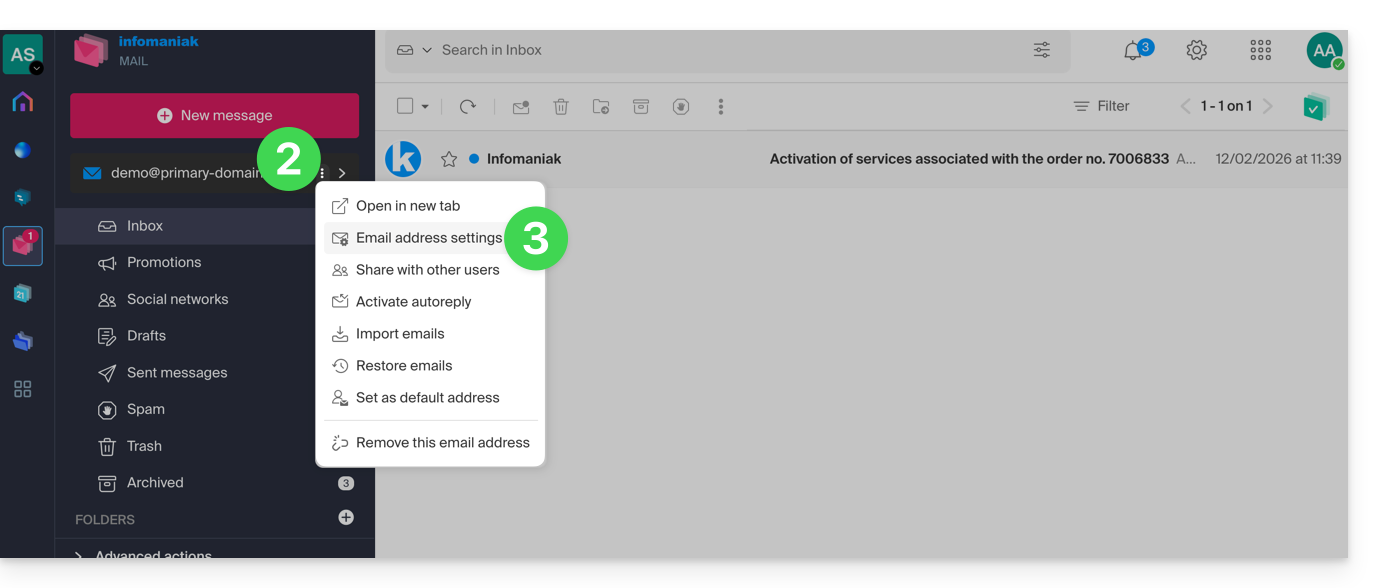
- Click on the action menu ⋮ to the right of the email address in question.
- Click on Address settings:
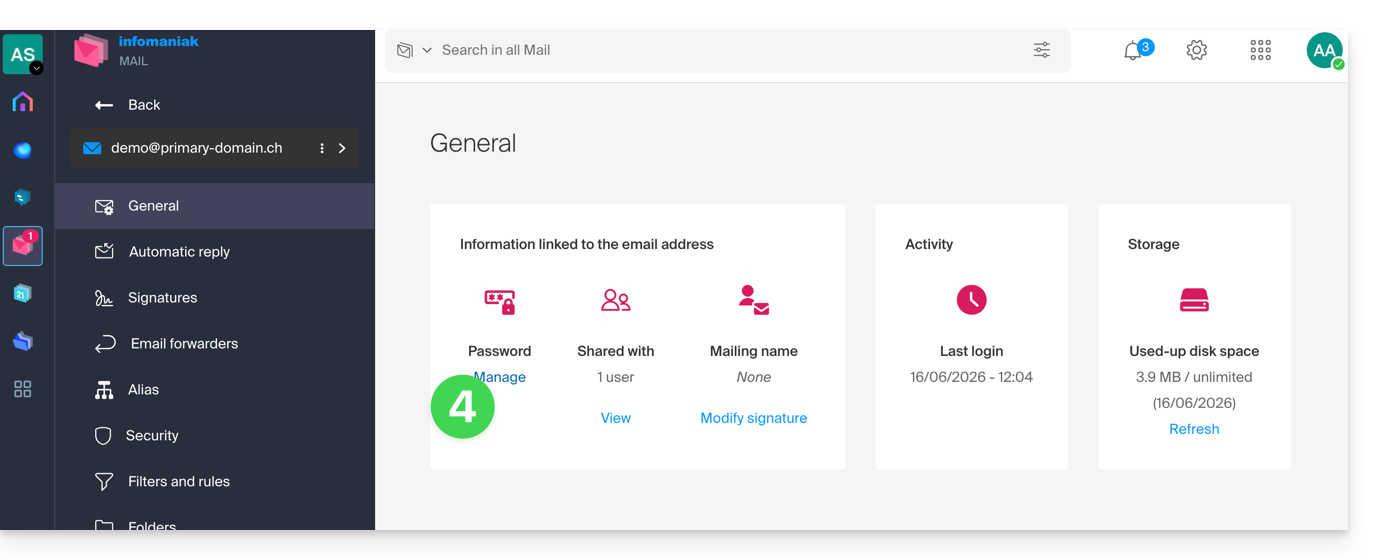
- Click on Manage password:
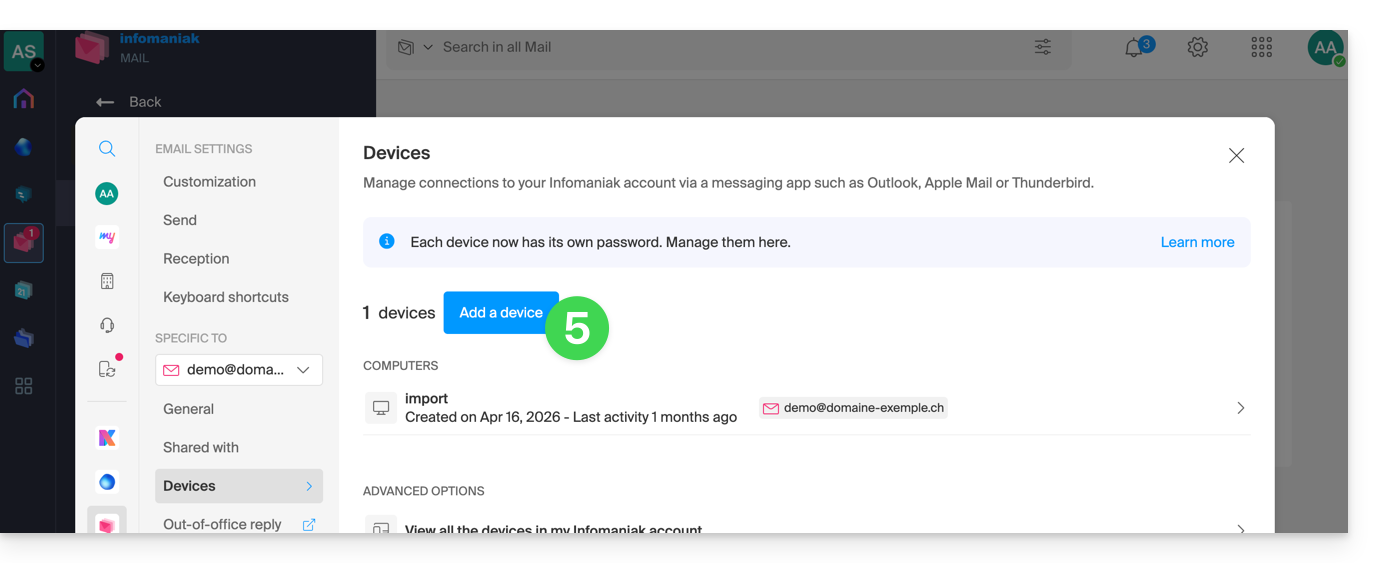
- Click on Add a device:
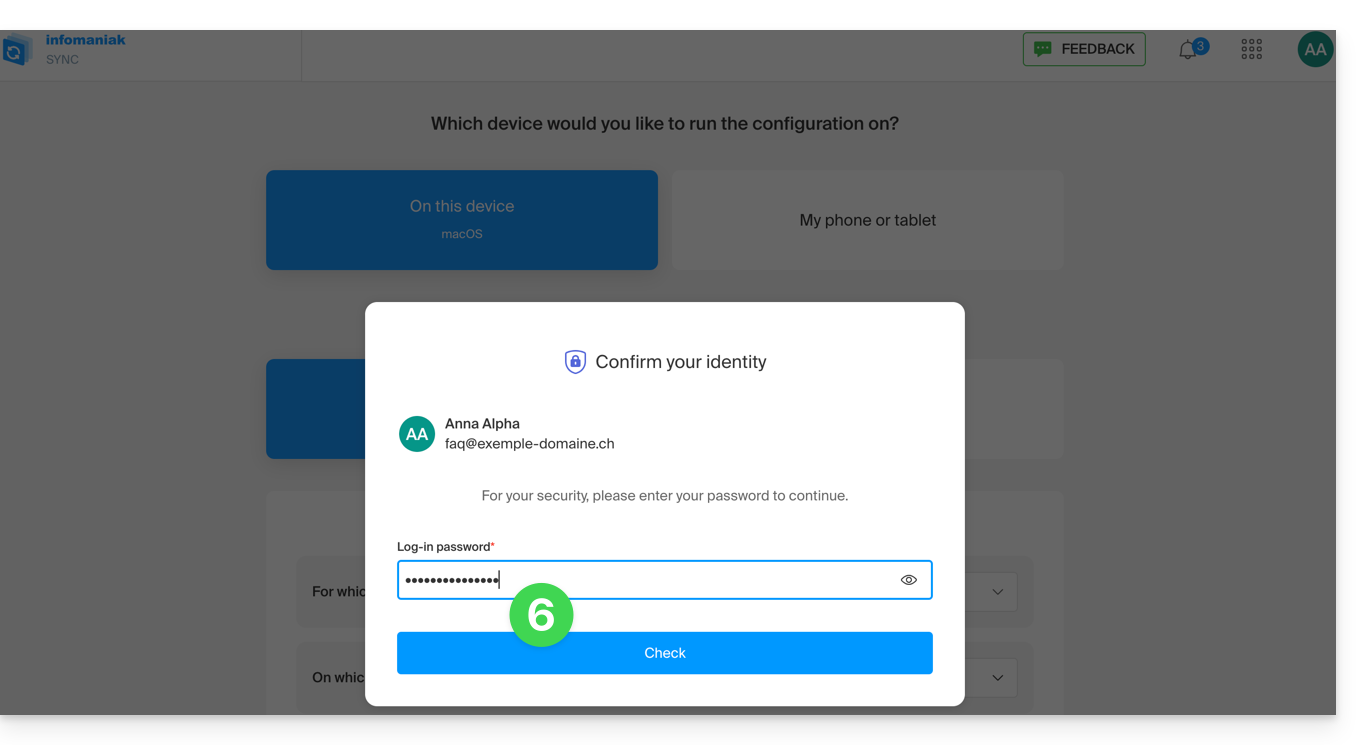
- Enter the password to log in to your Infomaniak account if prompted:
- The configuration wizard will then open on the MAIL section; check or select the relevant email address from the drop-down menu.
- Select “new device” from the drop-down menu:
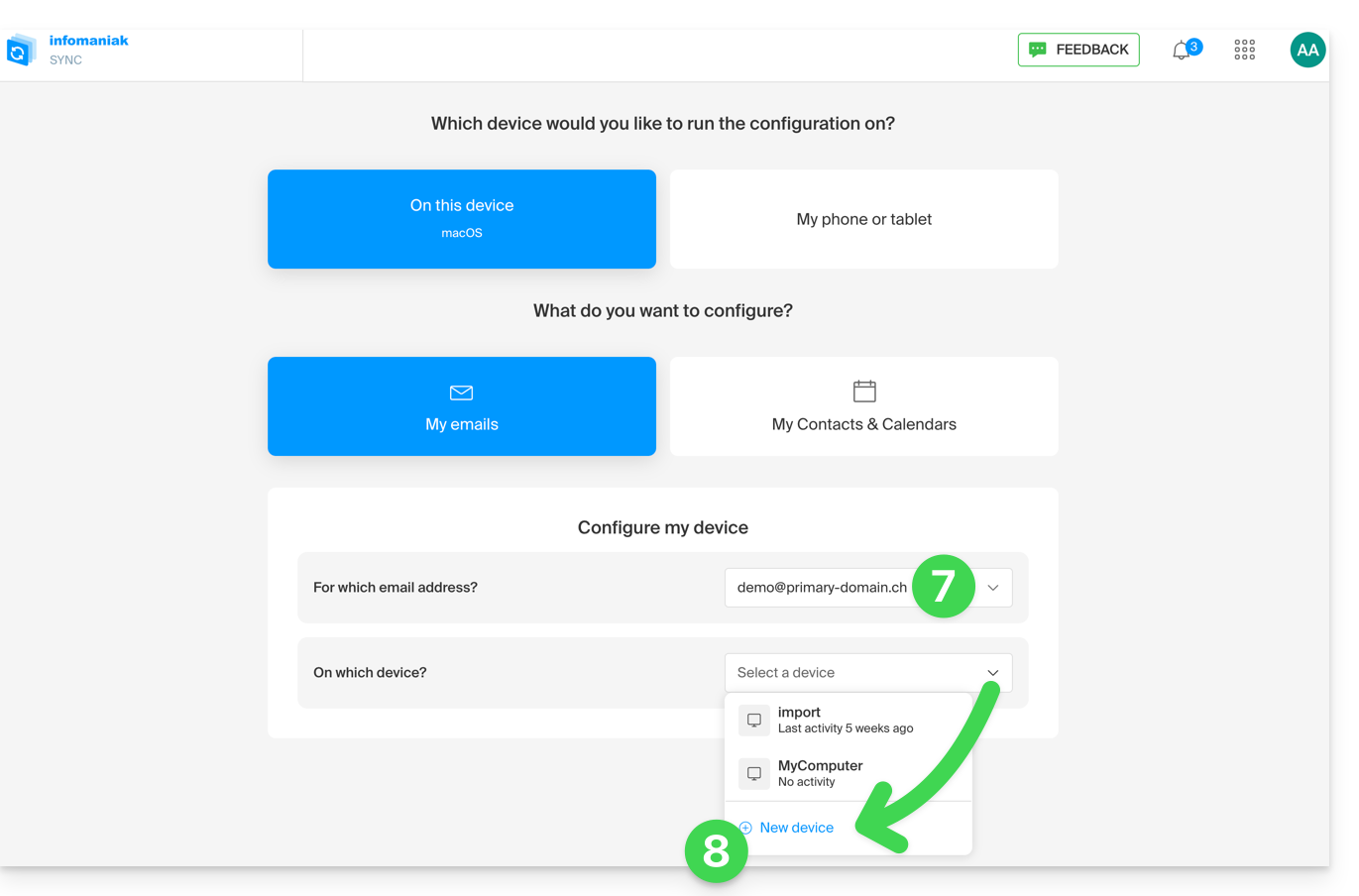
- Give the device a description.
- Click on the tab corresponding to your needs (either the procedure for Apple Mail, or any other IMAP/SMTP configuration).
- Scroll down and click the button to generate a password:
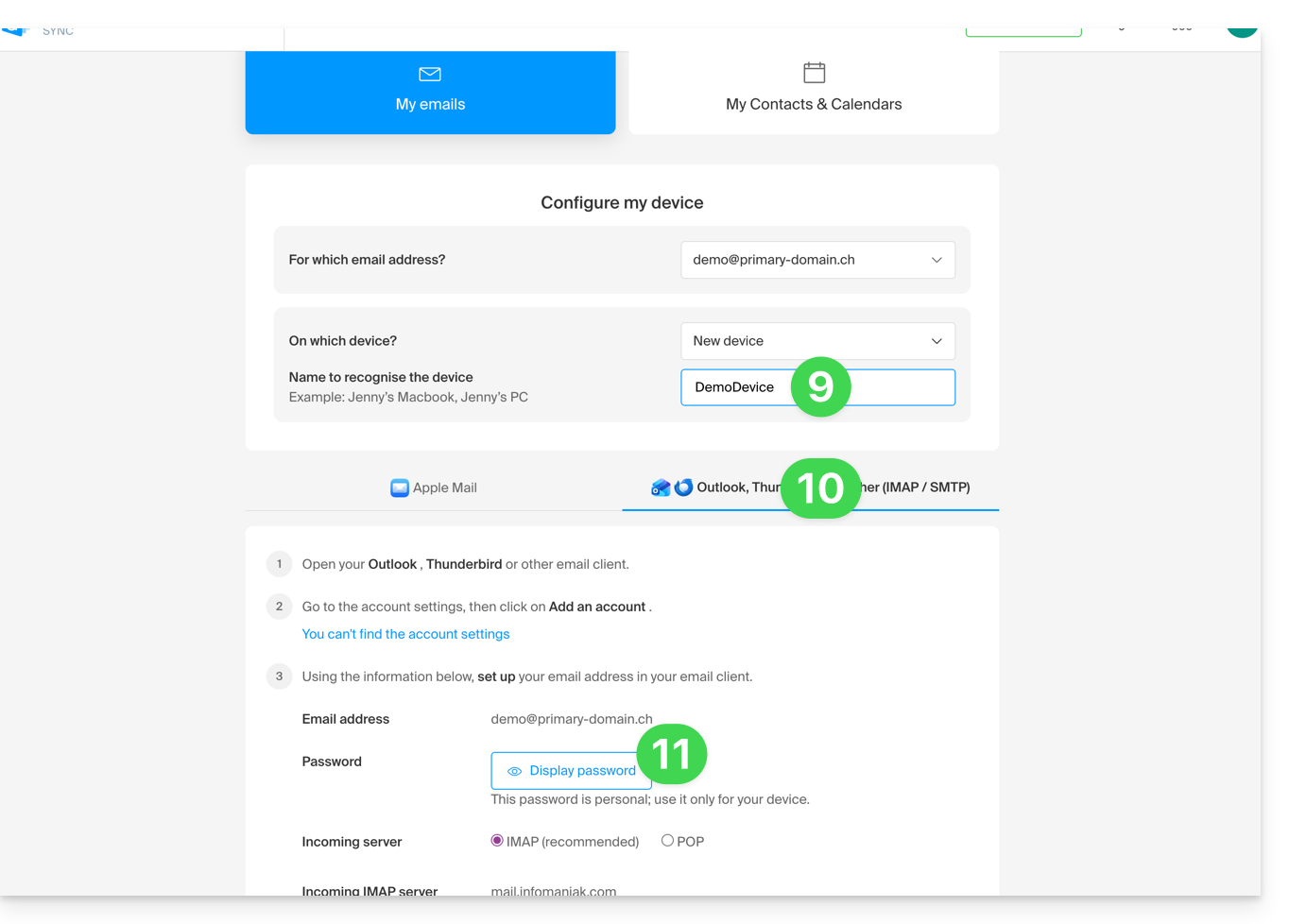
- A new password will be created and displayed:
- you can modify it by clicking on the button, but don't forget to save it:
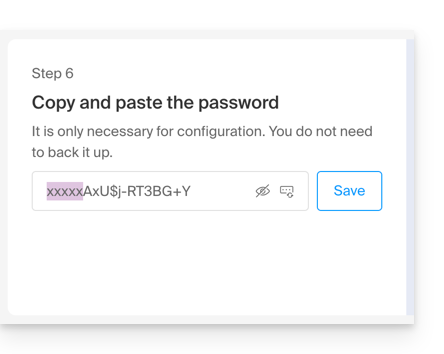
- you can modify it by clicking on the button, but don't forget to save it:
- Then, copy it and keep it safe (e.g., in a password manager); it will no longer be possible to display it later.
Delete a password to cut off access from a computer, mobile app, etc.
At any time, you can manage the created/used access:
- Click on the Settings icon in the top right corner of the interface.
- Check or select the relevant email address from the drop-down menu in the left-hand menu.
- Click on Devices in the left-hand menu.
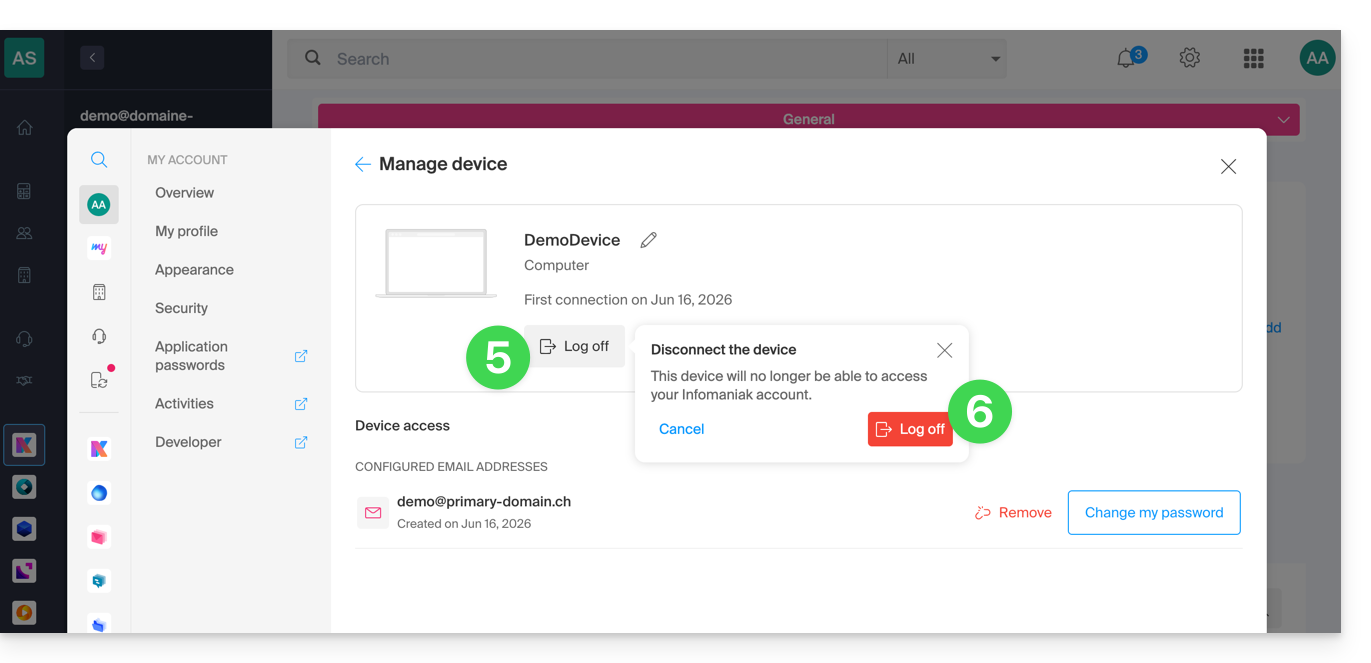
- Click on the device in question:
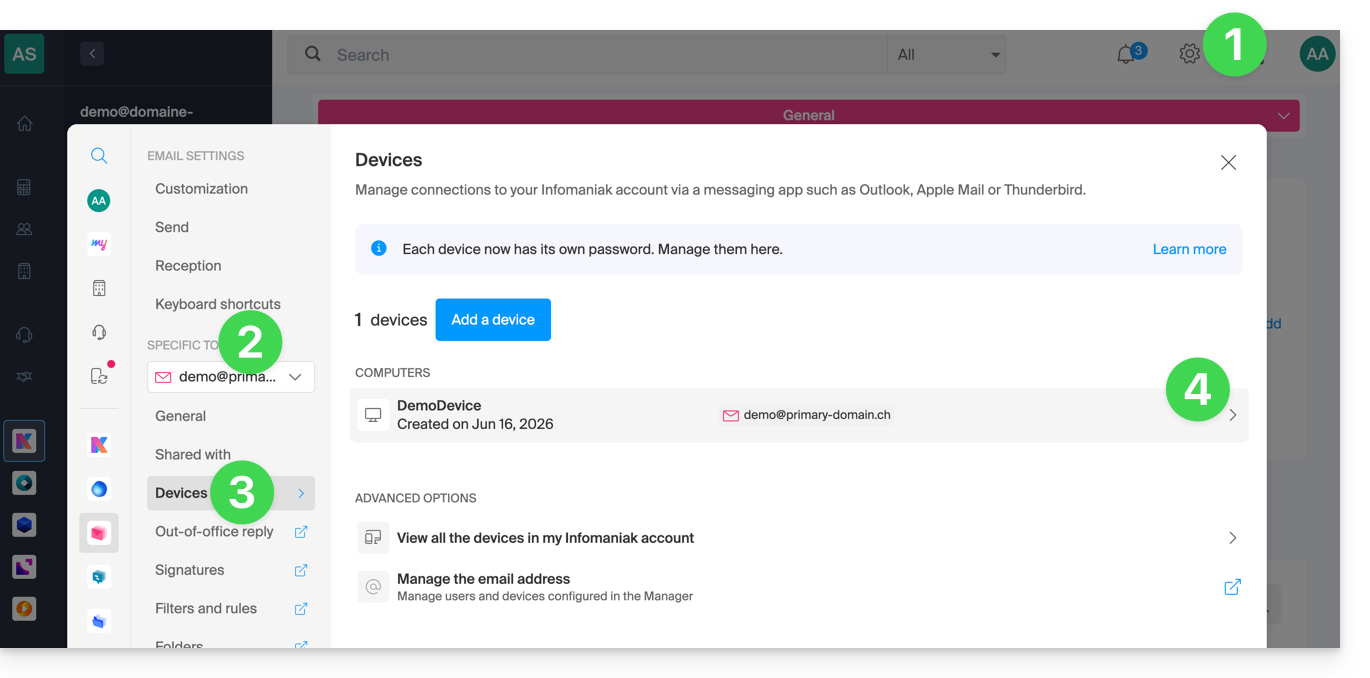
- Click on the button to disconnect the device.
- Confirm the disconnection of the device in question:
Link to this FAQ: https://faq.infomaniak.com/711
Has this FAQ been helpful?