Knowledge base
1000 FAQs, 500 tutorials and instructional videos. Here, there are only solutions!
Manage devices (passwords) on the Infomaniak Webmail app
This guide explains how to quickly create/get a password or reset or delete the passwords of an email address from the Infomaniak Web app Mail (online service ksuite.infomaniak.com/mail).
Prerequisites
- my kSuite users, refer to this other guide.
- Have permission to manage the password: it is possible that the Mail Service manager has revoked this right from their admin account.
Add a device
Determine what you want to do specifically and for what purpose:
- get a password to add the address to a device, an external application, etc.
- get a password so that a third-party user can add the address within their Infomaniak Web app Mail
- remove an address currently visible within the Infomaniak Web app Mail of a third-party user
Cases 1 & 2
To manage the password of an already associated email address:
- Click here to access the Infomaniak Web app Mail (online service ksuite.infomaniak.com/mail).
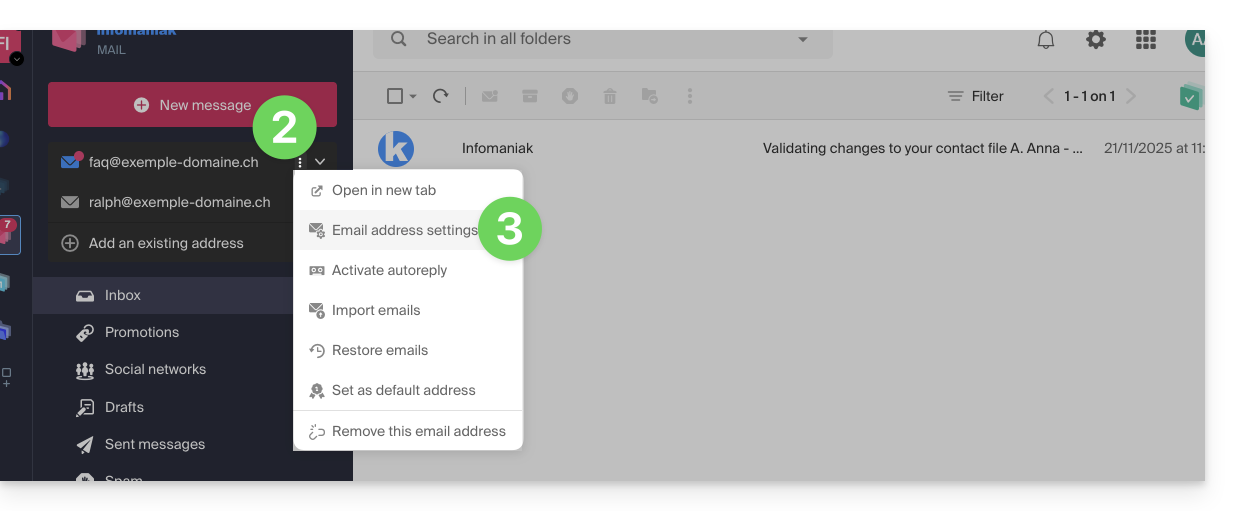
- Click on the action menu ⋮ to the right of the email address concerned.
- Click on Address settings:
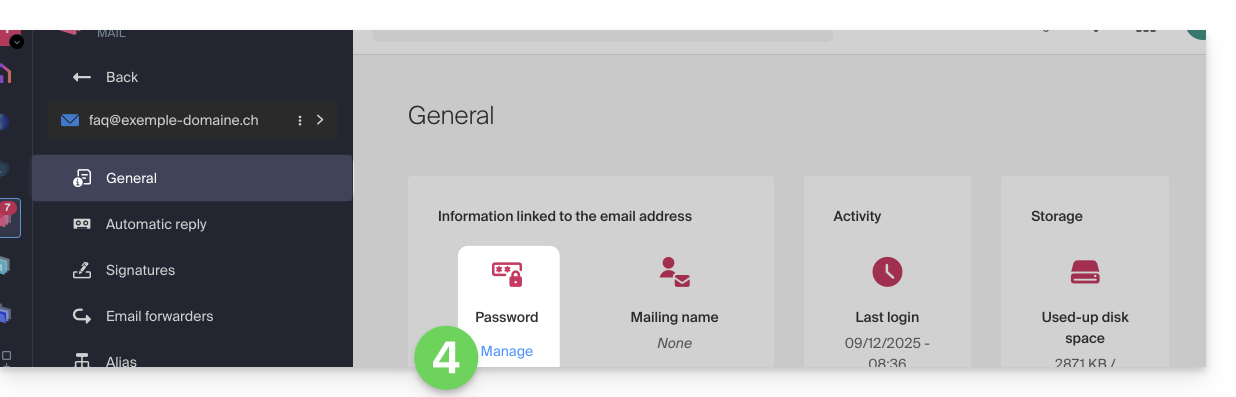
- Click on Manage the password:
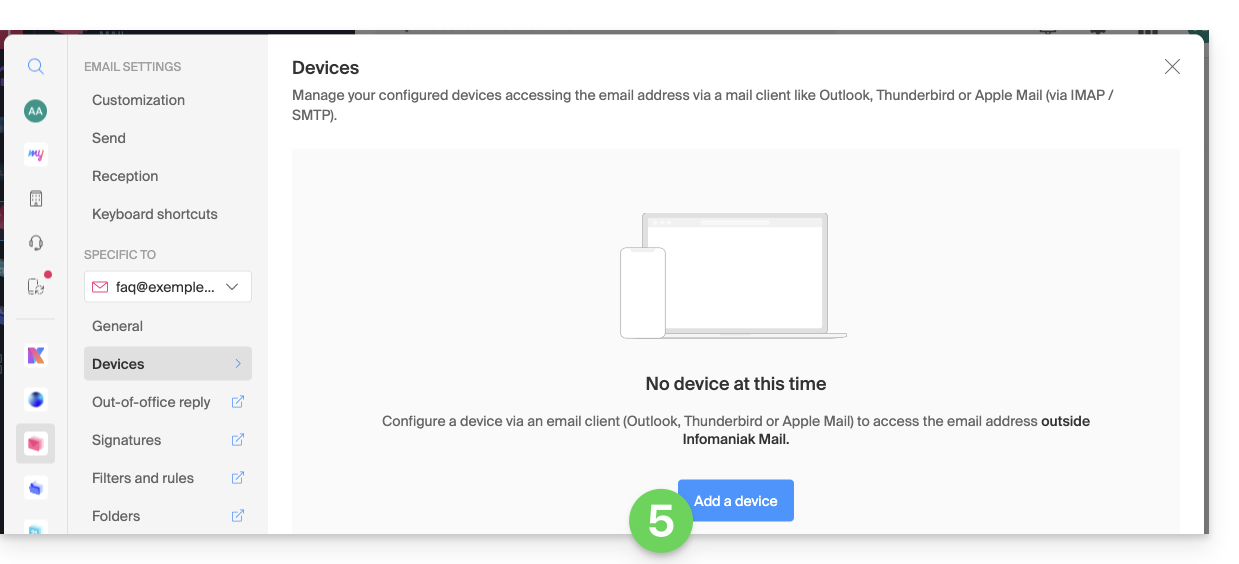
- Click on Add a device:
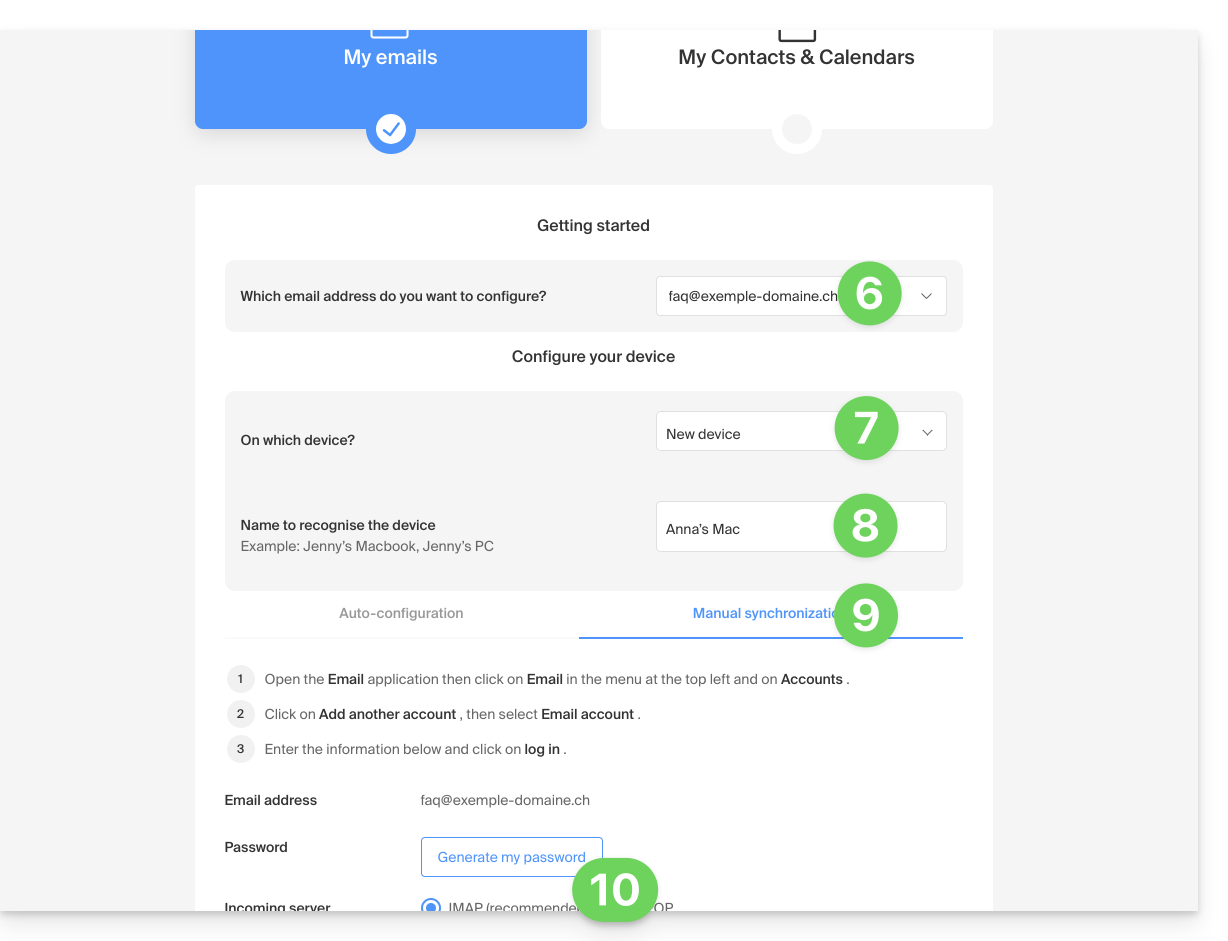
- The setup assistant opens on the MAIL section; check or select the email address concerned in the dropdown menu.
- Select “new device” from the dropdown menu.
- Give a description to the device.
- Click on the Manual configuration tab.
- Click the button to generate a password:
- Enter the password to log in to your Infomaniak account if prompted.
- The new password created is displayed, you can copy it and keep it safe (password manager for example); it will no longer be able to be displayed afterwards.
Case 1 & 2 & 3
At any time, it is possible to manage the accesses created / used:
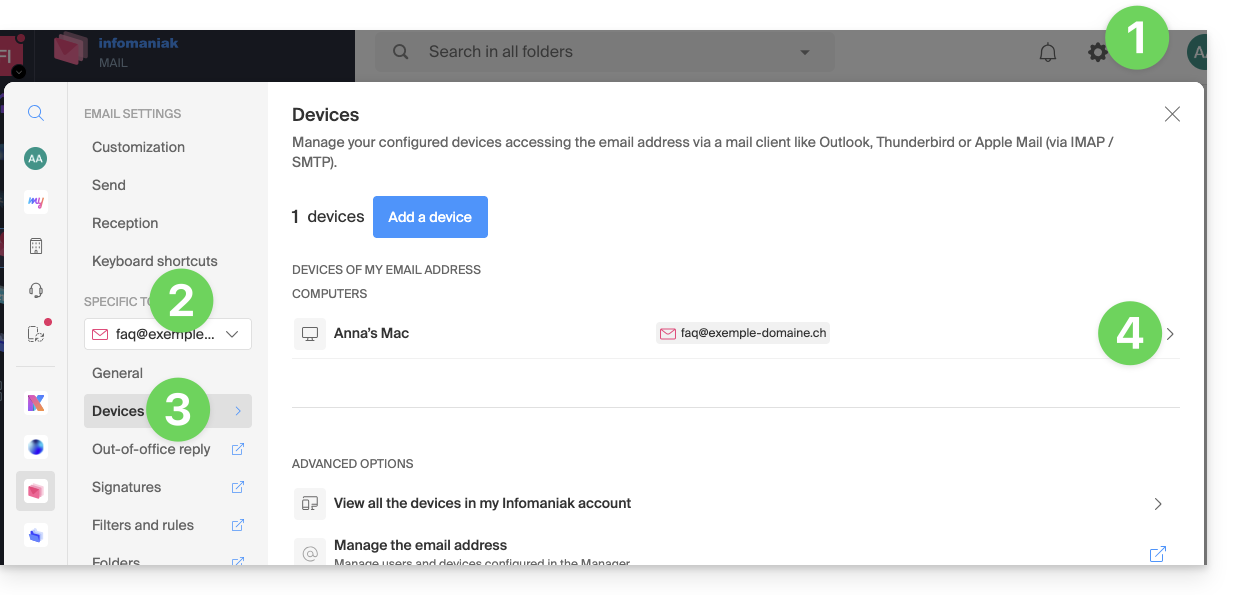
- Click on the Settings icon at the top right of the interface.
- Check or select the email address concerned in the drop-down menu of the left sidebar.
- Click on Devices in the left sidebar.
- Click on the device concerned:
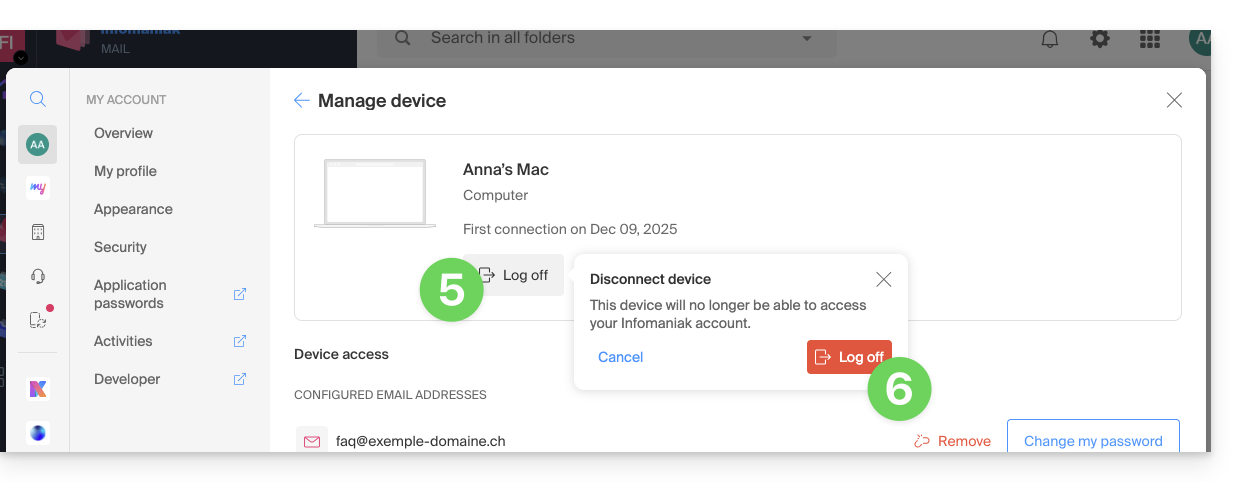
- Click the button to disconnect the device.
- Confirm the disconnection of the device concerned:
Link to this FAQ: https://faq.infomaniak.com/711
Has this FAQ been helpful?