Knowledge base
1000 FAQs, 500 tutorials and instructional videos. Here, there are only solutions!
Copy Yahoo mail content to Infomaniak
Update 04/16/2026
This guide explains how to transfer to Infomaniak email addresses currently hosted by Yahoo.
Preamble
- It is easy to switch the entire email tree structure to Infomaniak - discover the offers.
- Use your email address on a simple browser, Outlook, etc. and on mobile devices iOS/Android thanks to the Infomaniak Mail app.
- Import your contacts to continue communicating with them from your new email.
- The operation does not affect either the data already present on the destination address, or that of the source address.
- The entirety of the external mailbox will be imported.
- Once the import process has started, it is no longer possible to interrupt it.
- Any duplicates are managed: identical content will only be copied once.
Import the entire history of your emails
1. Yahoo Prerequisites
- To authorize the Infomaniak assistant to access your Yahoo account, click on https://login.yahoo.com/account/security#other-apps and set up an application password, automatically generated by Yahoo
- You will need to copy it and then paste it in place of your password in the Infomaniak assistant for copying your emails; to generate it:
- Log in to the Yahoo account.
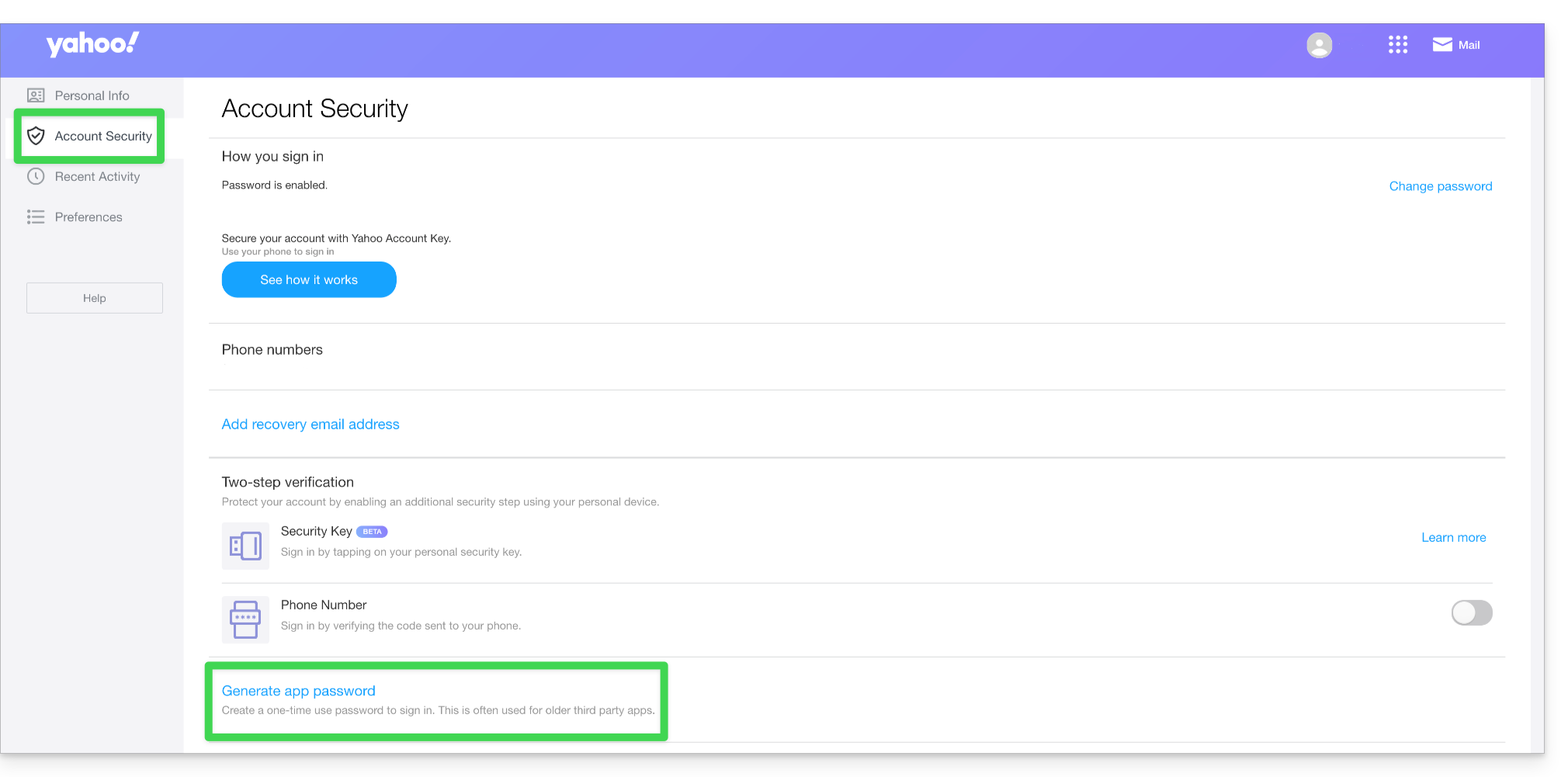
- Go to the Account Security tab.
- Click on Generate an application password:
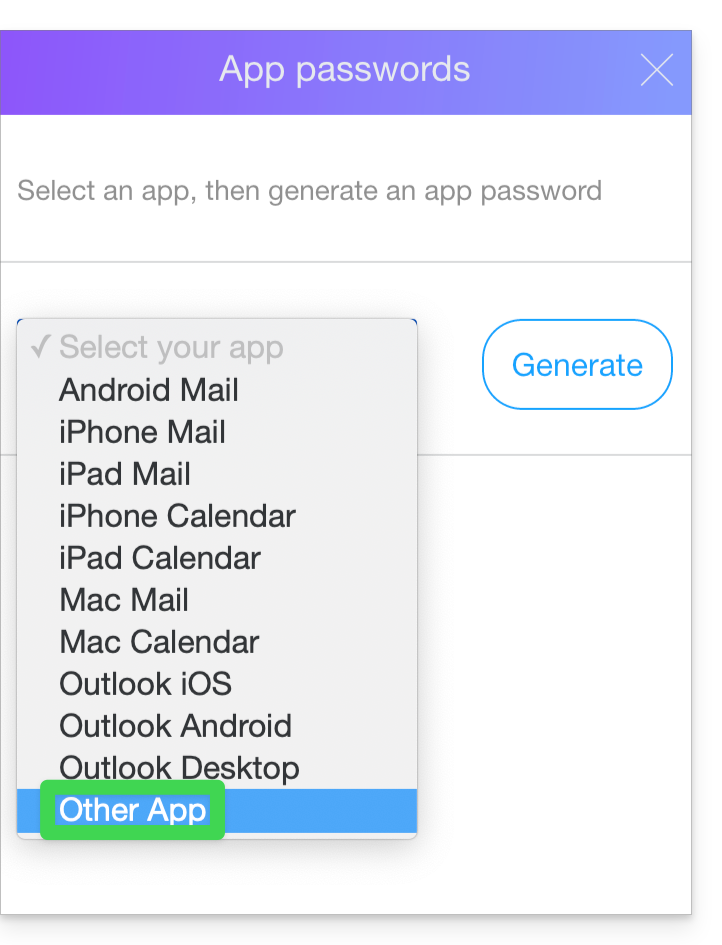
- Choose Other application:
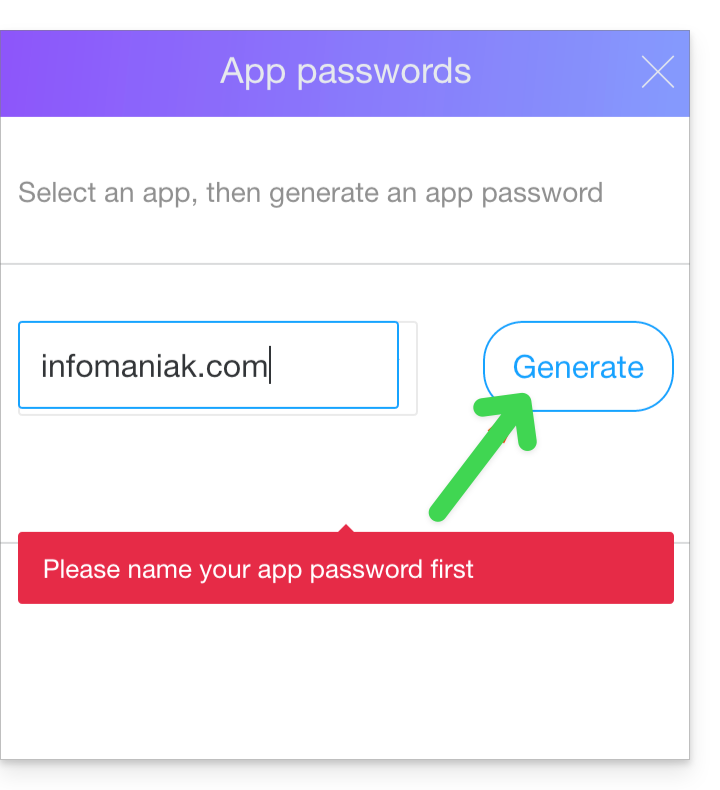
- Specify an application name, for example Infomaniak and click on Generate:
- Copy the application password.
2. Infomaniak Prerequisites
- Have a Mail Service on your Infomaniak Manager.
- Have a quota of available addresses or adjust it in advance if necessary.
- Ensure that the email is correctly secured
- Create one or more addresses on this Mail Service.
- If you have many (10+) email addresses to create, refer to this other guide regarding mass creations.
- The destination email address must be attached to the user (= to the Infomaniak account) that you are using.
3. Import Yahoo mail content to Infomaniak
- Click here to access the import tool (online service https://import-email.infomaniak.com).
- If you have many (10+) email addresses to import, refer to this other guide regarding bulk imports.
- If necessary log in to your Infomaniak account on the Organization of your choice; indeed the import will be to one of the email addresses attached to the Infomaniak Web Mail interface (online service ksuite.infomaniak.com/mail) of the Infomaniak account you are using.
- Click on single import.
- Fill in the left field with your Yahoo email address (whose content is to be copied).
- Fill in the right field with the password of this same source email address.
- Click on Confirm.
- If necessary, enter a second email address to be imported at the same time.
- Choose which email address to import emails to; the dropdown menu lists the email addresses currently attached to your Infomaniak Web Mail interface (online service ksuite.infomaniak.com/mail) of the Infomaniak account you are logged into.
- After selecting the desired destination address from the list, click the blue Import emails button.
- The copy begins, you can wait and see the result on the page once the import is complete, or close the window (the import continues in the background - refer to this other guide from point 13 regarding import tracking).
- A confirmation email will be automatically sent to all email addresses concerned by the operation once the import is complete, mentioning the number of messages copied.
4. Adjust application settings
As soon as you take the necessary steps for the domain name associated with your email to work with Infomaniak, modify the settings of the email software/clients you use so that they connect correctly to the Infomaniak servers: follow the configuration assistant.
Link to this FAQ:
Has this FAQ been helpful?