Knowledge base
1000 FAQs, 500 tutorials and instructional videos. Here, there are only solutions!
Download a complete website
This guide helps you download all the data related to your website hosted by Infomaniak.
Preamble
- Automatic backups are made daily on Infomaniak installations.
- However, you can download a clean and personal version of your website to keep it safe on your local installation, USB key,
.ziparchive on kDrive, etc. - To download a site created with WordPress, refer to this other guide specific to 2 extensions allowing local backup of information.
- With the exception of Site Creator, the data of a website hosted by Infomaniak are accessible and visible on the server via an FTP connection (which means that to make a backup of the data, it is sufficient to download the content of the parent folder on the server).
- All you have to do is add a backup of the site's database (which contains information that is not written in the files accessible by FTP).
Site location
When you arrive in the folder tree on the server, it will not always be easy to know where to go to download the information related to the site that interests you.
Start by noting the exact location of the site you want to download, by going to manager.infomaniak.com on the site's dashboard within your Web Hosting: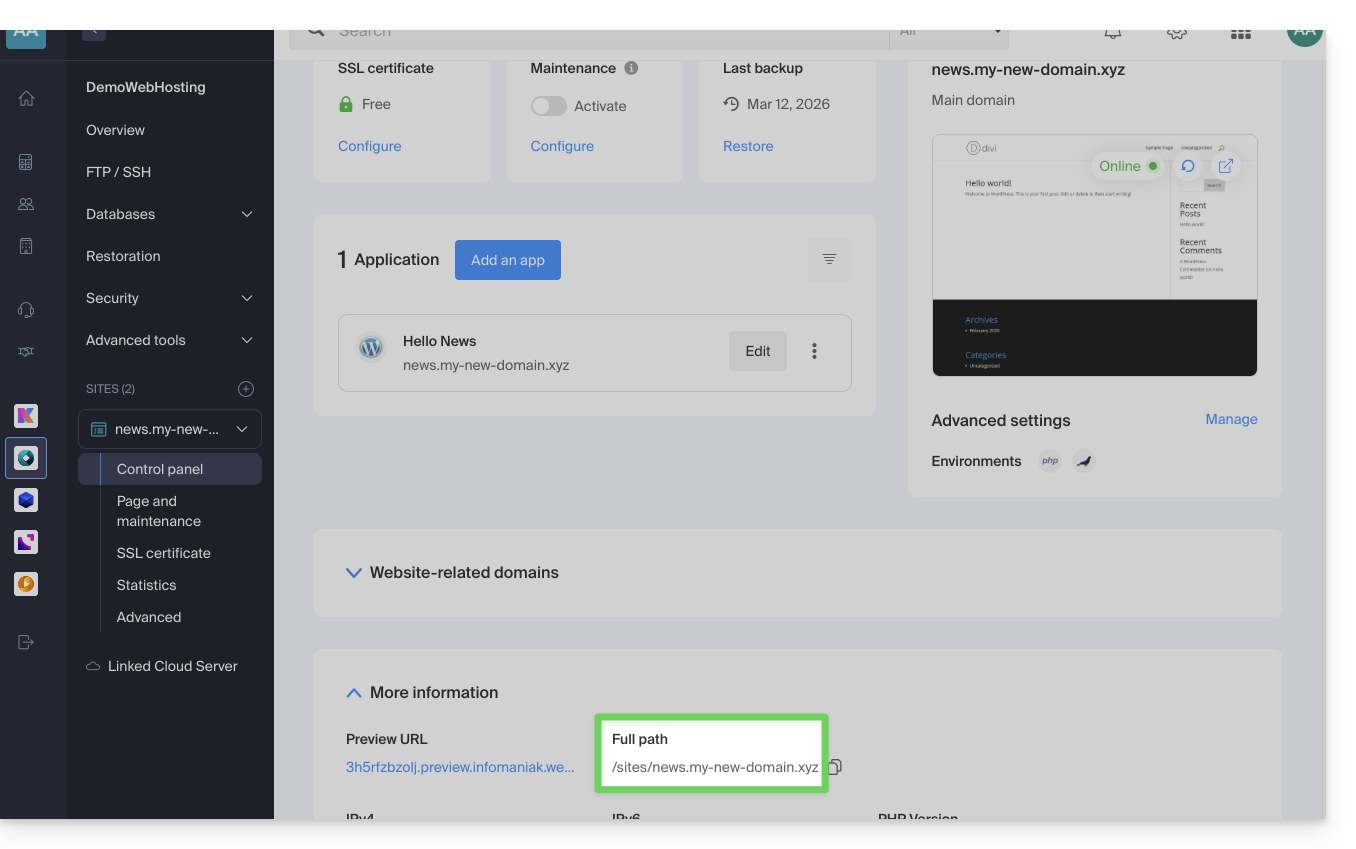
The indication highlighted above is the location of the example site. Check yours!
Connecting to the server
To get to the server, you need to use an FTP software/client or the Web FTP on the Manager which can be suitable in most cases: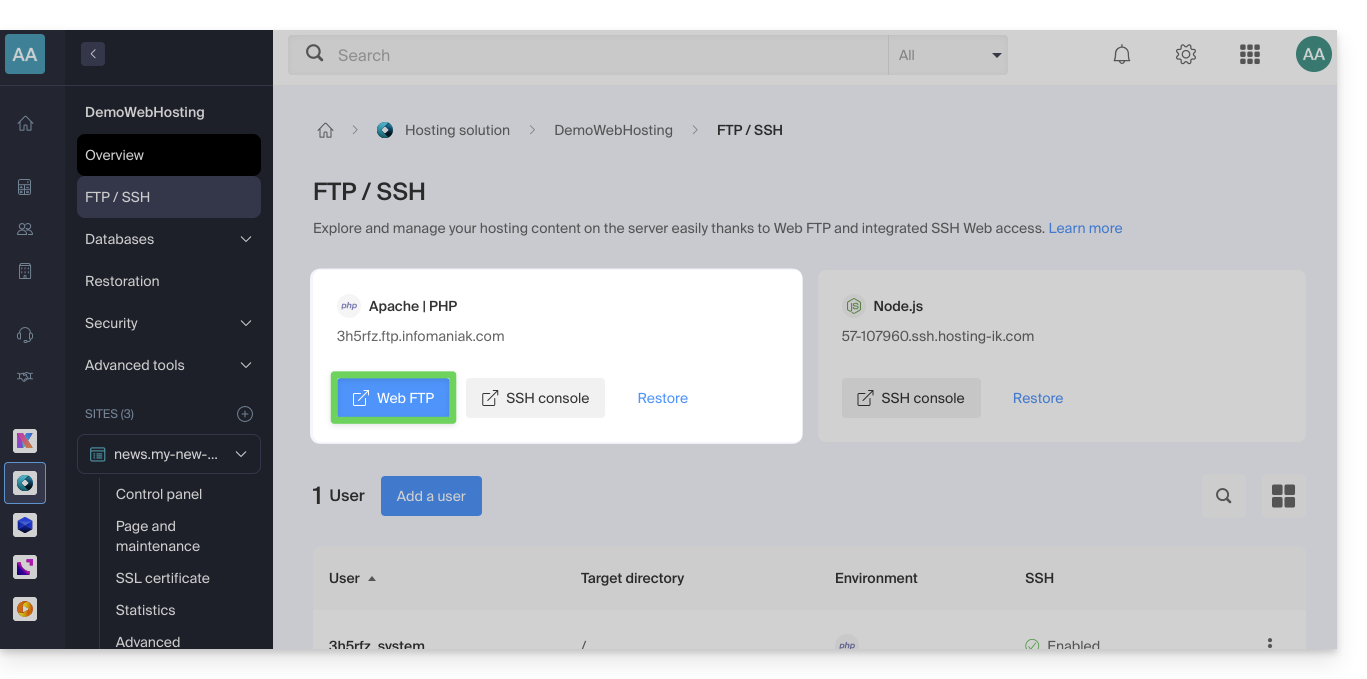
Downloading the site
When you arrive on the Web FTP, you need to go to the location noted in the first chapter above, and click on the download icon to the right of the folder corresponding to your site: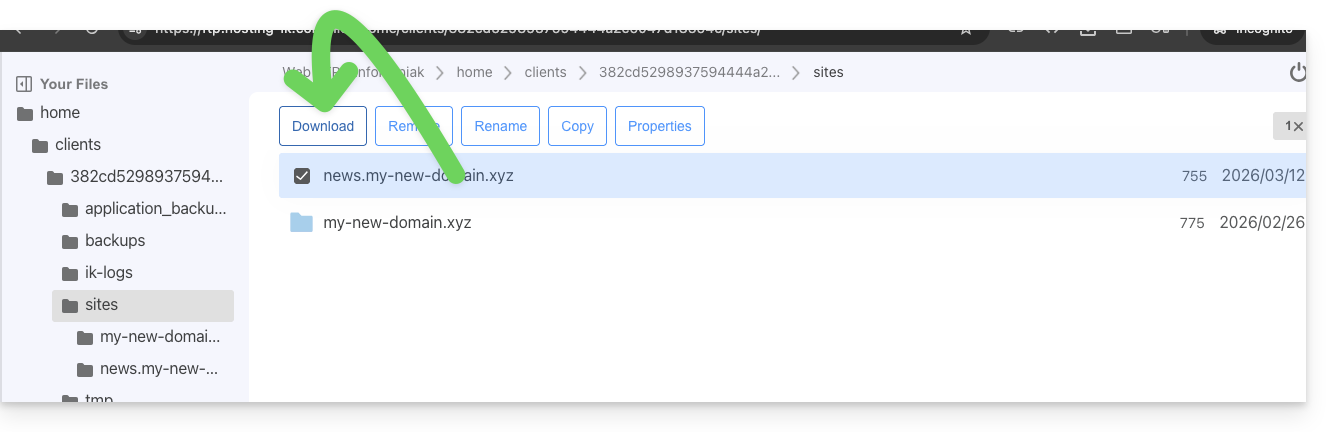
The download starts and you get a .zip archive with all the files making up your website (with the exception of files starting with a "." like .htaccess).
Downloading the database
In most cases, your site uses a database to function. It must therefore also be downloaded.
To do this:
- Click on Databases in the left side menu.
- Click on the action menu ⋮ located to the right of the name of your database (if you are not sure which one to take, repeat the operation for each of them).
- Click on Download:
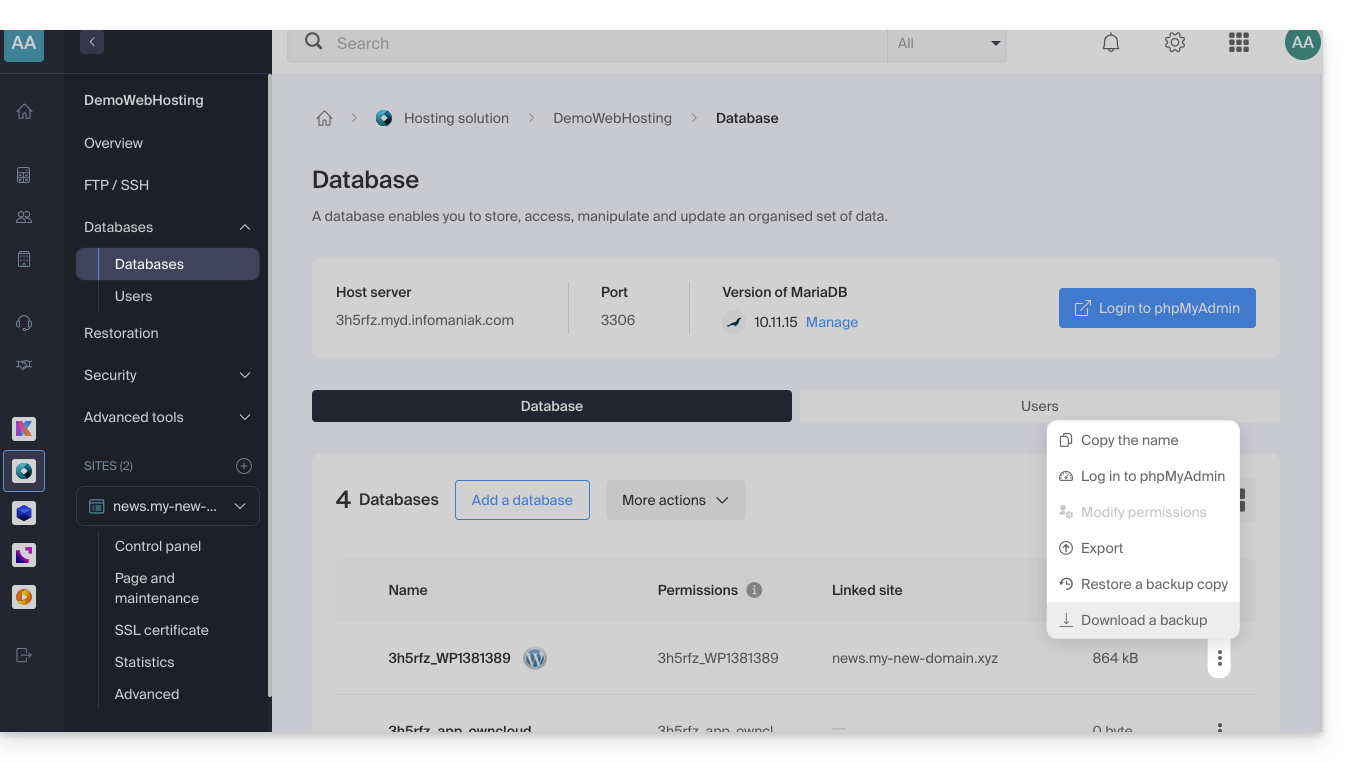
You will need to confirm the download (or export) of the most recent correct file in the next step to obtain a .sql.gz file that corresponds to all the tables in your database, which you should keep safe.
The download link is sent by email.
Link to this FAQ: https://faq.infomaniak.com/384
Has this FAQ been helpful?