Knowledge base
1000 FAQs, 500 tutorials and instructional videos. Here, there are only solutions!
Manage voice messages with kChat
This guide details the use of voice messages within Infomaniak kChat conversations.
Send a voice message (and automatic transcription)
To record a voice message using your device's microphone and allow it to be broadcast in the ongoing discussion (private message for example but also all places where you can send a text message):
- Click here to access the kChat Web app (online service ksuite.infomaniak.com/kchat) or open the kChat mobile app (application for iOS / Android smartphone or tablet) or the kChat desktop app (desktop application on macOS / Windows / Linux).
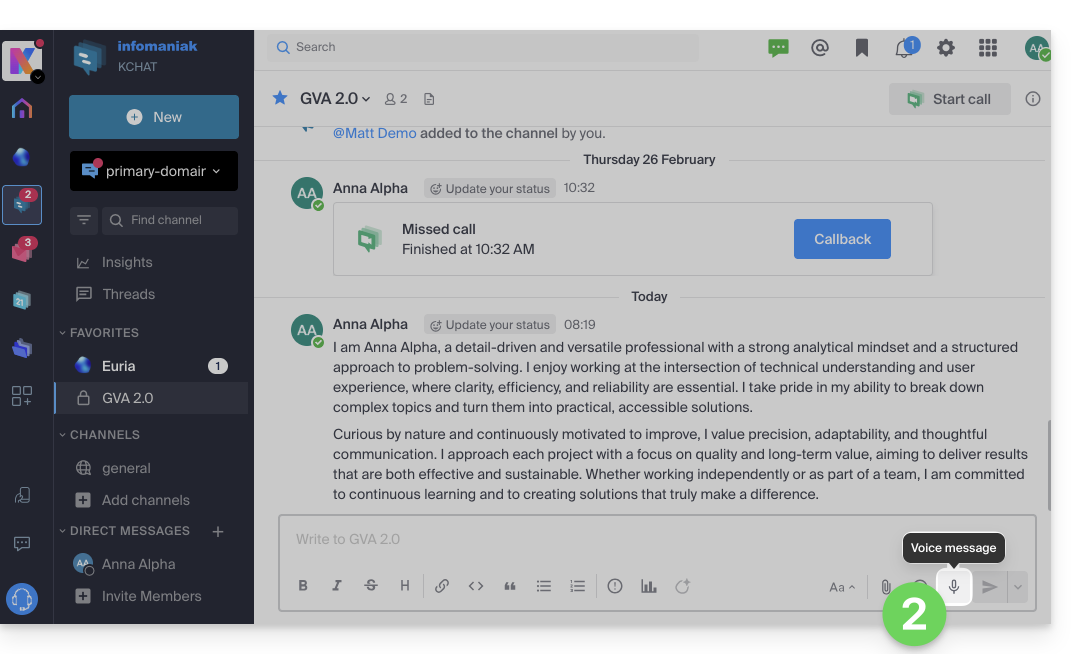
- Click on the microphone icon from the new message composition window:
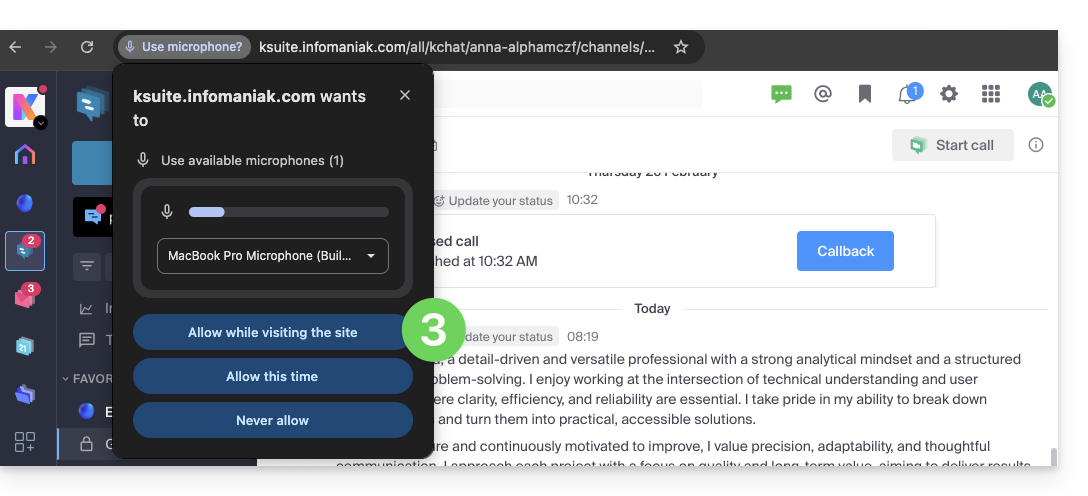
- Permissions may be requested by the system so that kChat can access your voice and audio interface:
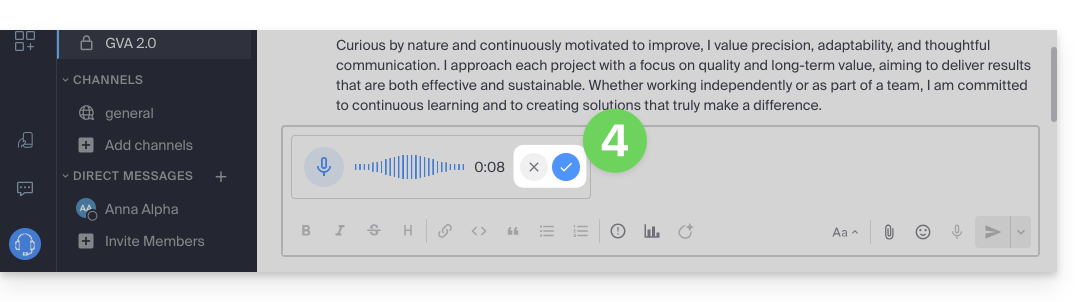
- Once the message is being recorded, click on the cross to the right of the recording to delete it, or on the icon ✓ to keep it:
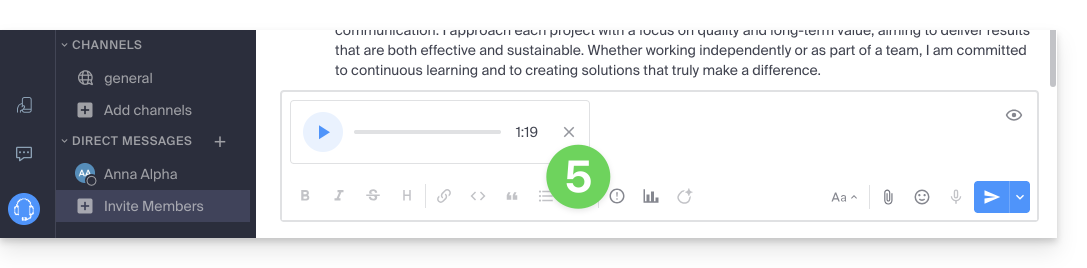
- Once the message is saved, it is not sent directly but is added to a new message, you can replay it or delete it, and change the importance of the sending
- Once the message is sent, it appears in the ongoing discussion with its text transcribed in clear, all in letters:
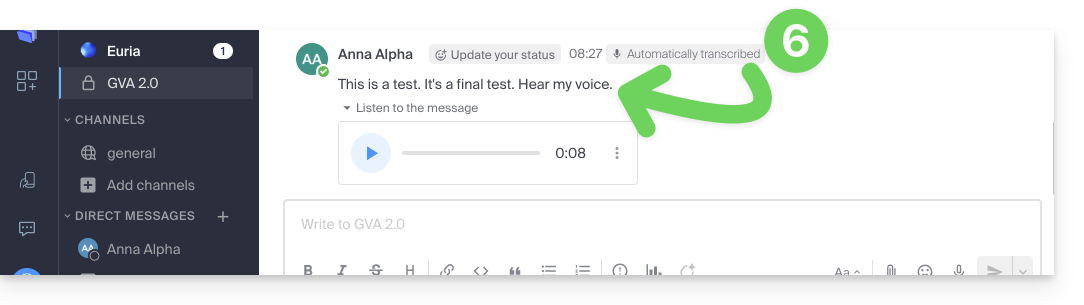
Listen to a voice message on kChat
To listen to the voice message that has been recorded in the ongoing discussion:
- Click on the ▶ (Play) button to start listening.
- Click on it again (⏸ (Pause) button) to stop playback.
Download the voice message
To save the voice message to your desired location:
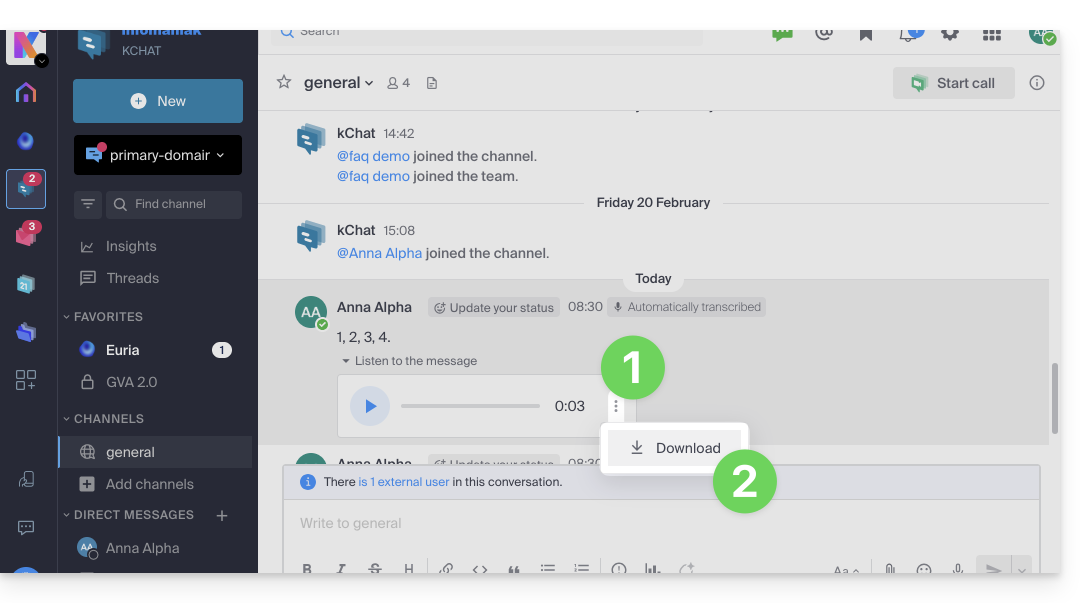
- Click on the action menu ⋮ to open a menu.
- Start the download of the voice message to your hard drive:
Link to this FAQ: https://faq.infomaniak.com/2876
Has this FAQ been helpful?