Knowledge base
1000 FAQs, 500 tutorials and instructional videos. Here, there are only solutions!
Create a desktop app (from the Calendar app for example)
Update 04/14/2026
This guide explains how to obtain and install an application on your computer from certain Infomaniak interfaces such as kSuite or those that allow you to manage your calendars/agendas or your address books.
Preamble
- A Progressive Web App (PWA) is a web-based application that offers an experience similar to that of a native application.
- PWAs are fast, accessible directly from your browser, and can offer features such as offline functionality or sending notifications.
- Installing a PWA allows you to create a standalone application on your computer without going through a store traditional.
Install a progressive web app (PWA)
To download the PWA app (example here with Infomaniak Mail), depending on the browser used:
- Click here to access the Infomaniak Web app Calendar.
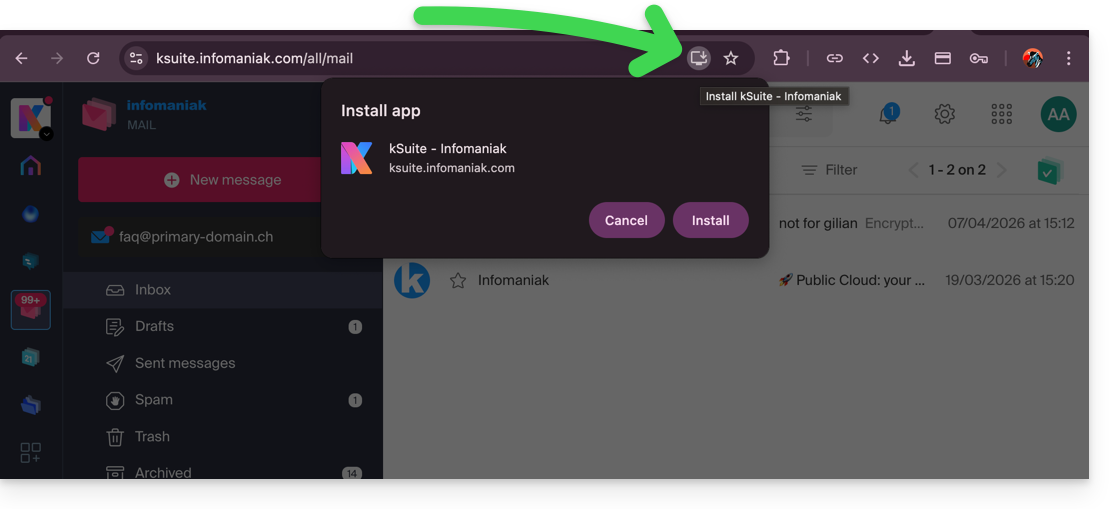
- Once the page is loaded, check for the presence of the installation icon in the browser's address bar (often represented by a screen with a “+”):
- Google Chrome / Chromium:
Click on the installation icon located in the address bar, or open the ⋮ menu and then click on Install [application name]. - Microsoft Edge:
Click on the Applications icon in the address bar or open the ⋯ menu, then select Applications > Install this site as an application. - Mozilla Firefox:
PWA installation is not fully supported natively. However, it is possible to use alternative solutions (extensions or shortcut creation) to simulate similar behavior. - Safari (macOS):
From recent versions of macOS, open the File menu and then click on Add to Dock to create a web application.
- Google Chrome / Chromium:
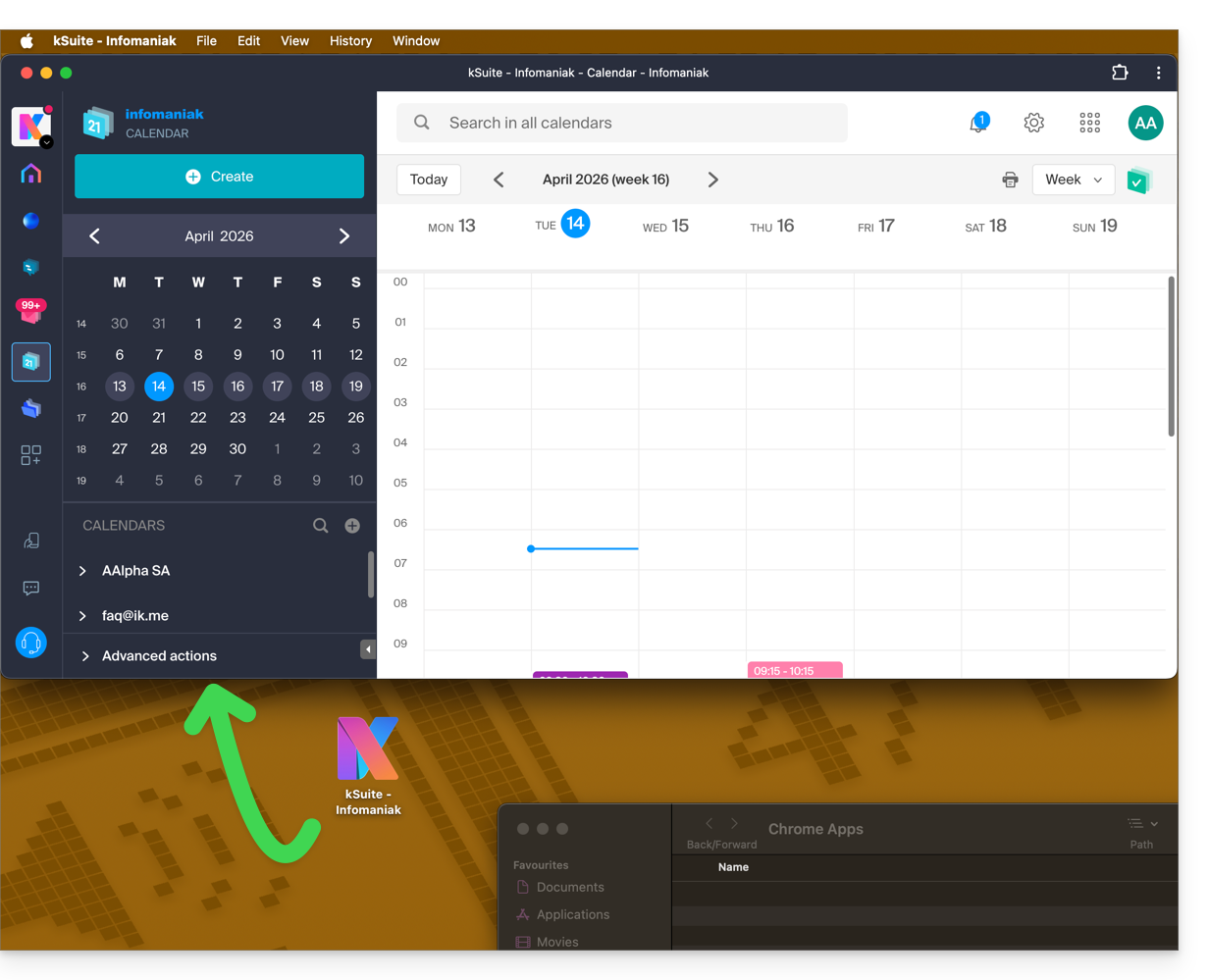
- The app is then present on your computer (example here with Infomaniak Calendar) and allows you to open the data while being completely autonomous outside the browser:
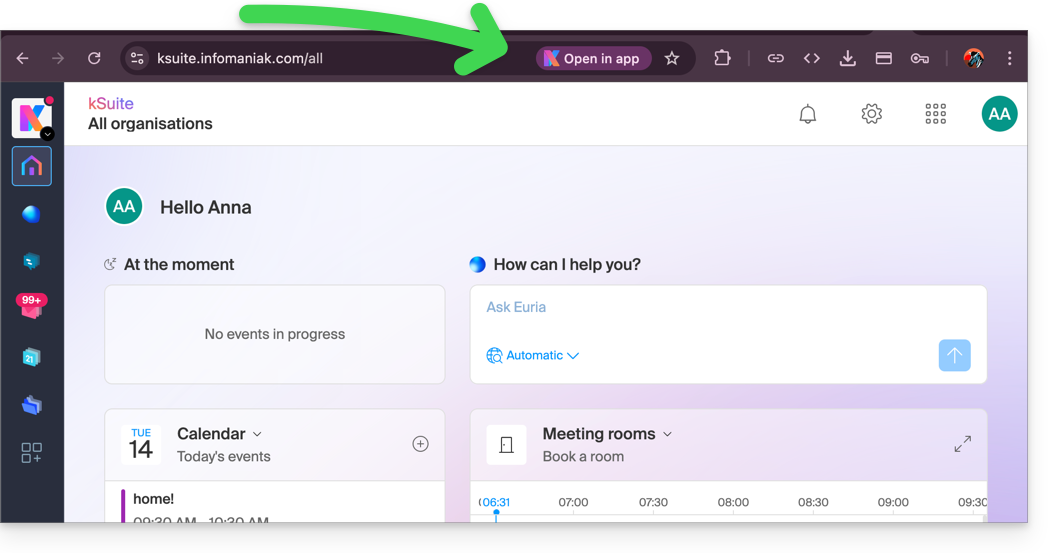
- Once the app is on your computer, you can easily return to the app from other Infomaniak pages:
Remove the Calendar Infomaniak application
To remove this local application system:
- Open the previously installed application.
- Click on the action menu ⋮ or ⋯ depending on your browser.
- Select Uninstall or Remove the application.
- Confirm the deletion if necessary.
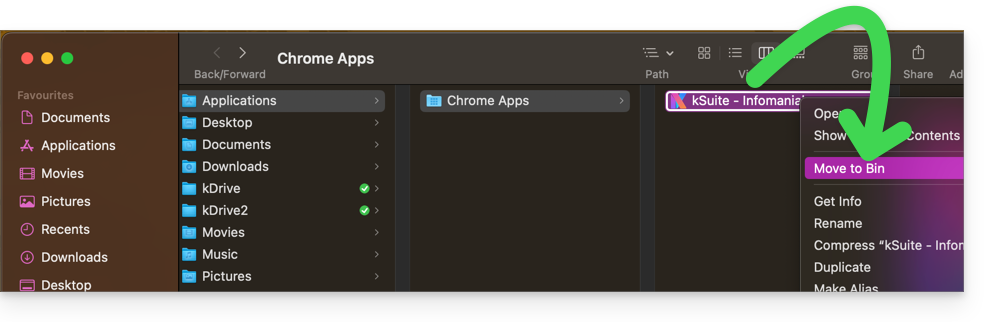
- You can also remove the application directly from your operating system (like any other application) or move the icon to the trash:
Link to this FAQ:
Has this FAQ been helpful?