Knowledge base
1000 FAQs, 500 tutorials and instructional videos. Here, there are only solutions!
Invite an external user to use kChat
This guide explains how to add a completely external user to kChat.
Preamble
- If you are the administrator of the Organization on which my kSuite (and therefore kChat) is located with full rights granted for kChat, you can invite a completely external user to your Organization who will not be counted as a user.
- However, the latter will be invited to create an Infomaniak account if they do not already have one.
- To add a kChat user and grant them more rights (they will be counted as a my kSuite user), refer to this other guide.
Invite a user to chat in a private channel
To send an email invitation from kChat:
- Click here to access the kChat Web app (online service ksuite.infomaniak.com/kchat) or open the kChat desktop app (desktop application on macOS / Windows / Linux).
- Click the button to Invite members:
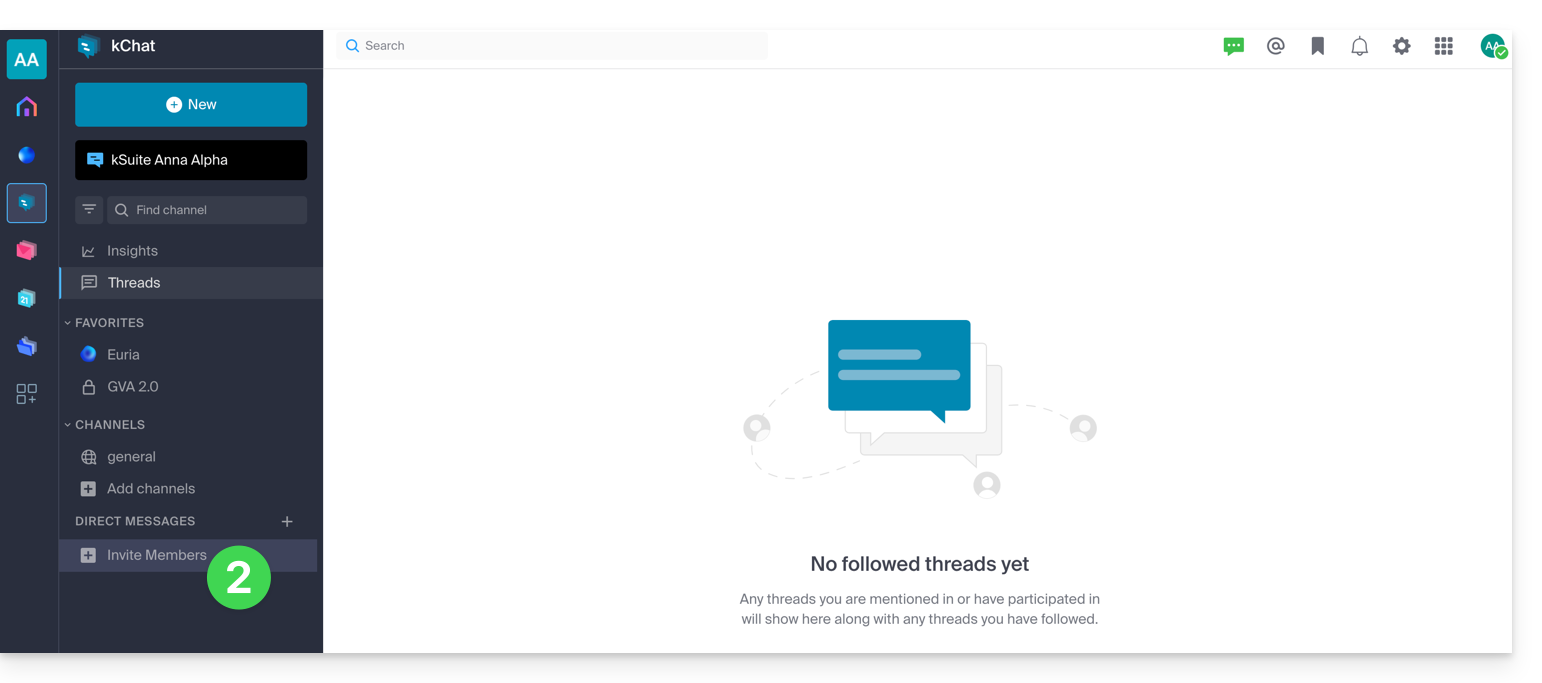
- Specify the email address of the person to invite.
- Click on their email address to add them as a guest:
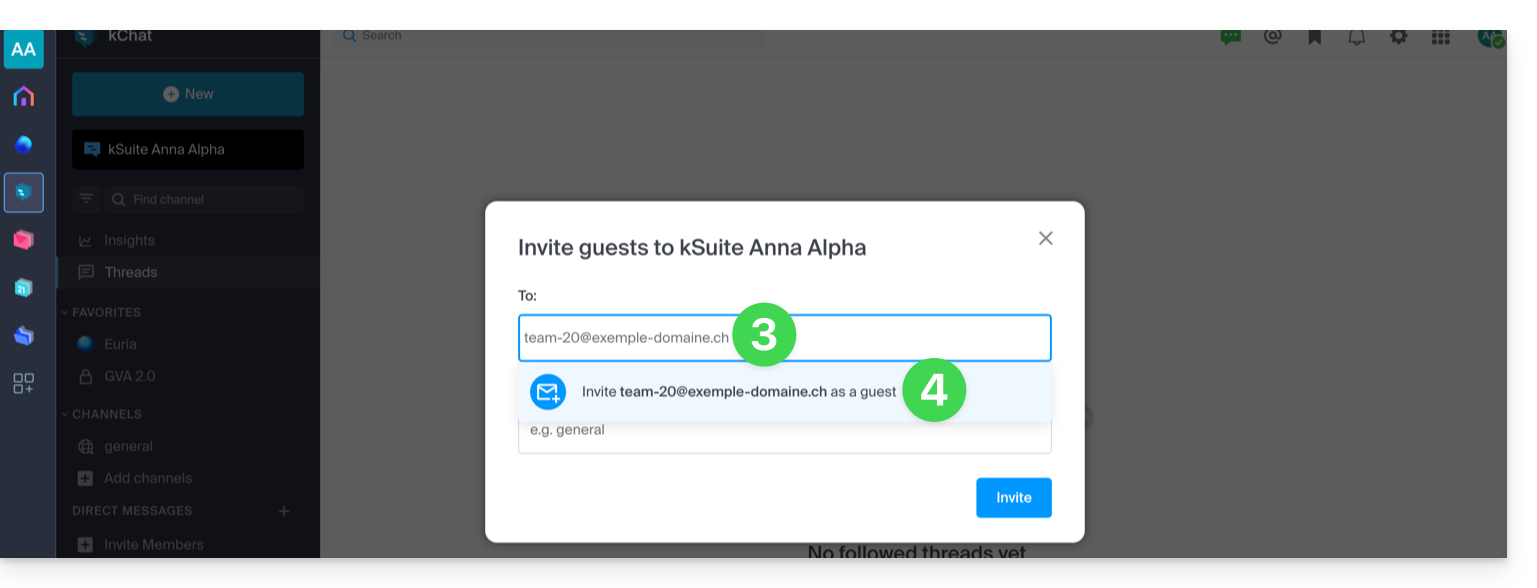
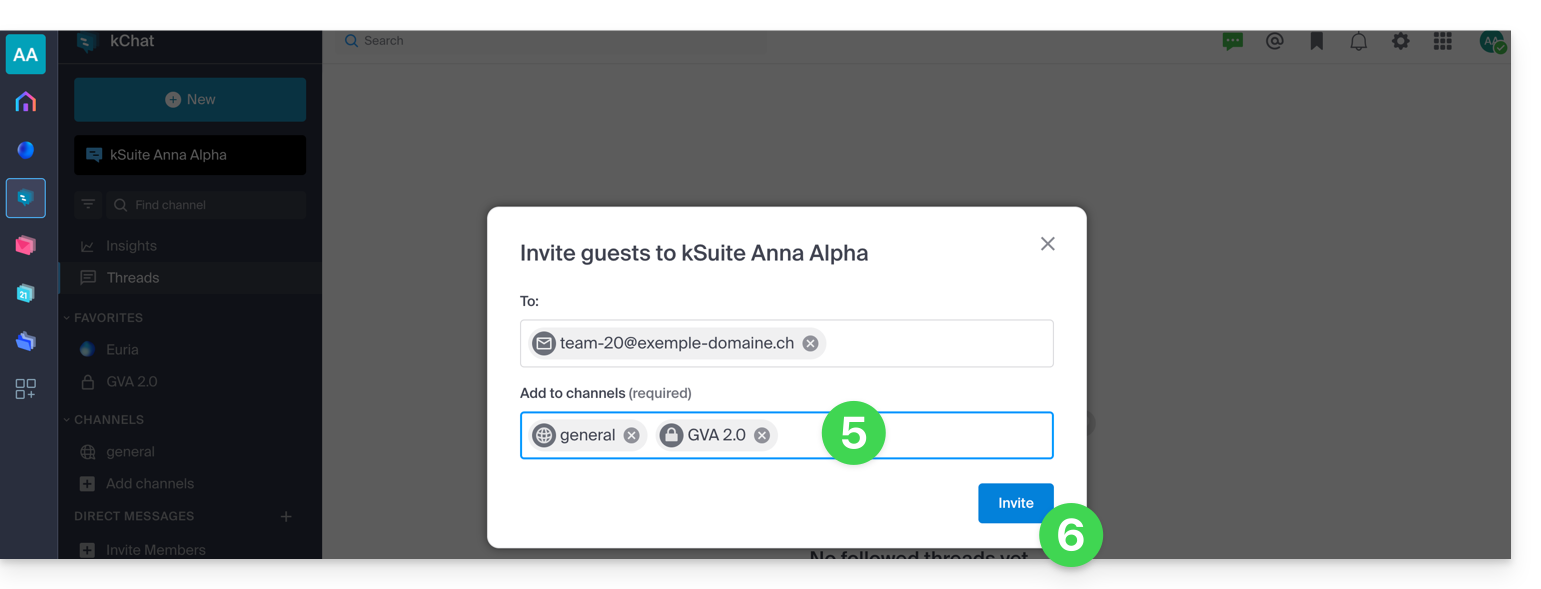
- Specify the channel(s) to which these people will have access.
- Click the blue button to send the invitation:
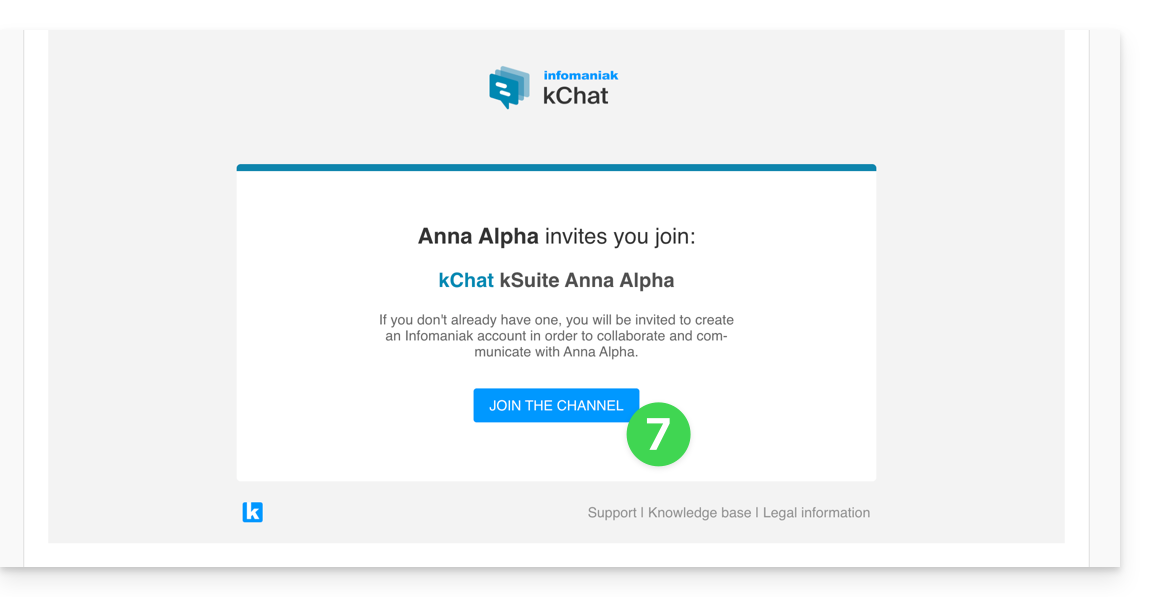
- The invited person receives an email with a link leading to the kChat interface and the channel shared with them:
- Obviously, there is a registration phase if the user does not yet have an Infomaniak account (during this time, the invited user is listed pending on the kChat channel in question):
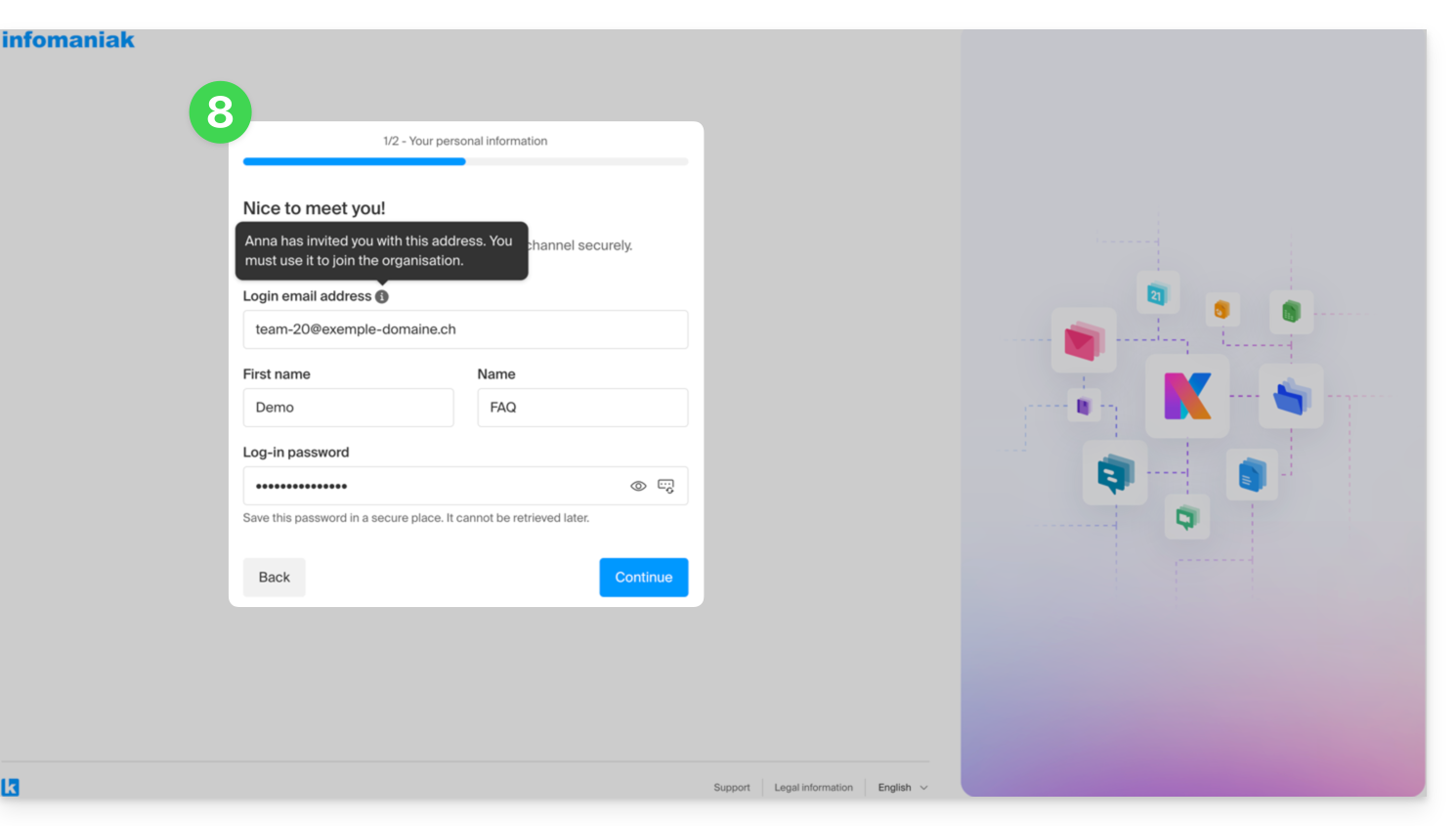
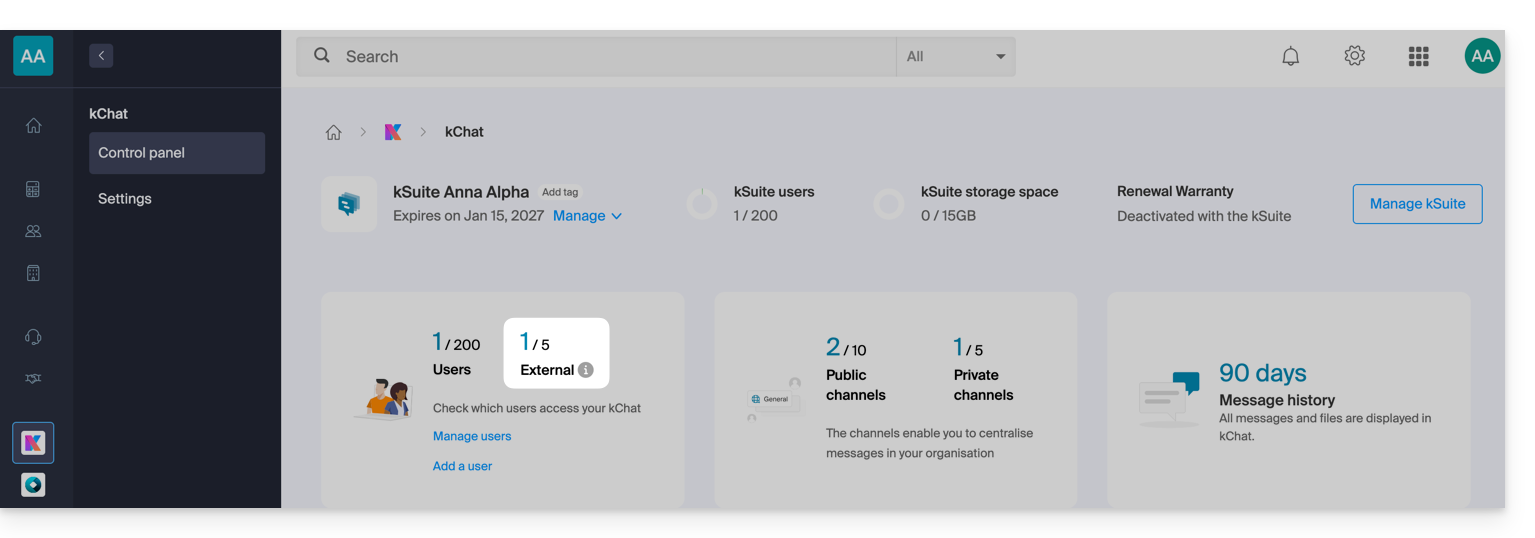
- Note that it will not be listed as pending within my kSuite or elsewhere as it is a restricted and external user; and as long as they have not completed their registration, the quota remains 0 external users:
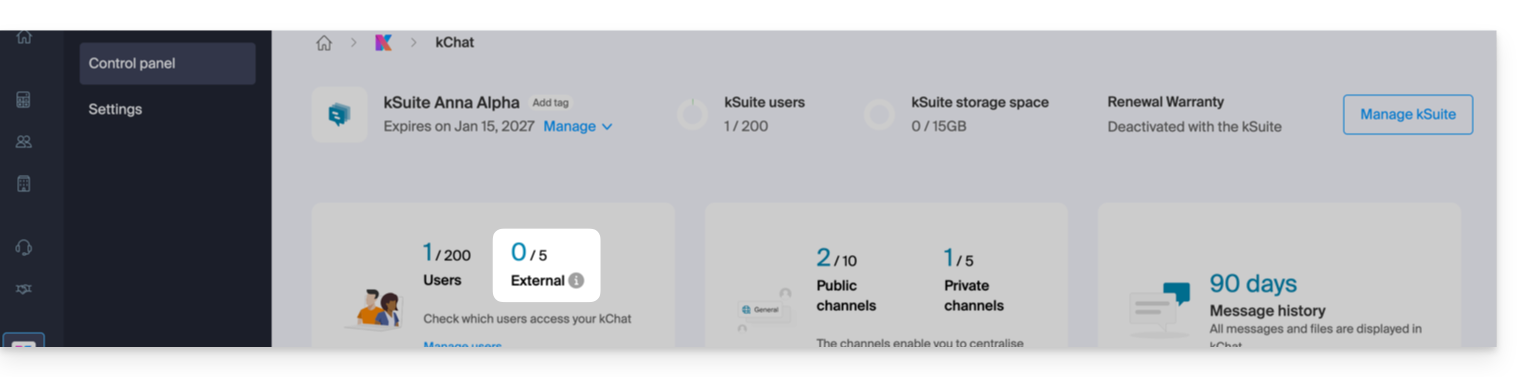
- Note that it will not be listed as pending within my kSuite or elsewhere as it is a restricted and external user; and as long as they have not completed their registration, the quota remains 0 external users:
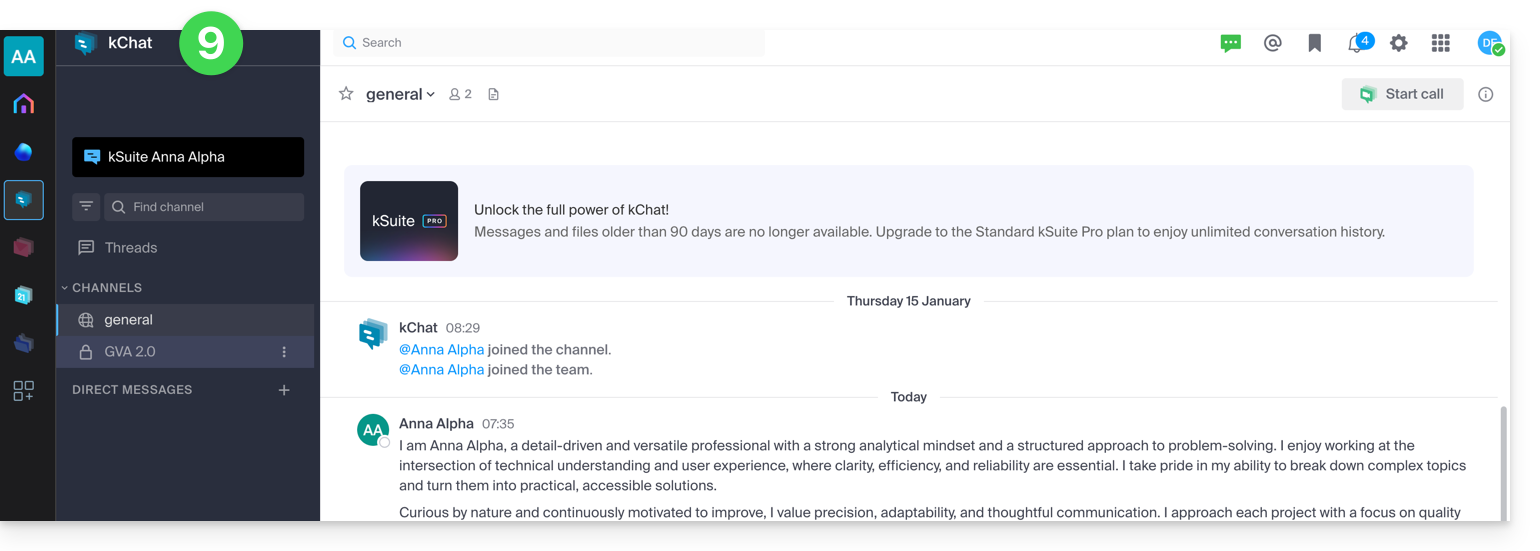
- Once the registration is complete, the guest can access kChat, a restricted version limited to the channels specified by the administrator when creating the invitation:
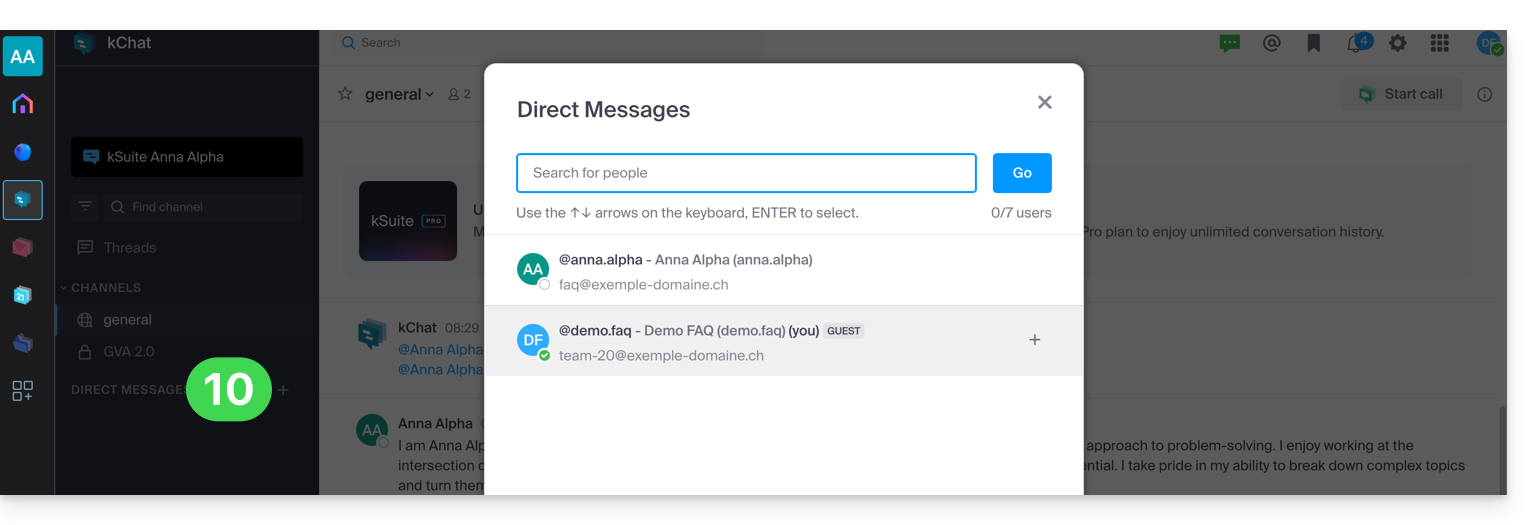
- They can start a private conversation with other users:
- From the administrator account, once the external user's registration is complete, you get the mention of 1 external user on your dashboard:
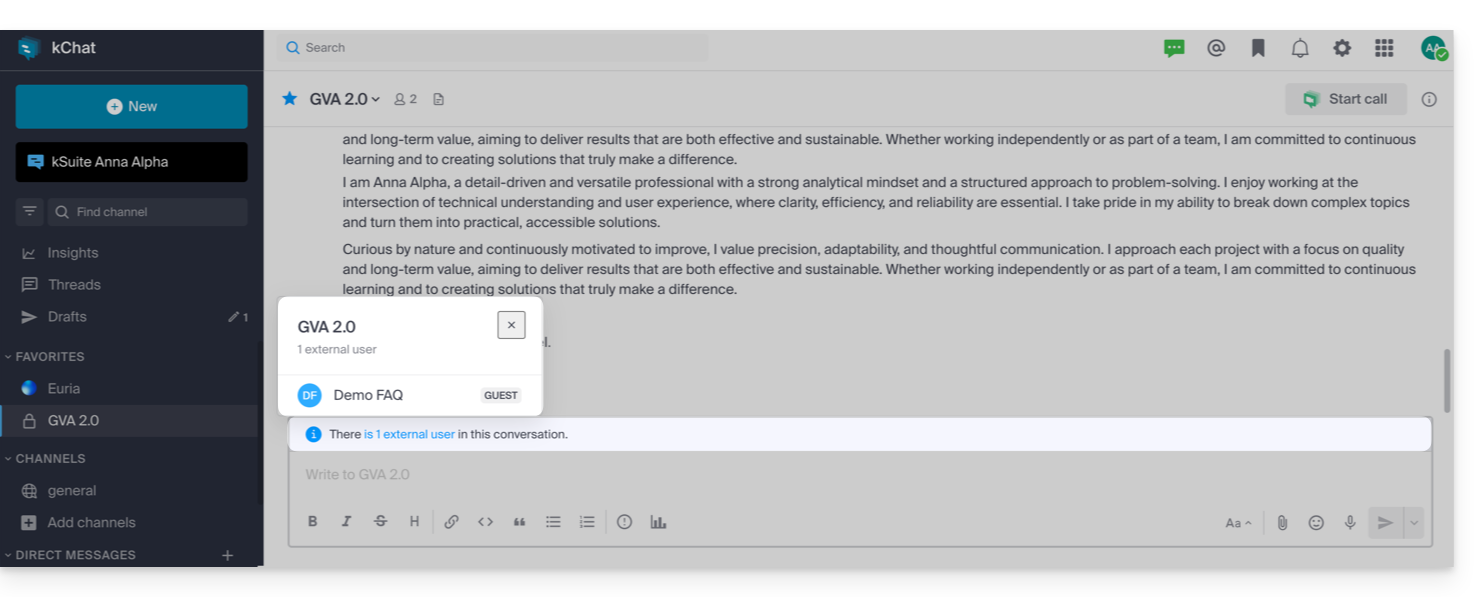
- And now you have the indication on kChat that the user is accessing your private channel:
- From the administrator account, once the external user's registration is complete, you get the mention of 1 external user on your dashboard:
Permissions of the invited user
Guests can…
- … pin messages to channels
- … use "slash commands" (except for restricted commands such as inviting members, renaming channels, modifying headers, etc.)
- … add a channel to favorites
- … mute a channel
- … update their profile
- … use different authentication methods from other users
- … use the kChat app: the guest can open the app (Web, mobile, or desktop) whether they are already a member of a kChat or not; this operating principle is different with kDrive, for example.
Guests cannot…
- … discover public channels
- … join open teams
- … create direct messages or group messages with members who are not part of the same channel
- … invite people
In case of a problem
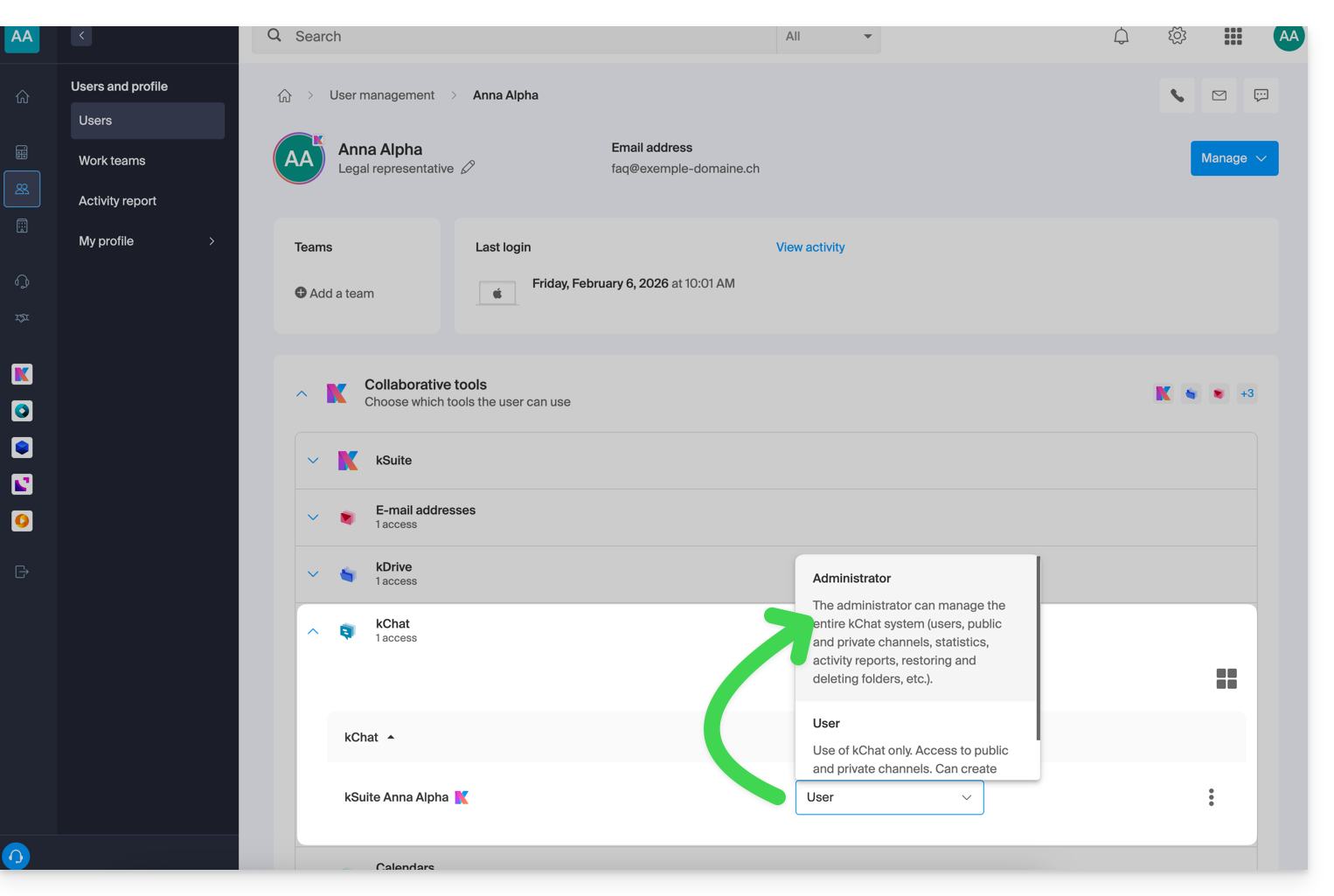
If you are an administrator of the Organization, but still cannot invite a new user to kChat, check that you are indeed an administrator within kChat, as it is quite possible to be a simple user/collaborator, even being the sole user with a license on my kSuite, for example:
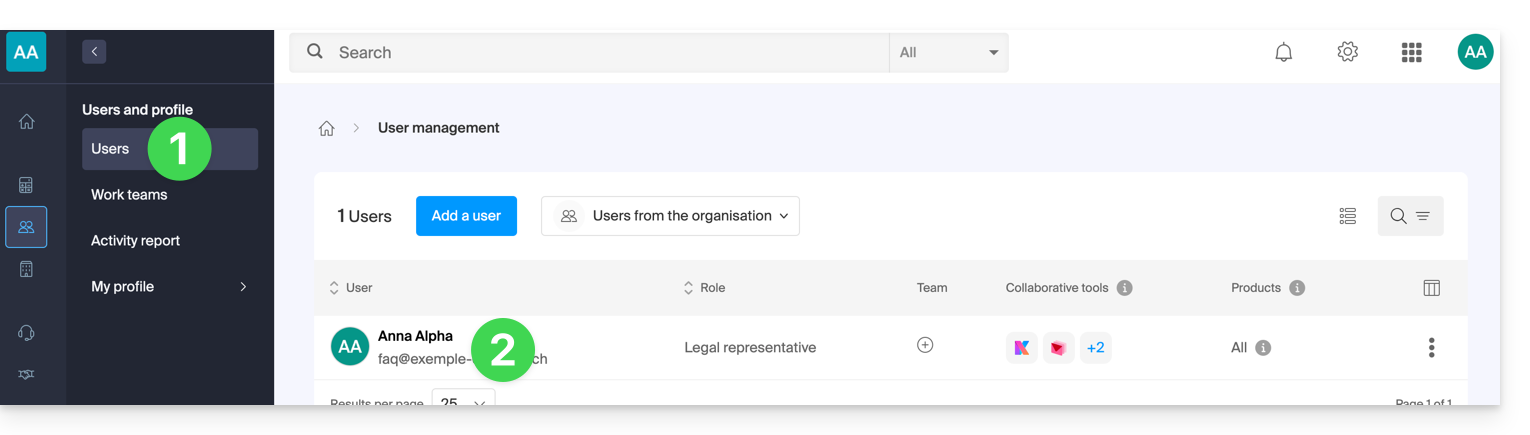
- Click here to access the management of the Organization's users on the Infomaniak Manager (need help?).
- Click on your username:
- Click on the chevron to expand the kSuite collaborative tools:
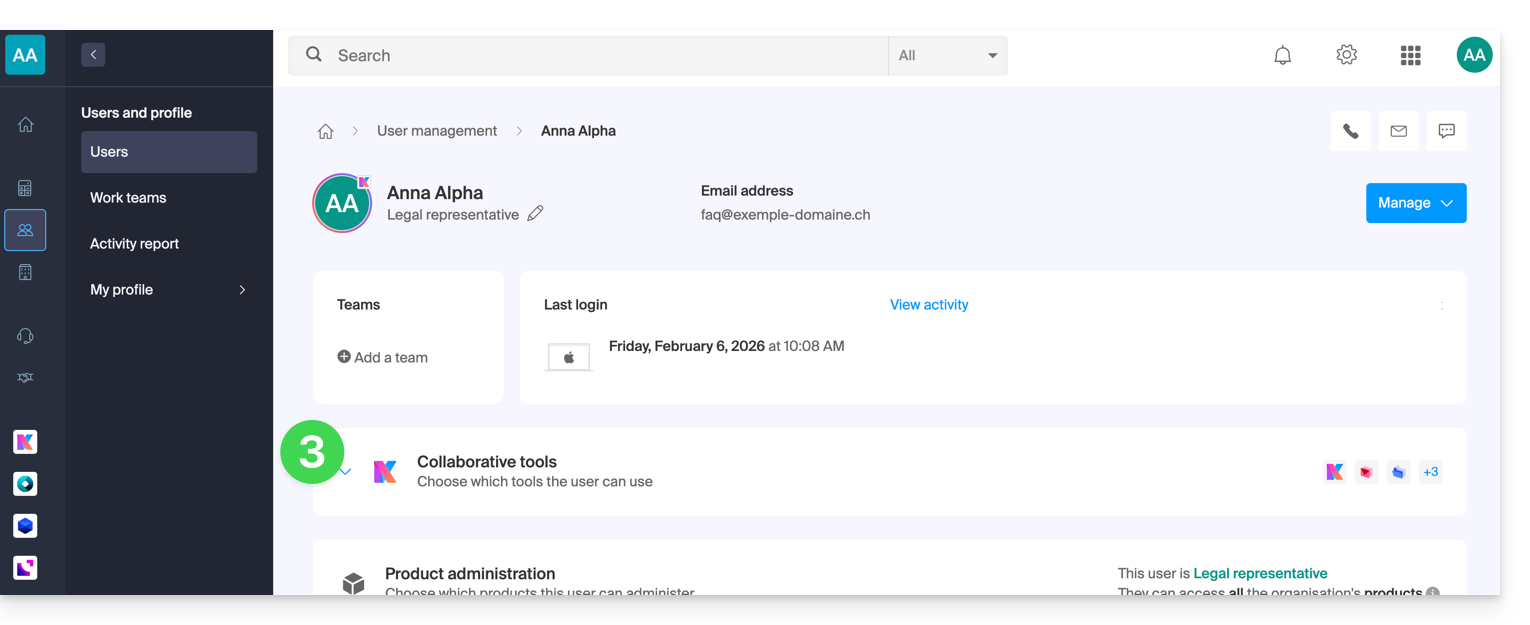
- Under kChat, change the role from user to administrator:
Link to this FAQ:
Has this FAQ been helpful?