Knowledge base
1000 FAQs, 500 tutorials and instructional videos. Here, there are only solutions!
Manage the anti-spam filter
This guide explains how to activate the Infomaniak anti-spam filter, which can significantly reduce the number of unsolicited messages that may arrive in your Infomaniak email address if you share it with third parties.
Preamble
- Spam is an unsolicited message, often of an advertising or fraudulent nature, aimed at promoting products, services, or carrying out online scams; fortunately, Infomaniak has implemented strategies to combat this form of digital pollution.
- Thanks to the anti-spam filter, the messages you actually want to see quickly will no longer be drowned among dozens of other unwanted messages, as the latter will be automatically placed in a special folder, the
Spamfolder (or in the spam destination folder - see below) and then automatically deleted after 30 days. - Moreover, the filter is automatically activated when creating an email address within an Infomaniak Mail Service or when subscribing to a my kSuite / my kSuite+ offer.
Activate the option from the Infomaniak Web Mail app
Prerequisites
- Have permission to manage the filter: it is possible that the Mail Service manager has revoked this right from their admin account.
To access your Infomaniak email settings:
- Click here to access the Infomaniak Web Mail app (online service ksuite.infomaniak.com/mail).
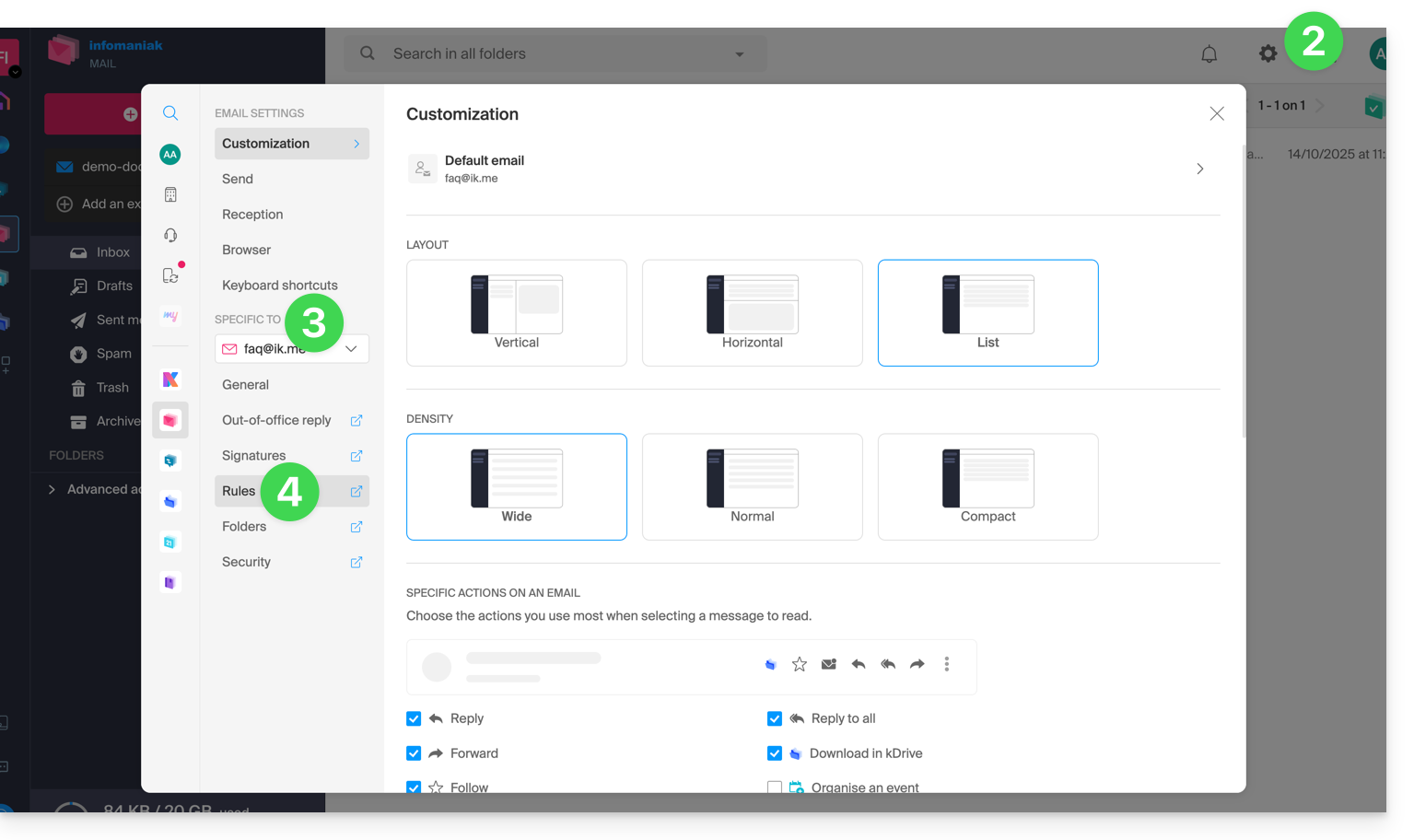
- Click on the Settings icon in the top right corner.
- Check or select the relevant email address in the dropdown menu of the left sidebar.
- Click on Filters and rules:
- Activate the spam filter option, the effect is immediate (wait for the on-screen confirmation message); in this case, all future messages with a header indicating a high spam score (and blocked senders) will go to the Spam folder:
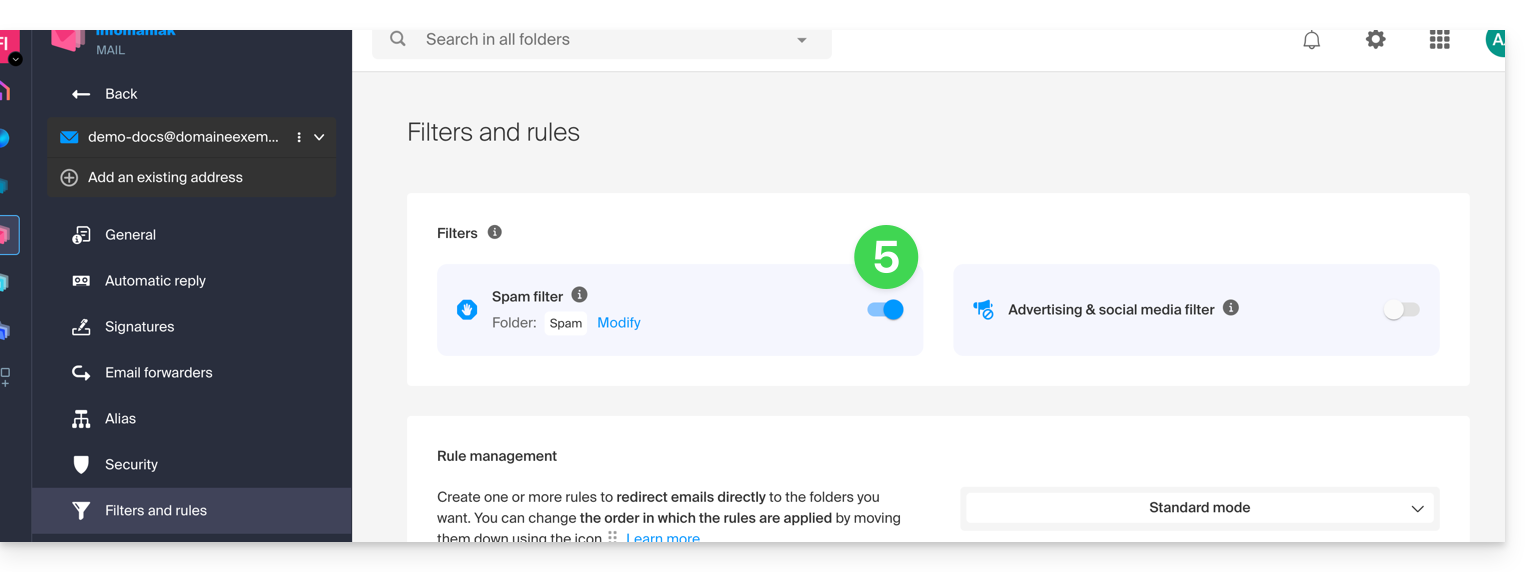
- Simply click the toggle switch again to deactivate the filter; in this case, all future messages will go to the inbox, including messages with a header indicating a high spam score.
Activate the option from a Mail Service
To access your Infomaniak email settings:
- Click here to access the management of your product on the Infomaniak Manager (need help?).
- Click directly on the name assigned to the relevant product.
- Click on the relevant email address in the table that appears.
- Click on Filters in the left sidebar.
- Enable the spam filter option, the effect is immediate:
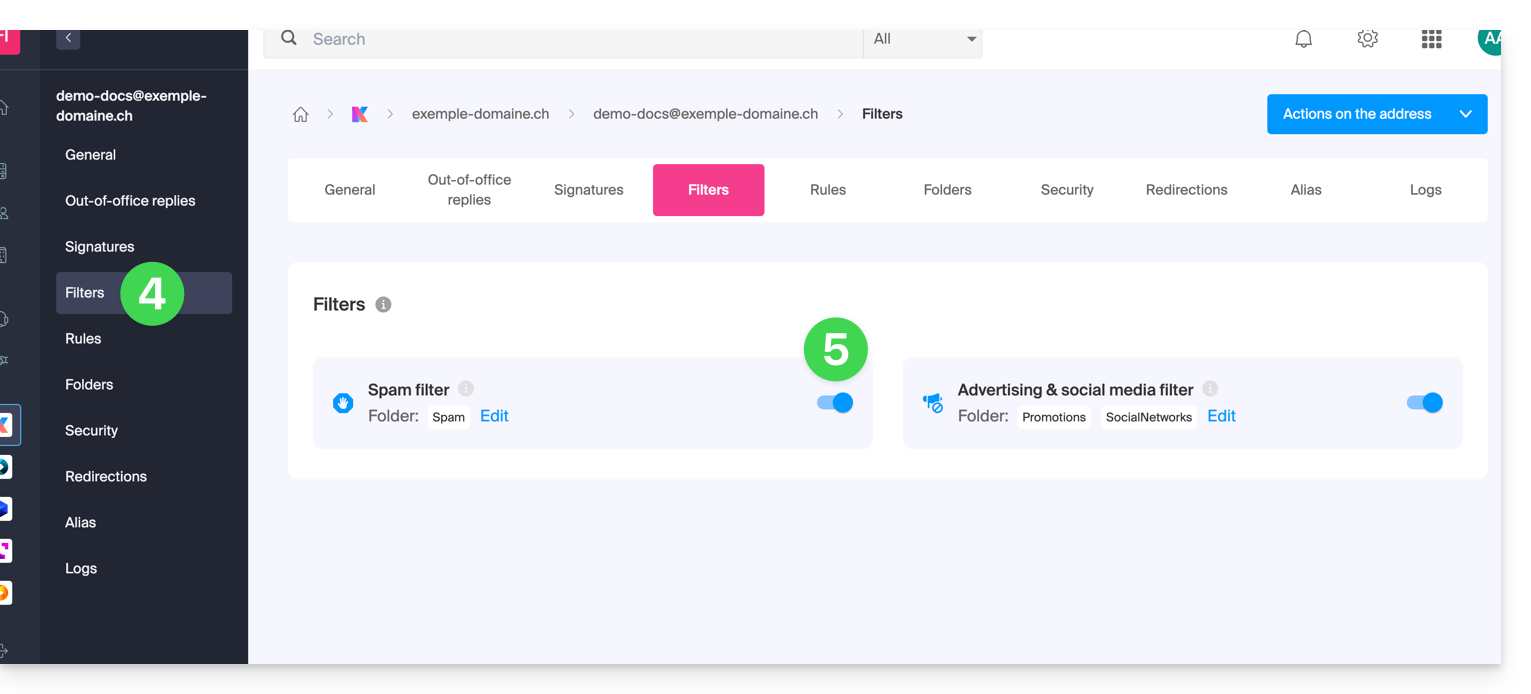
- Simply click the toggle switch again to disable the filter; in this case, all future messages will go to the inbox, including messages with a header indicating a high spam score (they can be processed downstream by your software/email client if it supports reading this type of header).
Note that you can activate it in bulk on multiple addresses at the same time.
Customize the anti-spam filter
Modify the location of spam
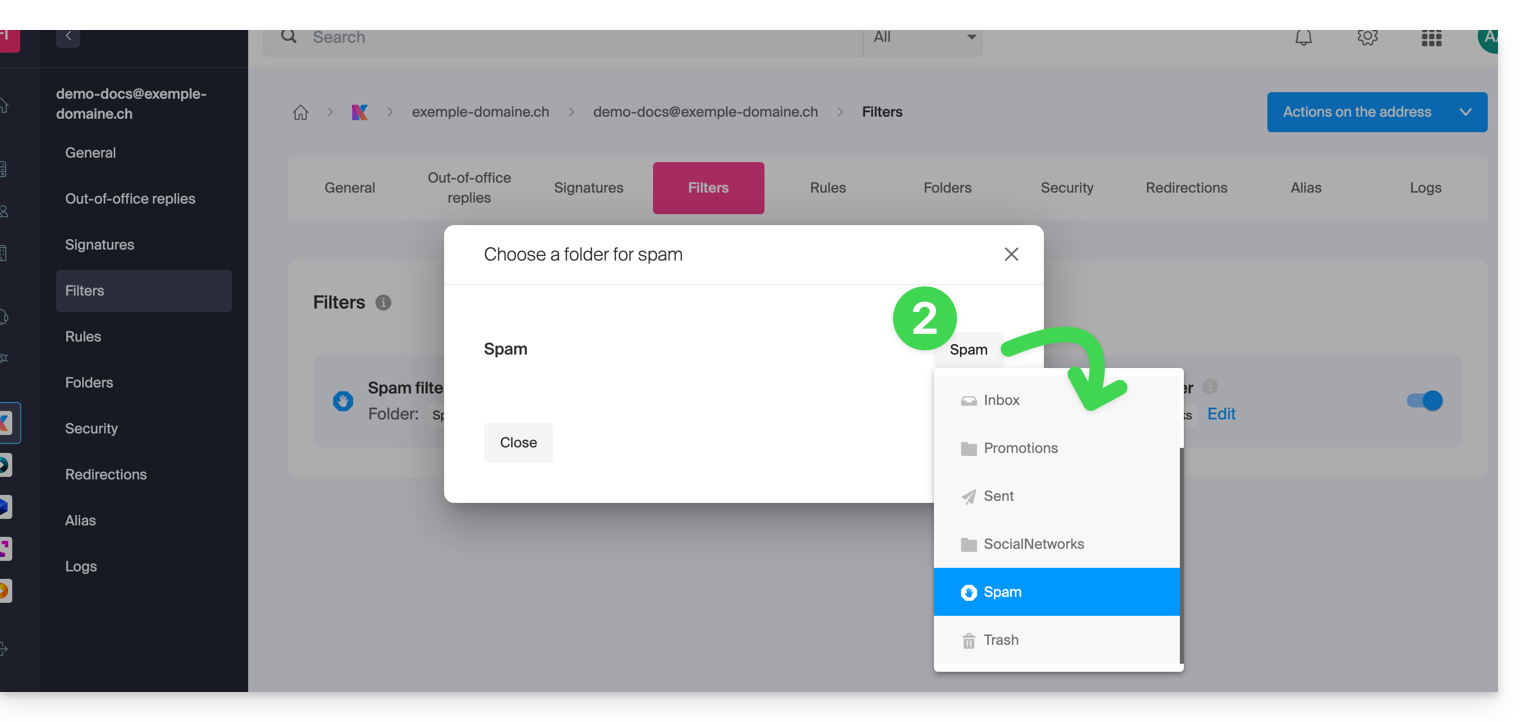
You can choose the default location of the folder where messages considered as spam will be automatically placed (similar to special IMAP folders).
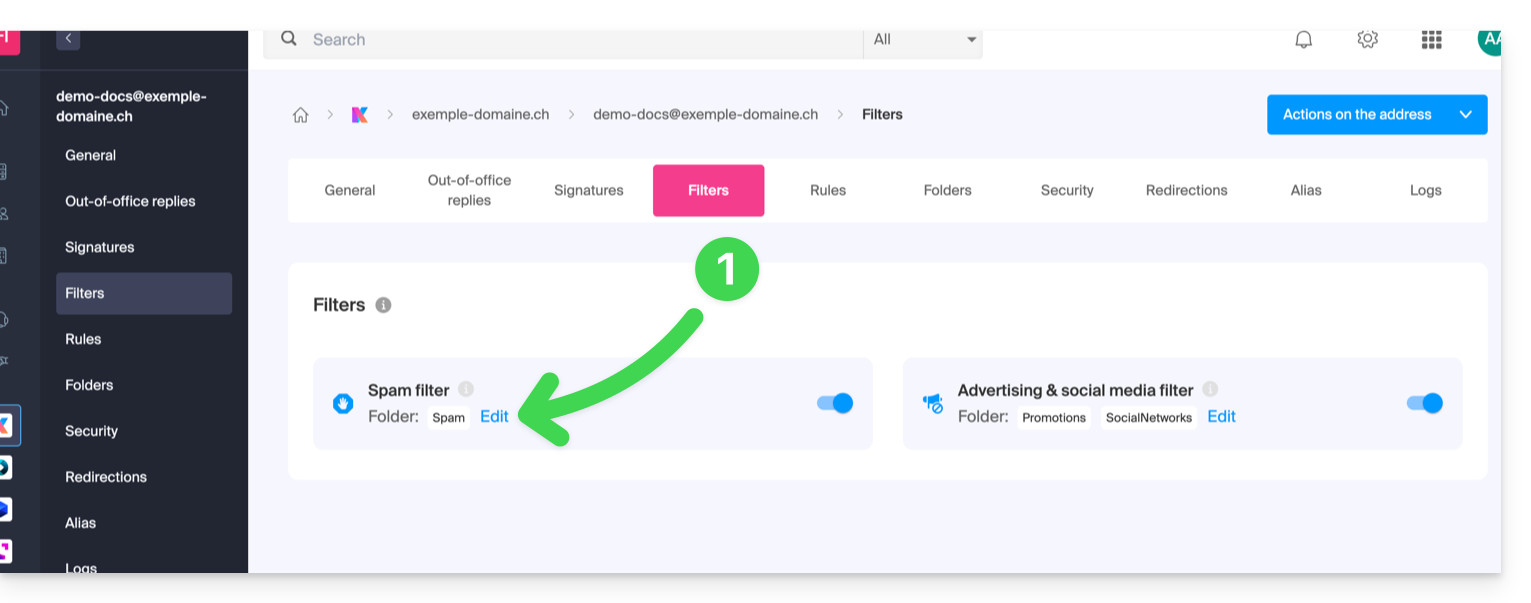
Where you have activated the spam filter:
- Click on Modify:
- Click on the folder name to choose another one (create a new one in advance if necessary):
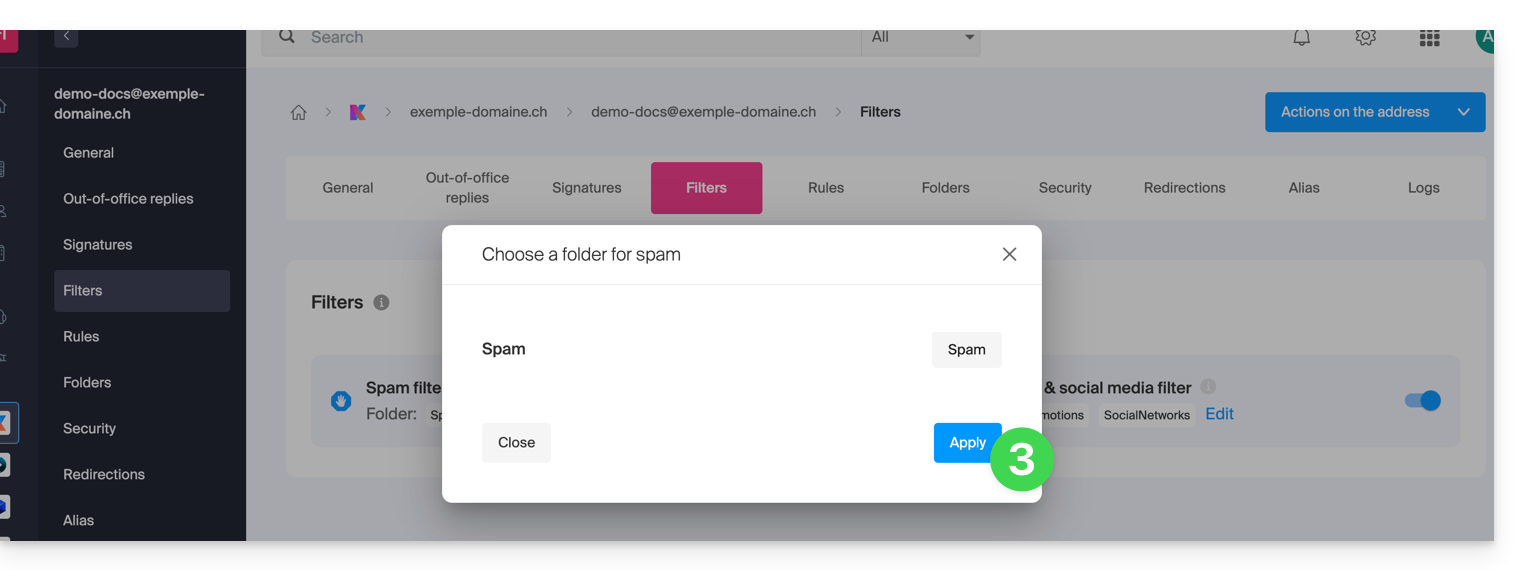
- Click on the Validate button:
Report a filtering issue or manually block senders
Report unfiltered Spam or an email filtered when it is not Spam (false positive): refer to this other guide on this subject.
You can also specify in advance which senders should always go to the Spam folder (or vice versa, if they should not be filtered): refer to this other guide on this subject.
For added security, enable the external mail mention.
Link to this FAQ:
Has this FAQ been helpful?