Knowledge base
1000 FAQs, 500 tutorials and instructional videos. Here, there are only solutions!
Copy Infomaniak email content internally
Update 05/21/2026
This guide explains how to copy the content of one or more Infomaniak email addresses (all email messages, folders, subfolders, in short, the entire structure of your mailbox) to one or more of your other existing addresses, also with Infomaniak (regardless of the Mail Service), using the Infomaniak import tool!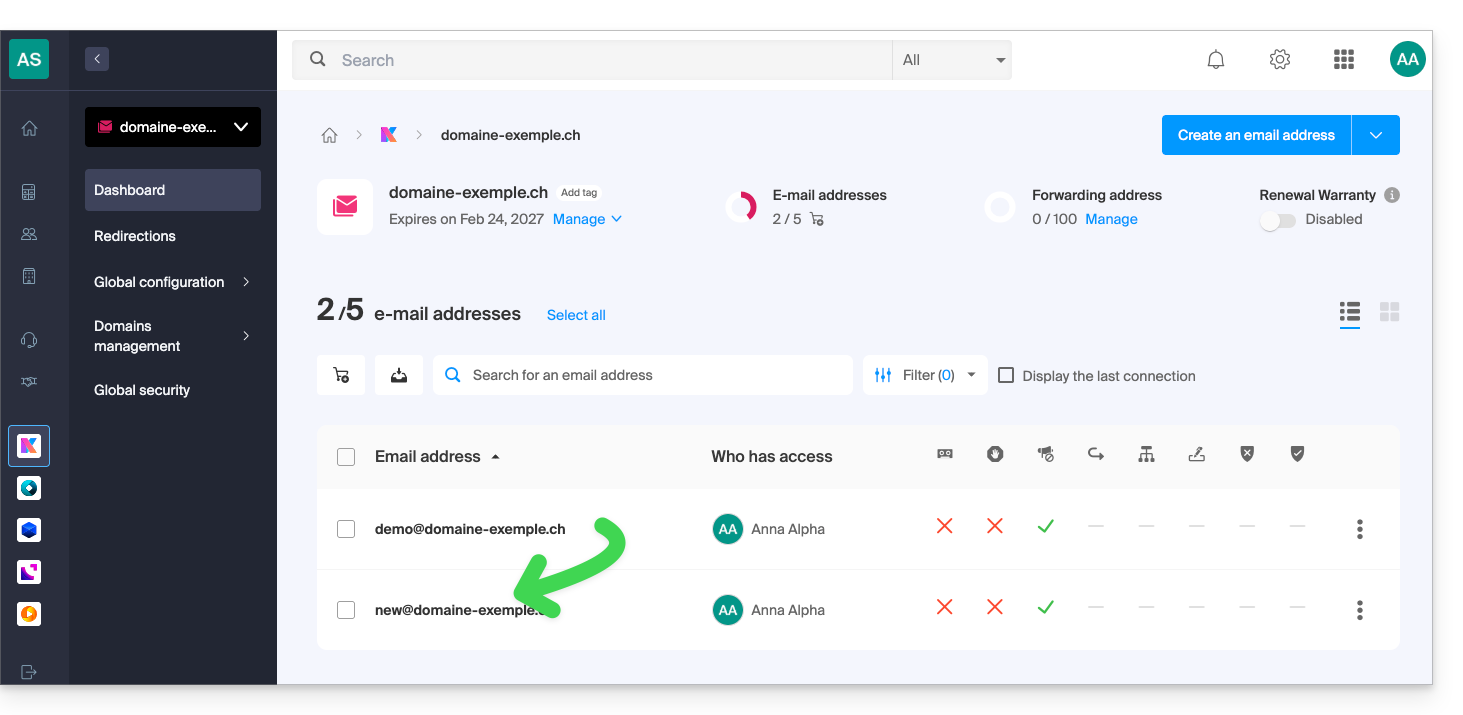
Introduction
- This operation does not affect the data already present in the destination address or the data in the source address.
- The entire mailbox will be imported.
- Once the import process has started, it is no longer possible to interrupt it.
- Any duplicates are handled: identical content will only be copied once.
Copy emails from one Infomaniak mailbox to another
Prerequisites
- Add an app password to the source address (the one from which the content must be retrieved):
- The password for logging in to the Infomaniak account with the same name is not the one required.
- You need a password specific to the email address in question = an app password:
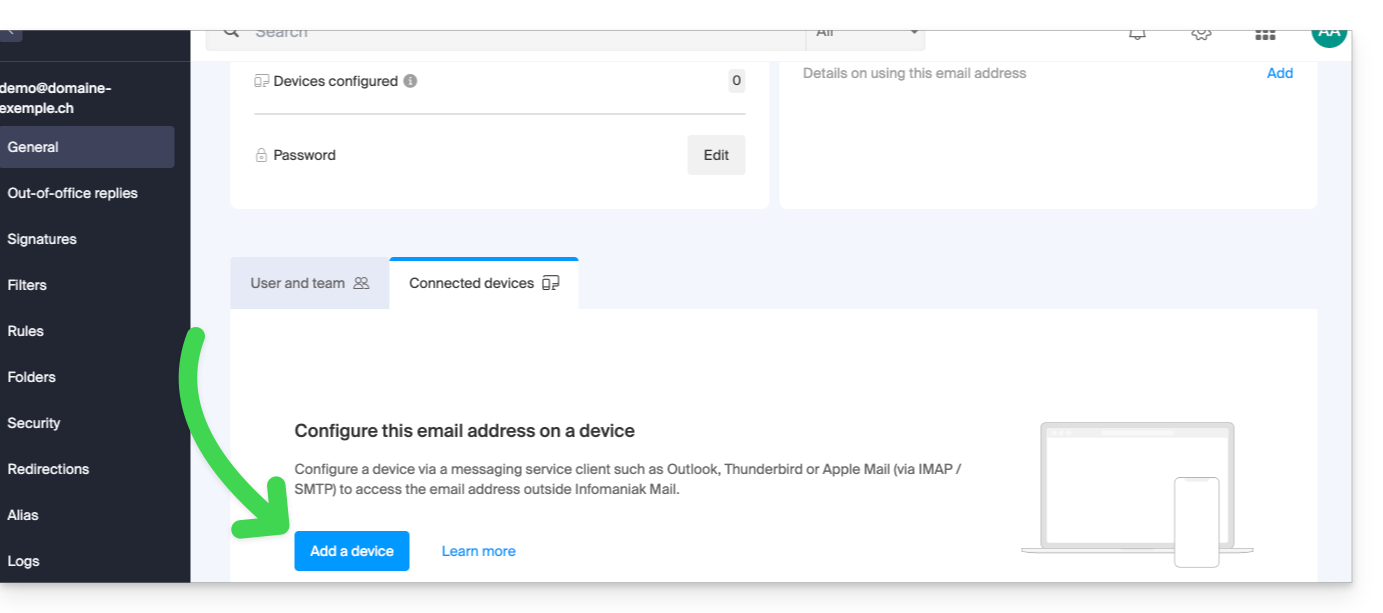
- The destination email address must be linked to the user (= the Infomaniak account) you are using.
Then, to import the email content:
- Click here to access the import tool (online service https://import-email.infomaniak.com).
- If necessary, log in to your Infomaniak account for the relevant organization; the import will be done to one of the email addresses associated with the Infomaniak Mail web interface (online service ksuite.infomaniak.com/mail) of the Infomaniak account you are using.
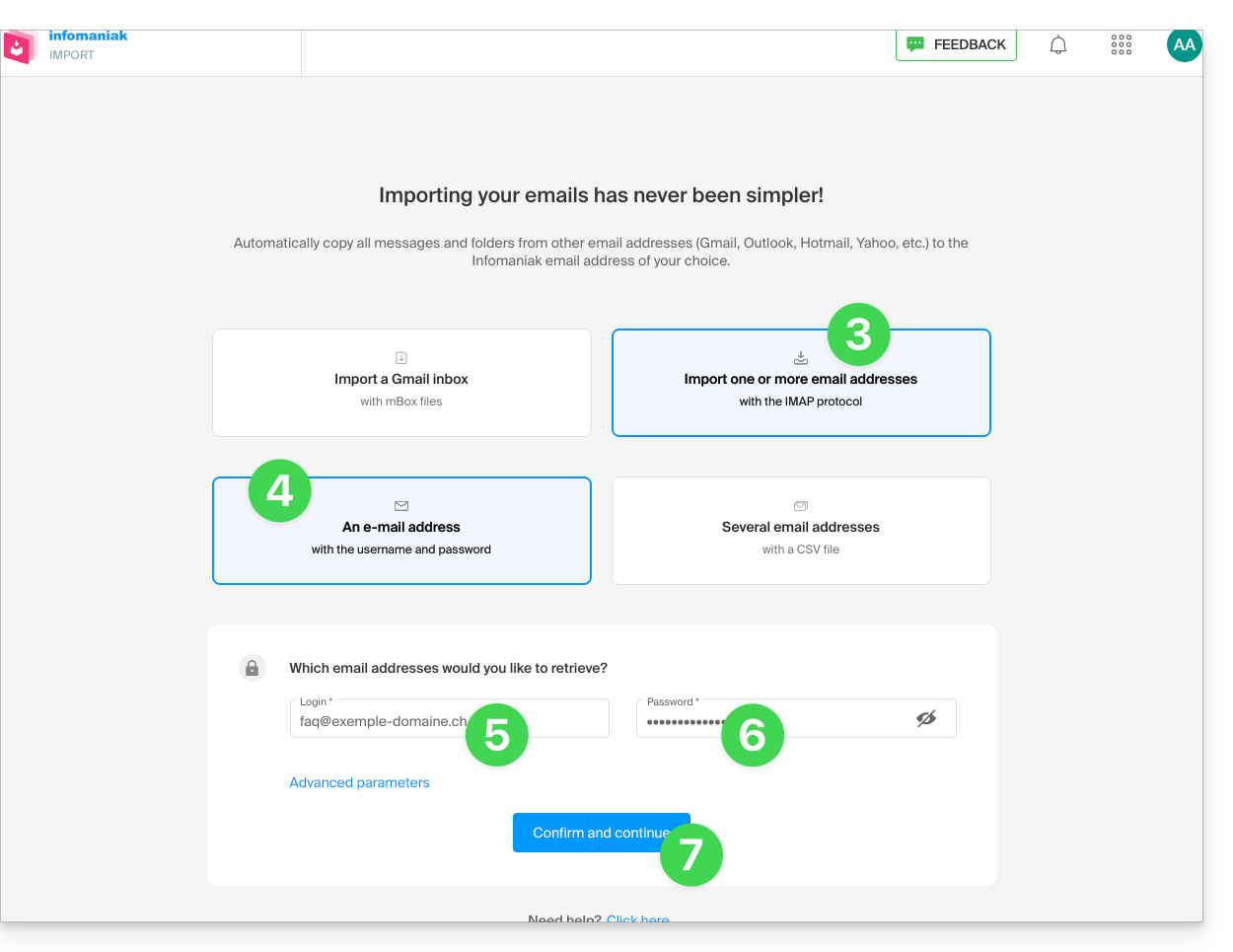
- Click on the IMAP import.
- Click on the one-time import.
- Fill in the field on the left with your source email address (the content of which you want to copy).
- Fill in the field on the right with the password for that same source email address (see prerequisites above).
- Click on Confirm:
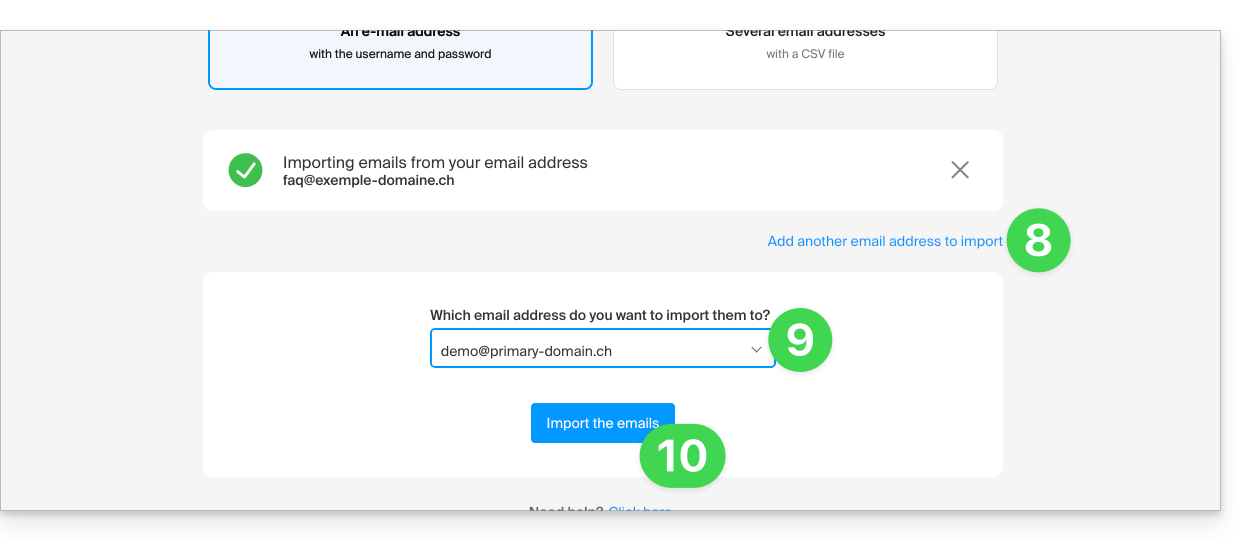
- If necessary, enter a second email address that you want to import at the same time.
- Choose the email address to which you want to import the emails; the drop-down menu lists the email addresses currently associated with your Infomaniak Mail web interface (online service ksuite.infomaniak.com/mail) of the Infomaniak account you are logged into.
- It is obviously impossible to copy emails to the same address as the source.
- After selecting the desired destination address from the list, click the blue Import Emails button:
- The copy process begins. You can wait and see the result on the page once the import is complete, or close the window (the import continues in the background, and progress tracking is available - see below):
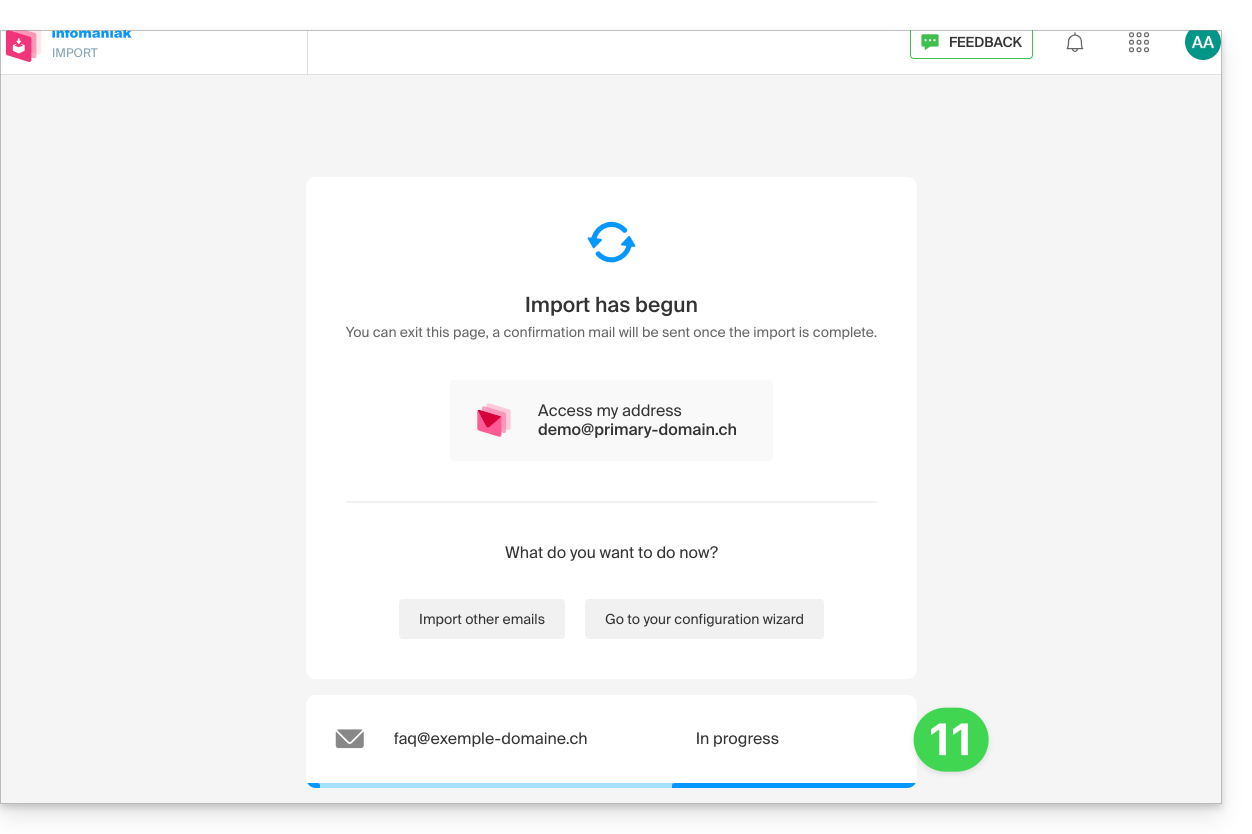
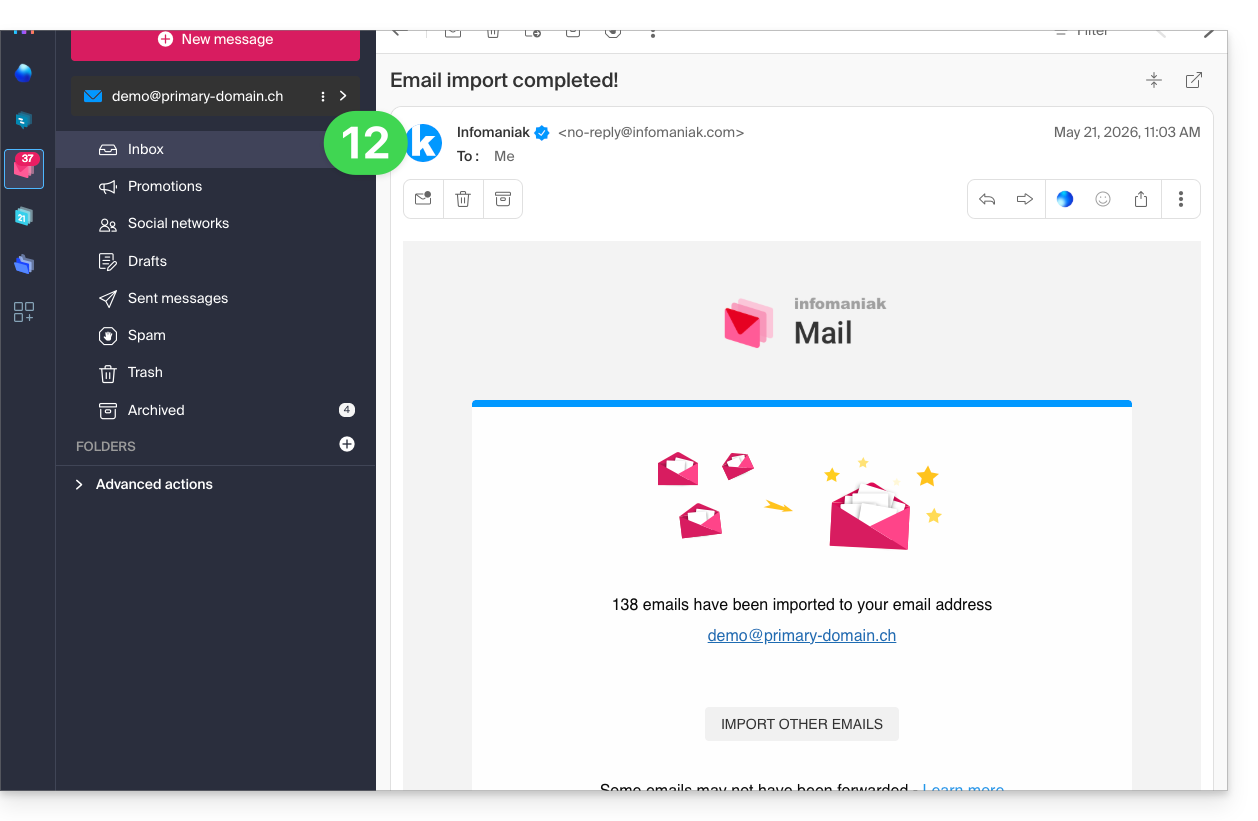
- A confirmation email will be automatically sent to all email addresses involved in the operation once the import is complete, indicating the number of messages copied:
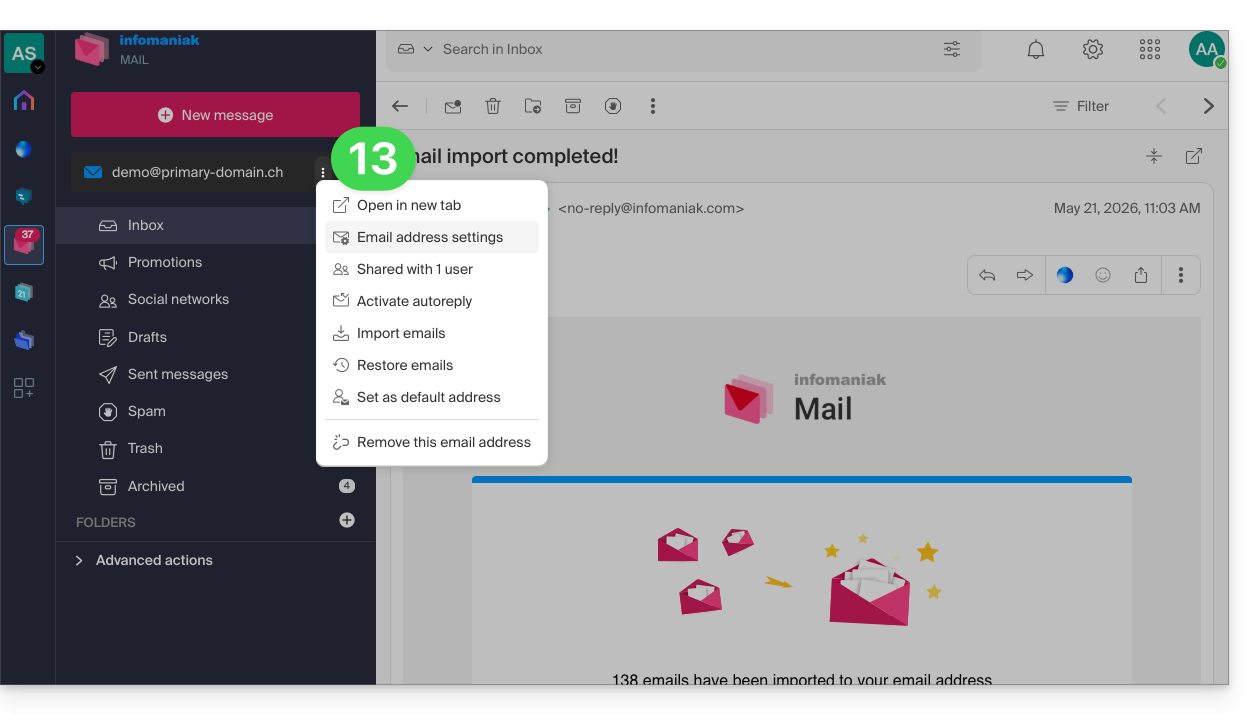
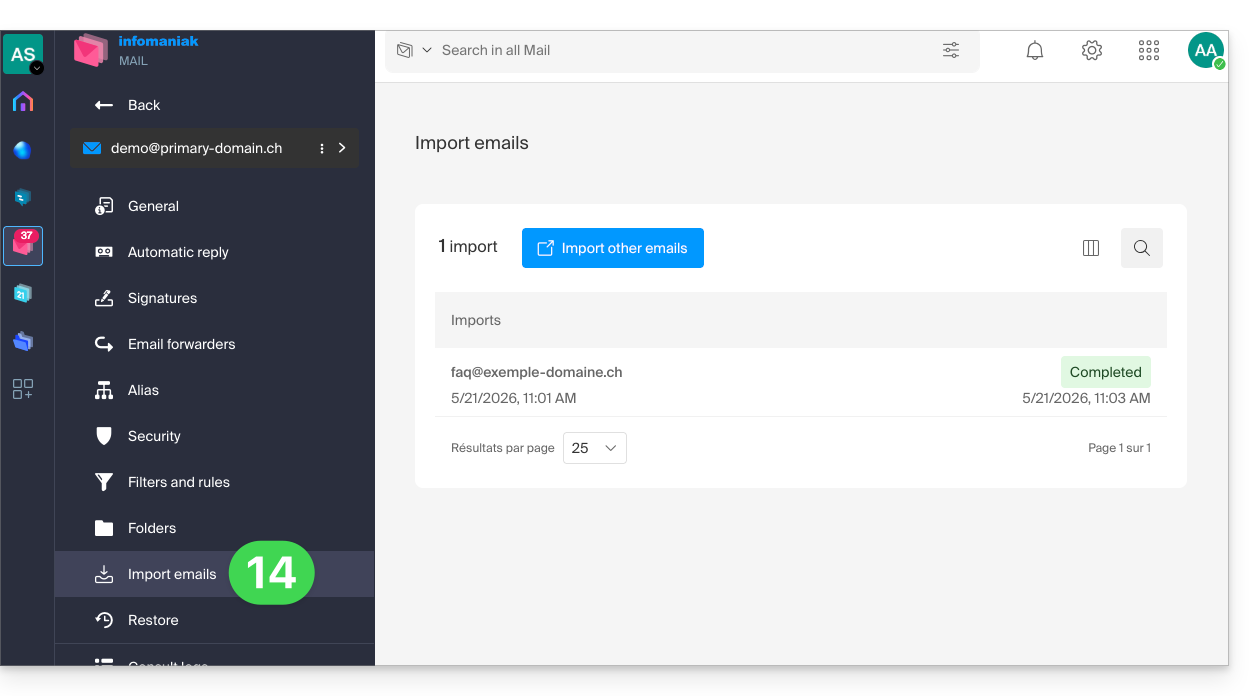
- Progress tracking is available in the settings for the destination email address, on the Mail web app (online service ksuite.infomaniak.com/mail) only:
- The tracking feature allows you to view the import history for the address in question:
Copy the content of multiple Infomaniak addresses in bulk
Prerequisites
- Add a device password to each Infomaniak source address (the ones from which the content will be retrieved).
- The password for logging in to the Infomaniak account with the same name is not the one required.
- You need a password specific to each email address = a device password per address.
- The destination email addresses must be linked to the user (= the Infomaniak account) you are using.
To import the content of several Infomaniak email addresses (maximum 25 at a time) to one or more destination email addresses:
- Click here to access the import tool (online service https://import-email.infomaniak.com).
- If necessary, log in to your Infomaniak account for the relevant Organization; the import will be done to one of the email addresses linked to the Web interface Mail Infomaniak (online service ksuite.infomaniak.com/mail) of the Infomaniak account you are using.
- Click on the import via IMAP.
- Click on advanced mode: Import multiple email addresses from a CSV file (
.csvformat). - Download the example
CSVtemplate: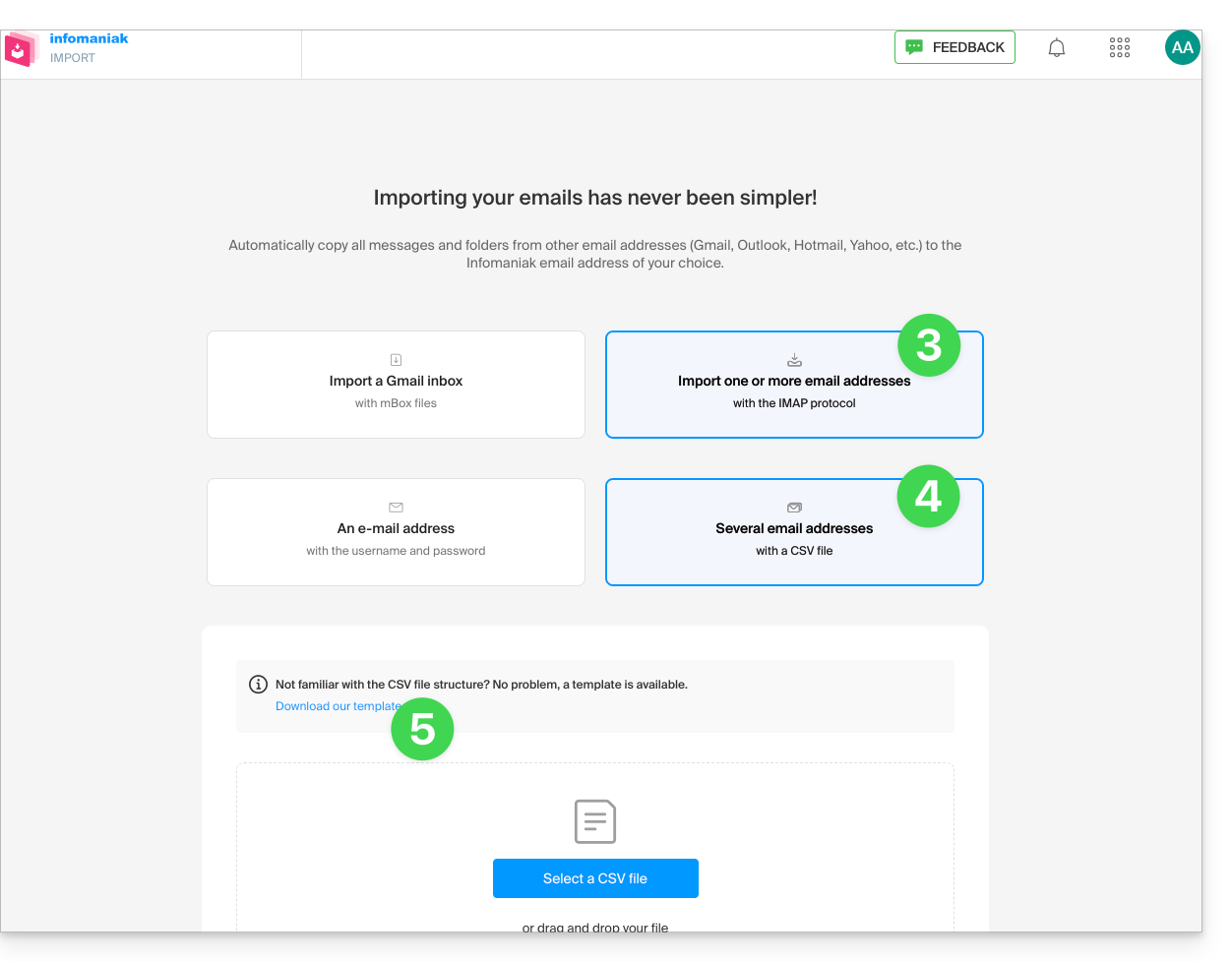
- The template has this format:
source-email@domain.com;sourcePassword;imap.source-host.com;sourcePort(993);sourceSsl(1or0);dest-email@domain.com - This means, in this case:
source email address;source email password;mail.infomaniak.com;993;1;destination email address, all without spaces (example below).
- The template has this format:
- Edit the
csvfile to create one with the correct information needed for the copy (see prerequisites above):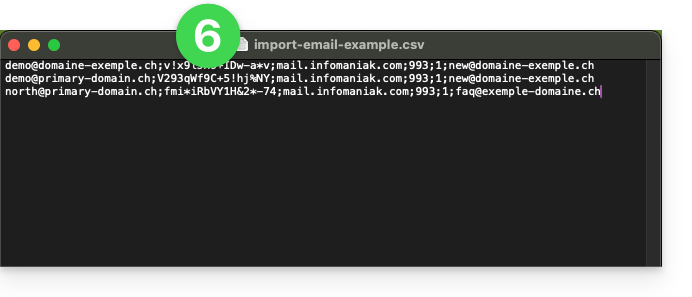
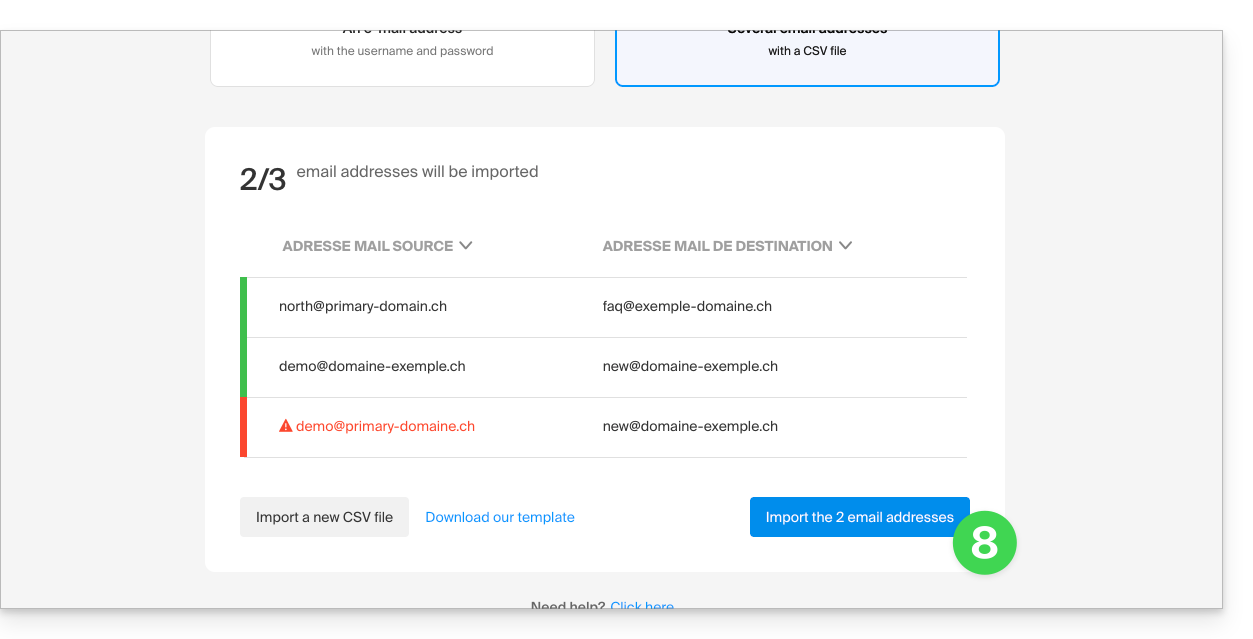
- Upload the file using the Select CSV file button.
- Once the file is uploaded to the tool's page, correct or ignore any errors; click Import:
- The copy process begins. You can wait and see the result on the page once the import is complete, or close the window (the import continues in the background, and progress can be tracked - see below).
- A confirmation email will be automatically sent to all email addresses involved in the operation once the import is complete, indicating the number of messages copied.
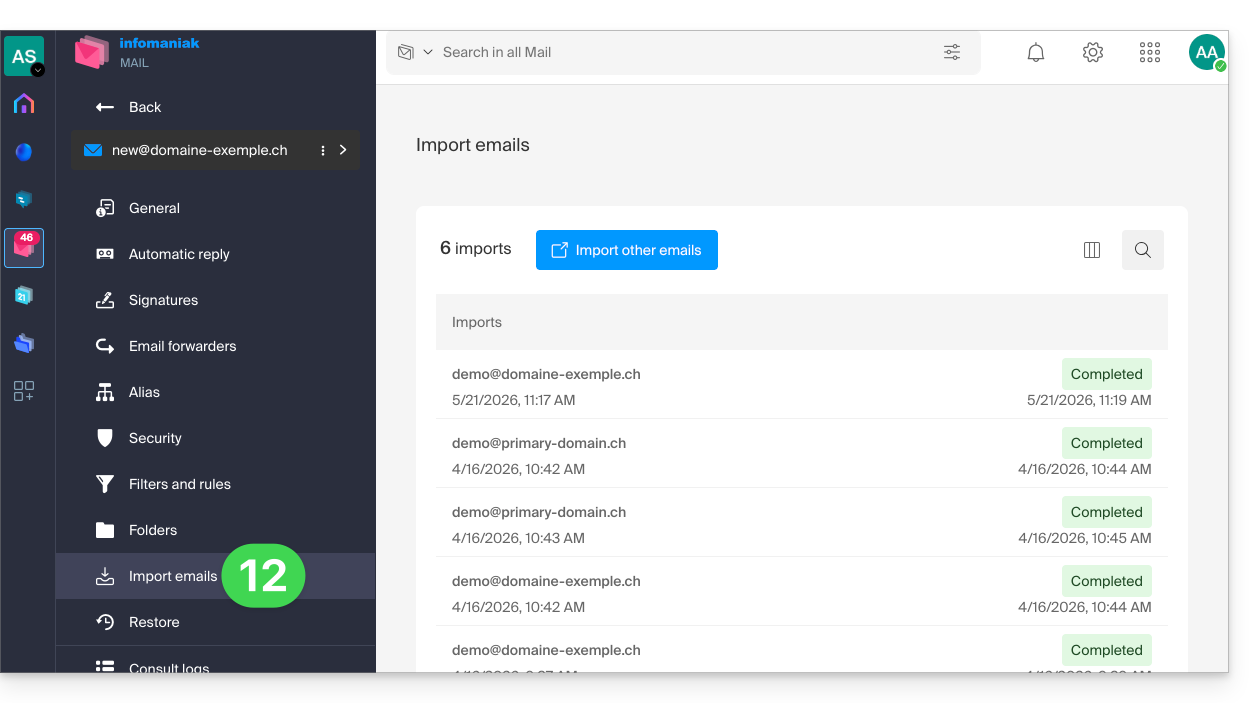
- Progress can be tracked in the settings for the destination email addresses, in the Mail web app (online service ksuite.infomaniak.com/mail) only.
- The tracking feature allows you to view the import history:
Link to this FAQ: https://faq.infomaniak.com/2826
Has this FAQ been helpful?