Knowledge base
1000 FAQs, 500 tutorials and instructional videos. Here, there are only solutions!
Manage logo, header and footer Site Creator
This guide explains how to manage the logo, header, and footer in Site Creator Infomaniak.
Prerequisites
- Access Site Creator:
- Click here to access the management of your product on the Infomaniak Manager (need help?).
- Click directly on the name assigned to the relevant Site Creator.
- Click the Edit my site button to start the editor:

Add a website logo
Once in Site Creator:
- Click the Settings button in the left sidebar.
- Click on Logo/title.
- Upload an image and choose whether the site name should also be displayed next to it.
- Save changes:
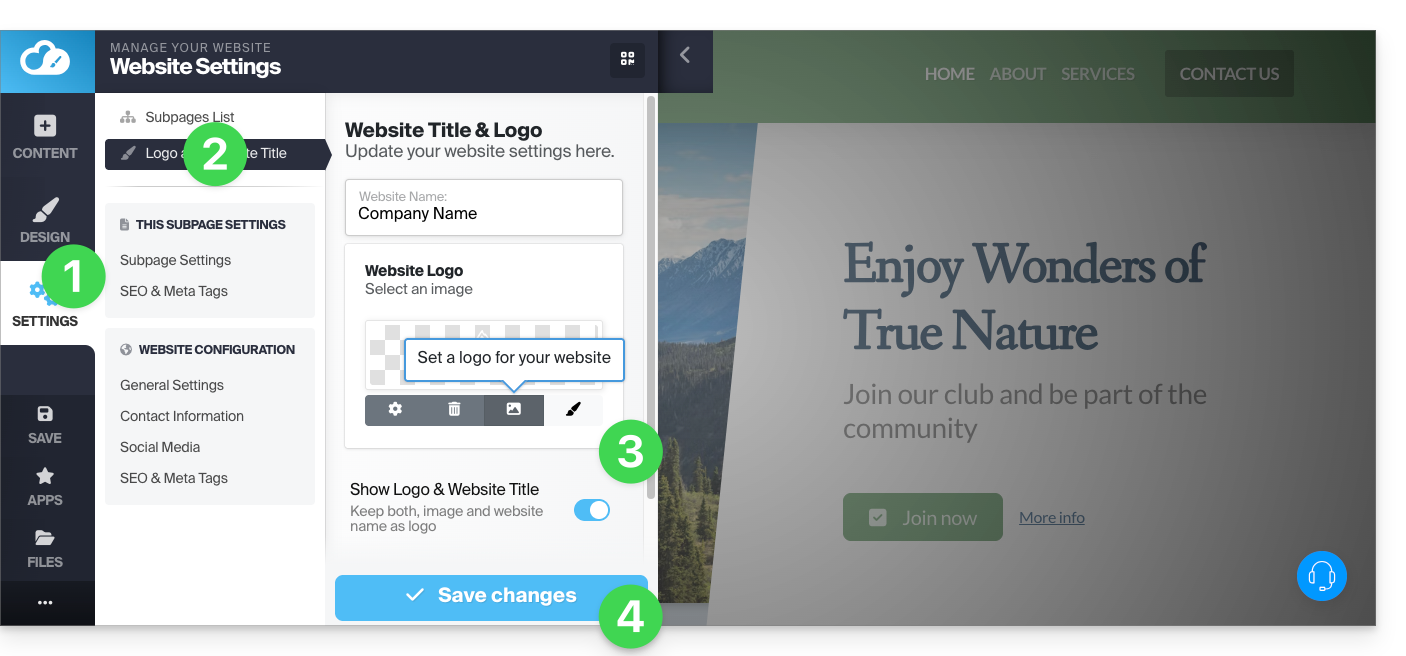
Logo settings
- Click the Design button in the left sidebar.
- Click on Menu Designer.
- Click on Title/logo.
- Then adjust spacing and colors.
- Save changes:
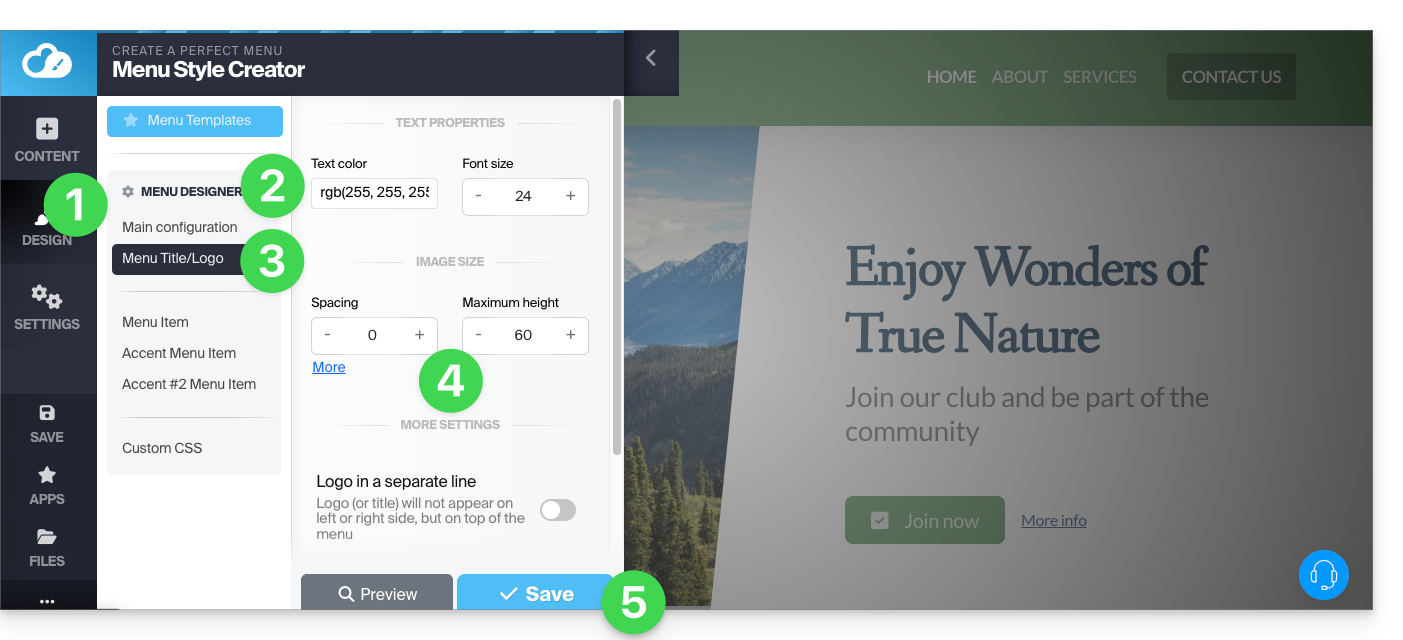
Centered logo display
In the same place as above (you can also access it by hovering over the header and its logo), enable the option to display the logo on a separate line, which will center the site logo:
Hide the logo (+ header and footer)
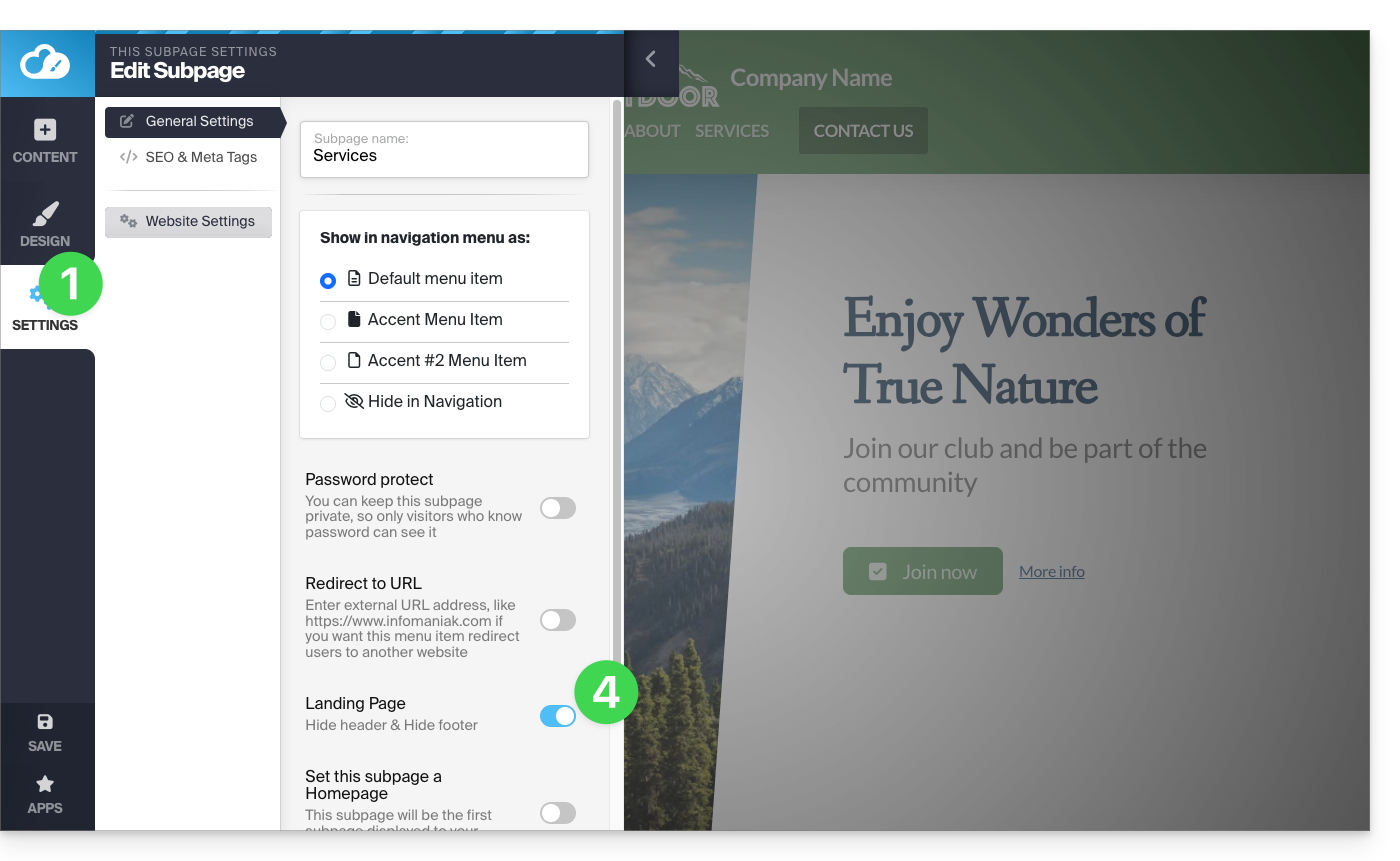
To create a page without a logo that will have neither a header (i.e., no menu displayed) nor a footer, you need to define it as a Homepage (i.e., "Landing page"; note that this does not change the order of the pages) using a button located here:
- Click the Settings button in the left sidebar.
- Click on Page List.
- Hover over a page in the existing tree structure and click on the gear icon that appears on hover.
- Enable the "Homepage" option at the bottom to hide headers and footer:
Link to this FAQ:
Has this FAQ been helpful?