Knowledge base
1000 FAQs, 500 tutorials and instructional videos. Here, there are only solutions!
Resolve an interruption between Joomla and the database
This guide details the error "Database connection error: could not connect to mysql" that may occur when making changes around an Infomaniak hosting on which the Web app Joomla is installed.
Preamble
- To get the site working again, you need to check and update some information in the Joomla
configuration.phpfile:- The database name — this is often a prefix that has been added before the existing database name and the username (for example
dbnamebefore,abcd_dbnameafter). - The database host server (for example
mysql.domain.xyzbefore,abcd.myd.infomaniak.comafter). - The username that accesses the database (for example
dbuserbefore,abcd_dbuserafter). - The path of two directories
/tmpand/logs.
- The database name — this is often a prefix that has been added before the existing database name and the username (for example
Get the updated information
For points 1, 2 and 3 of the preamble above:
- Click here to access the management of your product on the Infomaniak Manager (need help?).
- Click directly on the name assigned to the product concerned.
- Click on Database in the left sidebar.
- Find and keep your current MySQL information (need help?).
For point 4 of the preamble above:
- Click here to access the management of your site on the Infomaniak Manager (need help?).
- Click directly on the name assigned to the site concerned:
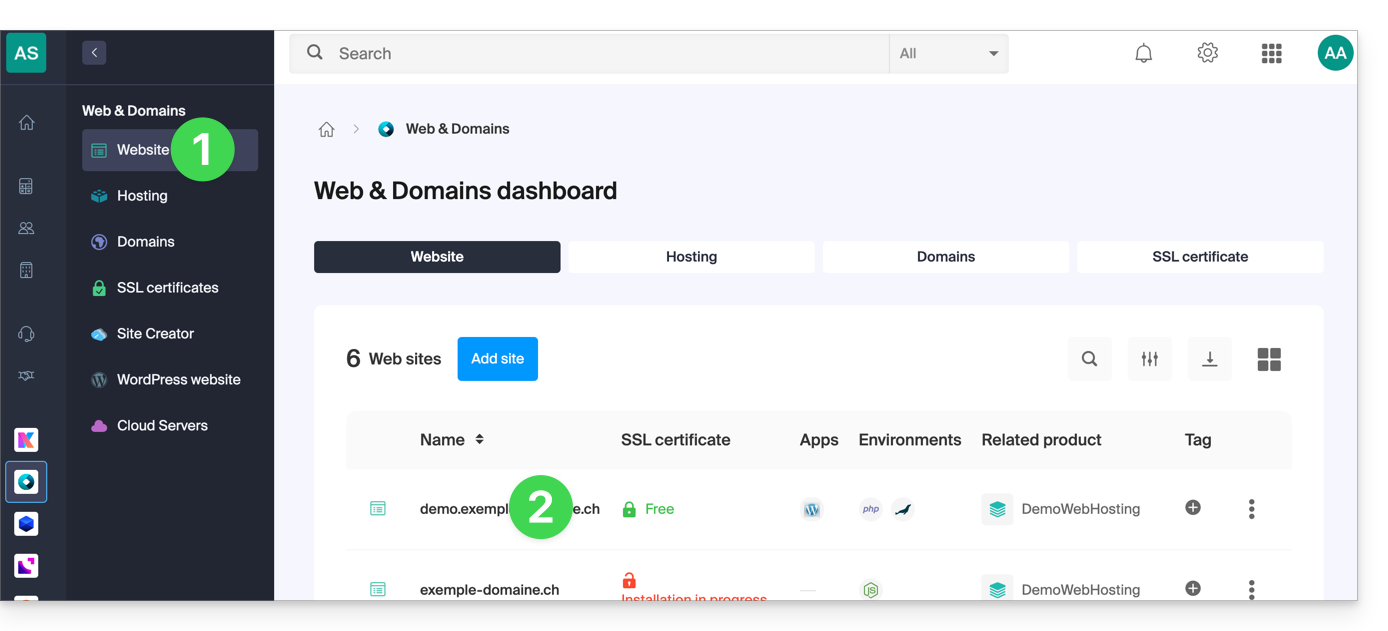
- Click on Manage advanced settings:
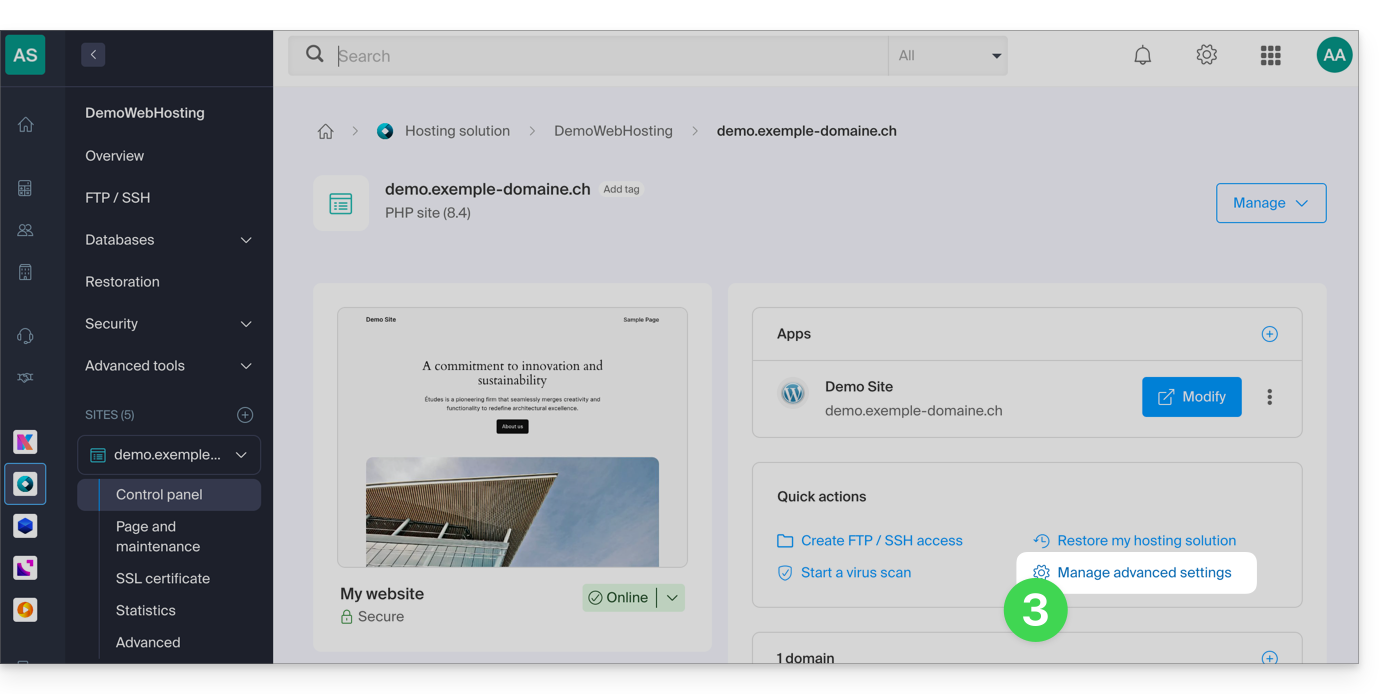
- Click on the PHP / Apache tab:
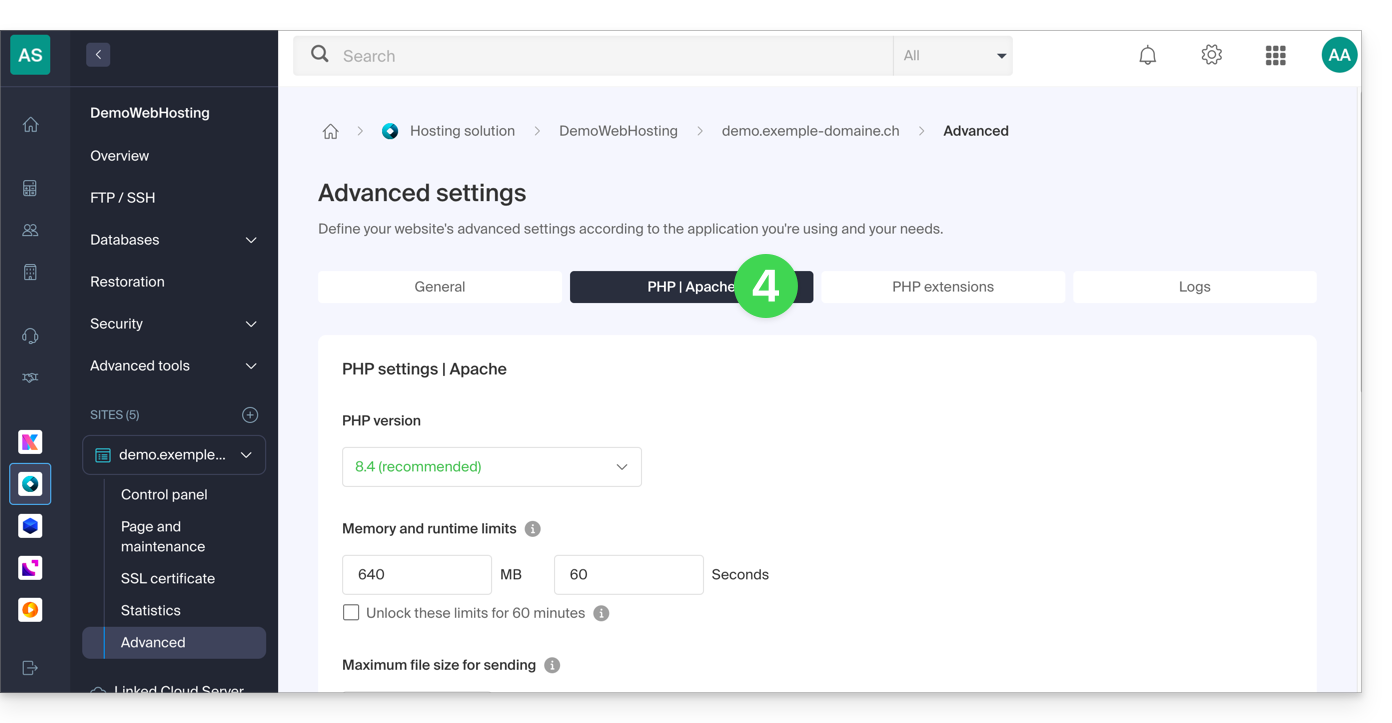
- Copy the path displayed in the first field under Auto Prepend File at the bottom:
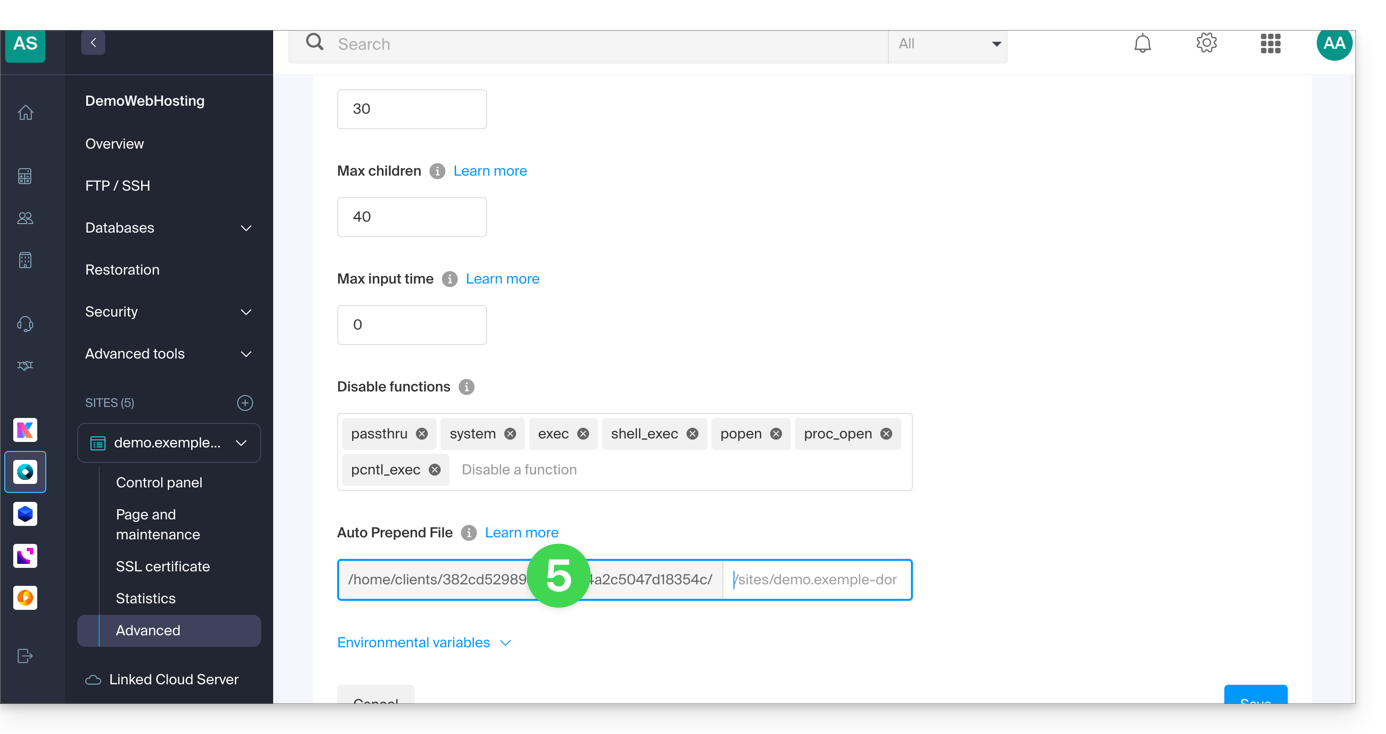
Edit the Joomla configuration.php file
Prerequisites
- Create an FTP account (need help?).
- Connect via FTP (need help?).
Then edit the configuration.php file which is in the root folder of your Joomla:
- Replace the old log and tmp paths with the new path:
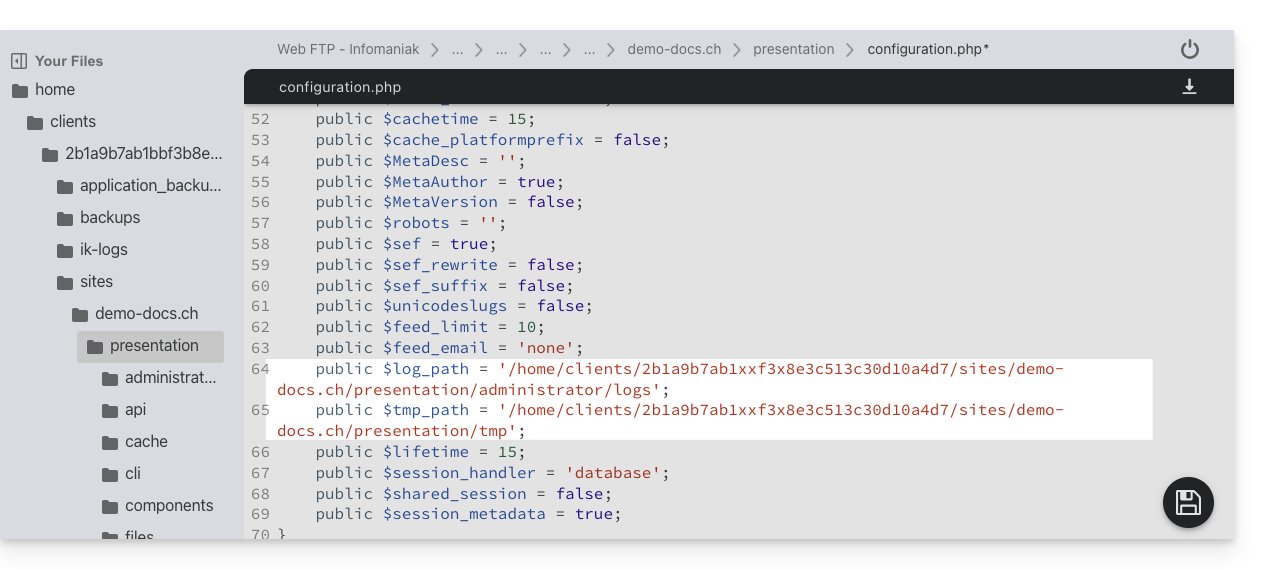
- Find the relevant paragraphs for the rest of the preamble information above:

- Save the file; your Joomla will now connect to the correct database.
Check the changes made
On the Joomla interface, you can check the paths of the /logs and /tmp folders:
- For the
/logsfolder: go to System / Configuration then Logs: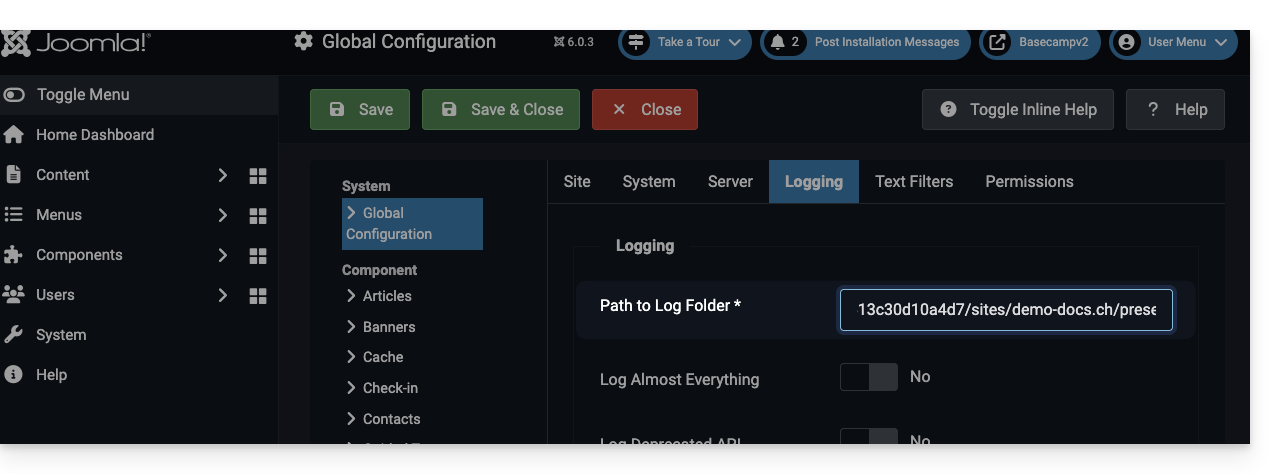
- For the
/tmpfolder: go to System / Configuration then Server: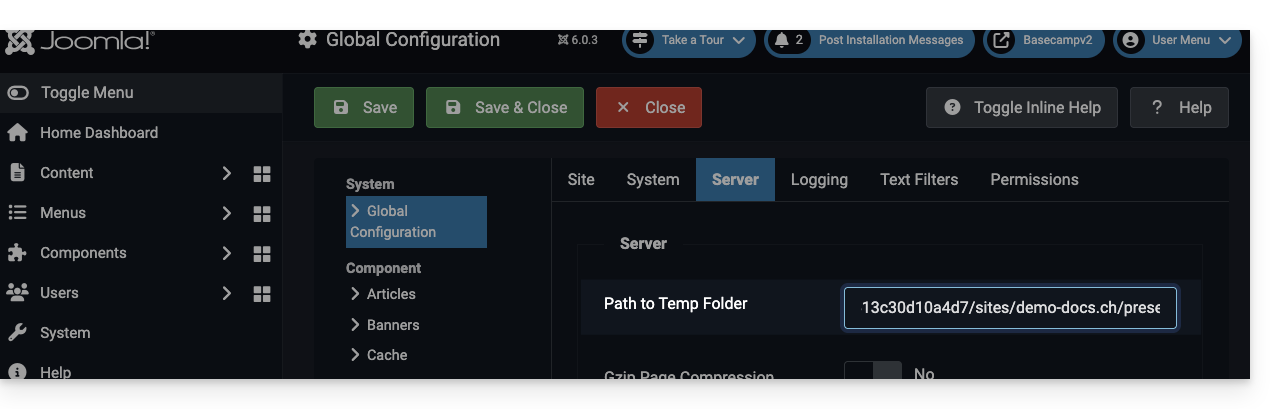
Link to this FAQ: https://faq.infomaniak.com/272
Has this FAQ been helpful?