Knowledge base
1000 FAQs, 500 tutorials and instructional videos. Here, there are only solutions!
Modify the code (source / CSS) on Site Creator
This guide explains how to customize the source code, modify the CSS, modify the HEAD or BODY part of a website created with Site Creator Infomaniak.
Prerequisites
- Access Site Creator:
- Click here to access the management of your product on the Infomaniak Manager (need help?).
- Click directly on the name assigned to the relevant Site Creator.
- Click the Edit my site button to start the editor:

Add custom code
Once in Site Creator:
- Click on Design in the left sidebar menu.
- Click on More settings.
- Click on Custom code at the bottom:

- Enter HTML, JavaScript (with its tags script) or custom CSS (with its tags style) - see below for some examples.
- Save the changes at the bottom of the page.
Metadata in HEAD & BODY
To add JavaScript code or any other code in the HEAD or BODY part of your website's source code:
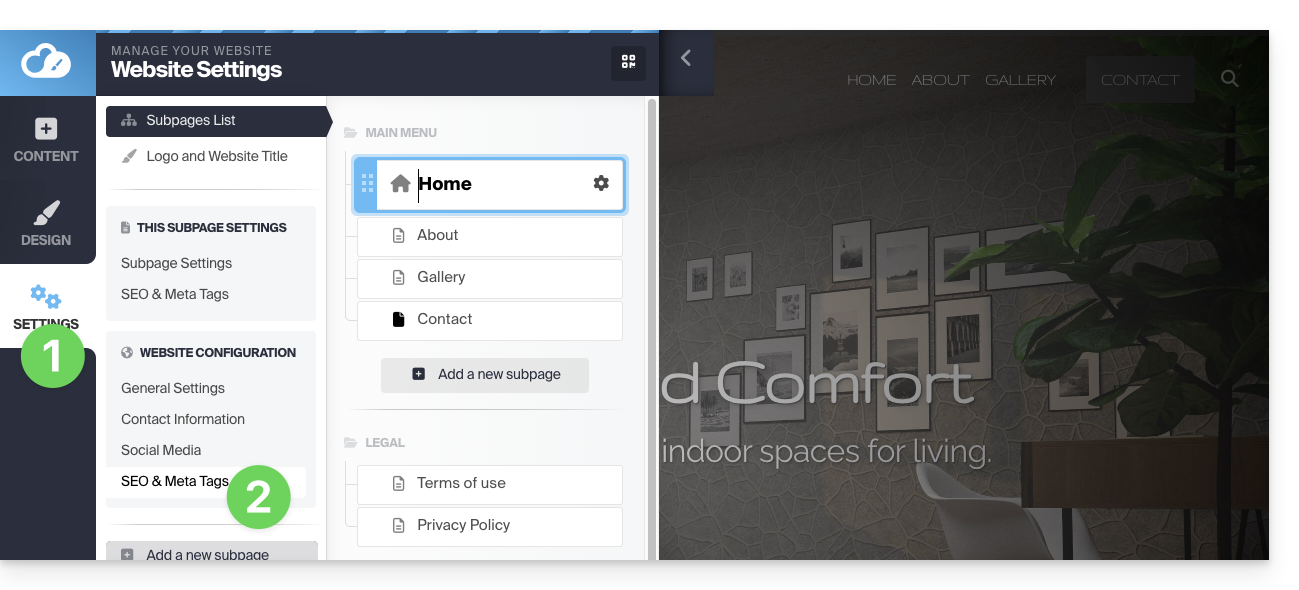
- Click on Settings in the left sidebar menu.
- Click on SEO & Metadata in the Website configuration section:
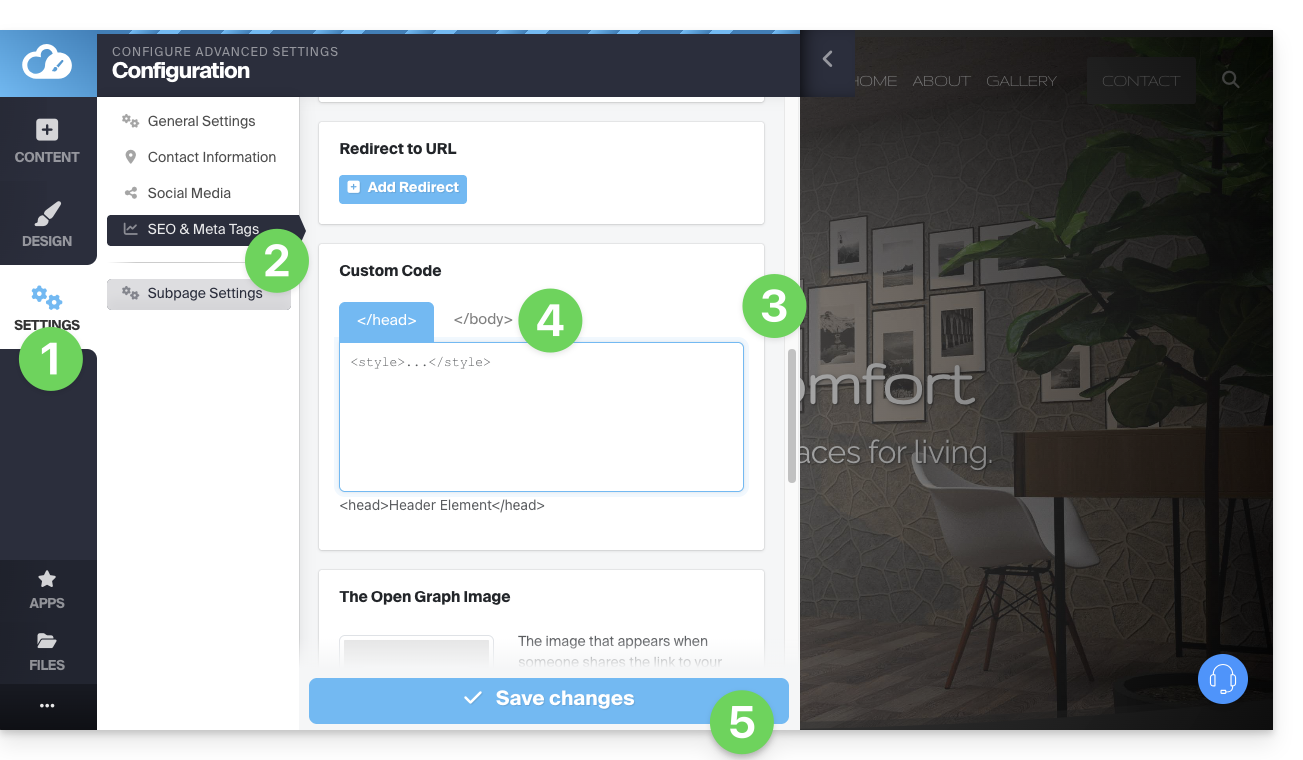
- Scroll down to Custom Code.
- Choose to add under the tabs HEAD or under BODY.
- Save the changes at the bottom of the page:
CSS Customization Examples
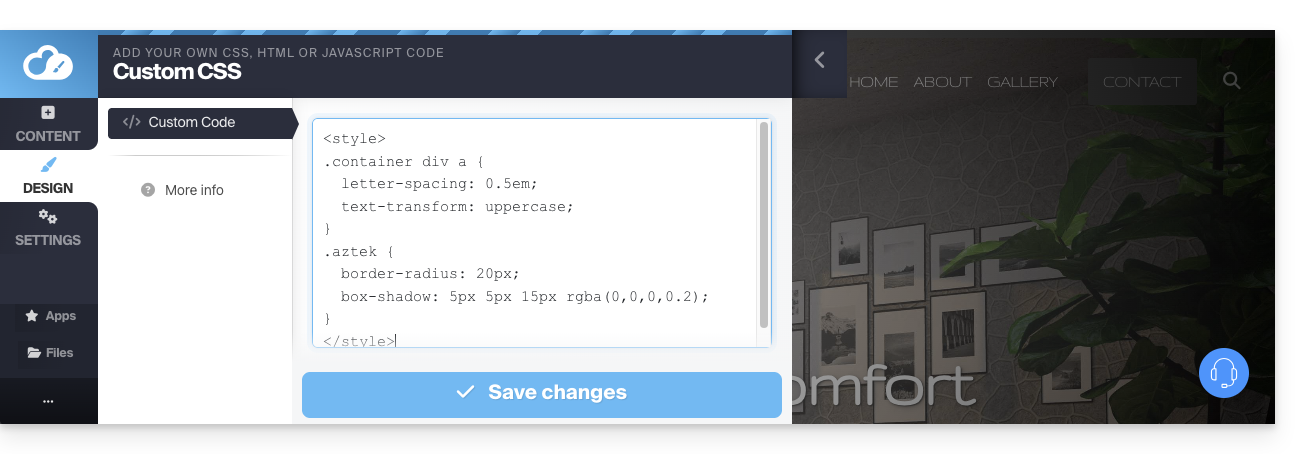
These examples help you get started with advanced customization of your website's pages. However, depending on the changes made, you may no longer be able to access the editor itself, which will force you to start over from scratch.
It is strongly recommended to never insert tags of type html, head, or body that could conflict with the application's source code itself.
Customize the website's background
To set your chosen image (to be uploaded in the file library) as the background and customize its display:
- Go to point 3 visible on the first image at the top of this guide.
- Insert the code
<style>to indicate that you want to modify the CSS code, - then
body {to indicate that you want to modify the body of the page and the "{" to open the space allowing you to insert the commands, - then
background-image: url("../data/files/fond01.jpg");with the exact path & name of the image uploaded to the library, without forgetting the semicolon to be able to insert the next command. background-repeat: repeat;to repeat the inserted image.background-attachment: fixed;so that the background image remains fixed even if the visitor scrolls the page down or up to read its content.}to close the previously opened insertion space.</style>to indicate that the code ends here.
Space out the letters of all site links
To space out (a lot) the letters between clickable words (links):
- Go to point 3 visible on the first image at the top of this guide.
- Insert the code (if not already present)
<style>to indicate that you want to modify the CSS code, - then
.container div a {to indicate that you want to modify the page blocks and more specifically the links (a) and the{to open the space allowing you to insert the commands, - then
letter-spacing:1em;by decreasing the value (0.9emfor example) without forgetting the semicolon to be able to insert the next command or to finish. }to close the previously opened insertion space.</style>to indicate that the code ends here.
Check out these other CSS code examples to insert on your site.
Link to this FAQ:
Has this FAQ been helpful?