Knowledge base
1000 FAQs, 500 tutorials and instructional videos. Here, there are only solutions!
Manage SEO / Site Creator Referencing
This guide is intended for users of Site Creator Infomaniak who wish to optimize the referencing of their site.
Preamble
- Infomaniak is one of the most powerful hosting providers in the French-speaking market, which contributes to the good referencing of your sites.
- However, Infomaniak will not intervene on the content or development of hosted sites (refer to this other guide regarding referencing).
Add Site Creator to Google
Prerequisites
- Access Site Creator:
- Click here to access the management of your product on the Infomaniak Manager (need help?).
- Click directly on the name assigned to the Site Creator concerned.
- Click the Edit my site button to start the editor:

To submit your site to the Google search engine:
- Click the Applications button in the left sidebar.
- Click the Add to Google application:
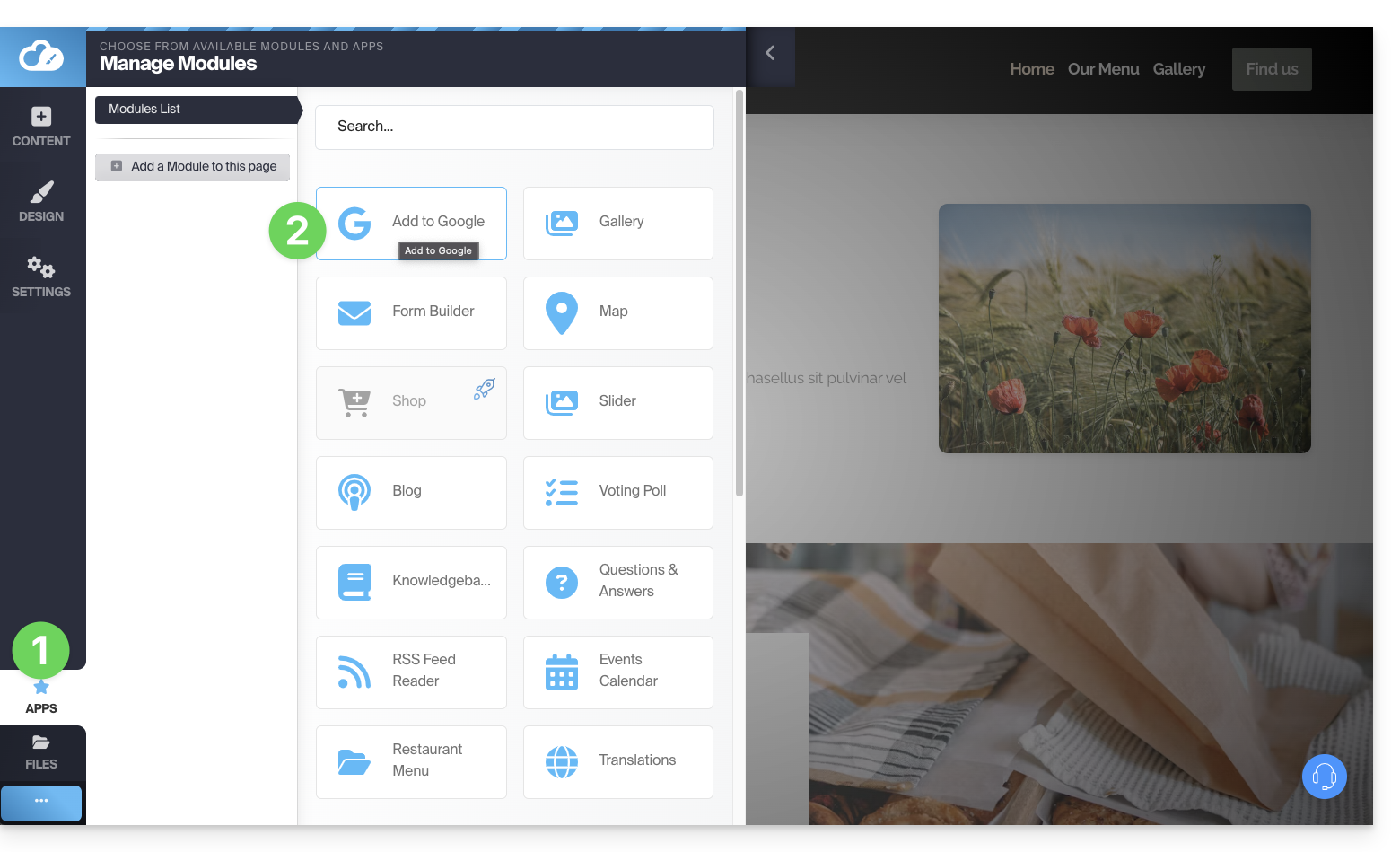
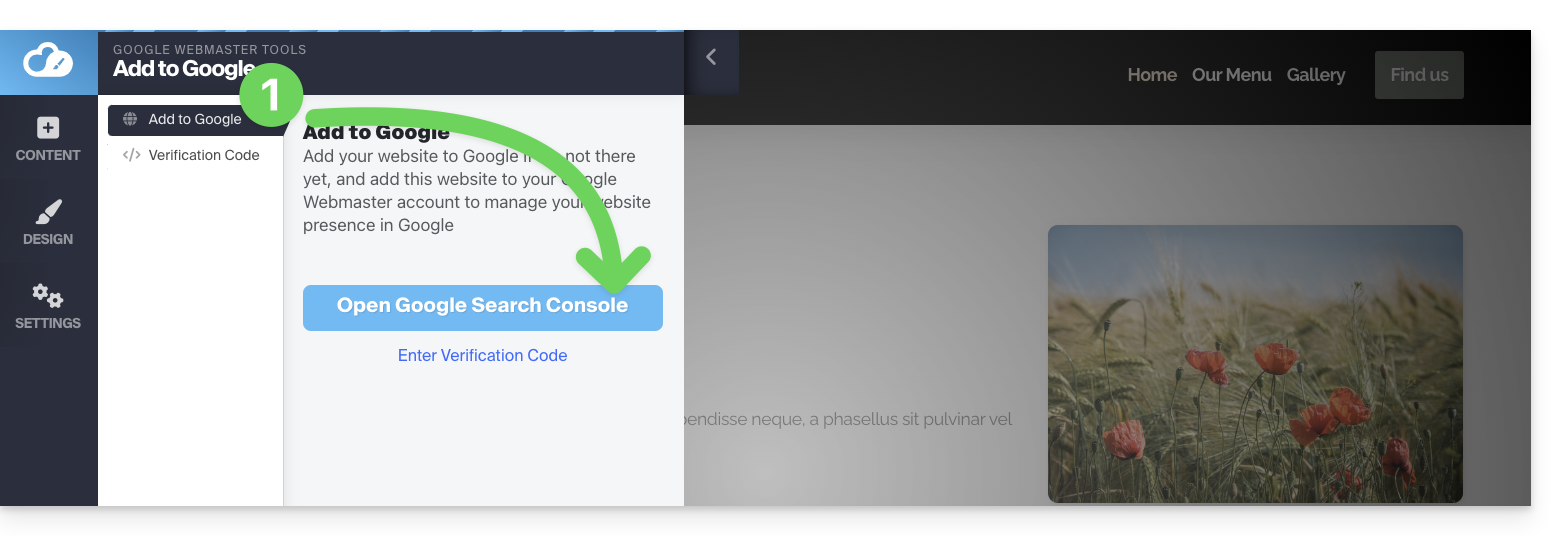
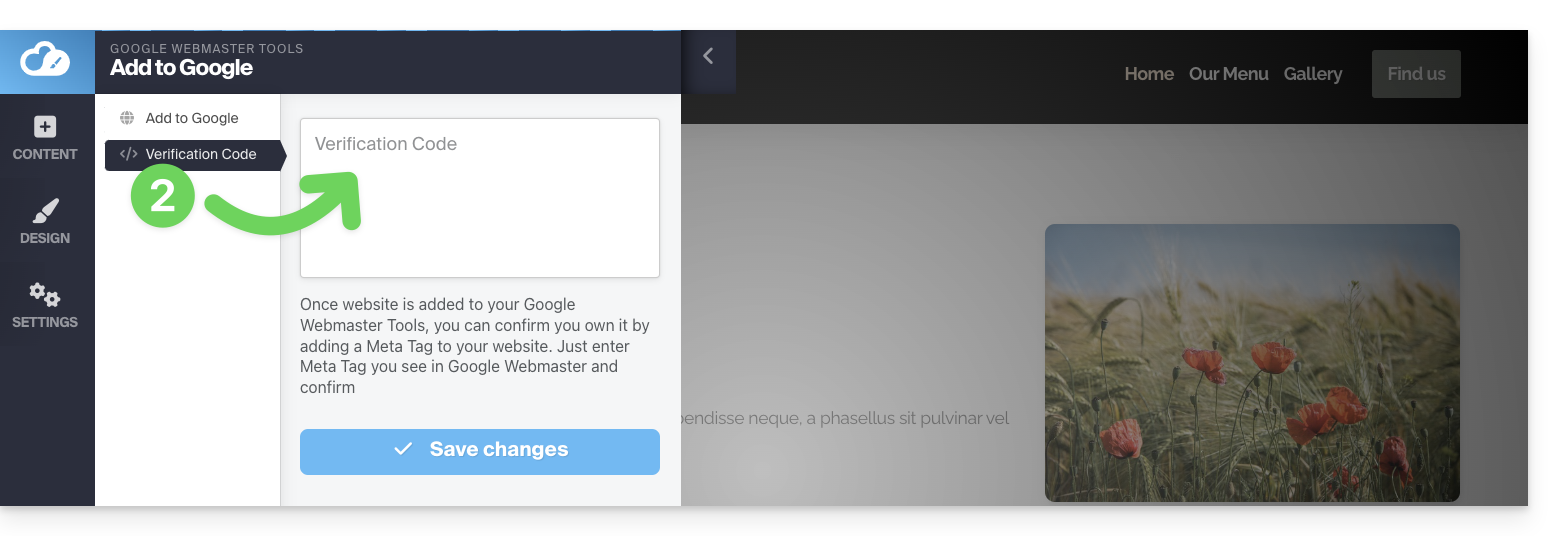
This application allows 2 operations:
- Open the Google Search Console interface allowing the management of your site's analyses:
- You can insert the verification code provided by Google Search Console in case you choose the simple method (read below):
Property verification (requested by Google)
When you want to add your site to the Google tool, and you click the button in step 1 above, you will be given 2 proposals:
- the method to monitor an entire domain, which requires verification that you will need to do at the level of your domain name (on the Infomaniak interface if your domain name / DNS zone is managed by Infomaniak),
- the simpler method allowing you to indicate the exact URL of your site and for which the verification will be done directly from Site Creator:
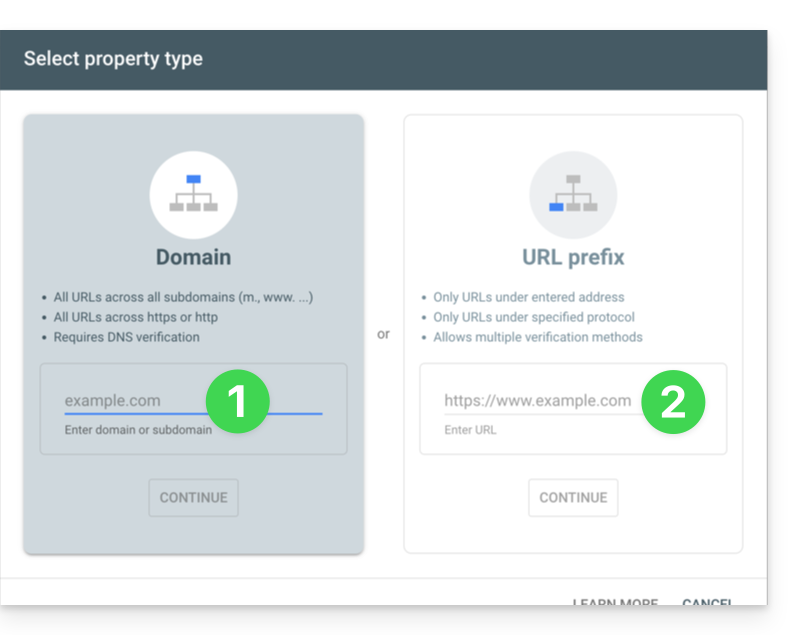
1. Method with domain name ownership verification
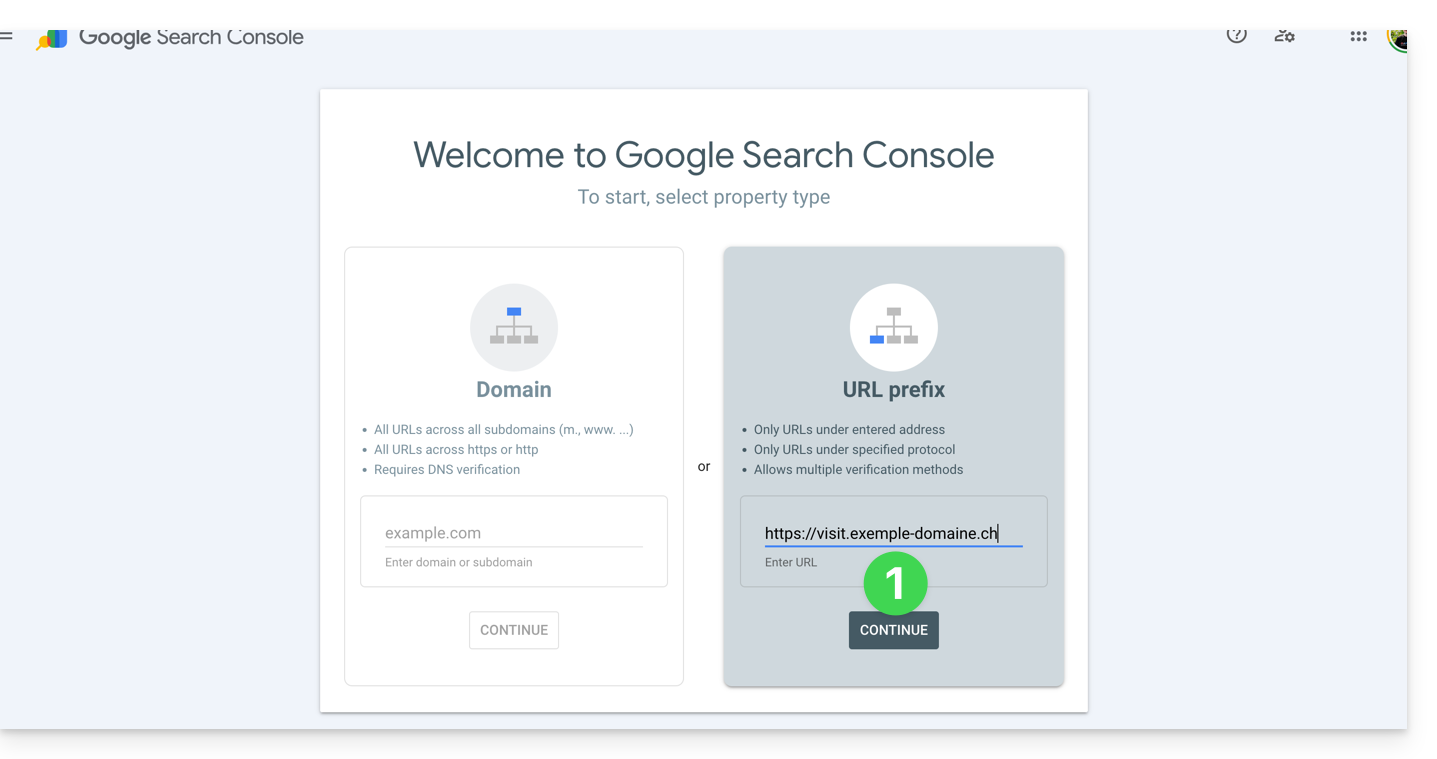
- Enter the complete URL of your Site Creator and click on Continue:
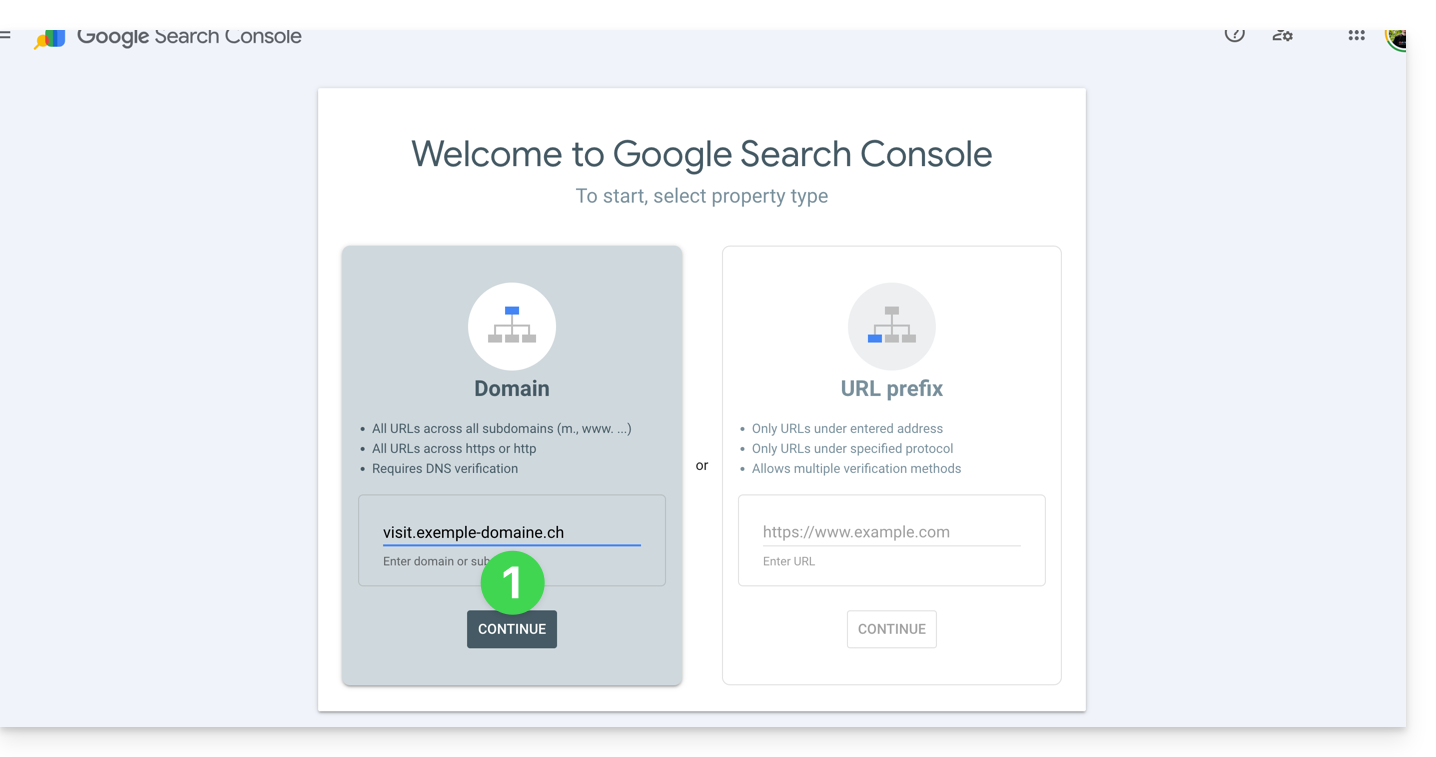
- Check that the
TXTtype is selected and click on the COPY button: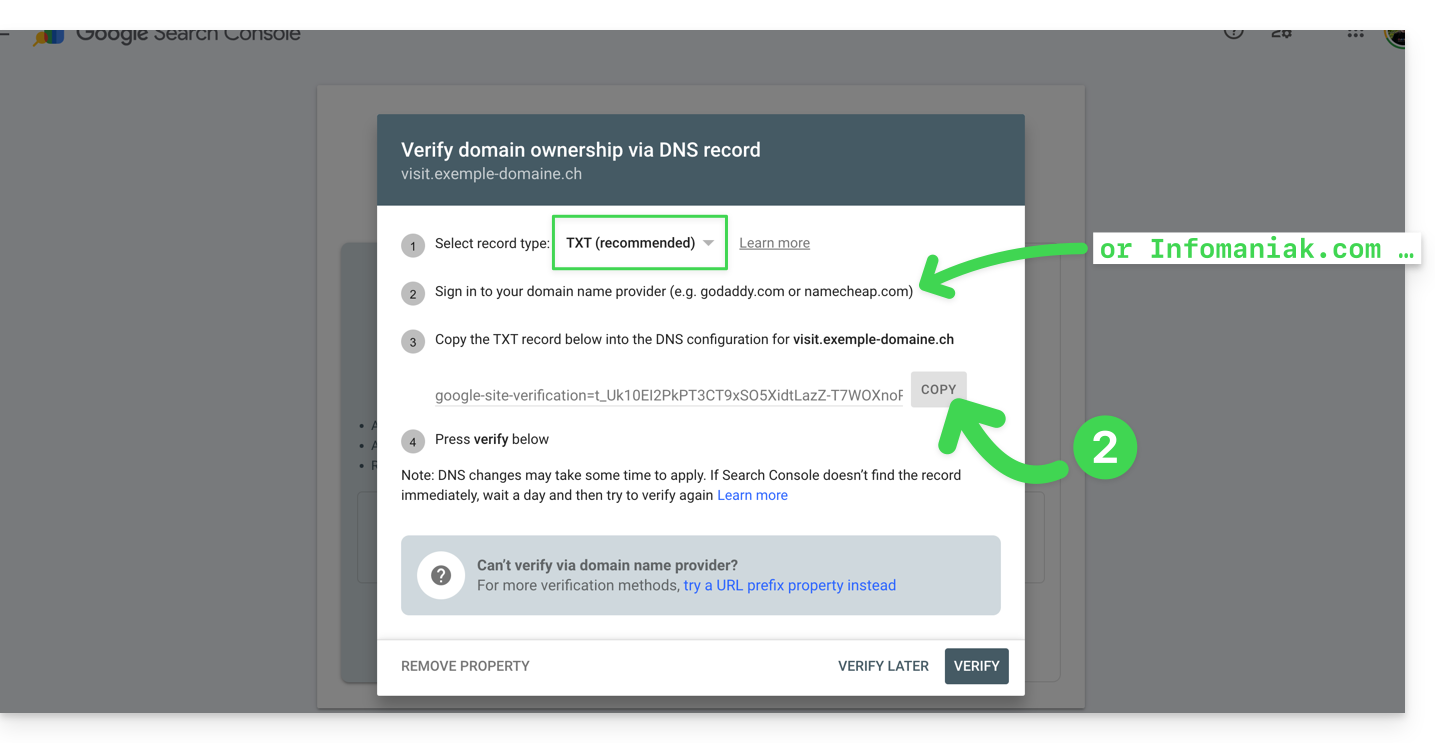
- Click here to access the management of your domain name if it is managed with Infomaniak (otherwise, you will need to apply these operations with the relevant provider).
- Click directly on the name assigned to the product concerned.
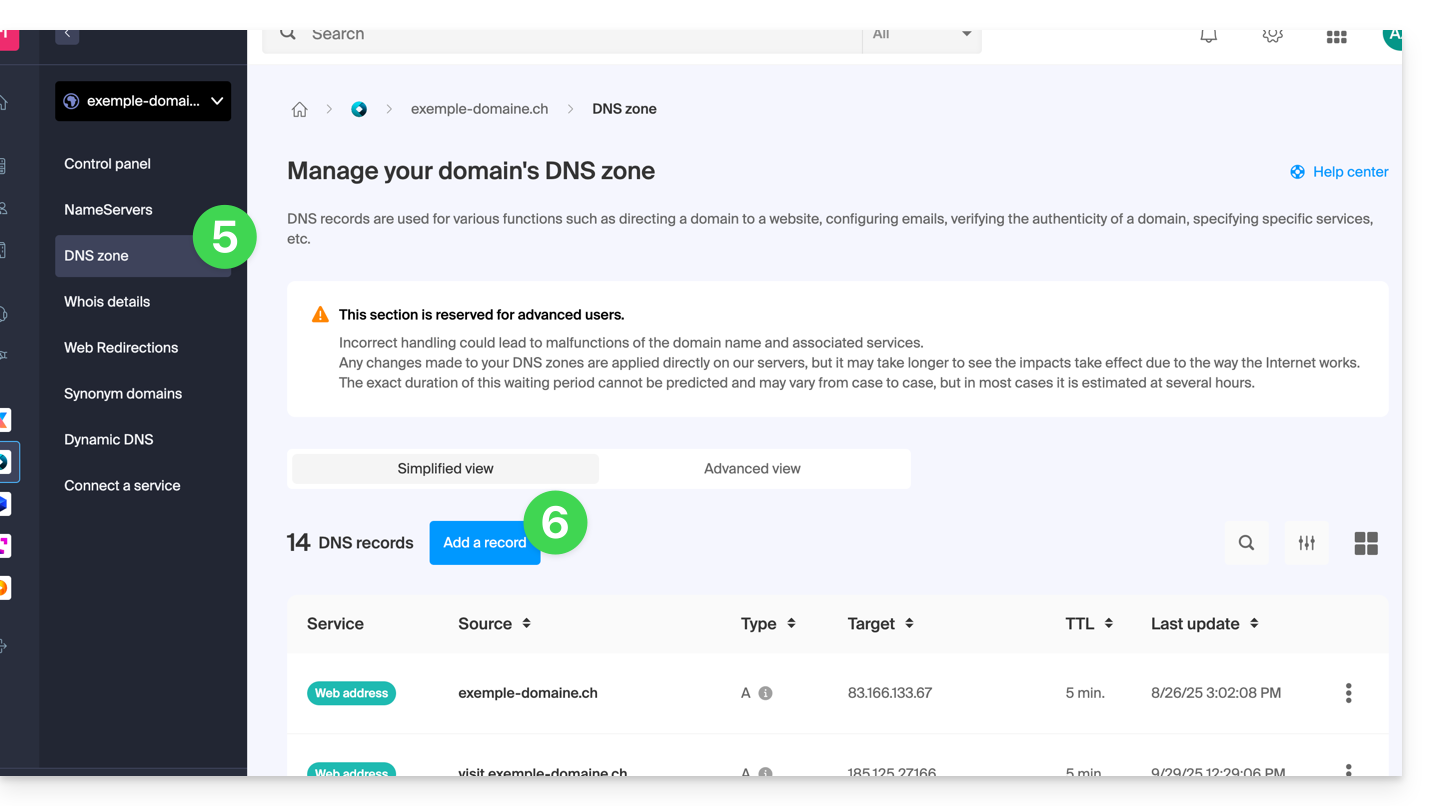
- Click on DNS Zone in the left sidebar menu.
- Click on the button to add a record:
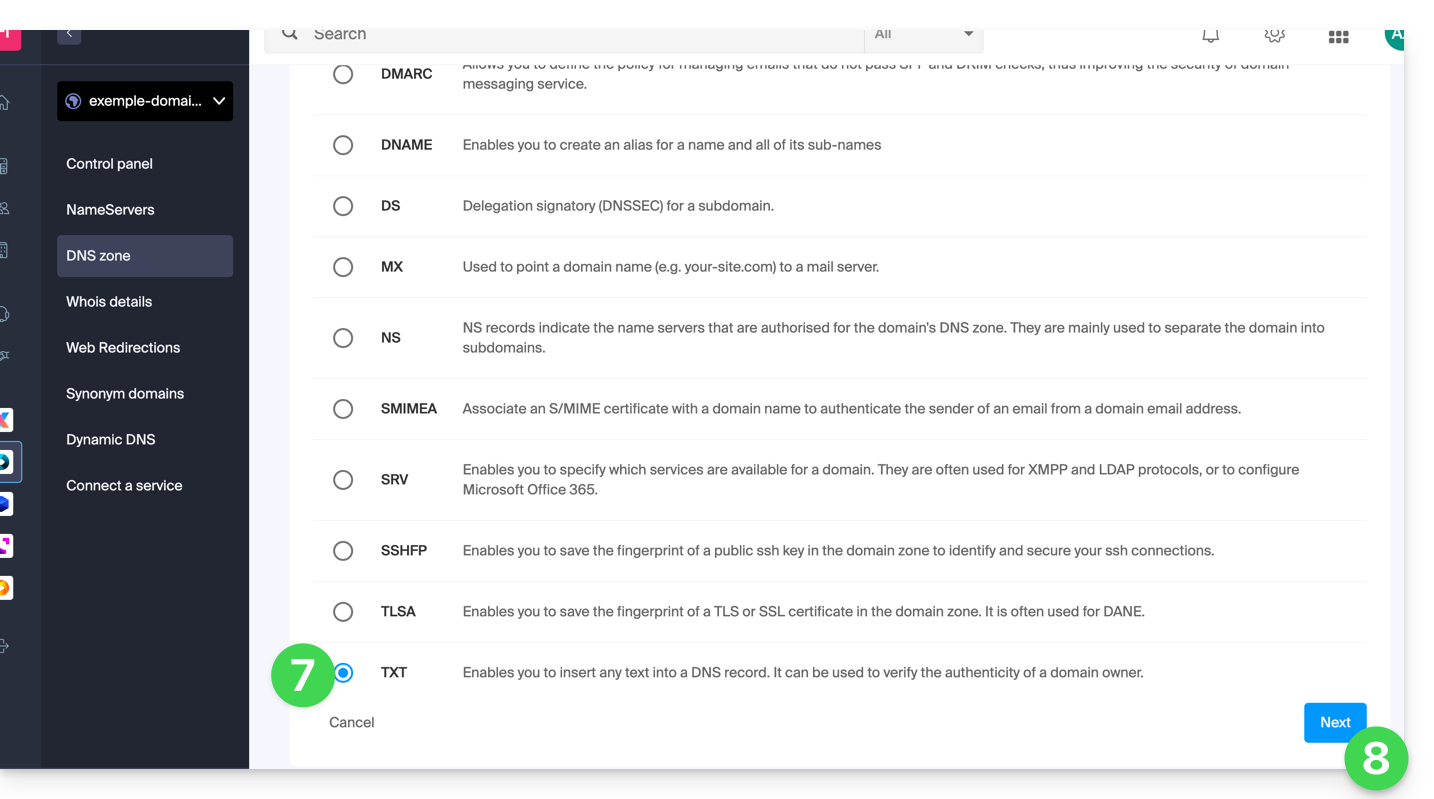
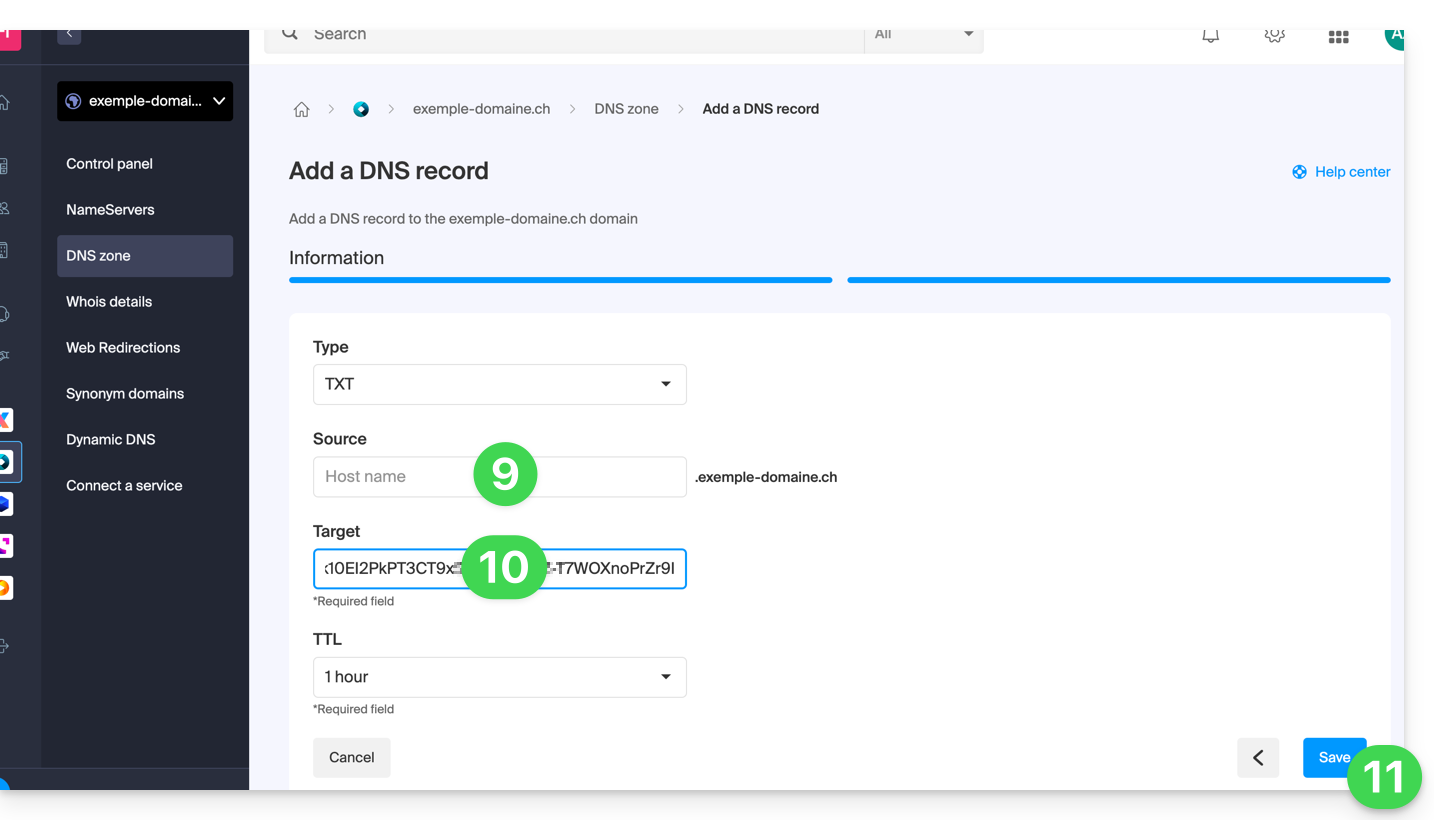
- Select the TXT type from the list.
- Click on the Next button:
- Leave this field blank or enter the term before your domain name if you have created a site
xxx.domain.xyz(in this example, you would entervisitin the Source field, since Site Creator is created onhttps://visit.example-domain.ch). - Paste the information retrieved in step 2 above.
- Click on the button to Save:
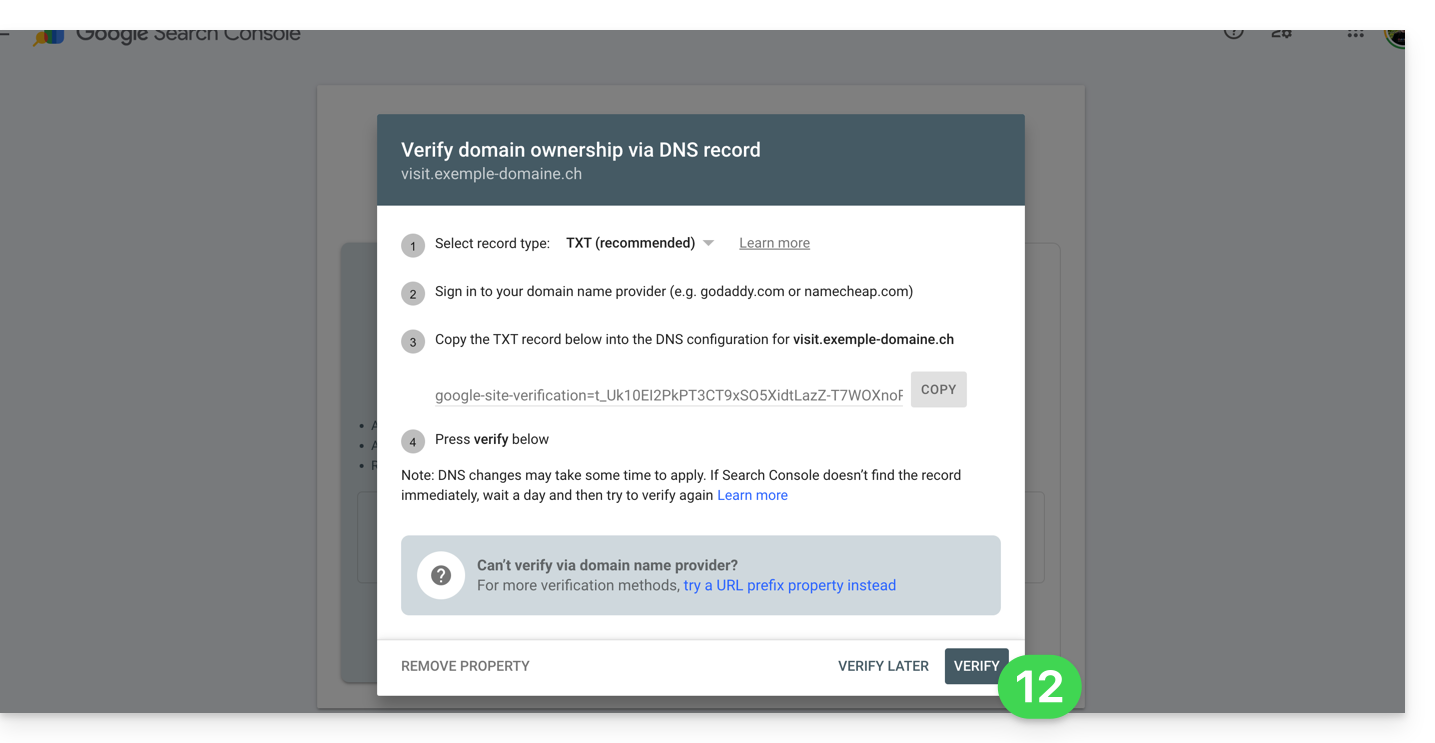
- Go back to the Google tool and click on Verify (wait a few minutes if the verification does not occur):
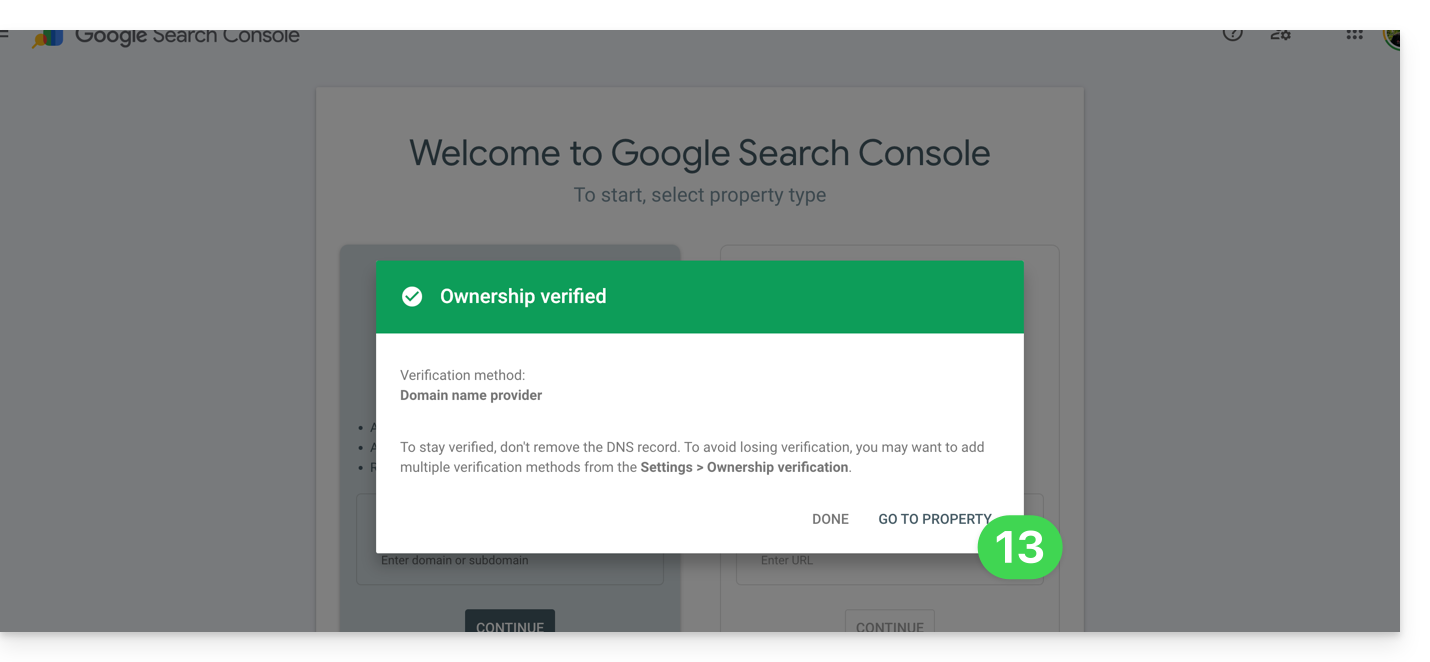
- The link is established between your Site Creator and the analysis console; click on the button to go configure the property:
2. Simple method
- Enter the complete URL of your Site Creator and click on Continue:
- Click on the chevron to expand the HTML TAG section to obtain the information to paste in Site Creator to prove ownership.
- Click on the COPY button:
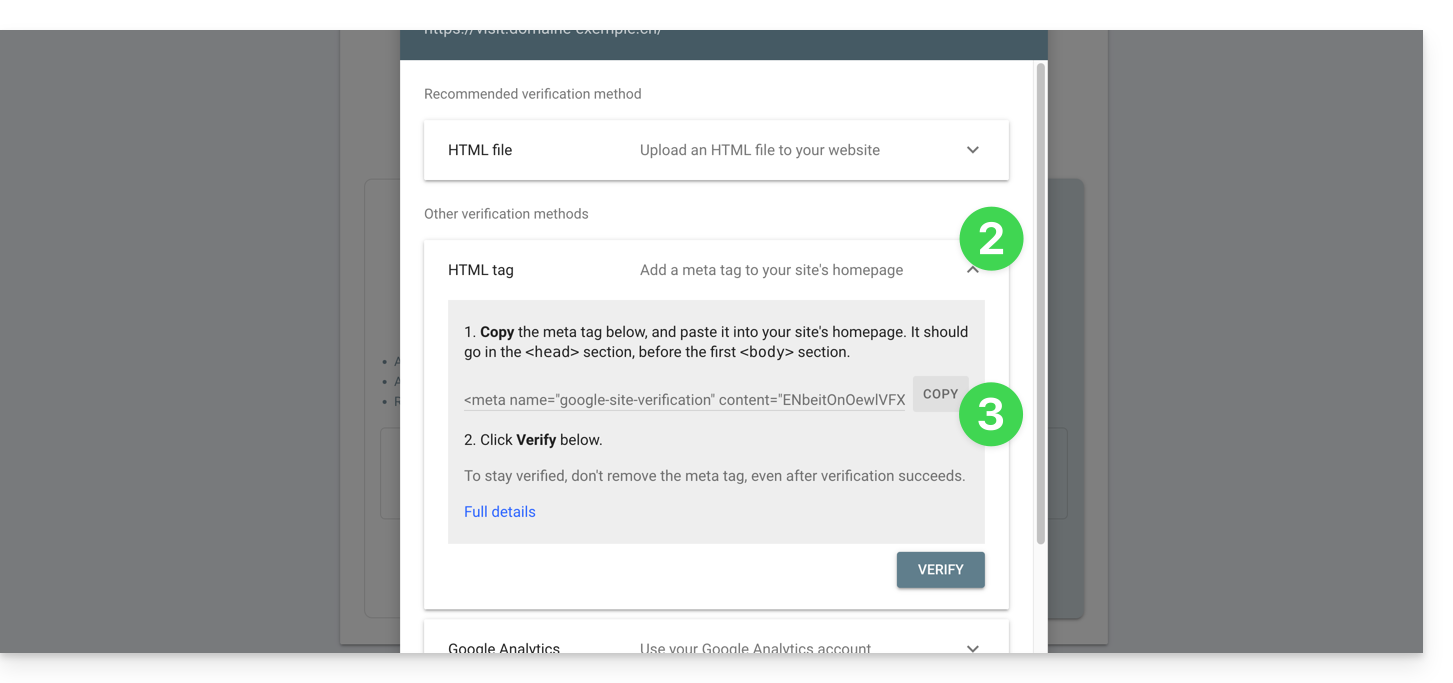
- Paste the information in the designated area on Site Creator.
- Save the changes:
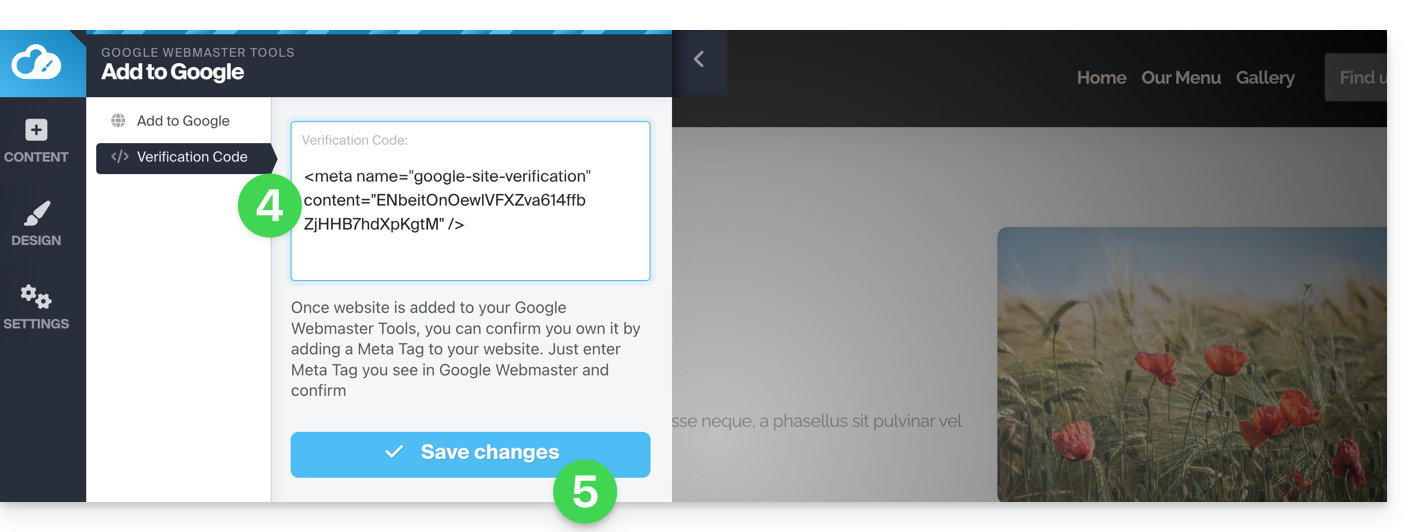
- Go back to the Google tool and click on Verify (wait a few minutes if the verification does not occur):
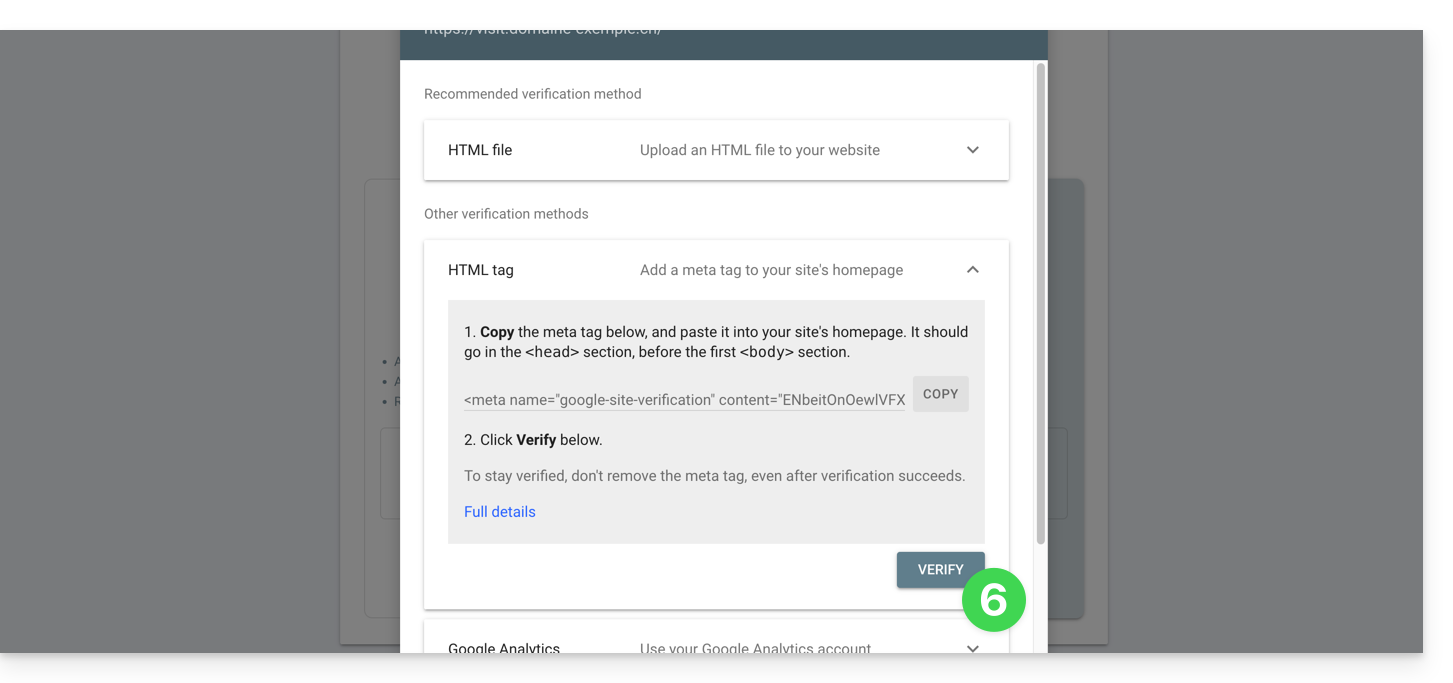
- The link is established between your Site Creator and the analysis console; click on the button to go configure the property:
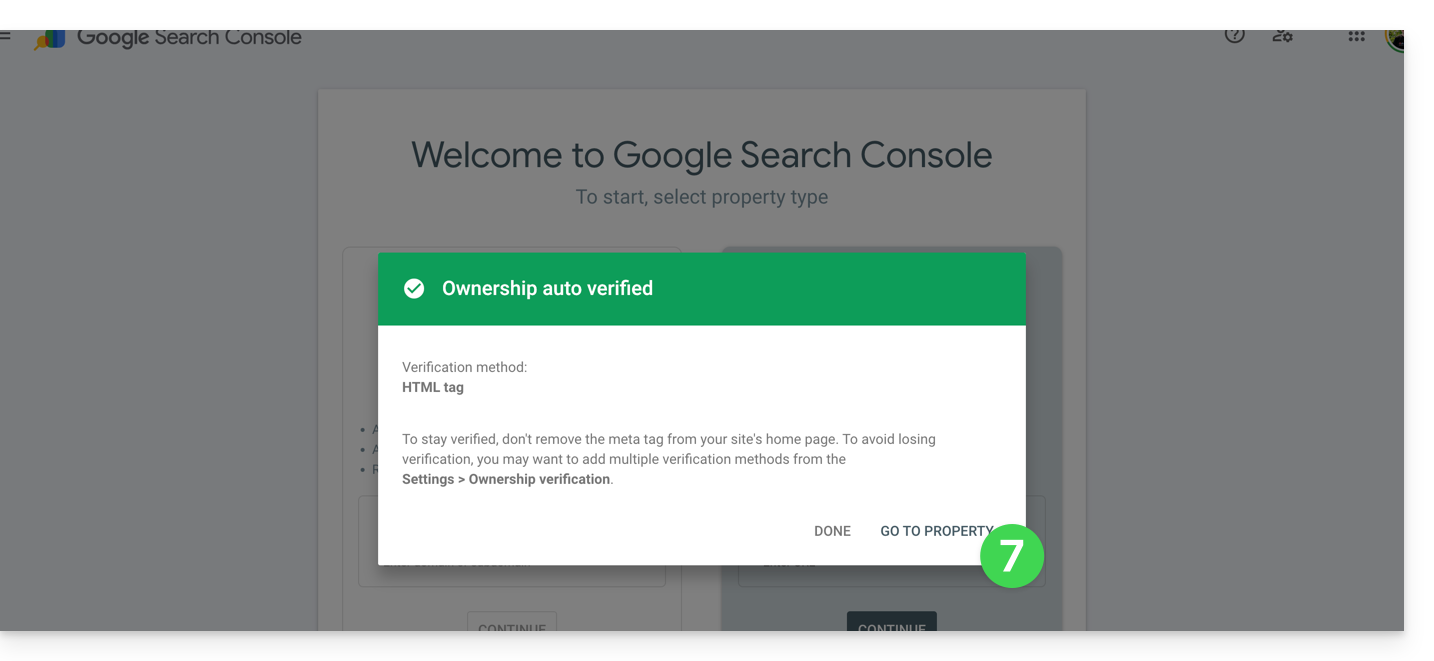
Define Meta tags
Once in Site Creator:
- Click on the Settings button in the left sidebar.
- Click on General settings.
- Click on SEO & metadata.
- Insert title, description, and keywords for the entire site:
This is also where you can manage the robots.txt file if necessary.
To set this but for a specific page:
- Click on the Settings button in the left sidebar.
- Click on General settings.
- Click on Sub-page settings.
- Click on SEO & metadata.
If you do not intervene on this page, it is Site Creator that dynamically manages your tags.
You can also manage the URLs of your pages independently of the SEO title of your page (page named "Contact" on the SEO side while its URL will be for example "/enterprise").
What "Meta Keywords"?
To enter multiple keywords, separate them with a comma or similar:
Sitemap.xml
Do not confuse this with the Site Map module, the sitemap.xml file lists all the pages of your site to help search engines discover and index them effectively. You can examine it to understand the site structure; replace domain.xyz with your domain name to access it (publicly) from a browser:
https://domain.xyz/sitemap.xmlSubmit your clean URL to Google Search Console (refer to the first chapter above in this guide) and other webmaster tools to improve indexing.
Insert tracking codes
Your website includes a simple Statistics module, but you can use Google Analytics or other tracking methods (such as Facebook Pixel, Google Tag...) that require inserting code on your site:
- Click on the Settings button in the left sidebar.
- Click on General settings.
- Click on SEO and statistics.
- Scroll down the page and insert your tracking codes.
Link to this FAQ:
Has this FAQ been helpful?