Knowledge base
1000 FAQs, 500 tutorials and instructional videos. Here, there are only solutions!
Easily edit a Site Creator page
This guide helps you understand how to create and edit pages in Site Creator Infomaniak.
Prerequisites
- Access Site Creator:
- Click here to access the management of your product on the Infomaniak Manager (need help?).
- Click directly on the name assigned to the relevant Site Creator.
- Click the Edit my site button to start the editor:

Simple page editing
Editing a page happens live and your changes are saved as you go while editing the content of your blocks. You can undo your changes if necessary.
Create a link
Create a link from an image or text, directly by selecting the object. On the toolbar that appears, click on the action menu •••.
Then click on the icon of the chain to open the section that will allow you to specify the type of link and the associated options: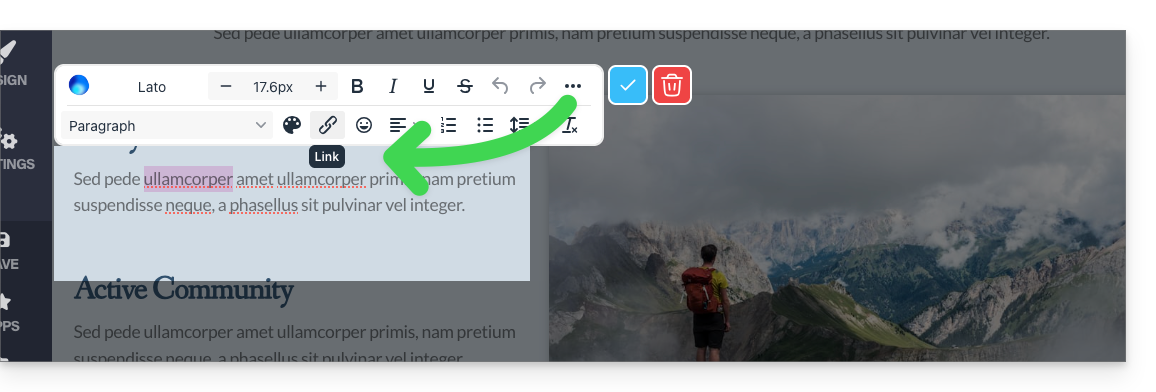
Turn a link into a button
In the settings of your link, you can choose the style (button rounded, full, etc.), the associated icon, etc.: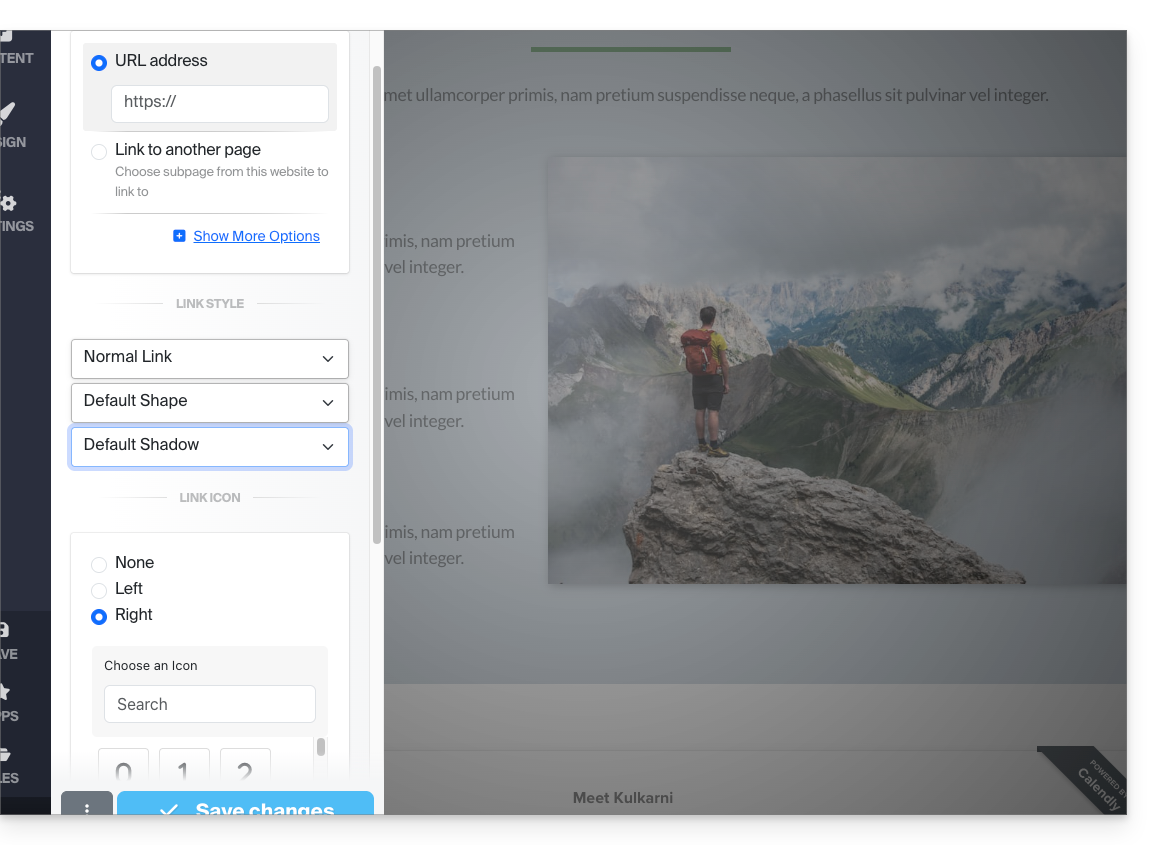
Edit a link
Edit a link by clicking on it and then clicking on the icon of the chain: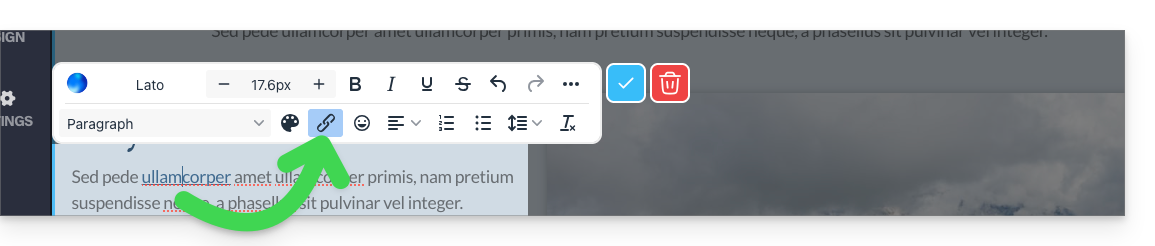
Create a link to a file
To allow your visitors to download a file from a link on an object, click on Show more options in the settings of your link.
Then choose the type "File" which will allow you to upload the corresponding file to the server, in order to offer it for download to your visitors: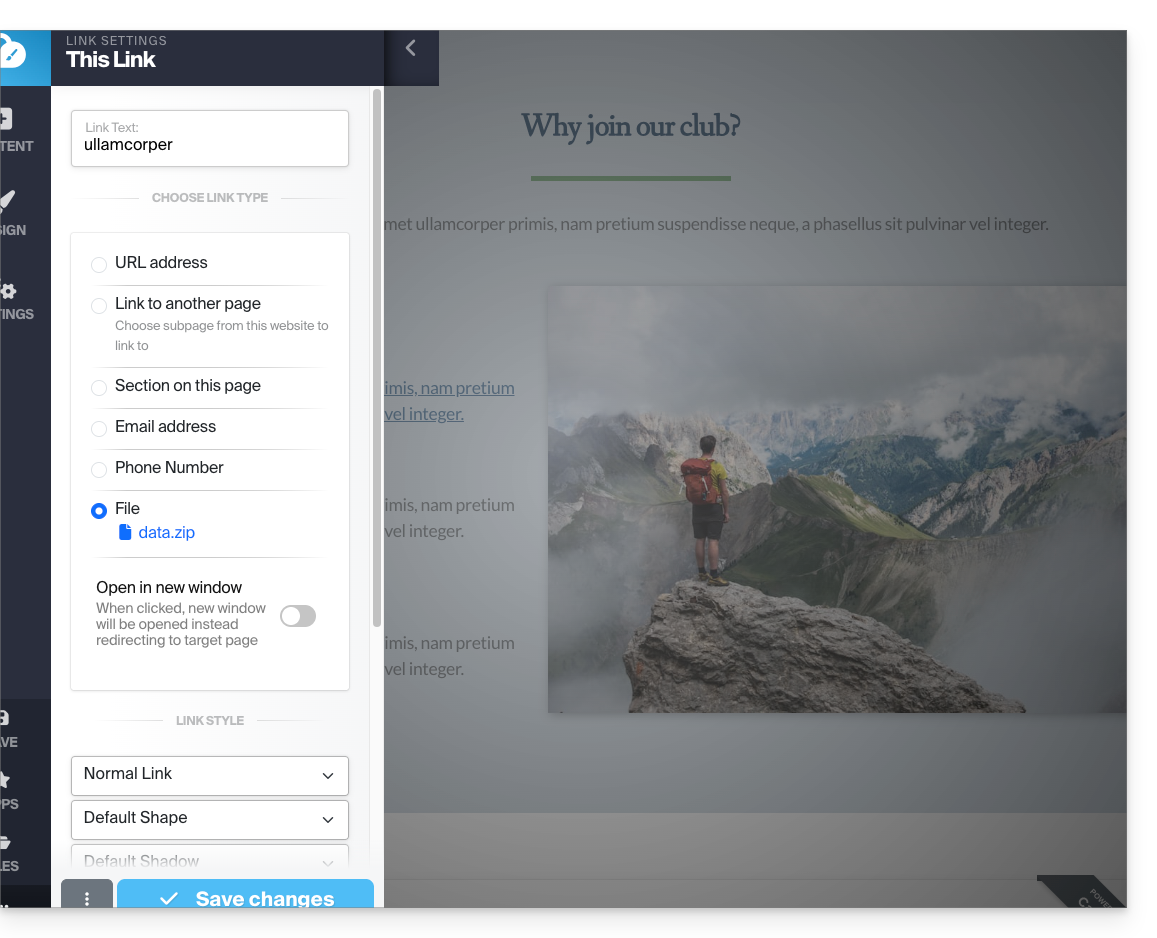
Create a link to an email
Choose the type "Email address" in the settings of your link. A click on the link will open the default messaging application for the visitor and start writing an email with the pre-written email address: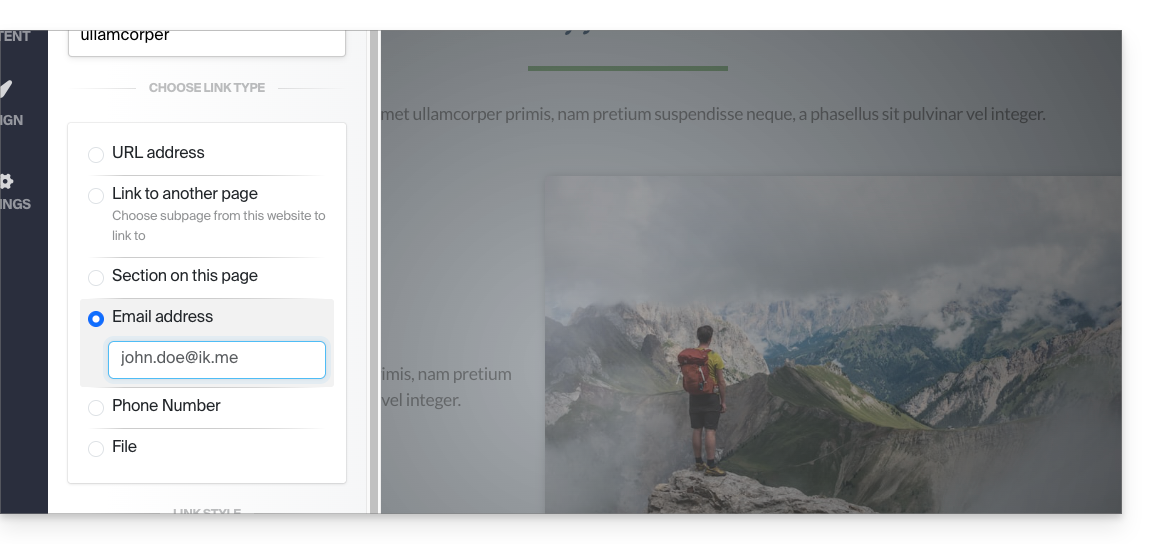
To prevent the email address from being hard-coded on your page, insert a contact form.
Create a link to a specific section
To direct the visitor to a specific portion of your site or another, use the anchor system.
Create a link from an image
When you click on an image to edit it, simply activate the "This is a link" button below the image to specify the URL that should be displayed when a visitor clicks on it: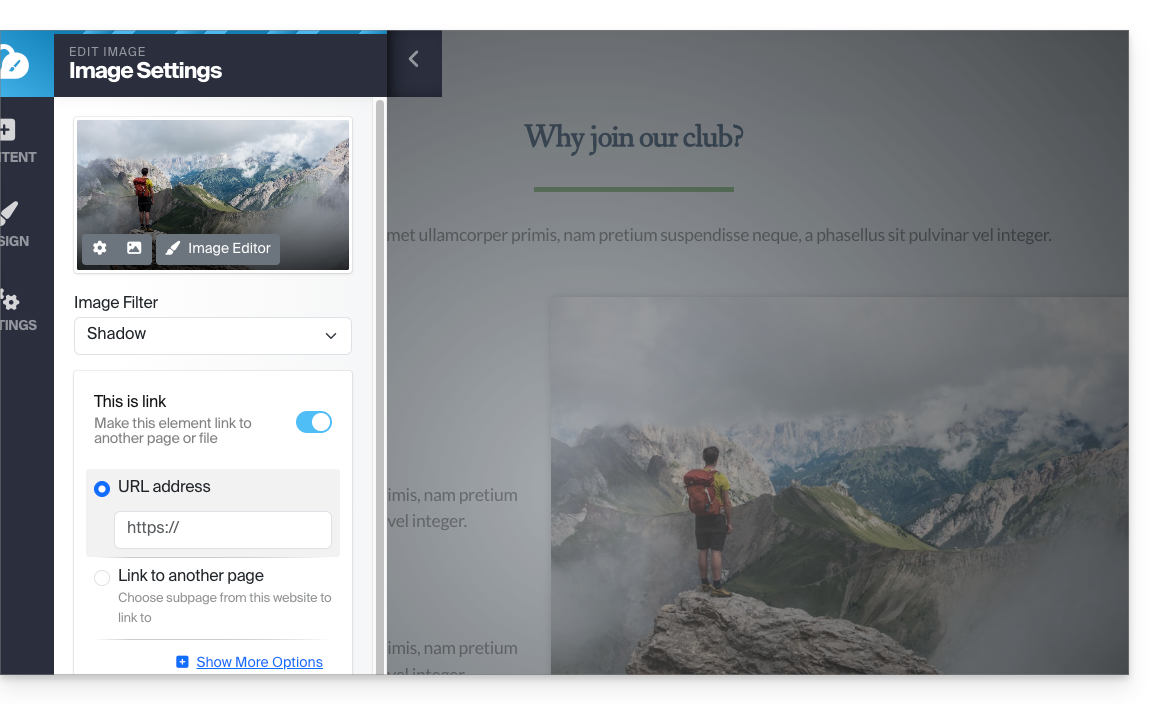
You can also apply a link to an image by using a YouTube video as the URL: this will automatically create a PLAY-type icon that will open the video in a lightbox-type window.
Create a list, insert an emoji... and save
The different text formatting options are above the text selection:
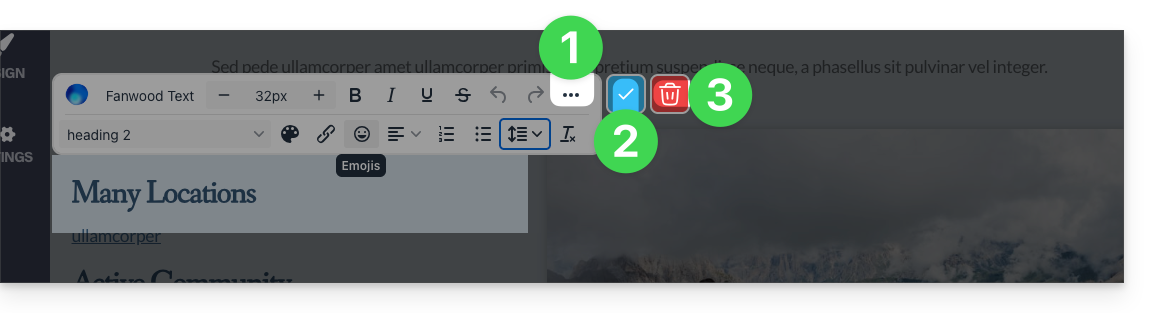
- Additional options (bulleted lists, alignment, emojis, etc.) are accessible with the action menu •••.
- Apply and validate changes with the ✓ sign.
- Warning: the trash can deletes the text you are editing:
Link to this FAQ: https://faq.infomaniak.com/2709
Has this FAQ been helpful?