Knowledge base
1000 FAQs, 500 tutorials and instructional videos. Here, there are only solutions!
Ticketing: Manage automated emails
This guide explains how to set up automatic email reminders to be sent to visitors who have purchased a ticket (as part of the Infomaniak ticketing system) to resend them, 2 days or more before the event, information about their tickets as well as the event address and time.
Preview (or modify) the automatic email
Prerequisites
- The functionality for creating/modifying must be requested in advance so that it can be activated by the Infomaniak teams.
- You will need to create an event in order to access the options for customizing the mobile tickets.
- The image at the top of the email will display the logo of your ticketing system, which you can configure in Settings and Ticketing Settings.
Then:
- Click here to access the management of your product in the Infomaniak Manager (need help?).
- Click directly on the name assigned to the ticketing system concerned by the event.
- Click on Marketing Tools in the left-hand menu.
- Click on Automatic Emails in the left-hand menu.
- Click on the button to Create an automatic email (see prerequisites):
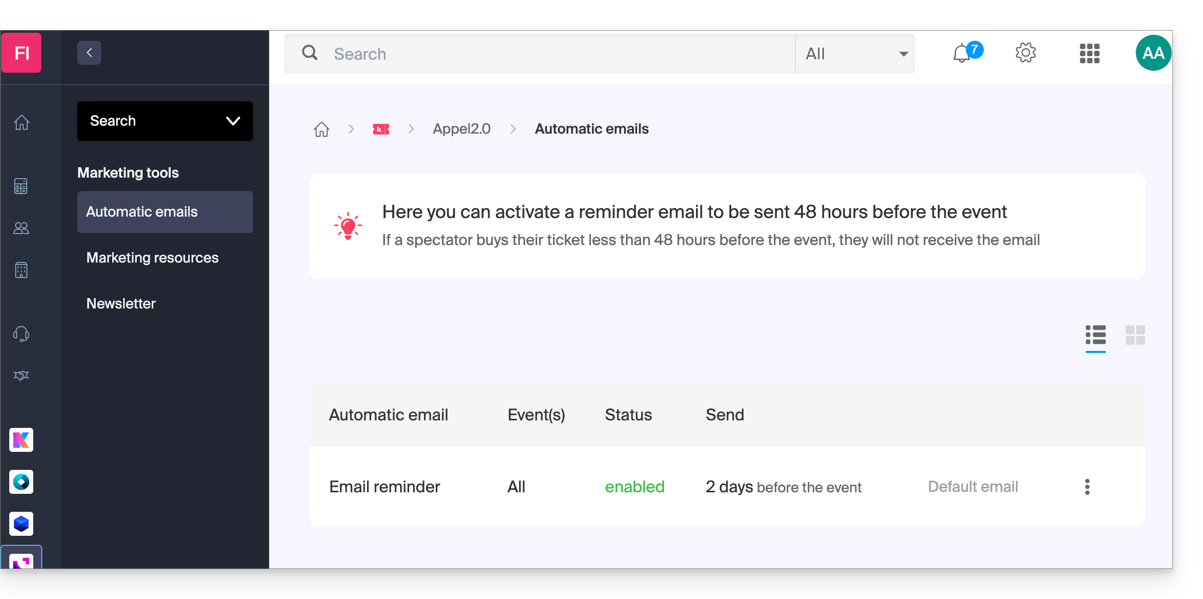
- Configure the cases in which to send your automatic messages (several configuration pages).
- You can also edit, preview, activate/deactivate, or delete a message that has already been created, even if it is not currently active.
- Click on the action menu ⋮ located to the right of the item in question.
Link to this FAQ: https://faq.infomaniak.com/2698
Has this FAQ been helpful?