Knowledge base
1000 FAQs, 500 tutorials and instructional videos. Here, there are only solutions!
Create an out-of-office message template for your mail
This guide explains how to create a template for the automatic message tool when out of office for all your mail on the Infomaniak Web app Mail (online service ksuite.infomaniak.com/mail).
Preamble
- A template allows you to create the neutral base of a tool that can then be used by multiple users of the same Infomaniak Mail Service, or even customized according to the person who will use it.
- In the case of an out-of-office template, the creator of the template chooses the text that will be sent when a new sender contacts an address to which the template has been applied.
- You can also hide a template so that it is no longer used.
Create an out-of-office template
To create a template:
- Click here to access the management of your Infomaniak Mail Service on the Manager Infomaniak (need help?).
- Click directly on the name assigned to the Infomaniak Mail Service concerned:
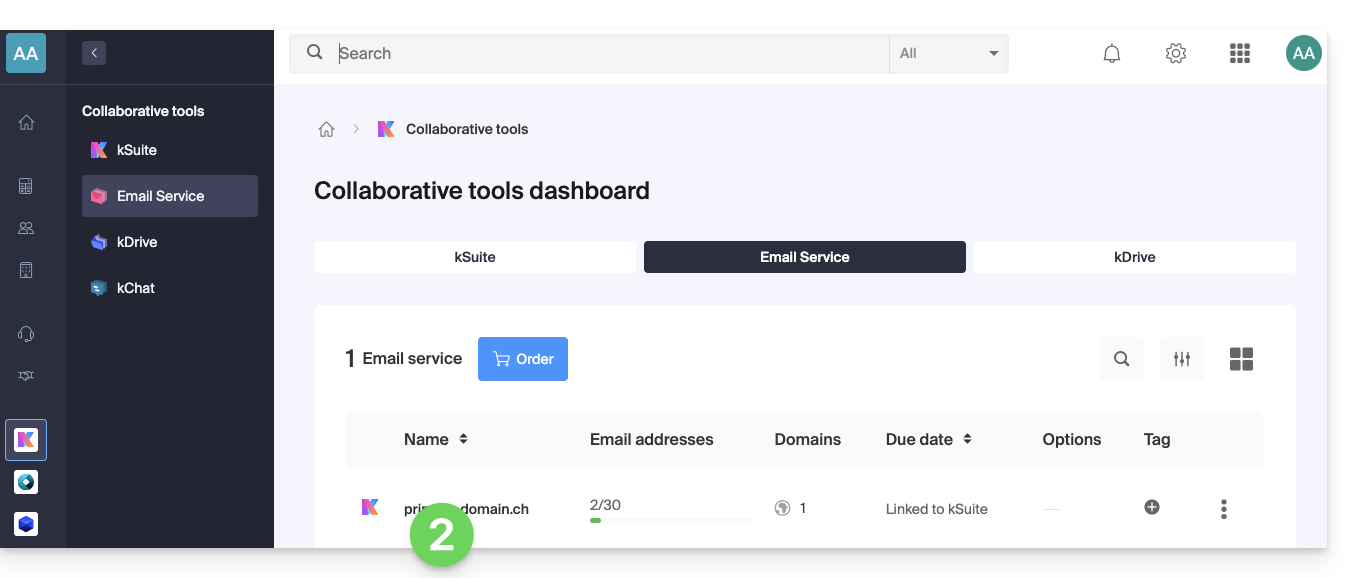
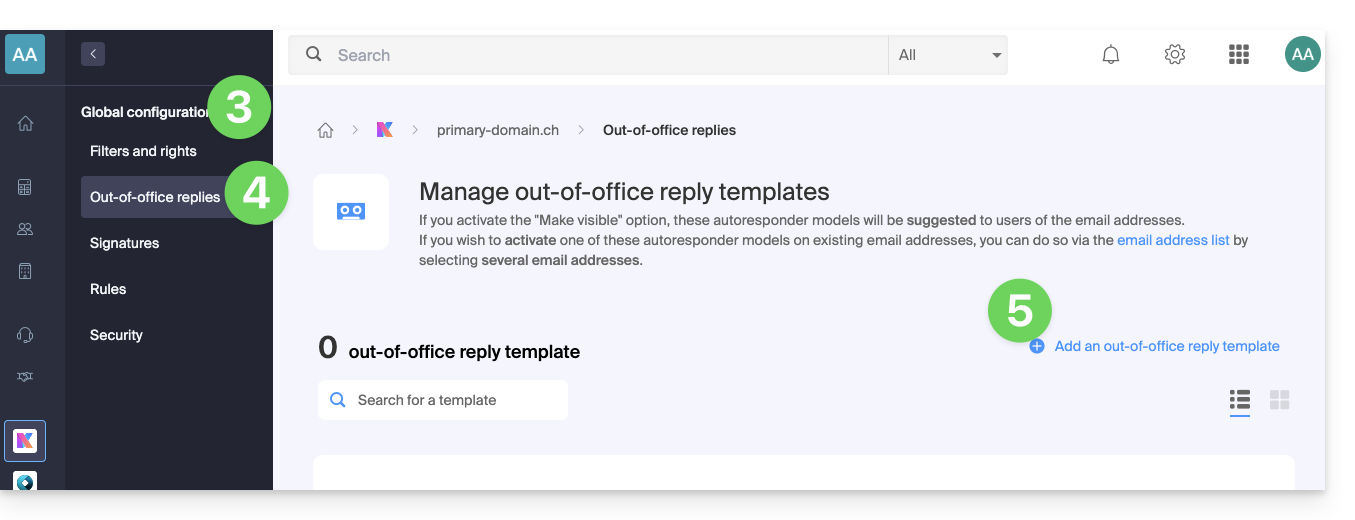
- Click on Global Configuration in the left sidebar menu.
- Click on the Out-of-office menu.
- Click on Add an out-of-office template:
- Fill in the fields and click Add the out-of-office template:
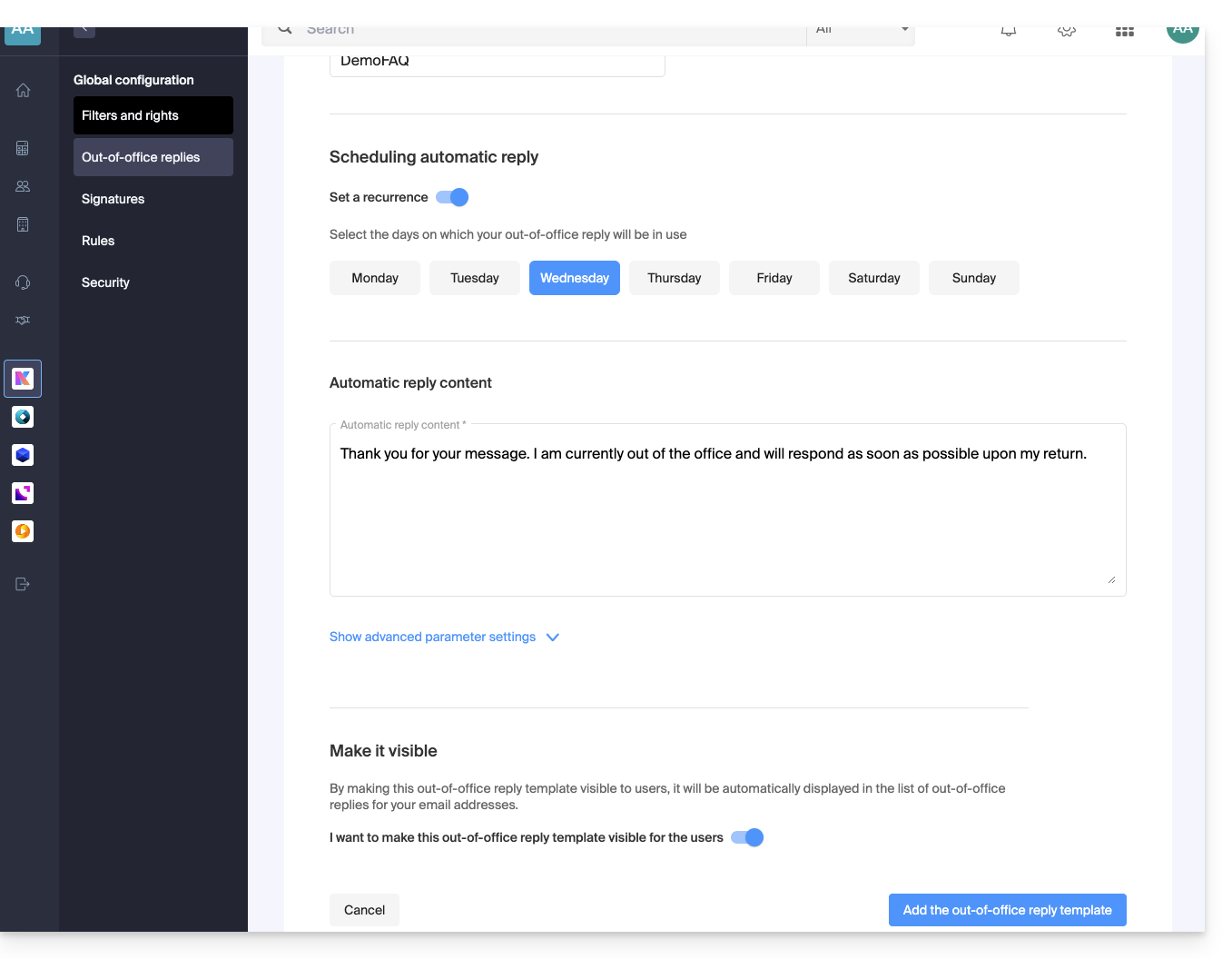
- If the Make visible option is enabled (during creation or also possible afterwards), the out-of-office templates created will be suggested to users of the mail addresses.
Activate a template on an existing mail address
It is necessary to have an existing template to activate it on one or more mail addresses:
- Click here to access the management of your Infomaniak Mail Service on the Manager Infomaniak (need help?).
- Click directly on the name assigned to the Infomaniak Mail Service concerned.
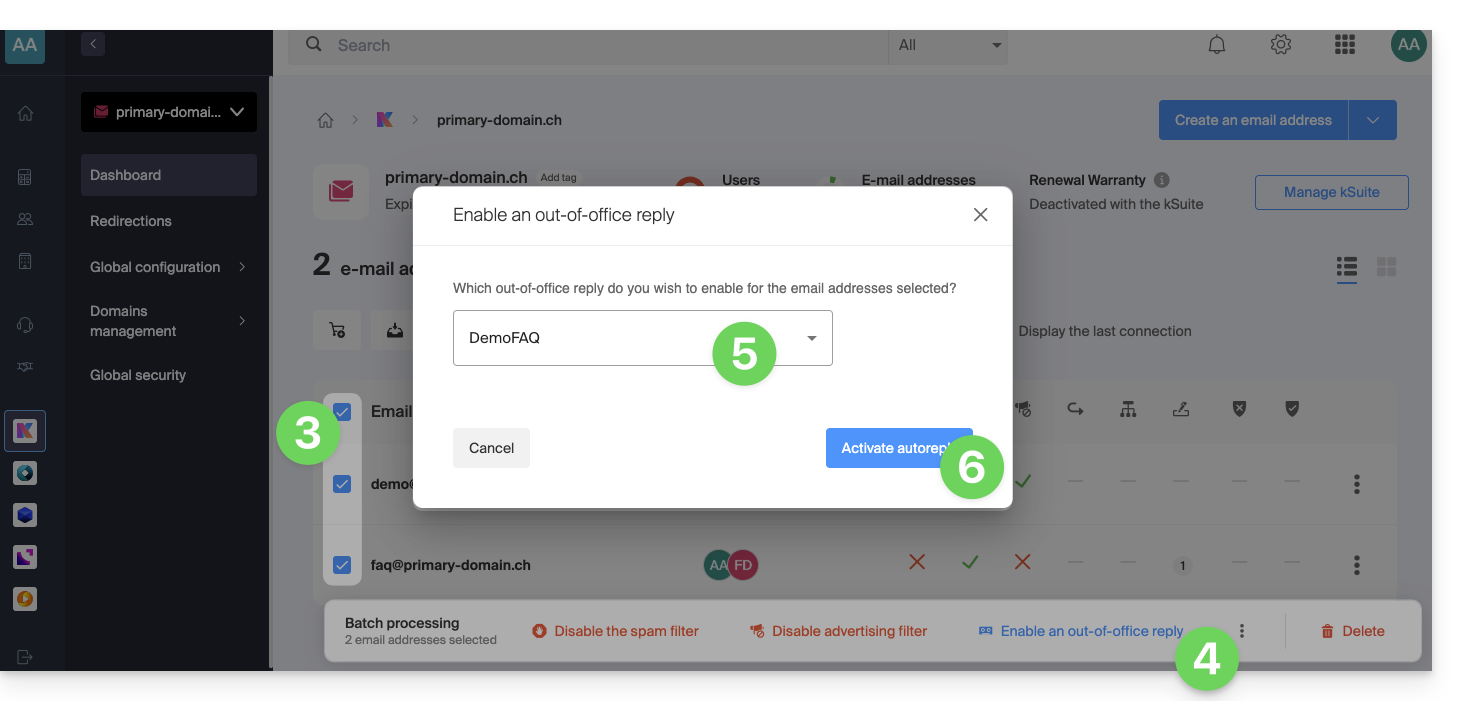
- Click on the boxes to select one or more mail addresses in the table that appears.
- Depending on the screen size, click first on the action menu ⋮ or directly on Apply an out-of-office template.
- Select the template of your choice.
- Only the visible templates are available when activating.
- Click on the Activate button:
Link to this FAQ:
Has this FAQ been helpful?