Knowledge base
1000 FAQs, 500 tutorials and instructional videos. Here, there are only solutions!
Partnership: add a Client to access their products
This guide explains how to add a Client as part of the Infomaniak Partner Program.
Prerequisites
- Only the legal representatives of the Partner Organization are authorized to add Clients.
Add a "managed" Client
To add a Client as part of your Partner activity:
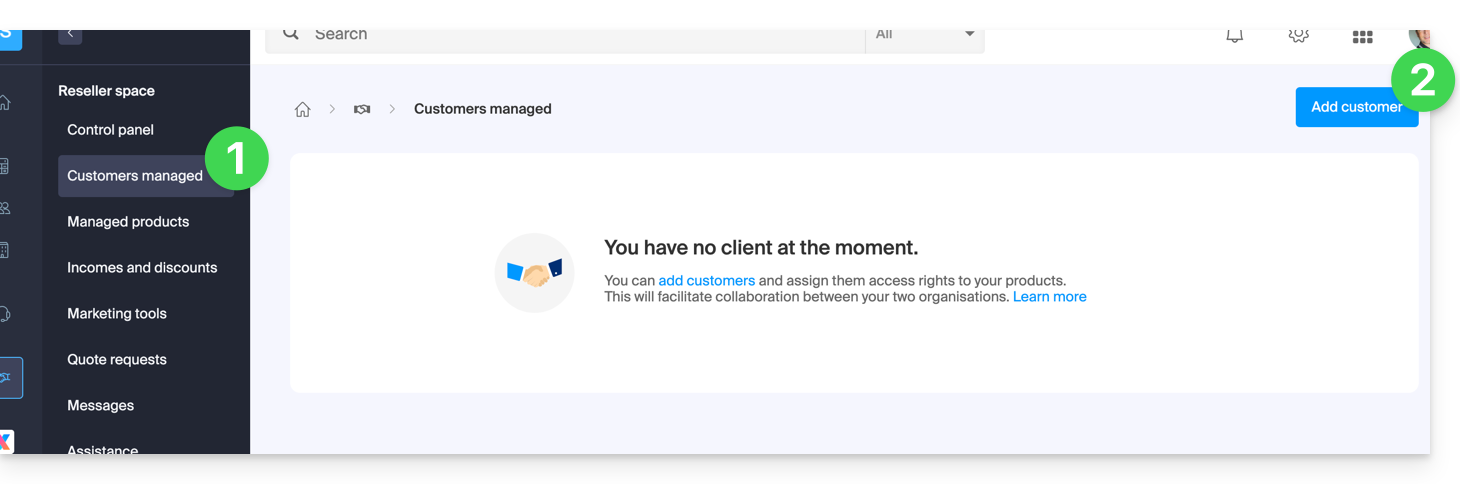
- Click here to access your managed Clients on the Infomaniak Manager Reseller Space (need help?).
- Click the blue “Add a client” button at the top right:
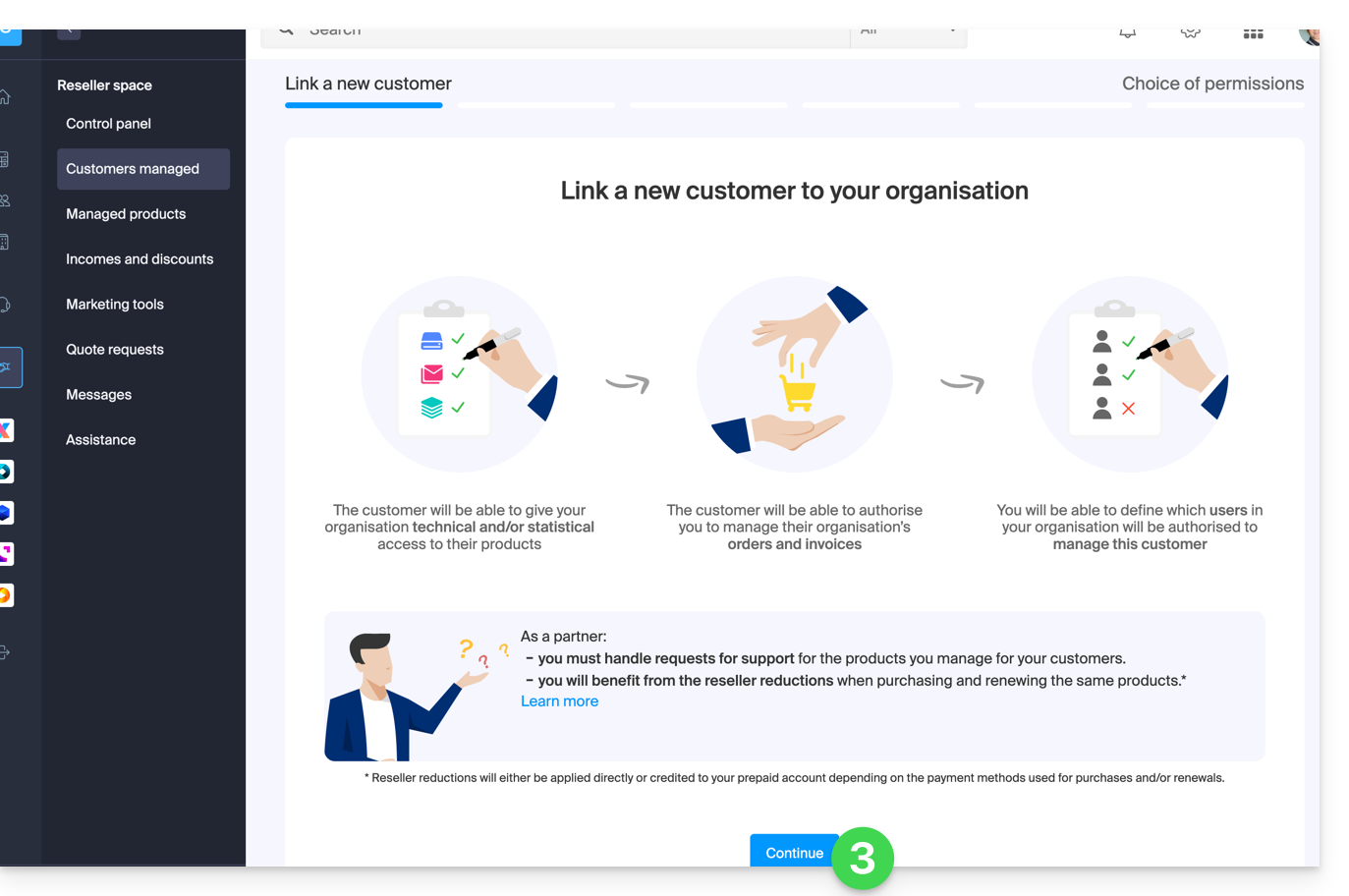
- Follow the procedure to complete:
- The pending request will be visible on your Manager:
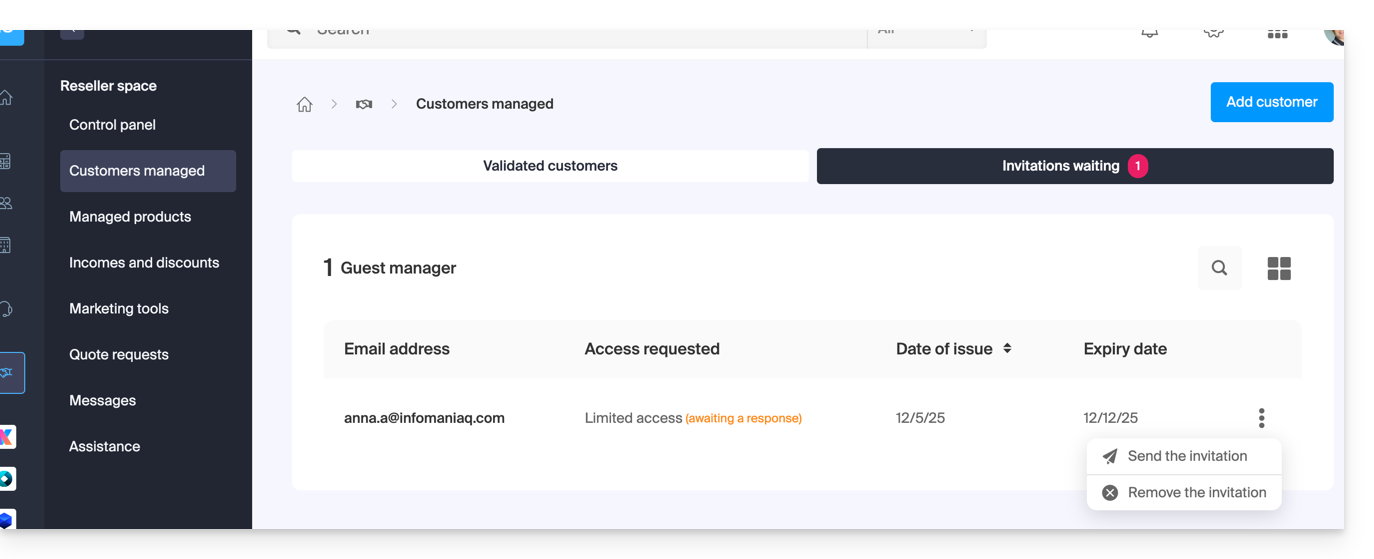
- The Client will receive an email with the request for different accesses and will have the option to decide to grant different access rights than those requested by the Partner.
- Once the invitation is accepted by a Client, check the access rights granted as well as the payment methods used (if applicable) on your Client's profile.
Access the Client's account and their products…
… as a legal representative or Partner administrator
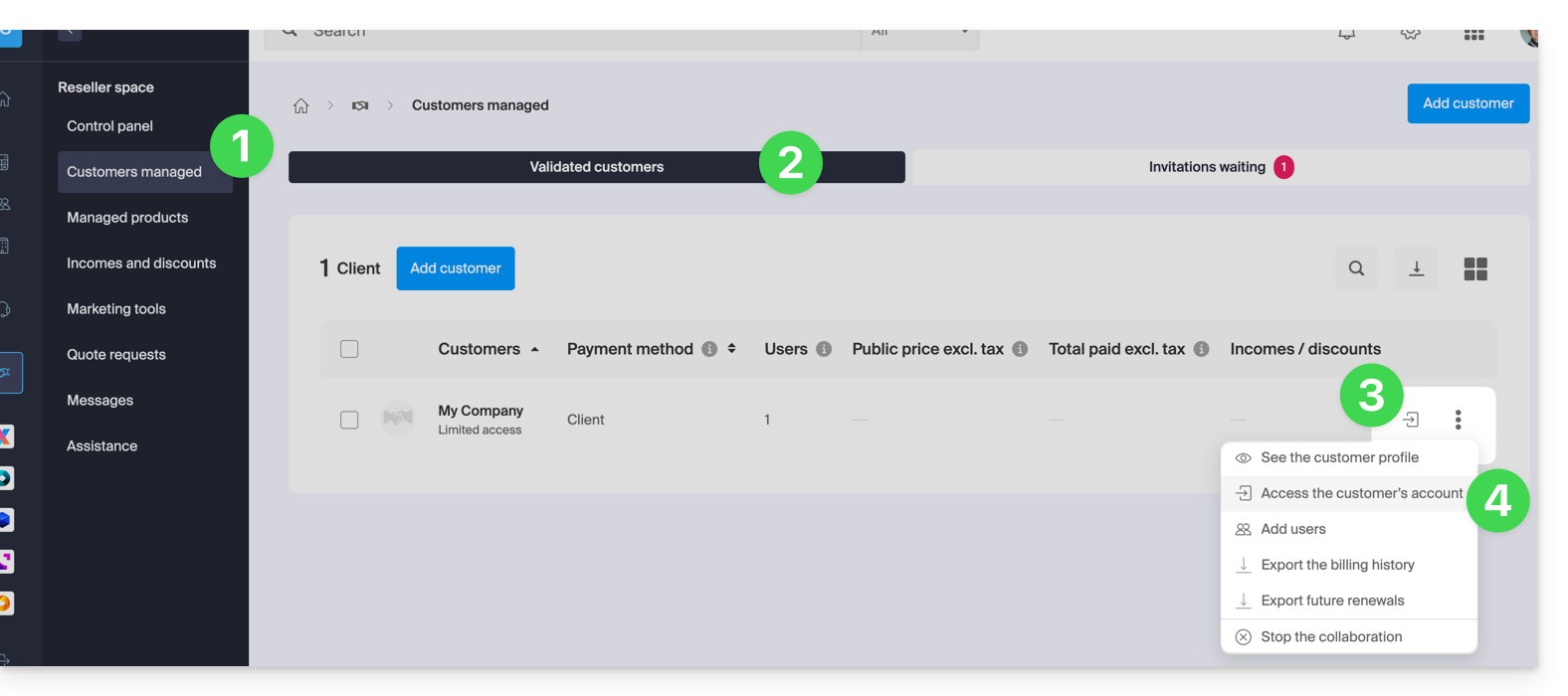
- Click here to access your managed Clients on the Infomaniak Manager Reseller Space (need help?).
- If necessary, click on the tab for validated Clients.
- Click on the icon to the right of the Client concerned in the displayed table to access their Manager.
- Click on the action menu ⋮ to the right of the Client concerned in the displayed table to access more options (such as exporting data to a CSV file (format .csv) for example):
… as a Partner Organization collaborator
- Click here to access the Infomaniak Manager.
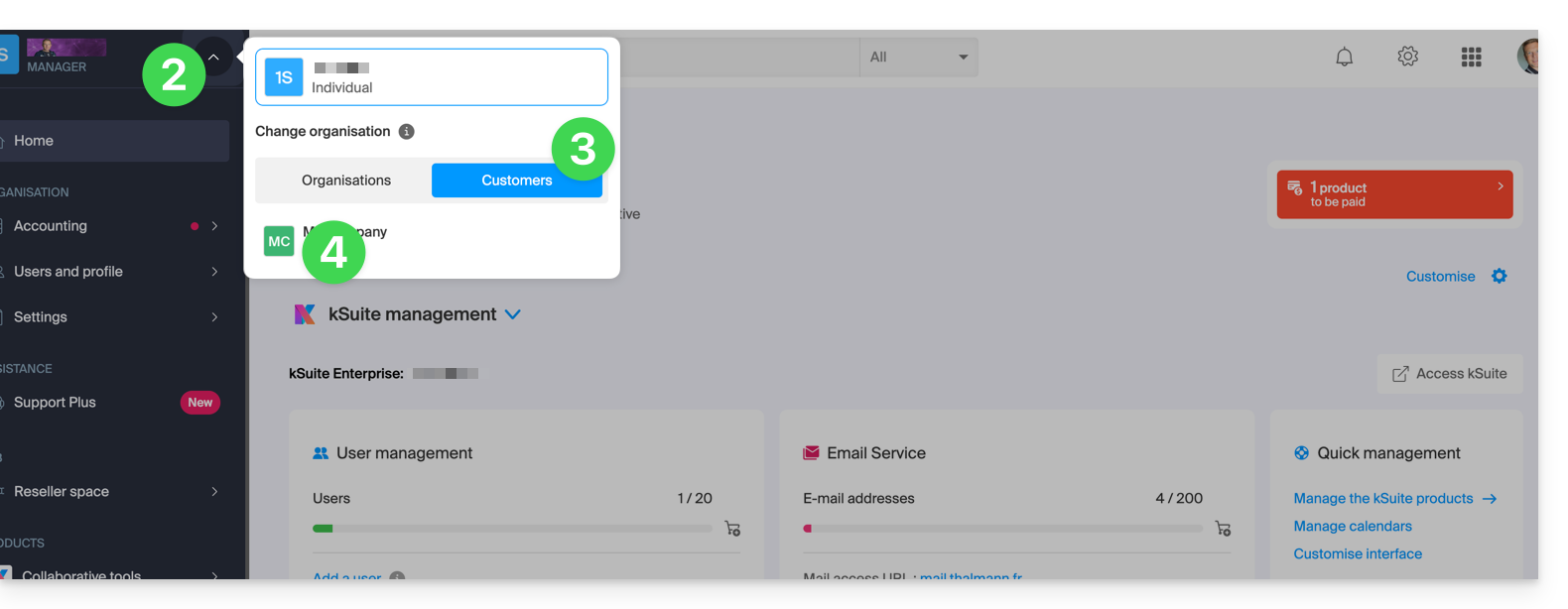
- Click on the chevron at the top left of your left sidebar menu.
- Click on the Clients tab.
- Click on the Client concerned in the displayed menu to access their Infomaniak Manager:
Link to this FAQ: https://faq.infomaniak.com/2668
Has this FAQ been helpful?