Knowledge base
1000 FAQs, 500 tutorials and instructional videos. Here, there are only solutions!
Set the Infomaniak Web Mail app as the default to handle mailto links:
This guide explains how to set the Infomaniak Web app Mail (online service ksuite.infomaniak.com/mail) as the default email provider on web browsers that offer this option (Brave, Vivaldi, Firefox, etc., except Safari).
Set Infomaniak email as default
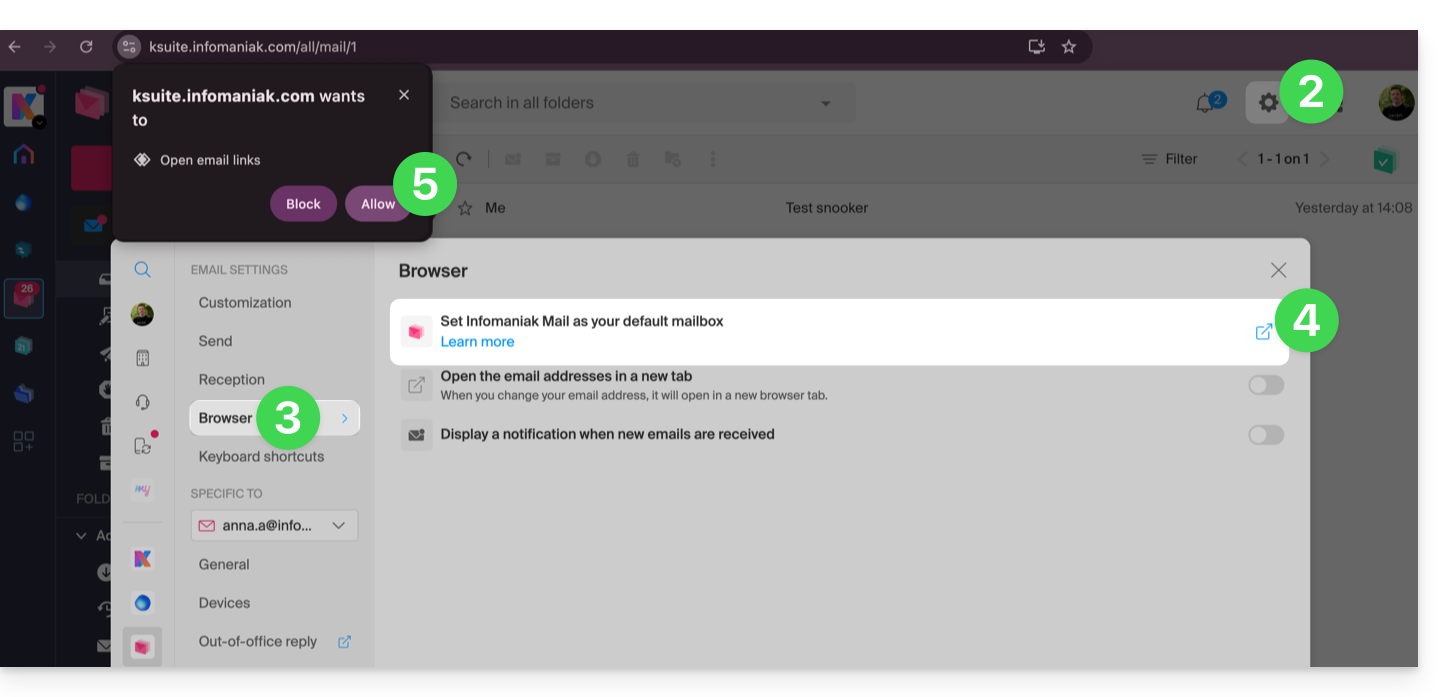
To configure browsers to automatically use the Infomaniak email management interface when you click on email links (e.g., "mailto:" links) and/or try to send an email from a web page:
- Click here to access the Infomaniak Web app Mail (online service ksuite.infomaniak.com/mail).
- Click on the Settings icon in the top right corner.
- Click on Browser.
- Click on Set Mail as default.
- Follow the instructions provided by the browser you are using (a notification should appear at the top of the window):
If you encounter any issues…
To resolve issues with using Infomaniak Mail as the default email provider, follow the manual instructions for your usual browser:
…on Firefox
- Open Firefox.
- In the menu bar, go to about:preferences
- In the sidebar, go to General, then Applications
- In the "Type and Content" column, select mailto
- Click on Always ask and select "
ksuite.infomaniak.com" as the email handler.
…on Google Chrome
- Open Google Chrome.
- In the menu bar, enter chrome://settings/handlers.
- In the sidebar, go to Privacy and Security.
- In the Protocol Manager authorize and select «
ksuite.infomaniak.com» as the default mail manager: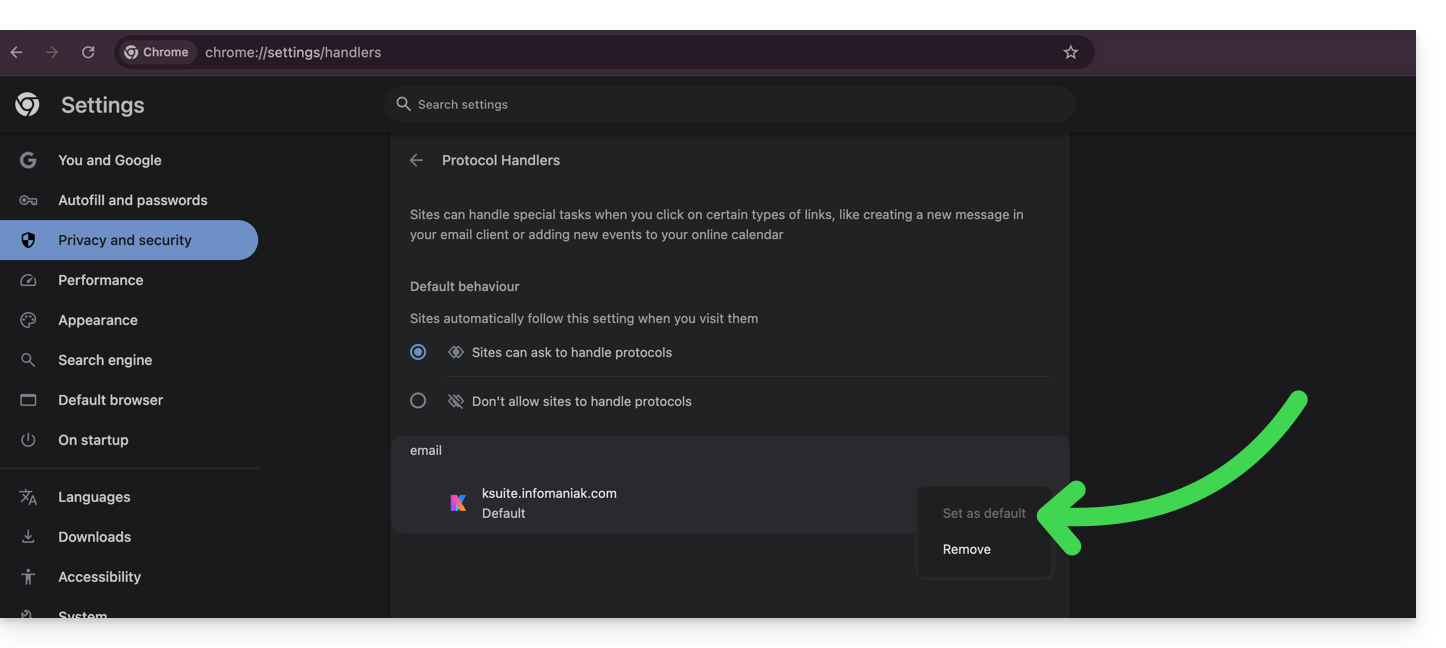
Link to this FAQ: https://faq.infomaniak.com/2639
Has this FAQ been helpful?