Knowledge base
1000 FAQs, 500 tutorials and instructional videos. Here, there are only solutions!
Remotely control a device with kMeet
This guide explains how to use the remote control feature of a device, whose screen is shared, with kMeet the ethical free videoconferencing solution by Infomaniak.
Prerequisites
- Have the desktop app kMeet (desktop application on macOS / Windows).
- Share an entire screen and not just an application window.
Take control of a device
For user A to take control of user B's computer:
- Start the kMeet desktop app, then create or join a meeting room in which users A & B must be present.
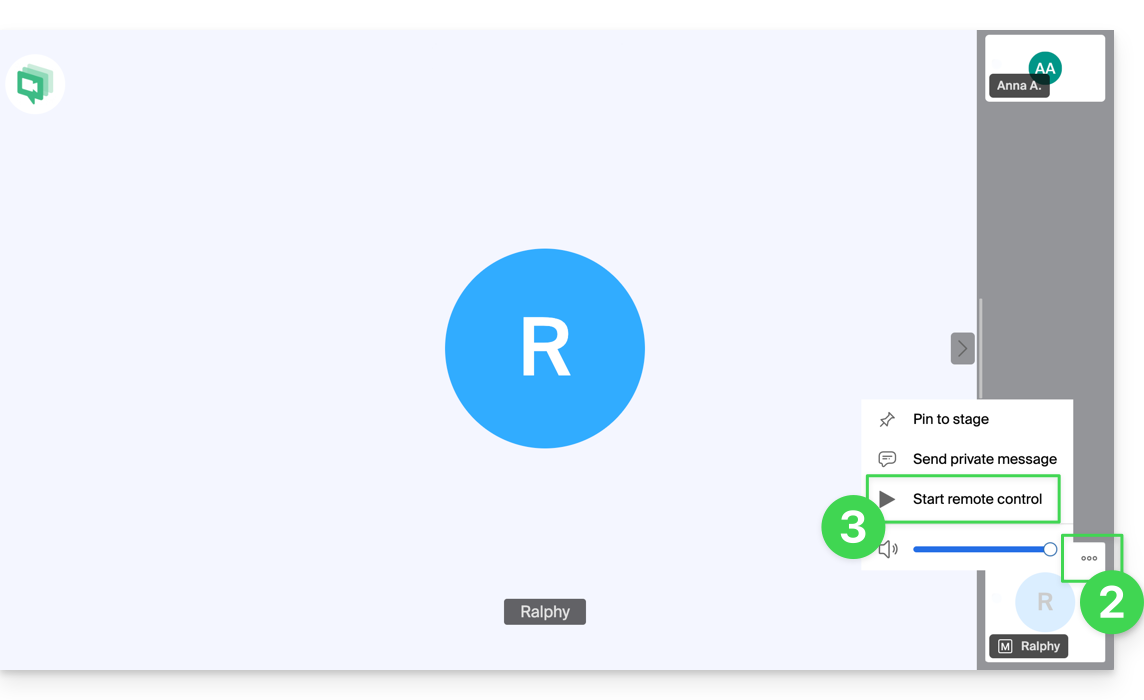
- User A must click on the action menu ○○○ at the top right of user B's thumbnail.
- User A must click on Start remote control, and the same path to stop the takeover:
- User B receives a notification in the application to validate and accept the device control request.
It is also possible to simply annotate a screen share without taking control of the device.
Link to this FAQ:
Has this FAQ been helpful?