Knowledge base
1000 FAQs, 500 tutorials and instructional videos. Here, there are only solutions!
Install n8n on Infomaniak hosting
This guide will help you install n8n on Infomaniak, a powerful and extensible workflow automation solution.
Preamble
- Unlike tools like Zapier or Make, n8n, a “fair-code” workflow automation tool, can be self-hosted, allowing you to maintain full control over your data while connecting hundreds of services via an intuitive visual interface.
Installing n8n
Prerequisites
- A Node.js type site (v22 recommended).
- Stop the Node.js application from your Node.js site dashboard before performing any technical operations.
To configure your hosting (via the Infomaniak Manager):
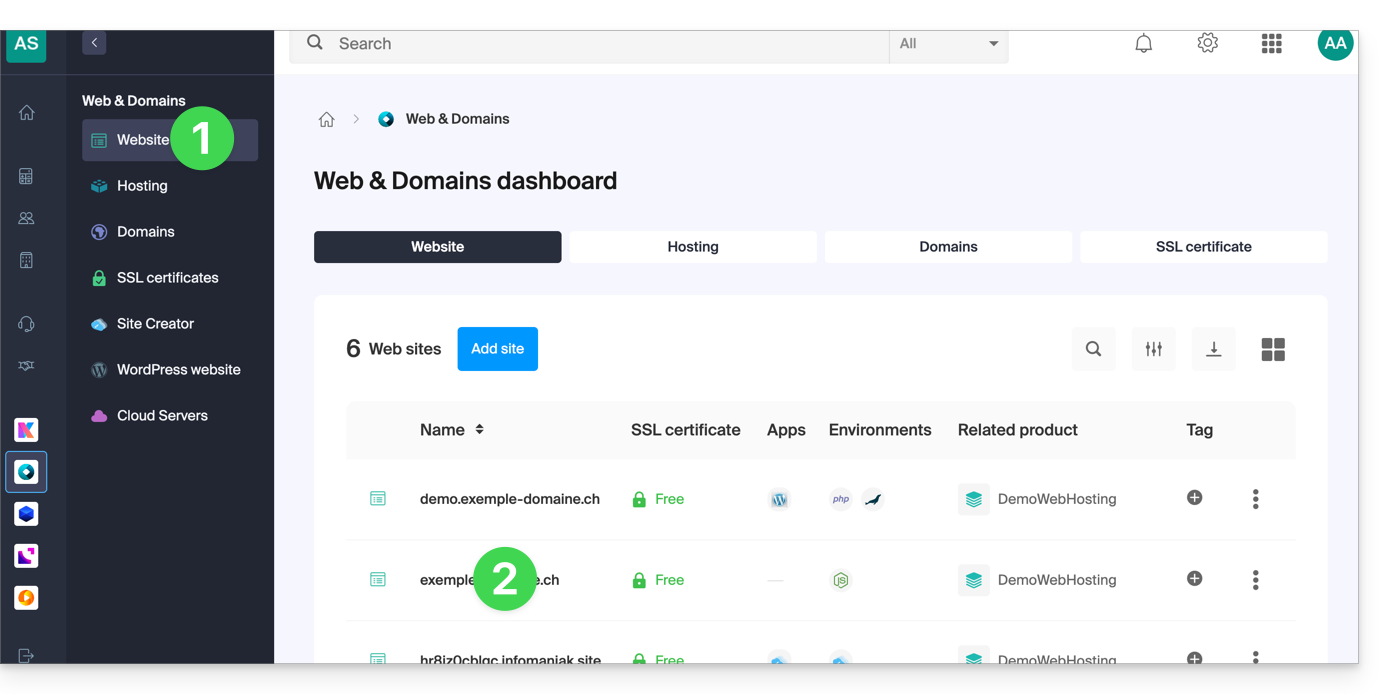
- Click here to access your site management on the Infomaniak Manager (need help?).
- Click directly on the name assigned to the site concerned:
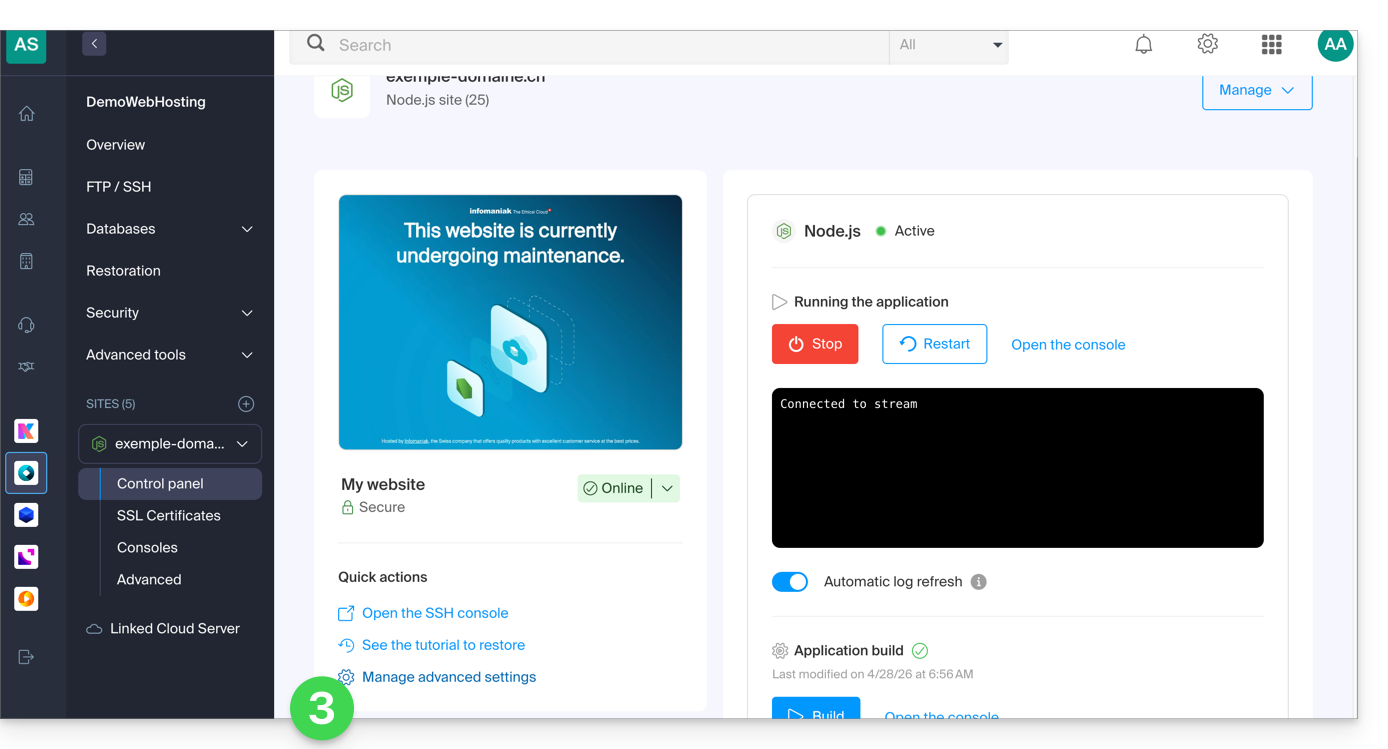
- Stop the application if necessary, then click on Manage advanced settings:
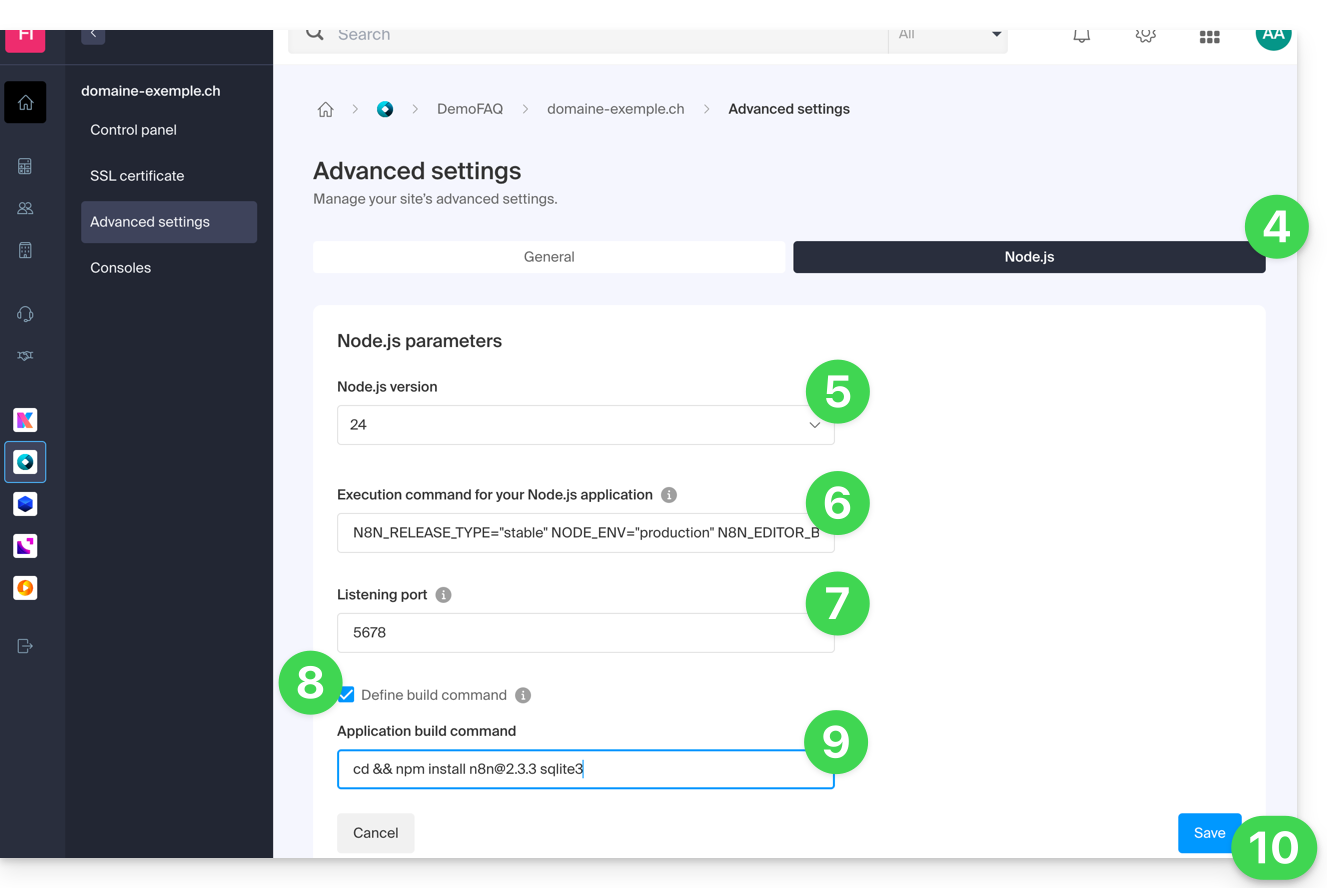
- Click on the Node.js tab to access the settings.
- Select a recent version (e.g., 24 or higher).
Enter the following command, replacing
https://domaine.xyzwith your site's actual address:N8N_RELEASE_TYPE="stable" NODE_ENV="production" N8N_EDITOR_BASE_URL="https://domaine.xyz" WEBHOOK_URL="https://domaine.xyz" GENERIC_TIMEZONE="Europe/Zurich" /srv/customer/node_modules/.bin/n8n start- Specify
5678for the listening port. - Enable the "Set build command" checkbox.
Enter the following command:
cd && npm install n8n@latest sqlite3- Click on Save:
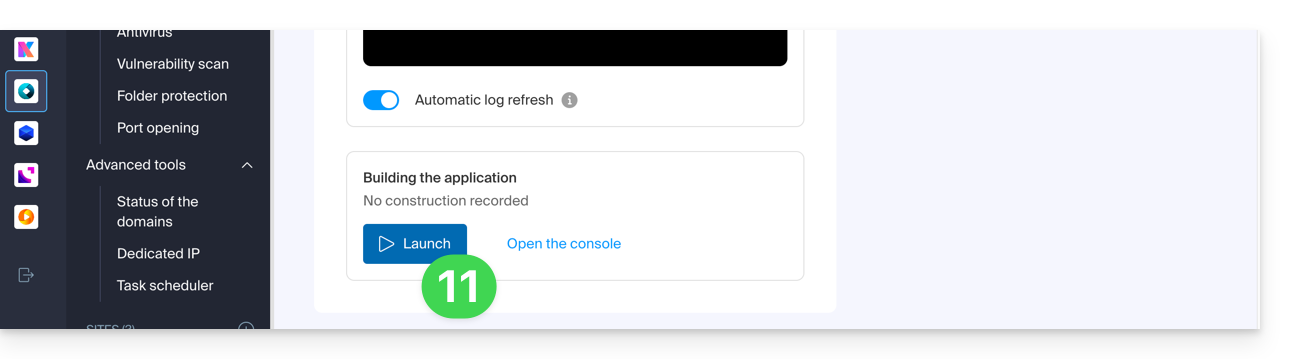
- Start the Build step by clicking the Start button under Application Build:
- On the main page, click the Start (or Restart) button:
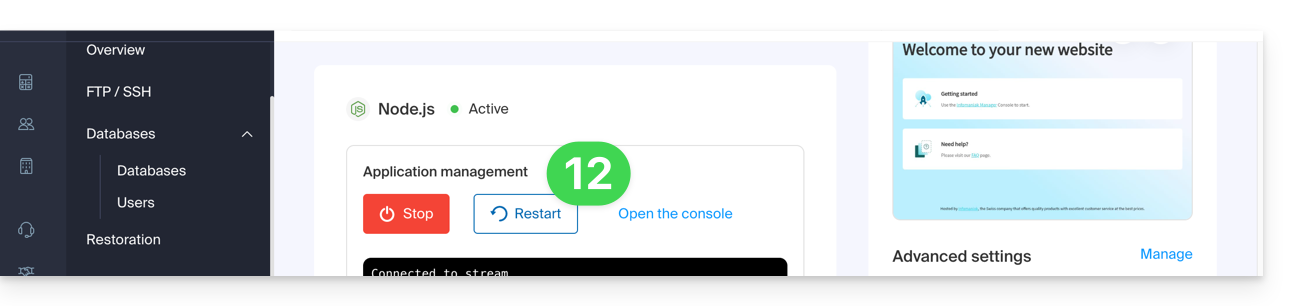
- Wait a few minutes, then go to your site's URL (e.g.,
https://domain.xyz). - On your first connection, n8n will ask you to create an owner account to secure your instance.
Your n8n instance is now operational! You can start creating your automations.
If you encounter an error indicating that the port is already in use during startup:
- Temporarily change the Node.js Version in the settings (e.g., switch from v24 to v23) and save. This forces a complete shutdown of the processes.
- Set the desired version (v24) and save again.
- Restart the application.
Update n8n
It is recommended to regularly update your n8n instance to benefit from the latest features and security fixes. Two methods are available to you:
Method 1: via the Infomaniak Manager (Recommended)
To update n8n, simply restart the application build process:
First, check in the Advanced Settings that your build command uses the
@latesttag:cd && npm install n8n@latest sqlite3- Click the Launch button under the Application Build section.
- Important: do not delete the
node_modulesfolder; the system will handle updating the existing packages to their latest versions: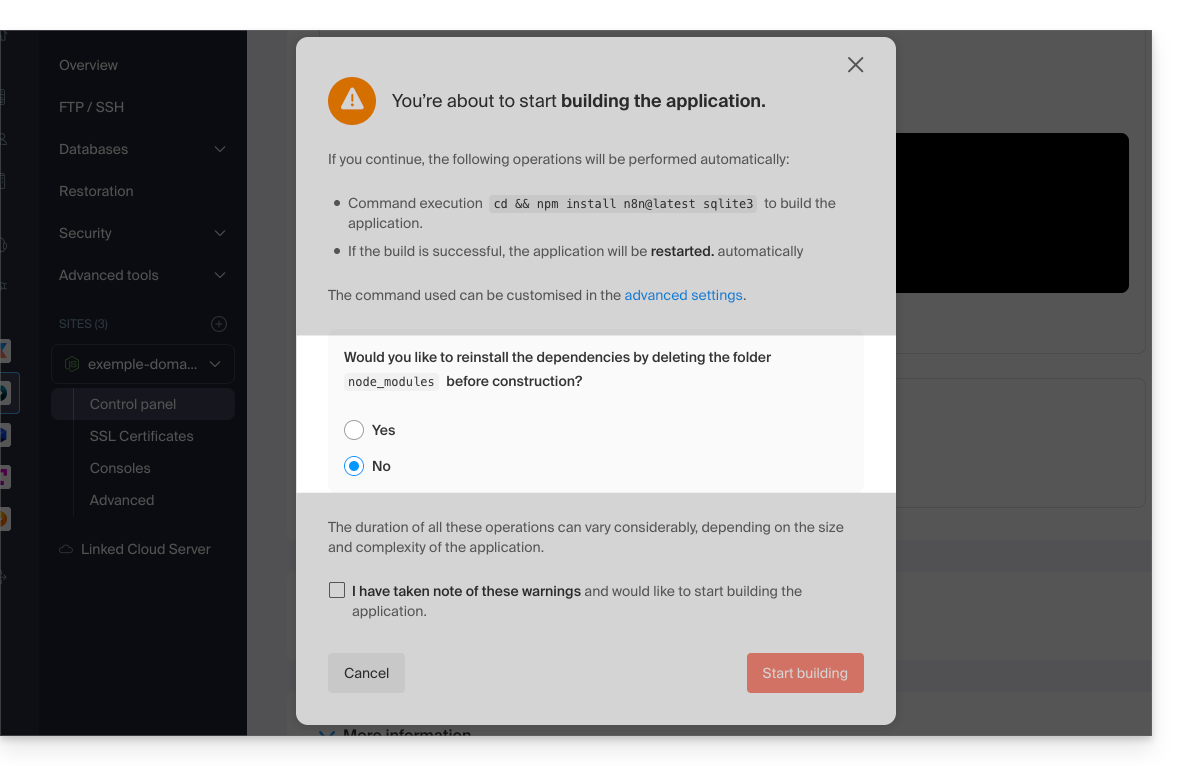
Method 2: via an SSH connection
If you prefer to use the command line, you can update n8n directly from the Node.js environment:
- Connect to your server via SSH.
Navigate to the application directory and start the update:
cd /srv/customer npm update n8n- Once the operation is complete, restart the application from the Infomaniak Manager to apply the changes.
Link to this FAQ: https://faq.infomaniak.com/2612
Has this FAQ been helpful?