Knowledge base
1000 FAQs, 500 tutorials and instructional videos. Here, there are only solutions!
Display kDrive statistics and activity report
This guide details the Statistics section available online to managers of a kDrive.
✘ UNAVAILABLE with
my kSuite (ik.me, etik.com, ikmail.com)
Free kSuite: statistics for the last 7 days only
Access kDrive stats
To display the page that details the various statistics of your kDrive:
- Click here to access the Infomaniak kDrive Web app (online service ksuite.infomaniak.com/kdrive).
- Click on kDrive Management in the left sidebar.
- Click on Statistics.
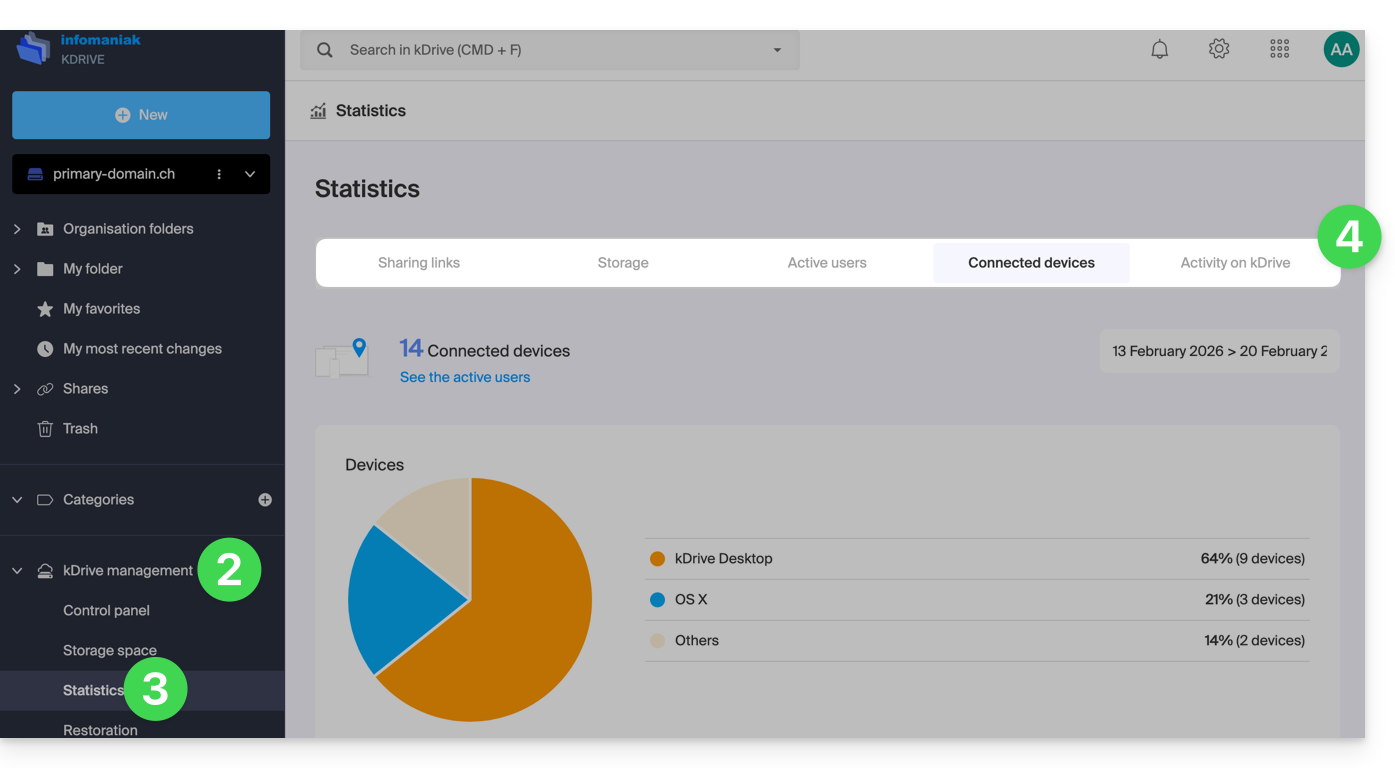
- Choose the type of statistics to view:
Customize the display
Each screen of these statistics (Share links, Activities on kDrive, etc.) includes icons and buttons: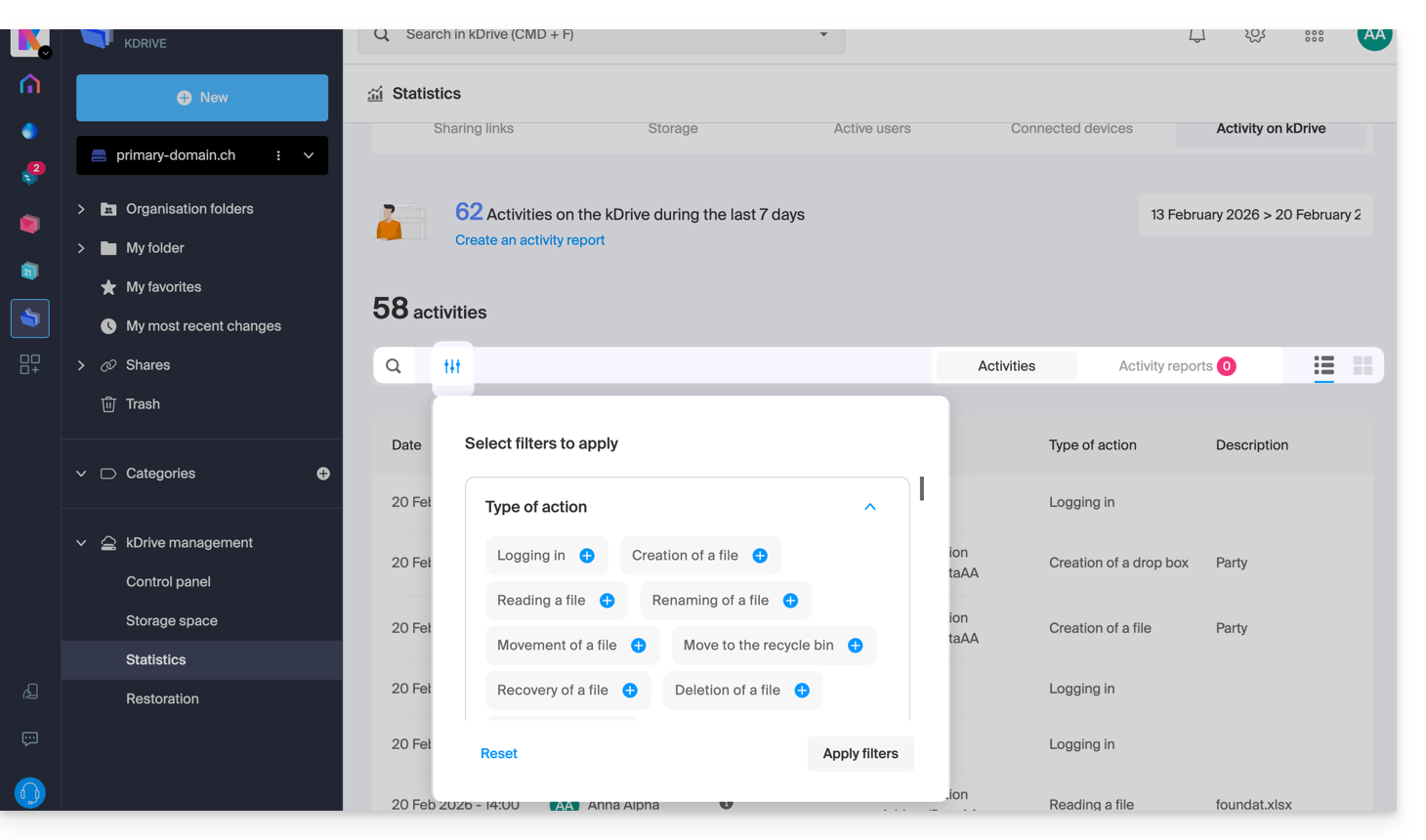
Clicking on them allows you to:
- launch a search for a term
- download a CSV file (format
.csv) with the data obtained (read below) - filter elements based on, for example, users, or views counted on files as well as the type of sharing (with or without password and expiration date)
1. Share link stats
Share links created are listed in the left sidebar of the kDrive Web interface, but this statistics screen allows you to know the views on a file over a given period.
2. Storage stats
This screen, updated every hour, allows you to know the space used by the different users, the total space, etc.
3. Active users
This screen shows the sessions recently opened (or over the filtered period) by the users of your kDrive and their operating system.
4. Connected devices
This screen details the operating systems of devices connected to your kDrive with their percentage representation: Windows X% (X devices); same for macOS, Linux, Android, etc.
5. Activity on kDrive
If you have any doubts about who did what on your shared space, file update, move to trash, etc., this screen allows you to know minute by minute what happened.
Create an activity report
With this information, it is possible to create activity reports thanks to the ad hoc link at the top of the table, covering one or more users and focused on one or more actions. You will receive this report by email within a few minutes and can download it in CSV format. Note that the hours mentioned may be in UTC 0 format.
Link to this FAQ:
Has this FAQ been helpful?