Knowledge base
1000 FAQs, 500 tutorials and instructional videos. Here, there are only solutions!
Manage Acronis backup users
This guide covers the management of users for Swiss Backup for Acronis backups.
Swiss Backup Administrator
Your account SBA-XXXX-ADMIN obtained after configuring Swiss Backup on the Infomaniak Manager has default access to all licenses, devices, locations, and the entire quota available to it:
- Click here to access the Acronis Console with the credentials obtained after adding the device (need help?).
- On the homepage, an administrator account will always see the management button, which will not be the case with a limited account:
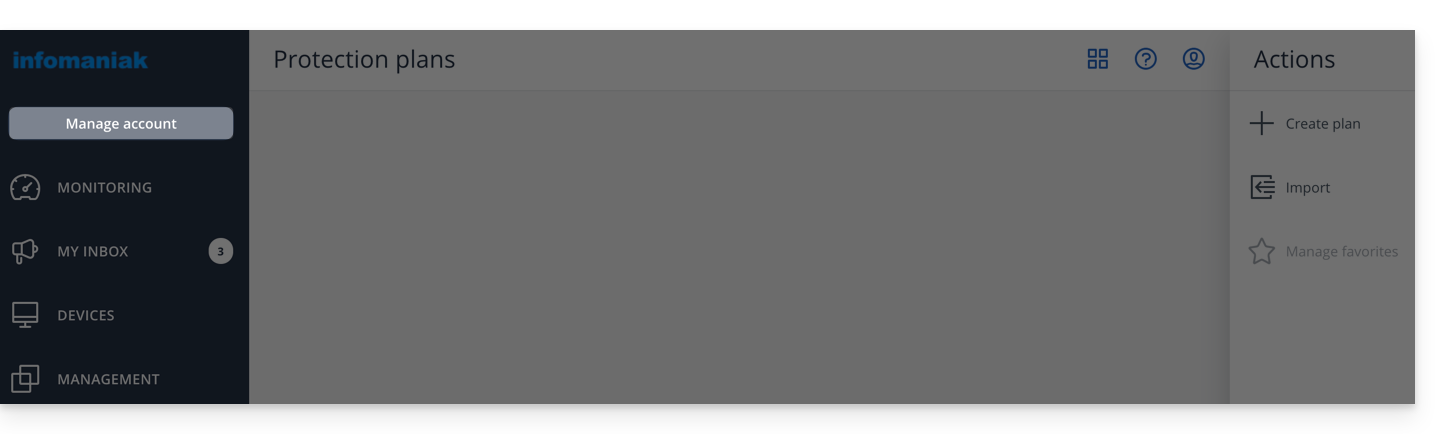
- This gives access to the section reserved for admin accounts (or "business leader" according to the terms visible on the platform acronis.infomaniak.com):
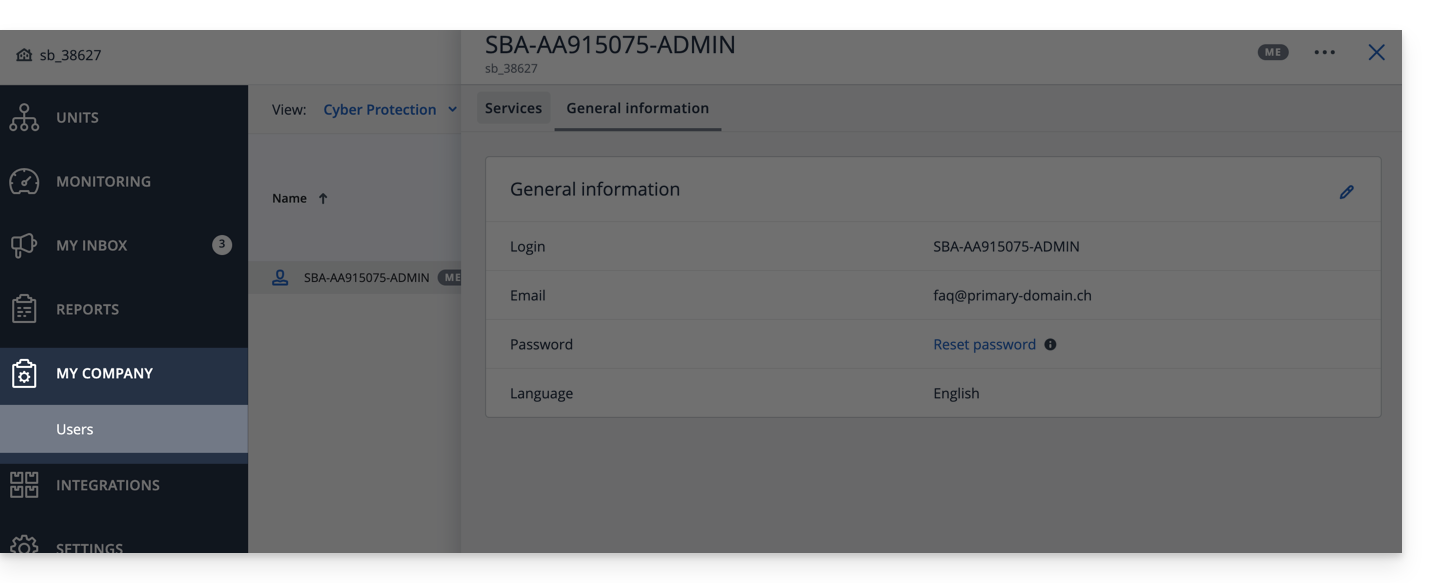
If you have acquired 2 licenses/devices and your total storage quota is 1 TB for Acronis (for example):
- 1 Mobile
- 1 Server
your account SBA-XXXX-ADMIN can back up 1 mobile device and 1 server; the storage quota for the 2 devices will be shared but limited to 1 TB.
In the Acronis interface, you will see an "unlimited" quota, but it remains limited to the options you have chosen in the Swiss Backup Manager.
To better manage storage quotas and service quotas (licenses), create users on Acronis, this allows you to:
Add a user
There are two types of user accounts: administrator accounts and user accounts (read Acronis' help on this subject). Only an administrator account can add/remove users:
- Click here to access the Acronis Console with the credentials obtained after adding the device (need help?).
- Click on Manage Account in the left sidebar.
- Click on Business Leaders.
- Click the Users button.
- Click on the +New button at the top of the page.
- Fill in the information (read Acronis help on this subject).
Delete a user
Warning:
- Deleting the device is irreversible and all backed-up data will be deleted from Infomaniak servers.
- Machines associated with this user will be unregistered.
- All protection plans will be revoked from all machines associated with this user.
To delete the account:
- Click here to access the Acronis Console with an Admin account.
- Click on Manage Account in the left sidebar.
- Click on Company Leaders (as in this example).
- Click on the action menu ⋮ to the right of the user concerned in the displayed table.
- Deactivate the account.
- Once the account is deactivated, delete the account (from point 5 above).
Link device and user
Example
1 TB Storage
Licenses 2 Mobiles, 1 Server, 1 VM
- SBA-XXXX-ADMIN (limited to the default Infomaniak Manager quotas)
- User1 (storage quota: 800 GB, service quota: 1 Mobile, 1 Server)
- User2 (storage quota: 200 GB, service quota: 1 Mobile, 1 VM)
To link a device to a user, download and install the Acronis agent on the device in question then confirm registration with the correct account (SBA-XXXX-ADMIN, user1 or user2):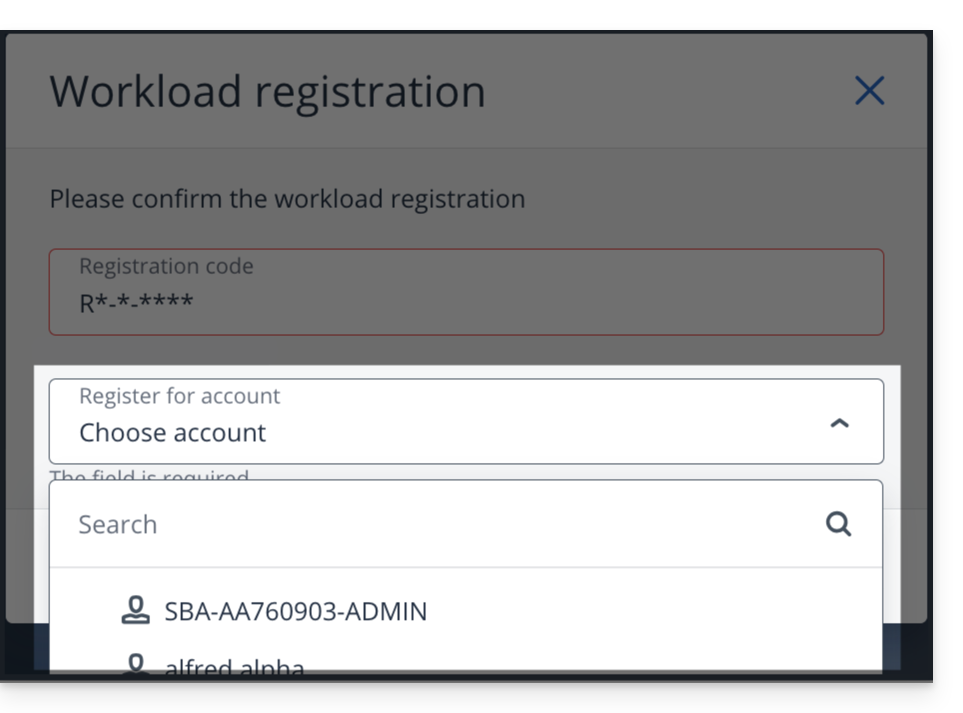
To resolve registration issues, refer to this other guide.
Link to this FAQ: https://faq.infomaniak.com/2573
Has this FAQ been helpful?