Knowledge base
1000 FAQs, 500 tutorials and instructional videos. Here, there are only solutions!
Schedule a meeting from the Infomaniak Webmail app
This guide explains how to quickly schedule a meeting between multiple users from the Infomaniak Web app Mail (online service ksuite.infomaniak.com/mail).
Create an event from an email
To start the scheduling assistant:
- Click here to access the Infomaniak Web app Mail (online service ksuite.infomaniak.com/mail).
- Open the message from the sender (or the discussion between multiple participants) with whom you wish to organize a meeting / a joint event.
- Click on the icon ⋮ at the top right of the open message.
- Click on Create an event:
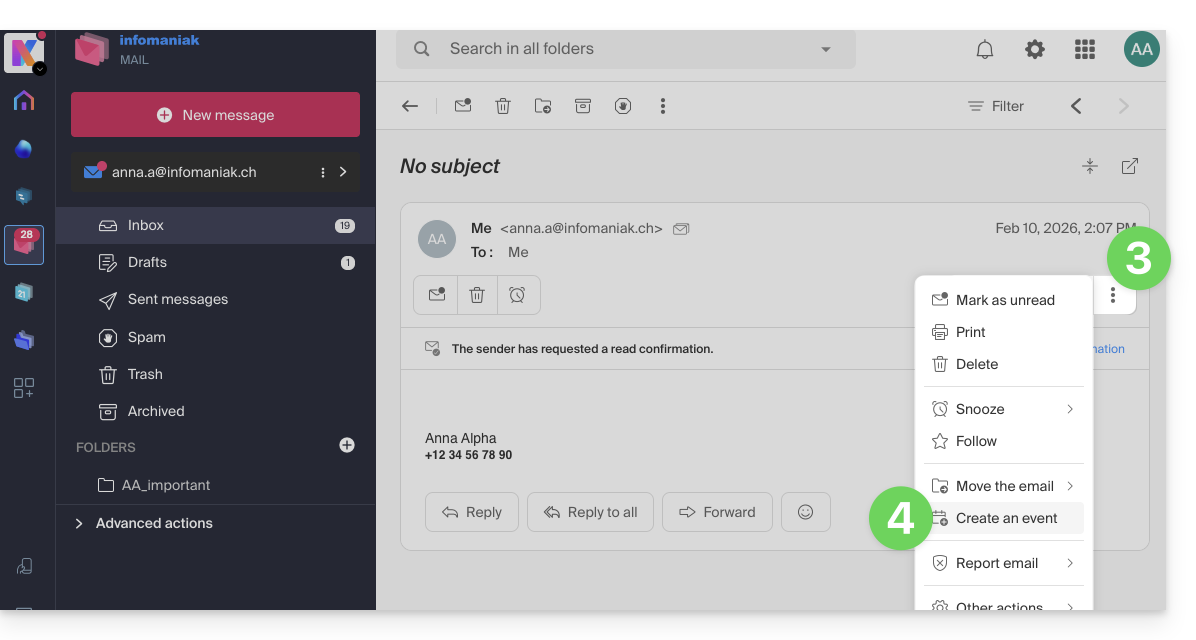
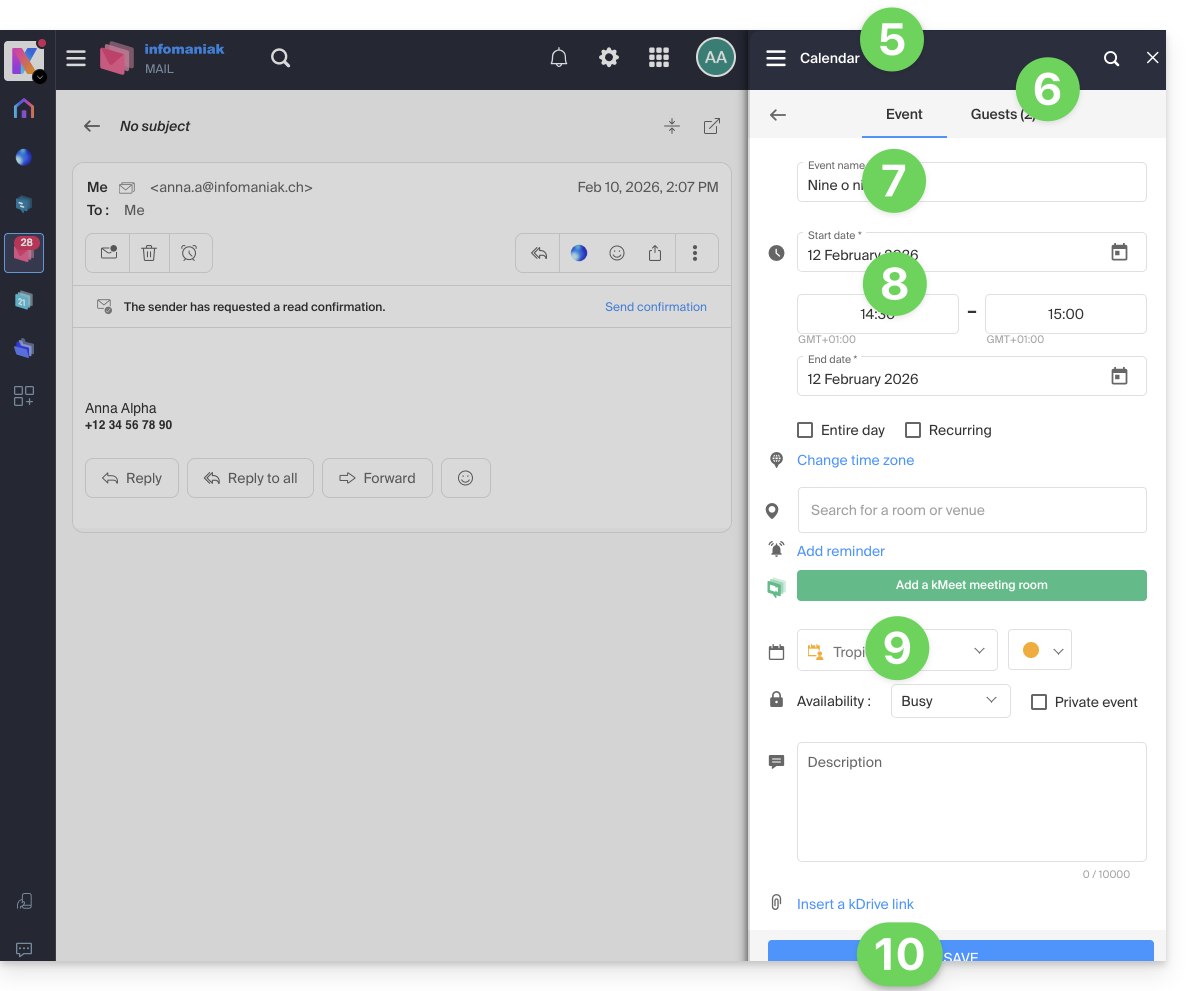
- The assistant of the Infomaniak app Calendar appears on the right of the screen.
- The participants in the discussion are automatically added from their email address and can be managed in the second tab.
- The title of the meeting is automatically generated from the subject of the email but it can be modified.
- The duration of the event (and its placement within the day) is automatically generated as close as possible to the present moment, but it can be modified, just like a possible room can be added below.
- Check or change the calendar used.
- Save the information to create the event and the invitations:
Link to this FAQ:
Has this FAQ been helpful?