Knowledge base
1000 FAQs, 500 tutorials and instructional videos. Here, there are only solutions!
Configure transcoding settings per folder
This guide explains how the transcoding rules for Infomaniak's VOD/AOD service work and how to configure them. This service allows you to store, manage, and stream your multimedia files online, while also automating their encoding through a hierarchical folder system.
Introduction
- The presets are optimized to generate 4 qualities ranging from 360 to 1080p (HD):
- to go beyond this, for 2K and 4K, it is necessary to create these encoding rules manually.
- Each folder (root or subfolder) can be configured with specific transcoding rules that define how imported media will be encoded (video and audio).
- Media that has already been imported will not be re-encoded if:
- you modify a rule afterwards
- you move a file to another folder
- To apply a new rule, you must replace or re-upload the file.
Configure encoding rules
To access the configuration of the encodings to be used for any media uploaded to the root folder:
- Click here to access the management of your product in the Infomaniak Manager (need help?).
- Click directly on the name assigned to the product in question.
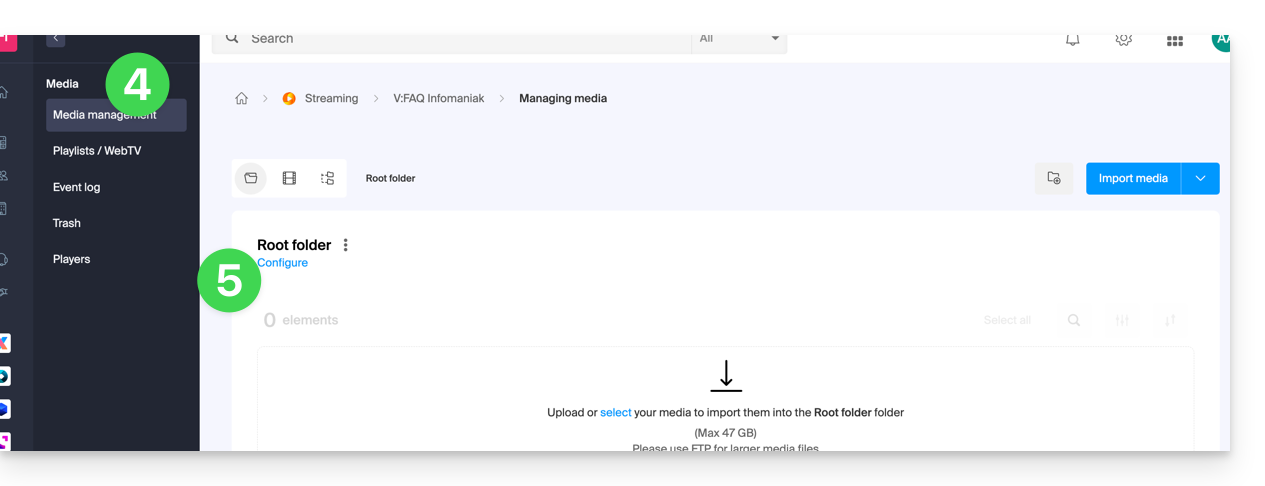
- Click on Media in the left-hand menu.
- Click on Media Management in the left-hand menu.
- You will arrive at the root folder; click on Configure:
- Default encoding rules are generally always displayed.
- Click the button to add new ones:
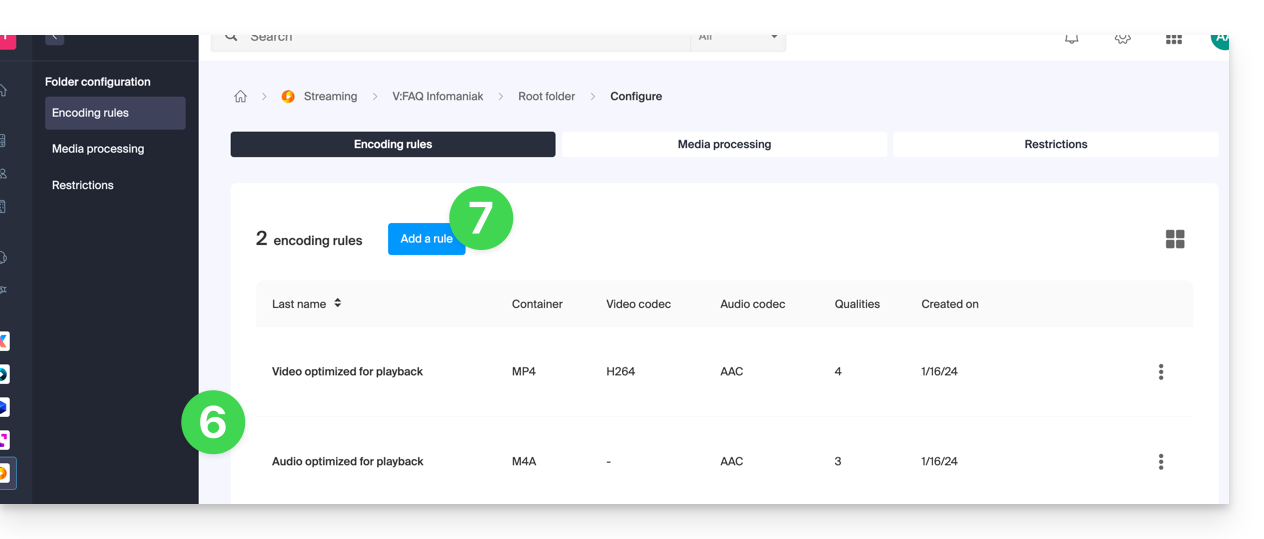
- Choose presets optimized for your needs — or select advanced mode to define your settings precisely:
- Video: codec (H.264, H.265, VP9…), resolution, framerate, bitrate, ratio.
- Audio: codec (AAC, MP3…), bitrate, sampling frequency.
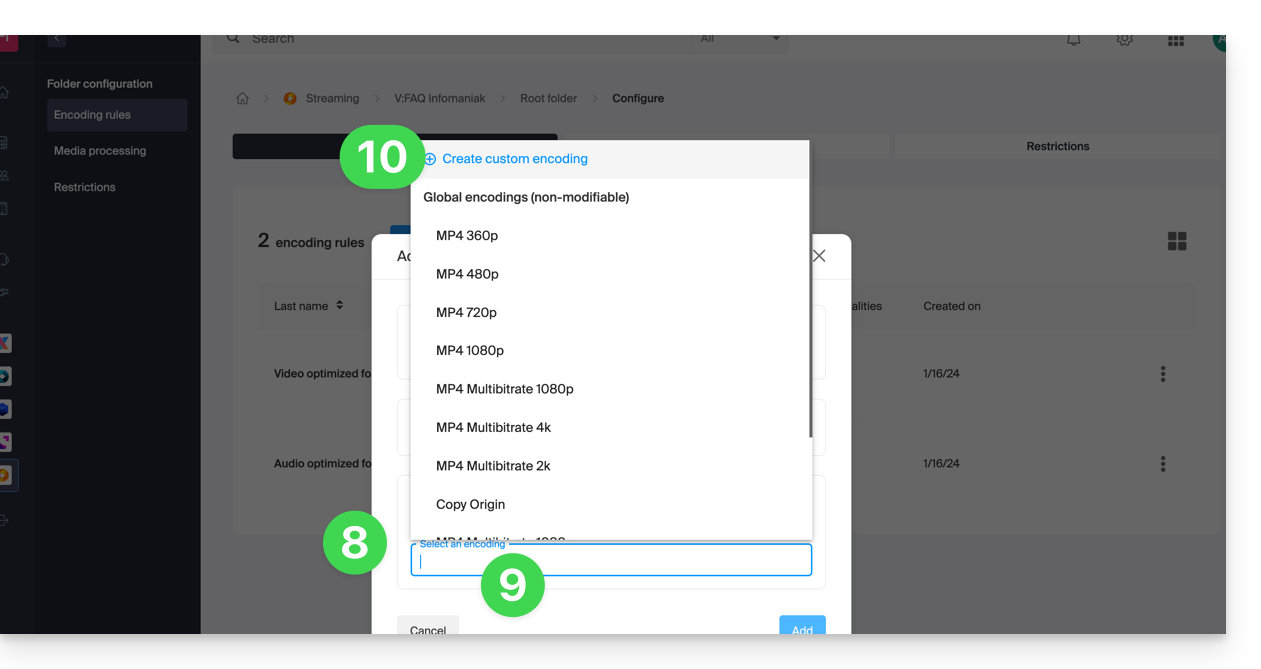
- Click on the field to select an encoding.
- Click on Create a custom encoding:
Give the rule a name, enter the audio/video settings according to your needs; you can control the aspect ratio behavior:
keep_ratio: maintains the original ratio; if the requested dimensions do not match, black bars are added.copy: maintains the original appearance without adaptation; if the resolution differs, the image may be distorted.fill: the video is resized to fill the entire resolution, while maintaining the ratio; part of the image may be cropped.stretch: the video is resized to the requested resolution without respecting the ratio, which results in distortion.
Several qualities can be managed within a single rule; don't forget to validate to add the rule:
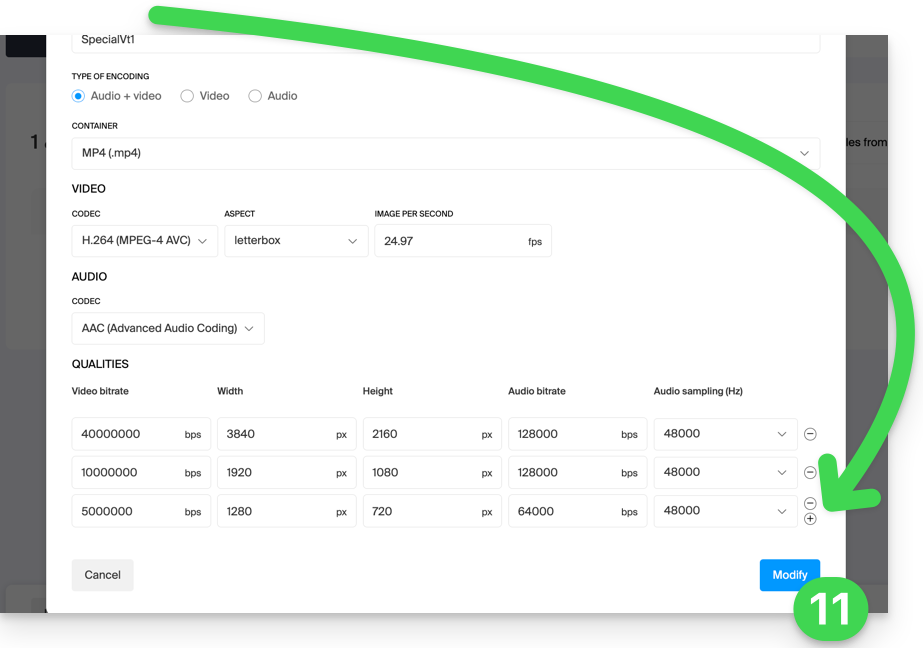
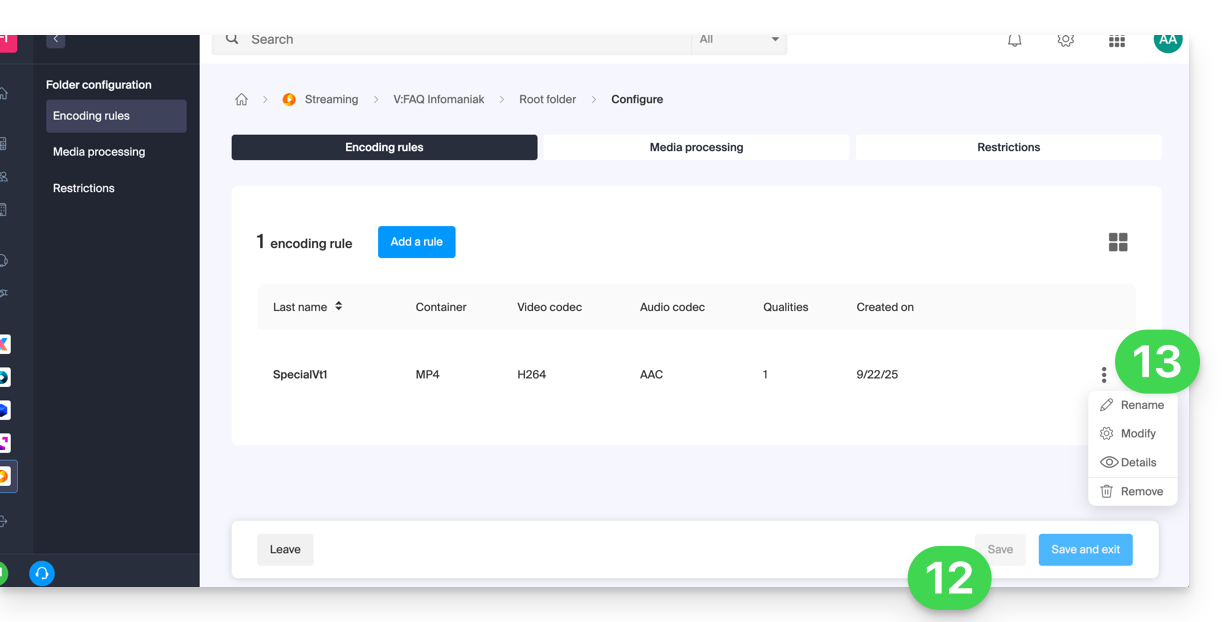
- The new rule is added; click the Save button to save the addition.
- If necessary, you can keep only this new rule and remove the previous rules by clicking on the action menu ⋮ to the right of the rules in question in the table that appears, then deleting them. The menu also allows you to review the details of your custom encoding, modify it, or rename it:
Settings Inheritance
If you define a setting on the root folder, it will be automatically applied to all subfolders created within it, with each folder inheriting the settings of the parent folder by default. These encoding rules will therefore apply to the media you upload to your VOD/AOD space, even if they are uploaded to a subfolder.
However, please note that rules can be defined per folder, so a subfolder that you create can apply specific encoding rules: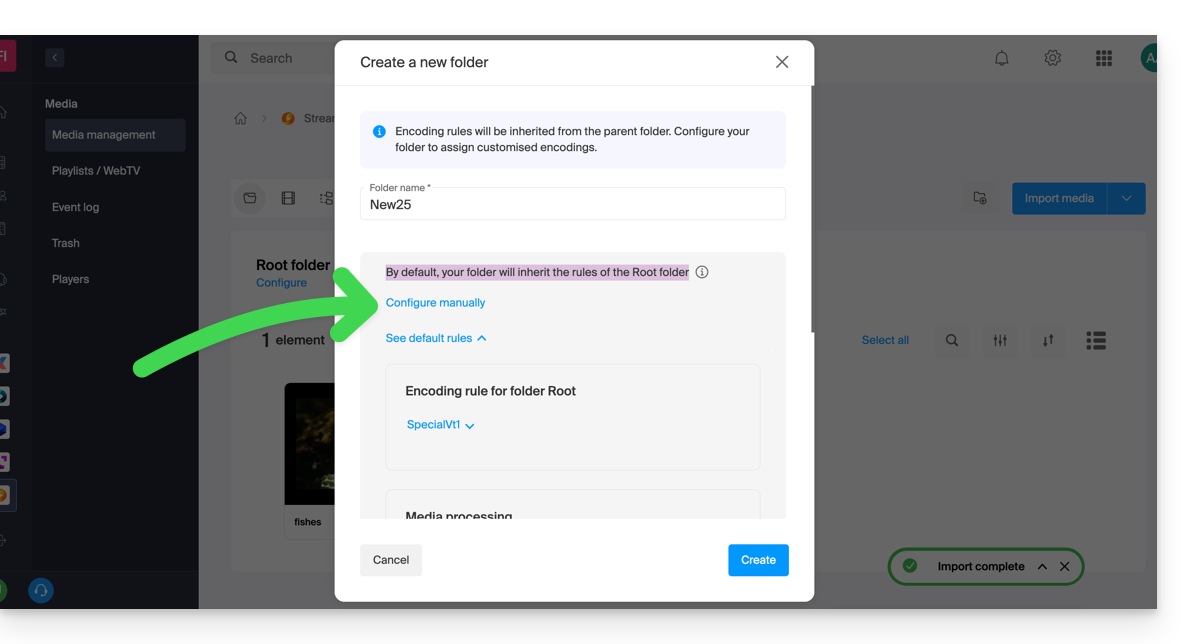
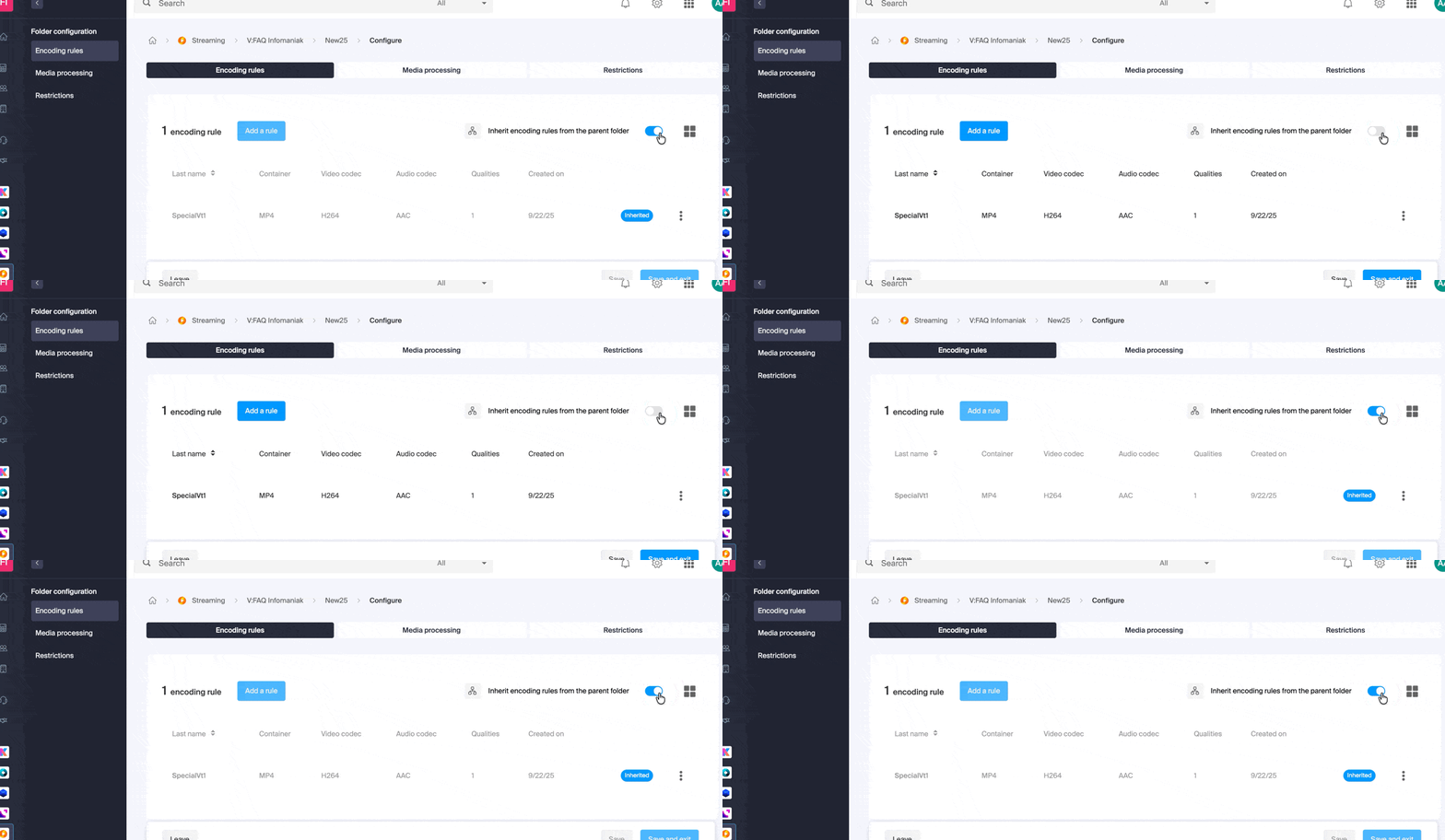
Disable inheritance at any time from the existing folder's settings page to define specific settings:
Link to this FAQ: https://faq.infomaniak.com/2568
Has this FAQ been helpful?