Knowledge base
1000 FAQs, 500 tutorials and instructional videos. Here, there are only solutions!
Edit an Office file type on kDrive
This guide explains how to create, save, and edit an Office file (text, spreadsheet, presentation...) on the Web app kDrive (online service ksuite.infomaniak.com/kdrive) and on the mobile app kDrive (application for iOS / Android smartphone or tablet).
Note to LibreOffice file users: to avoid display or formatting bugs on kDrive, always convert your LibreOffice files (ODF: .ods, .odt, .odp) to their Microsoft Office XML equivalents (.xlsx, .docx, .pptx) before online editing.
Use the native editor
kDrive natively integrates the Docs, Grids and Points applications which allow you to create, modify and collaborate online on documents of type Word .docx, Excel .xlsx and PowerPoint .ppsx. You will thus be able to work with:
- text document
- spreadsheet (worksheet)
- presentation
- notebook
- document draw.io for diagrams, schematics and wireframes
A feature allows you to add a bookmark (shortcut to a favorite passage in your document or the equivalent of a web page anchor) that you can easily share with your contacts. You will also be able to easily notify a user of your Organization directly on the document.
Refer to the guide on this subject.
Use Microsoft Office Online
Another editing solution is available to you (kDrive Pro or kSuite Business / Enterprise required): the Microsoft Office Online editor.
Refer to the guide on this subject.
Set the default editor
✘ UNAVAILABLE with
Free kSuite / kSuite Standard
my kSuite / my kSuite+ (ik.me, etik.com, ikmail.com)
kDrive Solo / kDrive Team / kDrive Pro
To specify in detail which editor to always use by default to open your collaborative Office files (text, spreadsheet, presentation...) among the 2 options presented above:
- Click here to access the Infomaniak Web app kDrive (online service ksuite.infomaniak.com/kdrive).
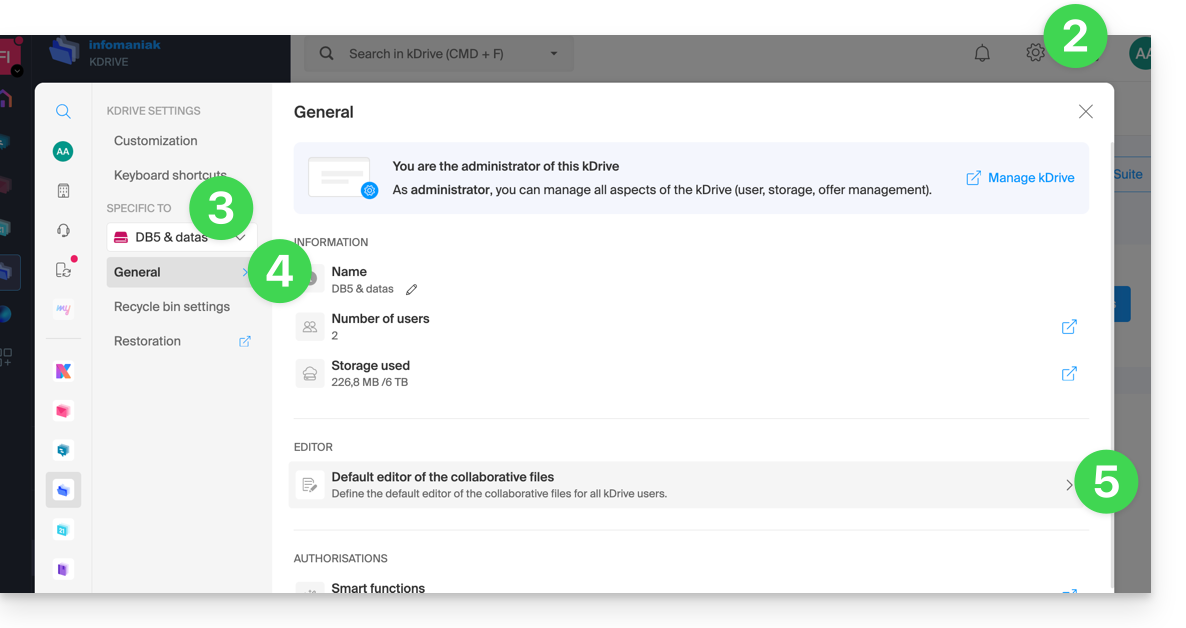
- Click on the Settings icon at the top right.
- Check or select the relevant kDrive from the dropdown menu in the left sidebar.
- Click on General in the left sidebar.
- Click on Default editor:
- Choose the default editor for files:
.docx/.doc.xlsx/.xls.pptx/.ppt
Link to this FAQ: https://faq.infomaniak.com/2531
Has this FAQ been helpful?