Knowledge base
1000 FAQs, 500 tutorials and instructional videos. Here, there are only solutions!
Sync your Google Calendar (mobile app) via kSync (CalDAV)
Update 05/22/2026
This guide explains how to manage a calendar and its events within the Google Calendar mobile app (application for iOS/Android smartphones or tablets) and/or the Infomaniak Calendar web app (online service ksuite.infomaniak.com/calendar), while keeping all data fully synchronized thanks to the Infomaniak mobile app kSync (application for Android smartphones or tablets).
Introduction
- Refer to this other guide if you only want to display an Infomaniak calendar in read-only mode on Google Calendar (web and mobile app).
- The reverse is also possible if you only want to display a Google calendar in read-only mode on the Infomaniak Calendar web app (online service ksuite.infomaniak.com/calendar).
- The procedure below allows you to edit calendar events on both sides, but only on the mobile version of the Google Calendar app.
Synchronize the Infomaniak calendar and the mobile device
Prerequisites
- Download the Google Calendar mobile app for Android.
- Download the Infomaniak kSync mobile app (application for Android smartphones or tablets) here:

- The kSync app is also available on F-droid.
- Install kSync.
Next, launch the kSync app on your Android device. A step-by-step wizard will help you configure the app according to your needs:
- Decide if you want to synchronize tasks.
- Allow kSync to access the required items on the device, primarily the calendar.
- Allow the app to run in the background for better synchronization (uses more battery); settings can also be adjusted within the app itself:
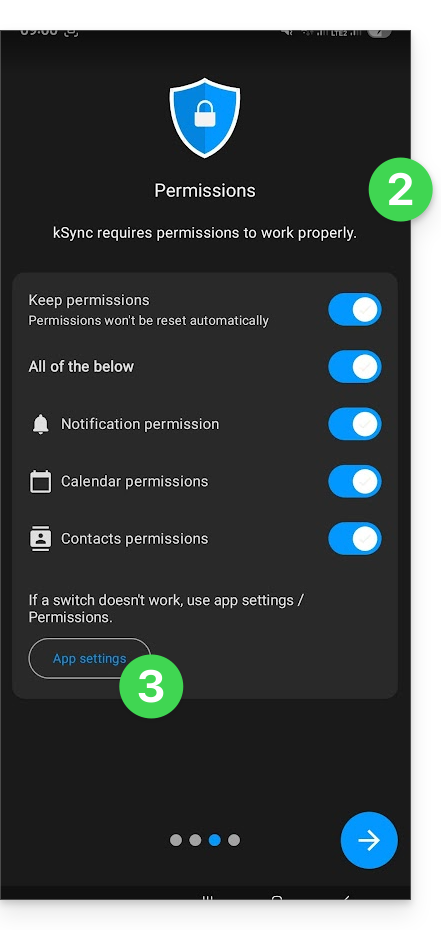
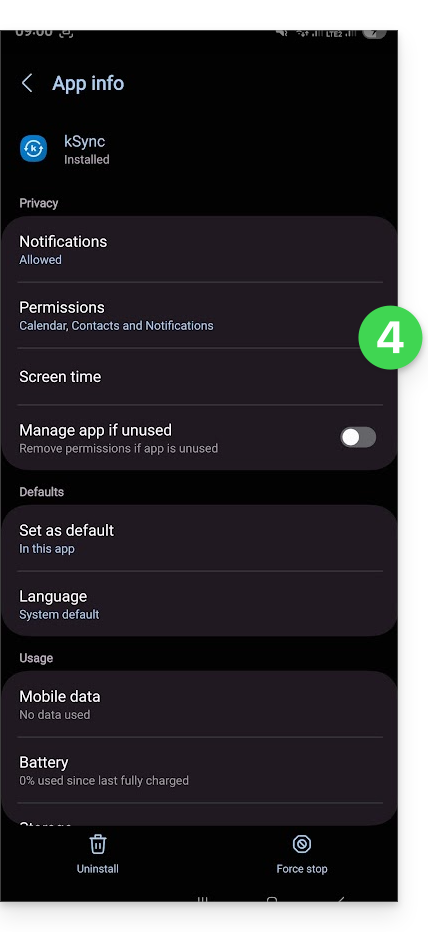
- The key is to grant access rights to the services you need to synchronize:
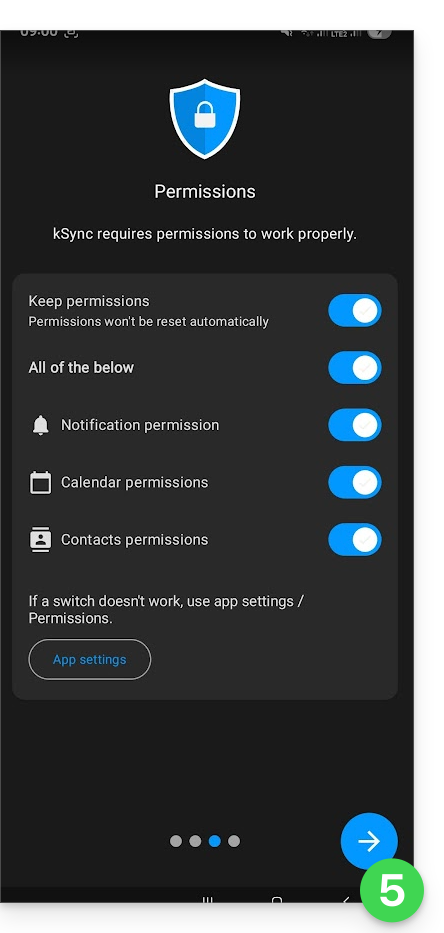
- Go back to the kSync app and continue the configuration:
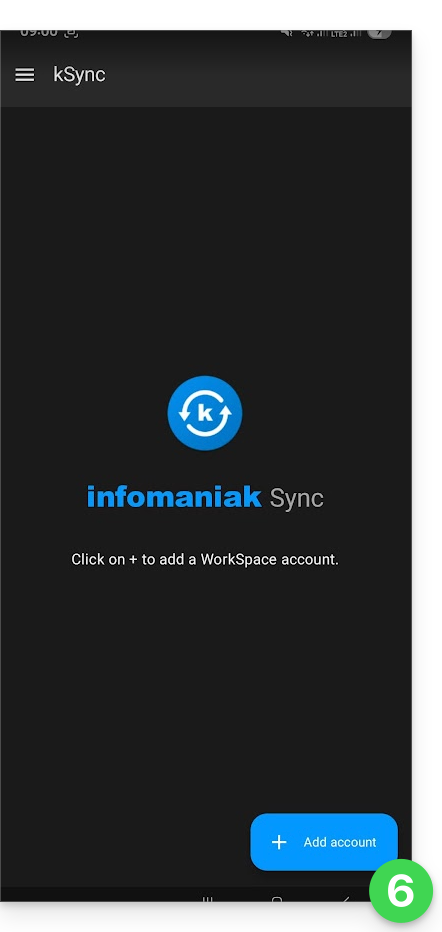
- Tap to add an Infomaniak user account (the one you use to log in to your Infomaniak services):
- For example, in the Calendar web app, the user menu in the top right corner shows the login email address.
- You can then access the calendars of the Organization to which the current user belongs:
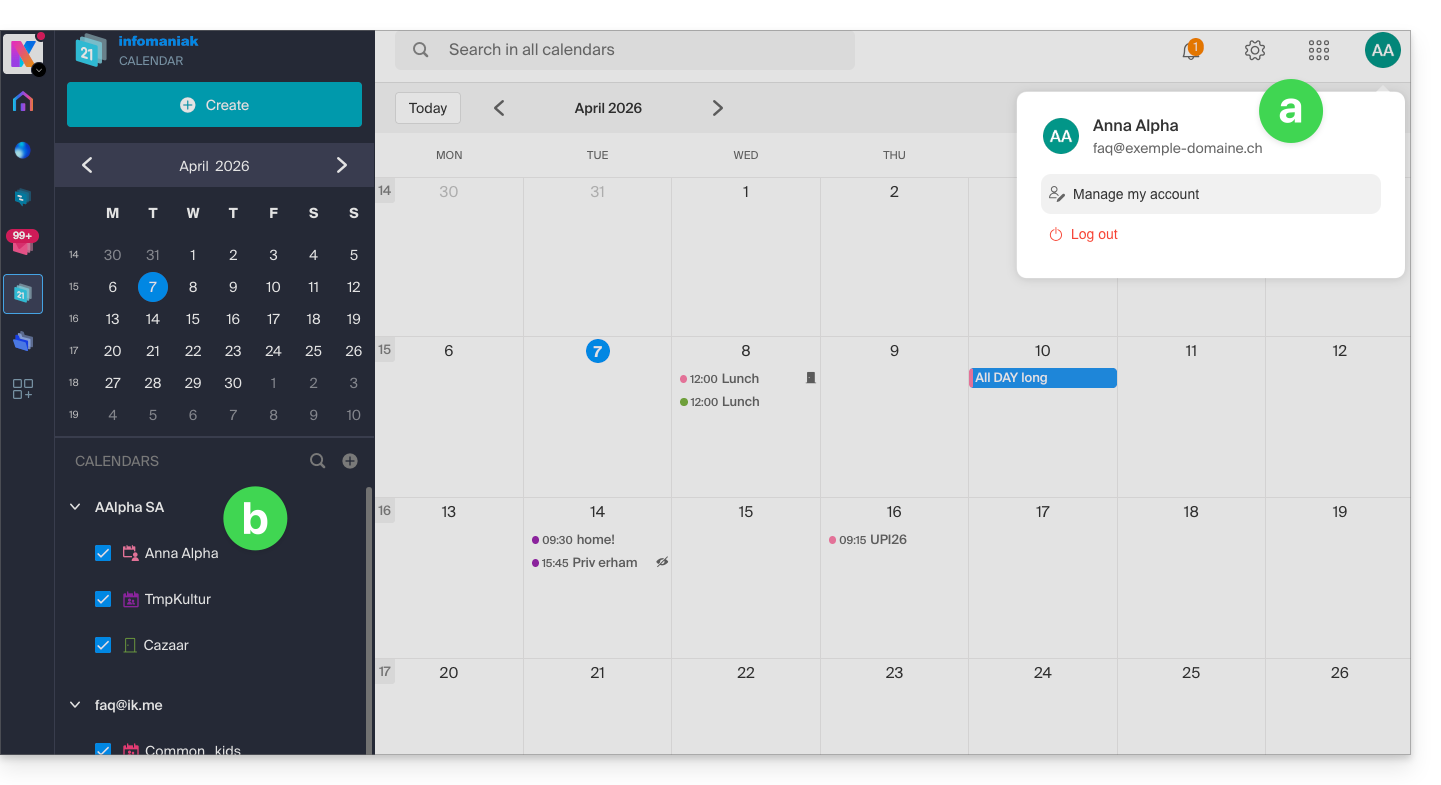
- This is the data that will be synchronized to your device when you log in to the same Infomaniak account on kSync…
- Enter your Infomaniak login credentials (see point a above).
- Tap the button to log in:
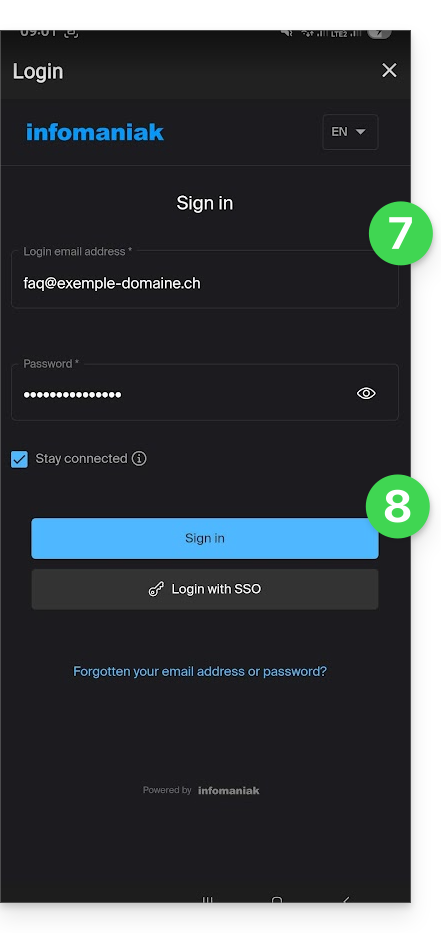
- Complete the two-factor authentication steps as you normally would.
- Once logged in to kSync, activate the calendars (from those displayed, which are linked to your Infomaniak account) to be synchronized from the CALDAV tab:
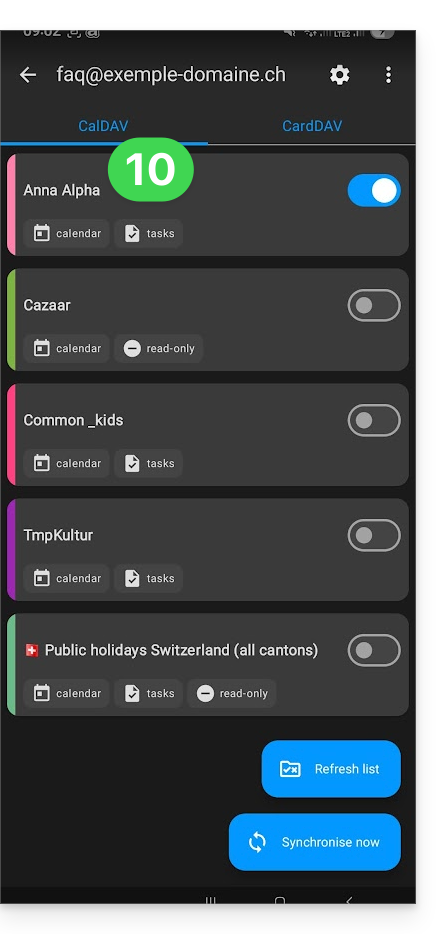
- Start the synchronization using the button at the bottom right.
Automatic synchronization of the native calendar
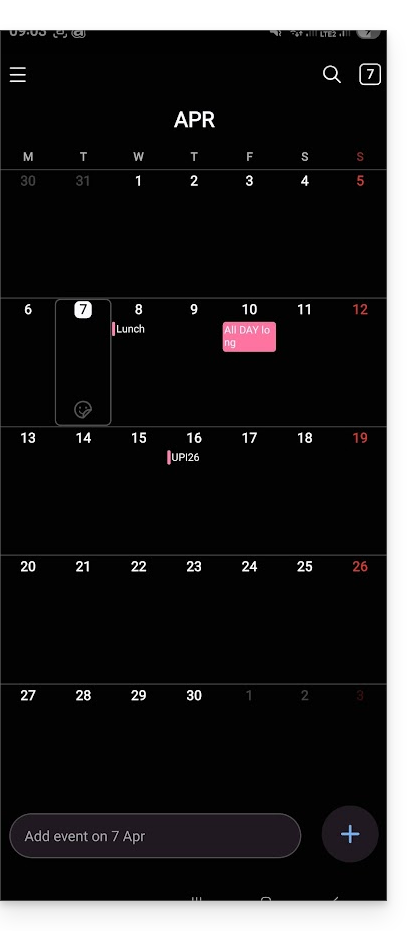
- At this stage, the native application on your Android device (Samsung Calendar, for example, on Samsung devices) will be synchronized and display the events from your Infomaniak calendar (you may need to activate the account in the application):
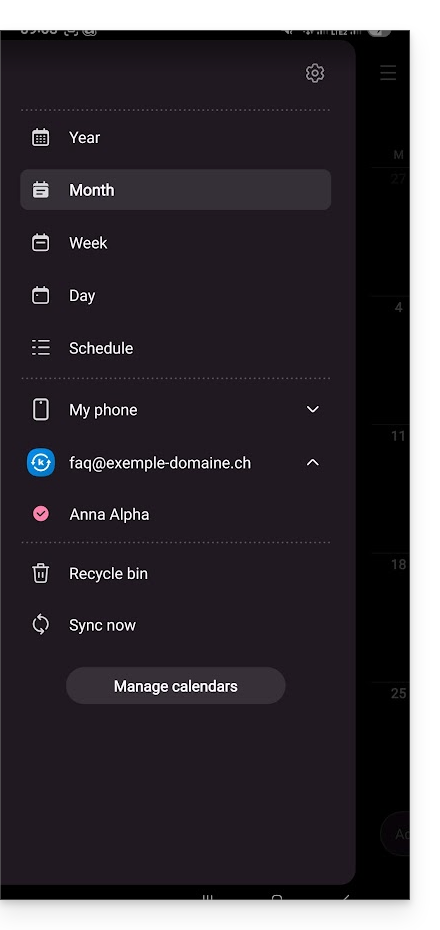
- An event added and/or modified on one of the interfaces will be automatically synchronized everywhere:
Enable the calendar in Google Calendar
To find your Infomaniak calendar in Google Calendar and be able to edit its events:
- Open Google Calendar on your Android device.
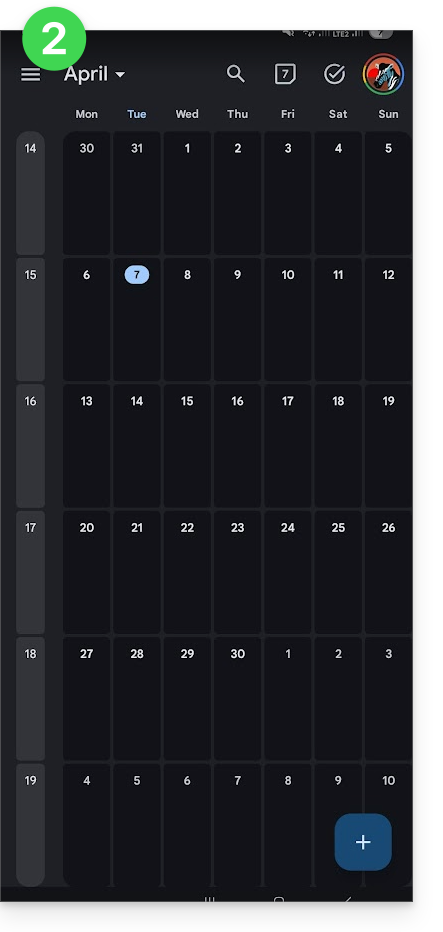
- Tap the menu button with three horizontal lines ☰ at the top left of the interface:
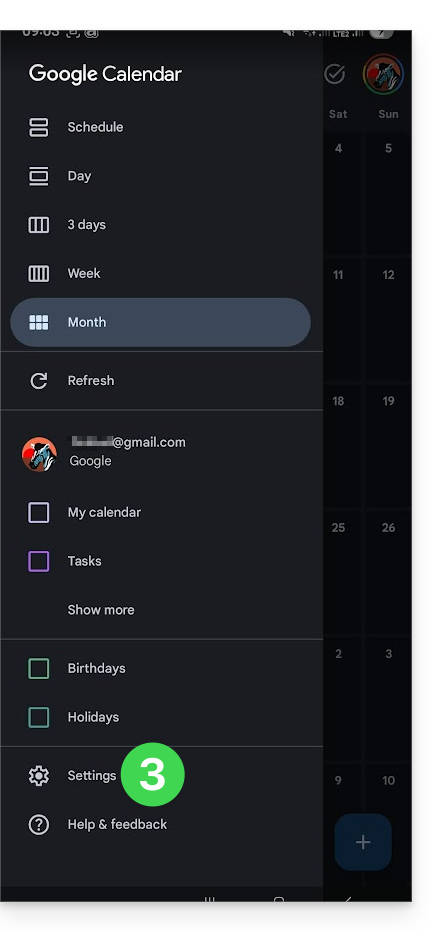
- Tap Settings at the bottom of the menu:
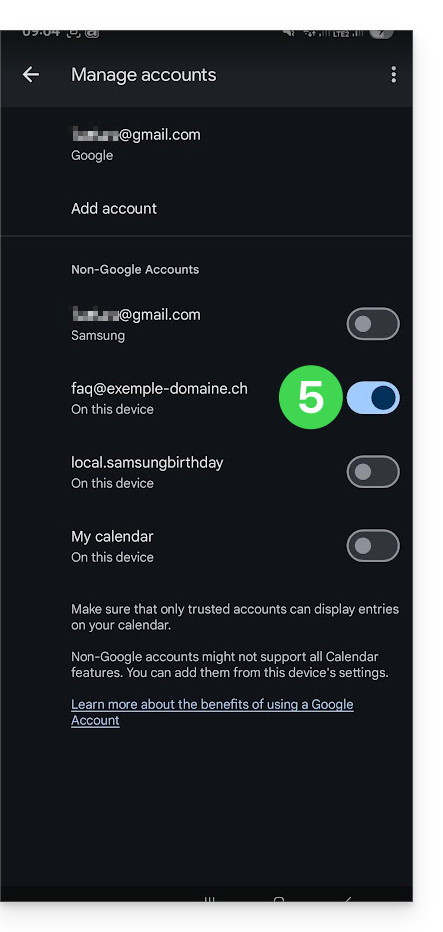
- Tap Manage accounts:
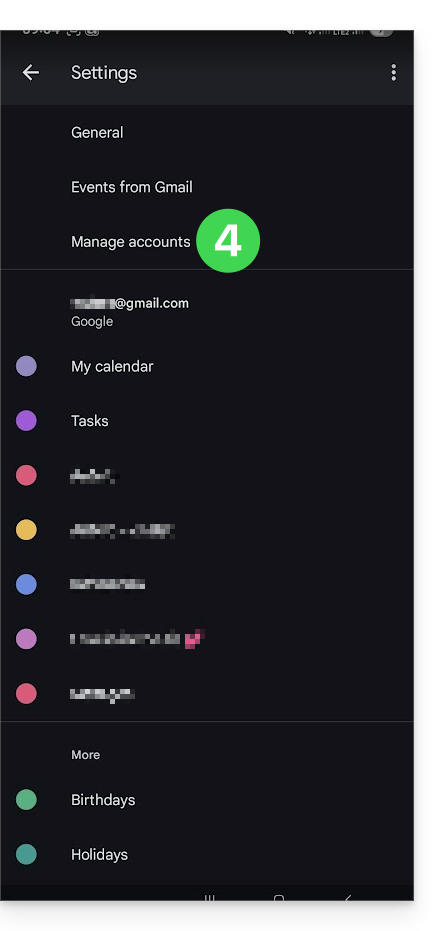
- Enable the account corresponding to your Infomaniak calendar:
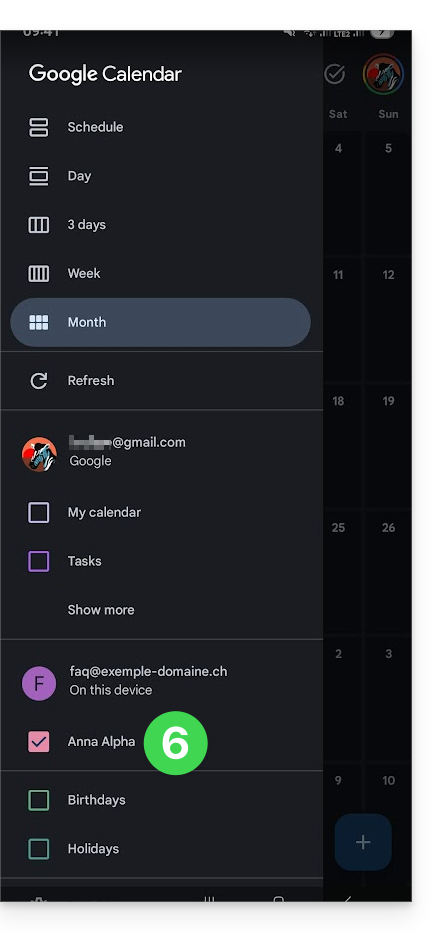
- Go back to the previous page and make sure the Infomaniak calendar appears among the accounts, and change the color if necessary:
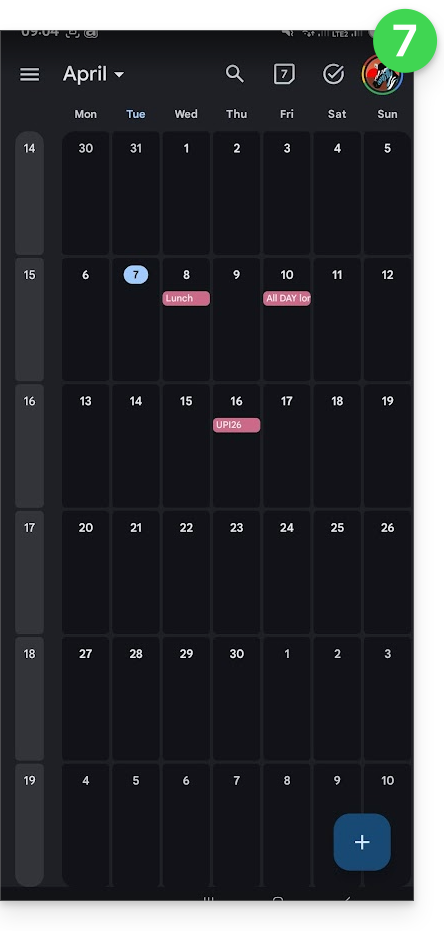
- That's it, Google Calendar is synchronized with the Infomaniak calendar. Any event added and/or modified in either interface will be automatically synchronized everywhere:
Link to this FAQ: https://faq.infomaniak.com/2486
Has this FAQ been helpful?