Knowledge base
1000 FAQs, 500 tutorials and instructional videos. Here, there are only solutions!
Discuss during a kMeet meeting
This guide explains how to use the chat feature using the chat integrated into kMeet, the ethical free video conferencing solution by Infomaniak.
Start the chat between participants
To do this:
- Launch the kMeet app.
- Create or join a meeting room.
- Click on the message bubble icon in the toolbar to Open/Close the chat and chat from a left sidebar.
- Close the chat/poll sidebar if necessary:
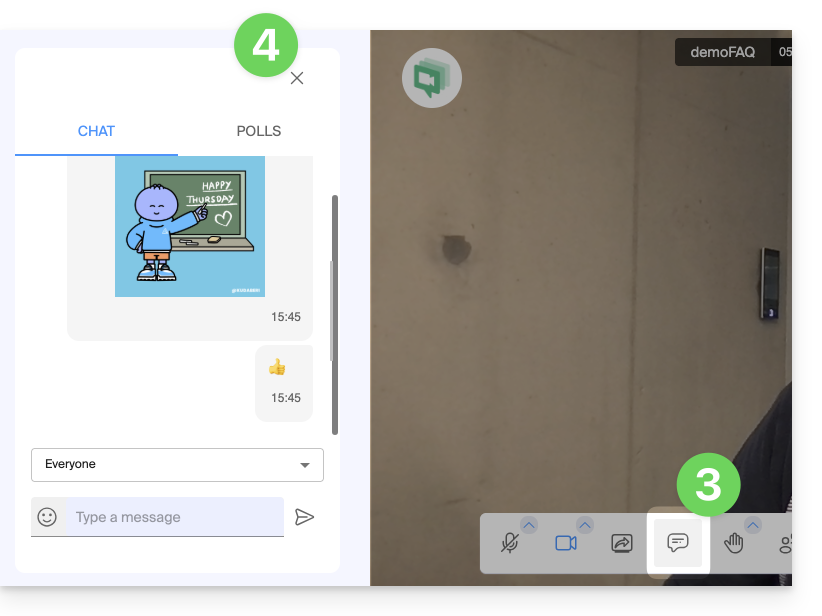
- Close the chat/poll sidebar if necessary:
React live, create a poll
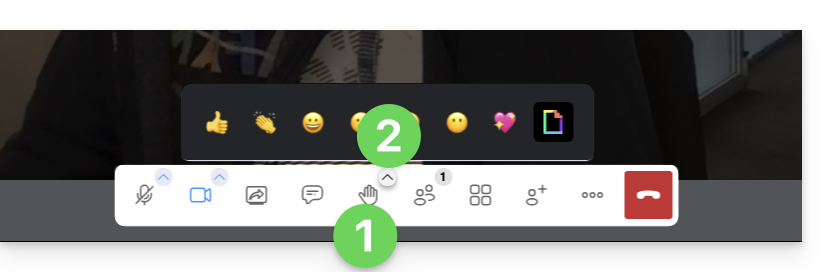
- The chat supports the use of Emojis.
- It is also possible to:
- request the floor via the hand icon (Raise/Lower hand)
- react with visual (and audible) emoji and GIF — they will appear in the conversation space
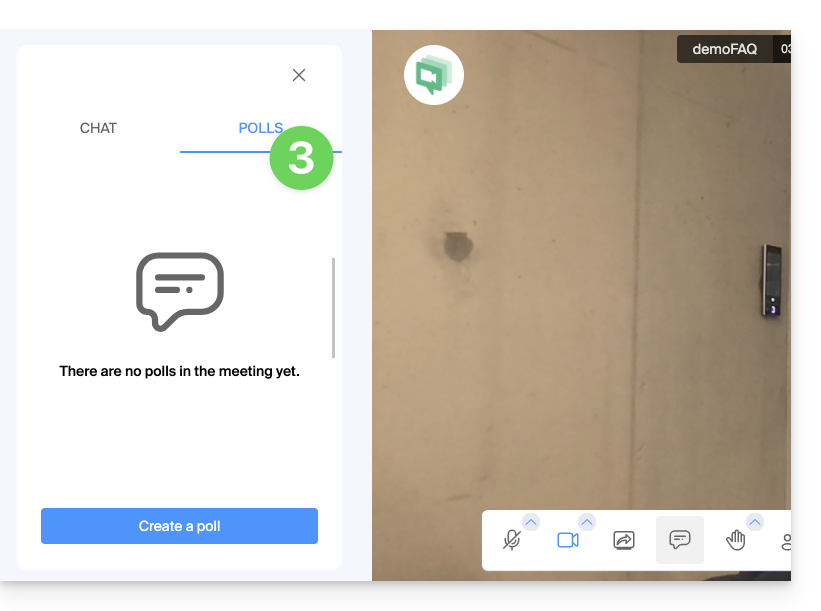
- create a poll among the participants (click on the Polls tab in the chat sidebar):
Link to this FAQ: https://faq.infomaniak.com/2478
Has this FAQ been helpful?