Knowledge base
1000 FAQs, 500 tutorials and instructional videos. Here, there are only solutions!
Secure a kMeet meeting with a password and encryption key
This guide explains how to add a password and an encryption key to a kMeet meeting, Infomaniak's ethical free video conferencing solution.
Protect a meeting with a password
When creating your meeting room, you can protect it with a password, which you will need to share with all your participants to allow them to connect:
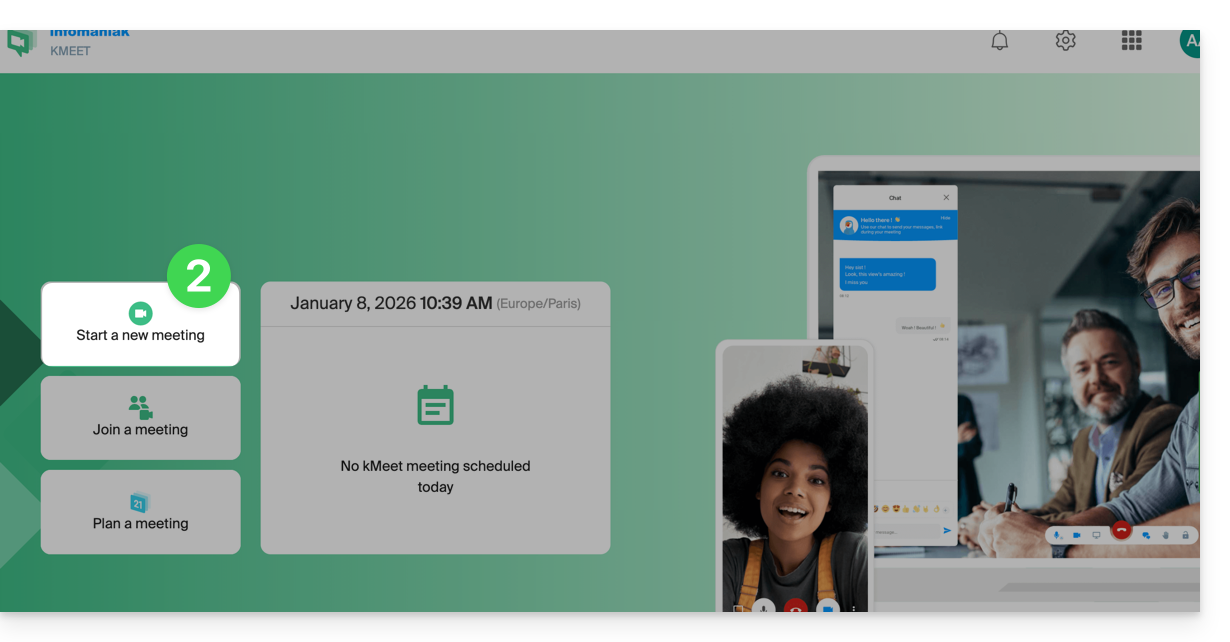
- Start kMeet via kmeet.infomaniak.com or from one of the applications for computers or mobile devices.
- Start a new meeting:
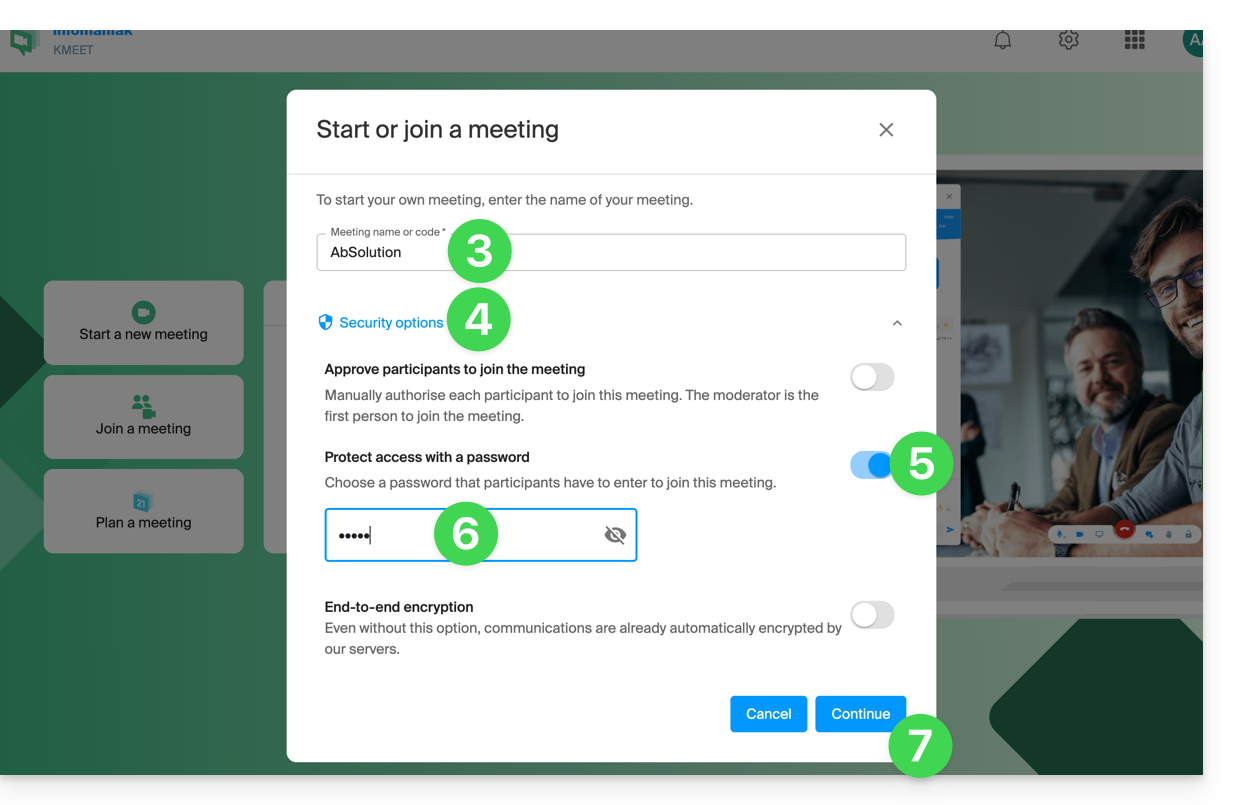
- Enter a name for your meeting room.
- Click on the security options.
- Enable the toggle switch to Protect access.
- Create the password.
- Continue to start the meeting:
- Specify the name you want to use as a participant in the meeting.
- Share the meeting link or code and the password (which you can re-display at this step) with your participants:
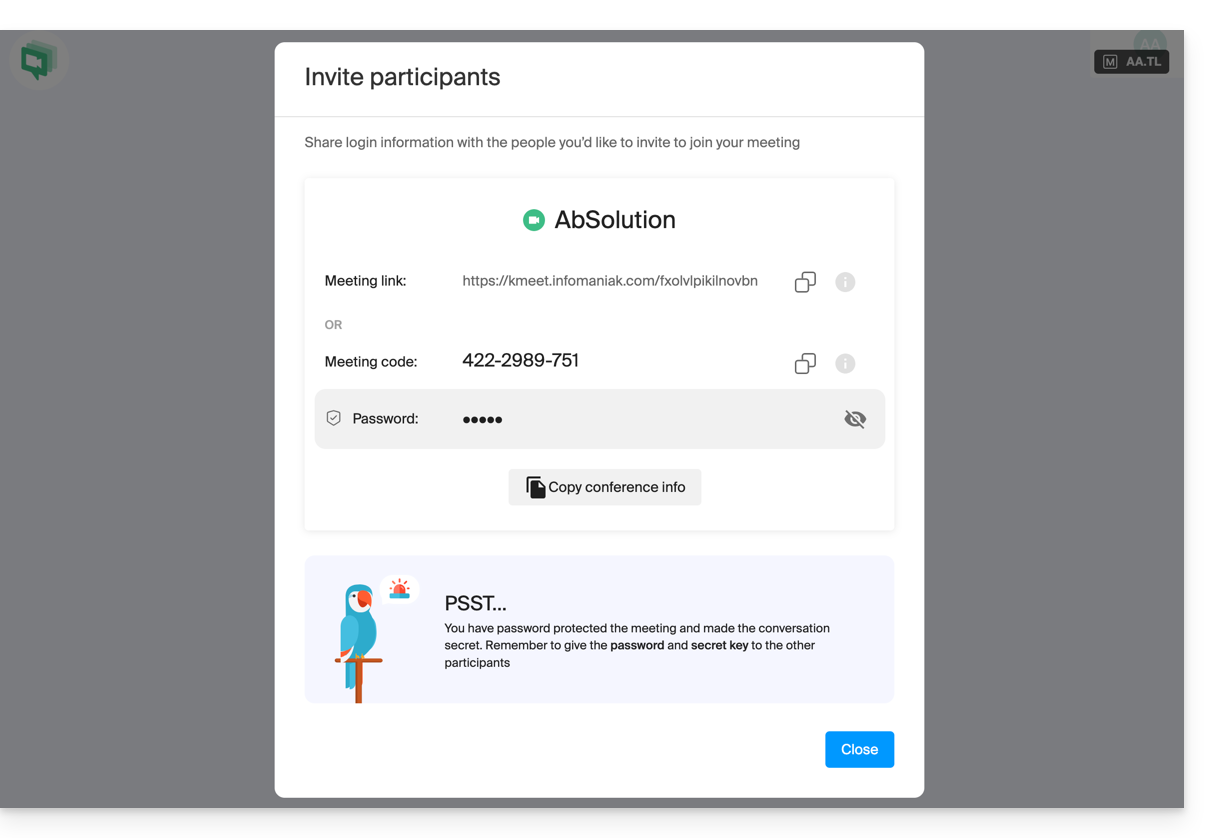
- You can review the password if necessary by inviting participants via the dedicated button:
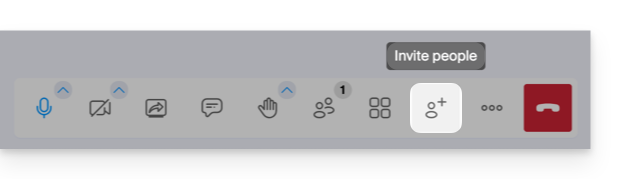
- You can review the password if necessary by inviting participants via the dedicated button:
Secure a meeting with an encryption key
Prerequisites
- This feature only works with desktop apps and up-to-date browsers based on the Chromium architecture (e.g., Opera, Brave, Google Chrome, etc.).
Then follow the procedure above up to step 4. Once in the security options:
- Enable the toggle switch to encrypt end-to-end:
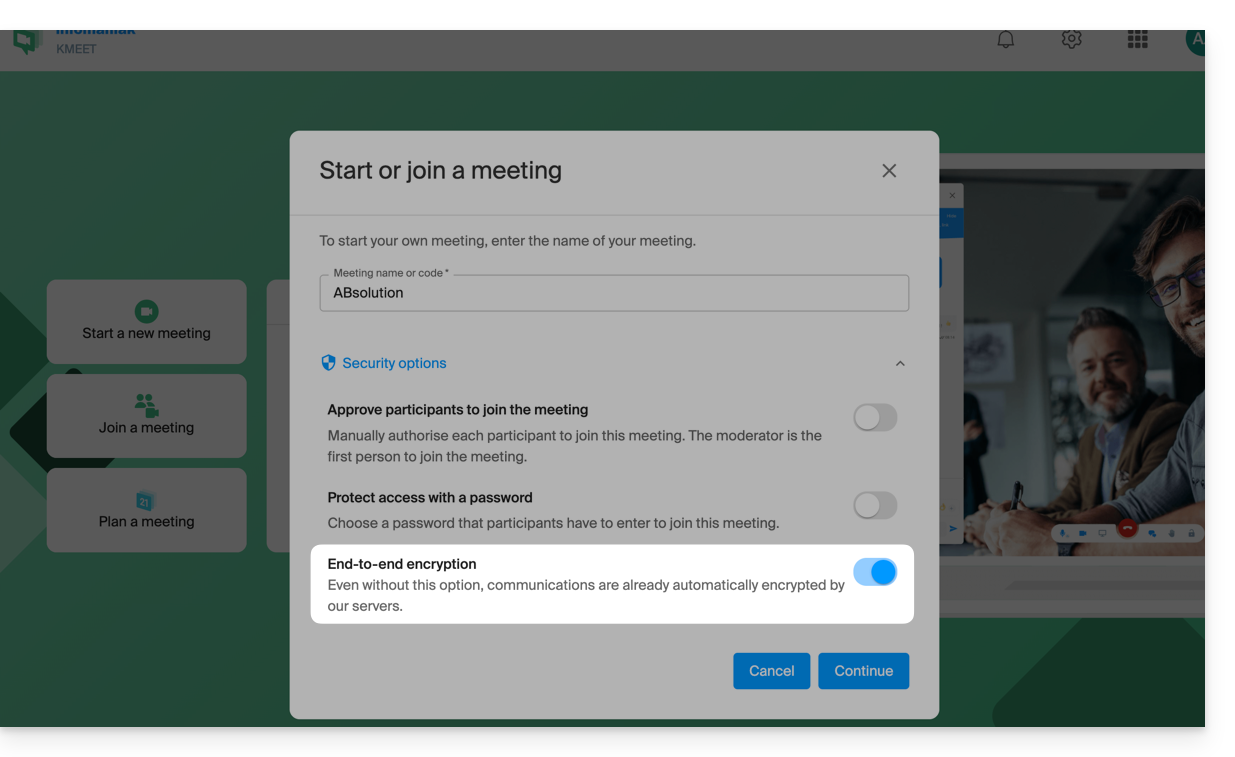
- When starting the video conference, an audio message will be heard to announce end-to-end encryption.
Link to this FAQ:
Has this FAQ been helpful?