Knowledge base
1000 FAQs, 500 tutorials and instructional videos. Here, there are only solutions!
Getting Started Guide: SwissTransfer (send large files for free)
Thank you for using Infomaniak to securely transmit your large documents to your contacts, thus guaranteeing a professional and efficient solution for your data exchanges.
Introduction
- SwissTransfer is a secure online file transfer platform that allows you to send large files in a simple and efficient way.
- Unlike many other file transfer services, SwissTransfer accepts files up to
50 GB, which is particularly useful for large files that cannot be sent as email attachments or by other traditional means. - Furthermore, data security is guaranteed because Infomaniak places particular emphasis on confidentiality, and ethics are at the heart of its concerns.
Transfer data with SwissTransfer
To send files via SwissTransfer:
- Click here to access the SwissTransfer Infomaniak web app (online service swisstransfer.com).
You can also use the SwissTransfer mobile app (application for iOS/Android smartphones or tablets); refer to this other guide if you have any problems installing the app. Thanks to its integration on iOS/Android, it offers quick file sharing options for your files, photos, PDFs, etc. from the file explorer: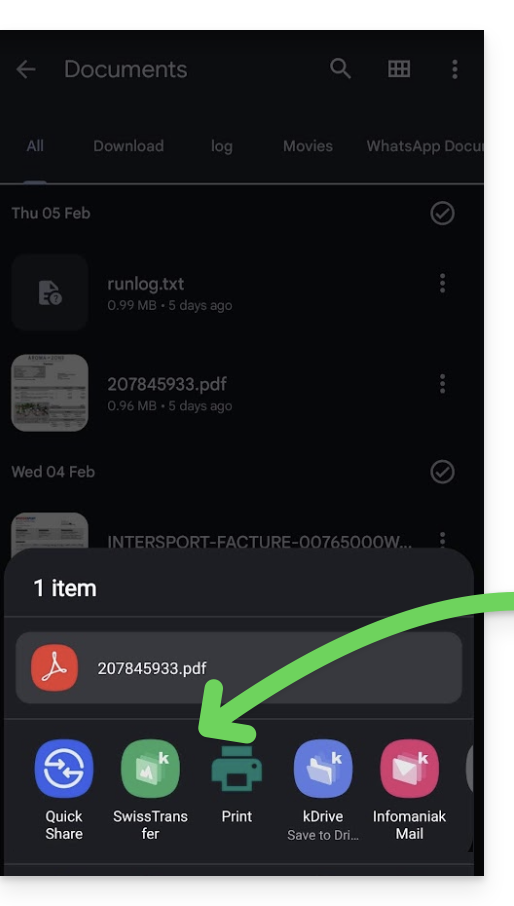
Downloading Data
Files transferred via SwissTransfer can be downloaded by the user…
- … either one by one…
- … or using the "Download All" button, which will create a
.ziparchive to download:- If the archive exceeds 10 GB, you will need to download the data contained within it one by one.
- Therefore, if you need to send several large files, it is best to group them together beforehand in a zip/rar/etc. archive (see below).
Confirming the User's Email Address
To enhance security, validating your email address is now also required when transferring files via a link.
- This verification is only done once per device (it is saved in your browser).
- If your email address has already been validated, nothing will change for you. Otherwise, a confirmation code will be sent to you by email: simply enter it to complete your transfer.
Compress Files Before Sending…
You can transfer multiple files with SwissTransfer by selecting them on your device, even if the data to be sent includes folders.
- To facilitate sending, it is not mandatory, but it is easy to compress your files into a format such as ZIP.
- These steps will create a new compressed
.zipfolder that can be sent more quickly with SwissTransfer because the total size will generally be reduced.
… on macOS and Linux
- From your computer, select the folder(s) to send.
- Right-click on the folder(s) to be archived.
- Choose the "Compress" option:
… on Windows
- From your computer, select the folder(s) to send.
- Right-click on the folder(s) to be archived.
- Choose the "Send to" option.
- Click on the "Compressed (zipped) folder" option.
Send the compressed files
All that remains is to drag your compressed file(s) to SwissTransfer:
Limitation for creating a transfer
There is no usage limitation when you receive a SwissTransfer transfer.
Regarding the creation of a transfer via SwissTransfer, the service is not available in these countries:
- Afghanistan
- Saudi Arabia
- Argentina
- Armenia
- Azerbaijan
- Bahrain
- Bangladesh
- Belize
- Bhutan
- Burma (Myanmar)
- Bolivia
- Brunei
- Cambodia
- China
- Colombia
- North Korea
- Costa Rica
- United Arab Emirates
- Ecuador
- El Salvador
- Georgia
- Guatemala
- Guyana
- Honduras
- India
- Indonesia
- Iraq
- Iran
- Israel
- Jordan
- Kazakhstan
- Kyrgyzstan
- Kuwait
- Laos
- Lebanon
- Malaysia
- Maldives
- Mexico
- Mongolia
- Nepal
- Nicaragua
- Oman
- Uzbekistan
- Pakistan
- Palestine
- Panama
- Paraguay
- Peru
- Philippines
- Qatar
- Sri Lanka
- Suriname
- Syria
- Tajikistan
- Taiwan
- East Timor
- Turkmenistan
- Uruguay
- Venezuela
- Yemen
Link to this FAQ: https://faq.infomaniak.com/2451
Has this FAQ been helpful?