Knowledge base
1000 FAQs, 500 tutorials and instructional videos. Here, there are only solutions!
Troubleshooting audio issues in kMeet
This guide helps you troubleshoot audio issues (microphone and speakers) with kMeet, Infomaniak's ethical video conferencing solution.
Introduction
- For kMeet to function, it must be granted permission to access your microphone.
- This request usually appears via a pop-up window in the top left corner of your browser or when you launch the application for the first time.
- An audio problem can be of two types:
- either others cannot hear you (Microphone problem),
- or you cannot hear others (Speakers/Output problem).
Troubleshooting audio issues: possible solutions
1. Check the hardware and basic settings
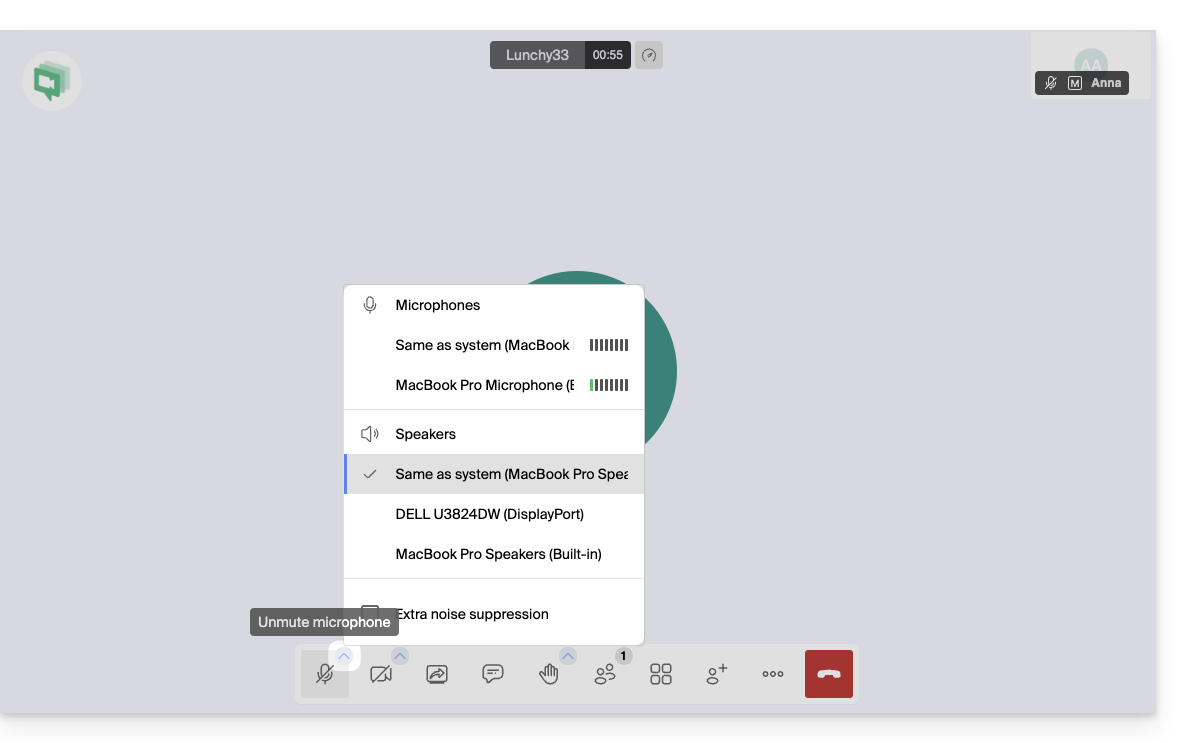
- The "Mute" button: check that your microphone is not muted in the kMeet interface (red microphone icon) or via a physical button on your headset/microphone:
- Connections: if you are using an external headset or microphone, unplug it and plug it back in (use direct USB ports rather than hubs).
- System volume: Make sure the volume on your computer or mobile device is not set to zero or in "Do Not Disturb" mode.
2. Configure audio settings in kMeet (Computer)
Whether on the app or in your browser, you can precisely choose your devices:
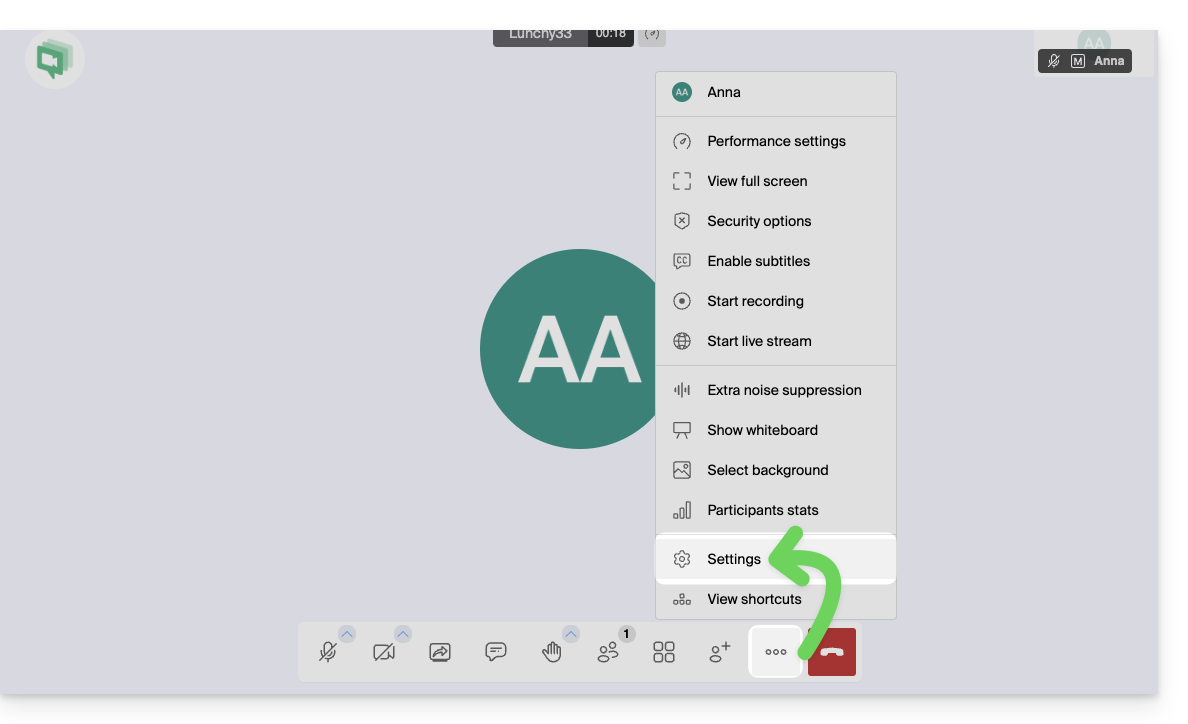
- Go to Settings:
- Go to the Audio tab:
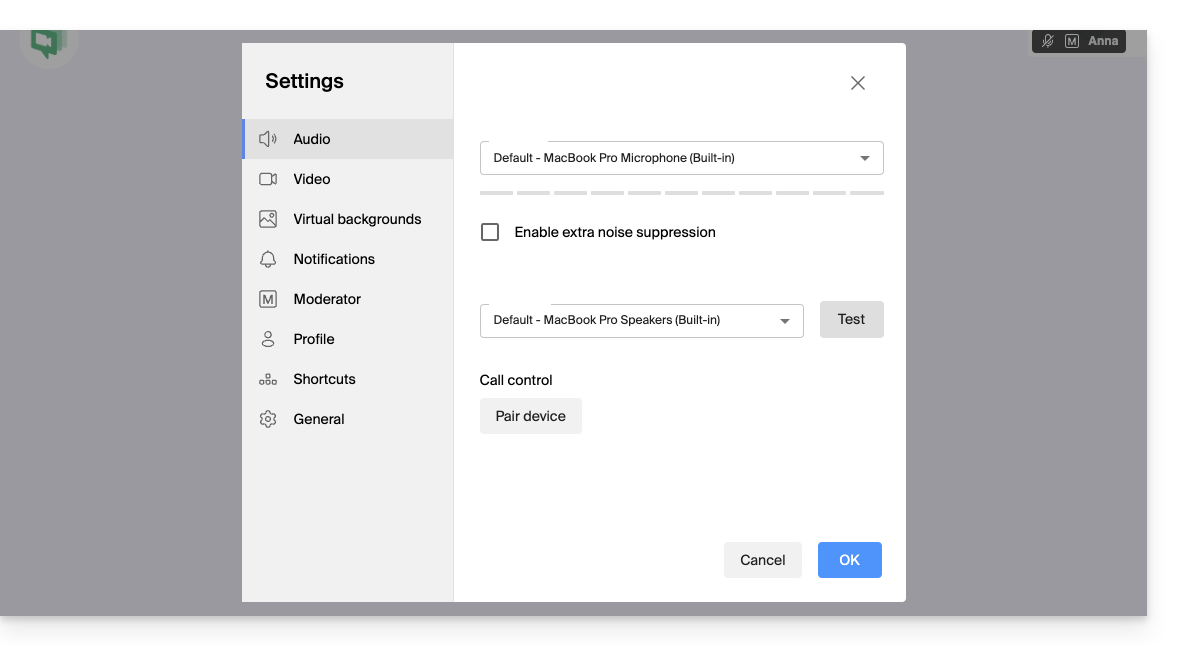
- Microphone: select the correct device from the list.
- Speak: a blue volume bar should move if the microphone picks up sound.
- Audio output: select your speakers or headset.
- Click "Test" to verify that you can hear the test sound.
3. (Re)authorize the microphone in the web browser
If you are using kMeet via Chrome, Firefox, Safari, or Edge:
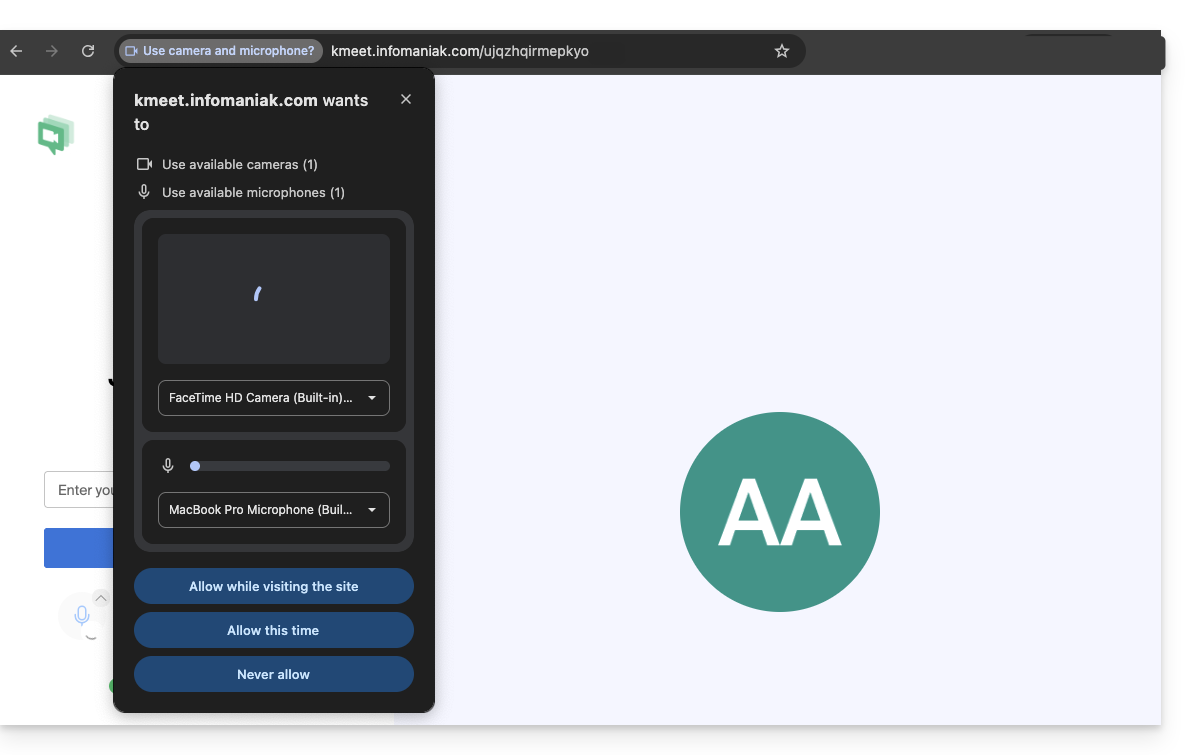
- Click on the lock icon (or the site settings) to the left of the URL address (kmeet.infomaniak.com).
- Make sure that "Microphone" is set to Allow.
- If you change this setting but see no noticeable effect, refresh the page (F5).
4. Check System Permissions (Windows, macOS, Mobile)
On macOS (often overlooked):
- Go to the Apple menu > System Settings > Privacy & Security.
- Click on Microphone.
- Make sure that your browser (Chrome, Firefox) or the kMeet application is checked.
On Windows:
- Go to Settings > Privacy & Security > Microphone.
- Make sure the "Microphone access" option is enabled.
- Make sure "Allow desktop apps to access your microphone" is also enabled for kMeet or your browser.
On Mobile (iOS and Android):
- iOS: Settings > kMeet > Make sure Microphone is enabled. Also, check in Settings > Privacy > Microphone.
- Android: Settings > Apps > kMeet > Permissions > Microphone > Allow only while using the app.
5. Special case: Disable blocking extensions
Some browser extensions (AdBlockers, privacy protection extensions such as uBlock Origin or Privacy Badger) may sometimes block audio/video streams.
- Try disabling your extensions or opening the kMeet link in a private browsing window to test.
6. About Firefox and WebRTC
You can try disabling WebRTC in Firefox for testing purposes (via media.peerconnection.enabled = false), but this is not recommended: kMeet uses WebRTC technology to function; if you disable it, video conferencing may stop working altogether.
If Firefox is causing problems:
- Check the settings in Firefox > Privacy & Security > Permissions.
- Next to "Microphone", click on Settings and make sure that kmeet.infomaniak.com is not in the "Block" list.
- Also, check that Autoplay is enabled for audio on kMeet.
7. As a last resort: Change devices
If the problem persists, it is likely due to a hardware failure or a driver conflict on the device:
- Join the meeting from another device (switch from your computer to your smartphone using the kMeet app).
- Get the meeting link/code via the sharing/invitation:

Link to this FAQ: https://faq.infomaniak.com/2441
Has this FAQ been helpful?