Knowledge base
1000 FAQs, 500 tutorials and instructional videos. Here, there are only solutions!
Discover the Service Mail interface
Update 05/19/2026
This guide presents the main features of an Infomaniak Mail Service. Discover the administration interface for your email addresses created and hosted with Infomaniak.
Access the Mail Service
To access the Mail Service:
- Click here to access the management of your product on the Infomaniak Manager (need help?):
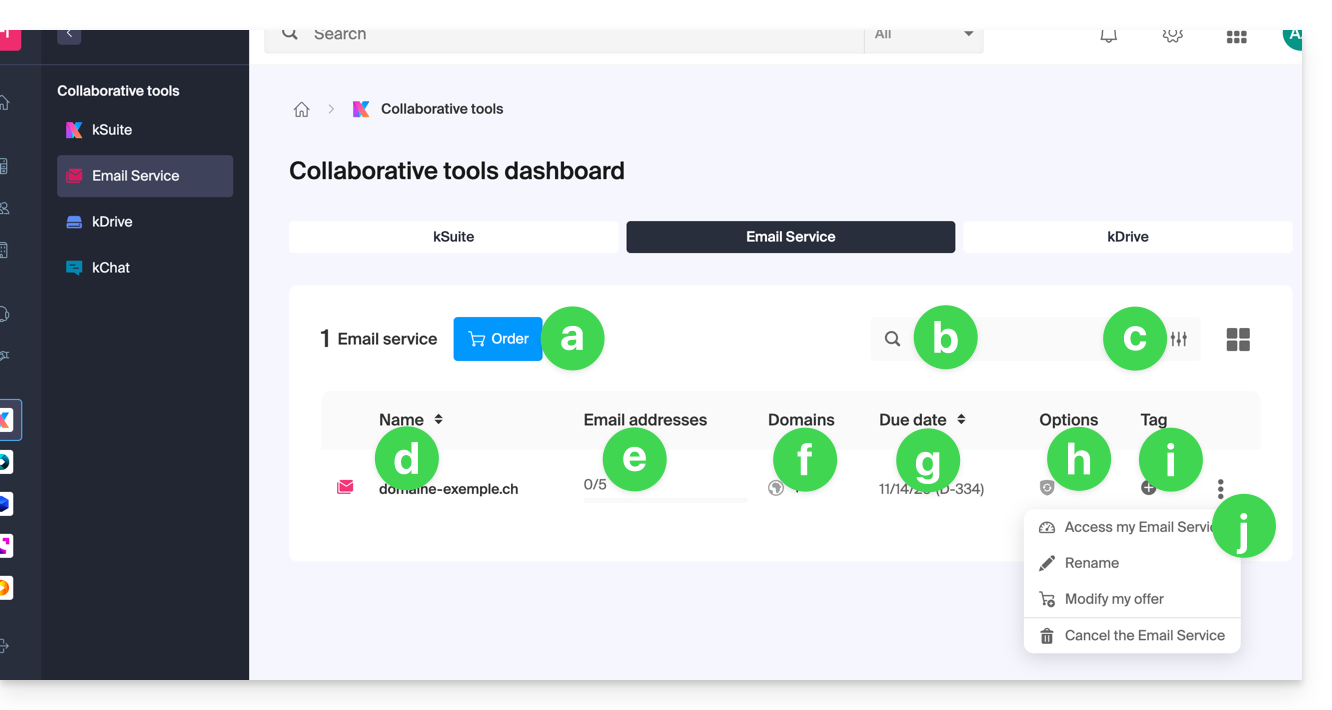
- Order a new Mail Service (to get email addresses on a new domain name, for example).
- Search among your Mail Service names.
- Filtering/sorting and table presentation options.
- The name of your Mail Service (note that it can be renamed (see point j) to facilitate its organization, but the associated and visible domain on hover (see point f) will remain the same).
- The number of email addresses created and available (here the quota is 5, but no addresses have been created).
- The domain(s) associated with your Mail Service; refer to this other guide to change the domain name of your Mail Service.
- Service expiration date (may be linked to kSuite).
- Possible option(s) such as Renewal Warranty, for example.
- Possible label(s)/tag(s).
- Action menu allowing, among other things, to rename the Mail Service or to modify the offer.
Access email addresses
To access the email addresses contained in this Mail Service:
- Click directly on the name of the Mail Service concerned in the table (see illustration above).
- You arrive on this type of page:
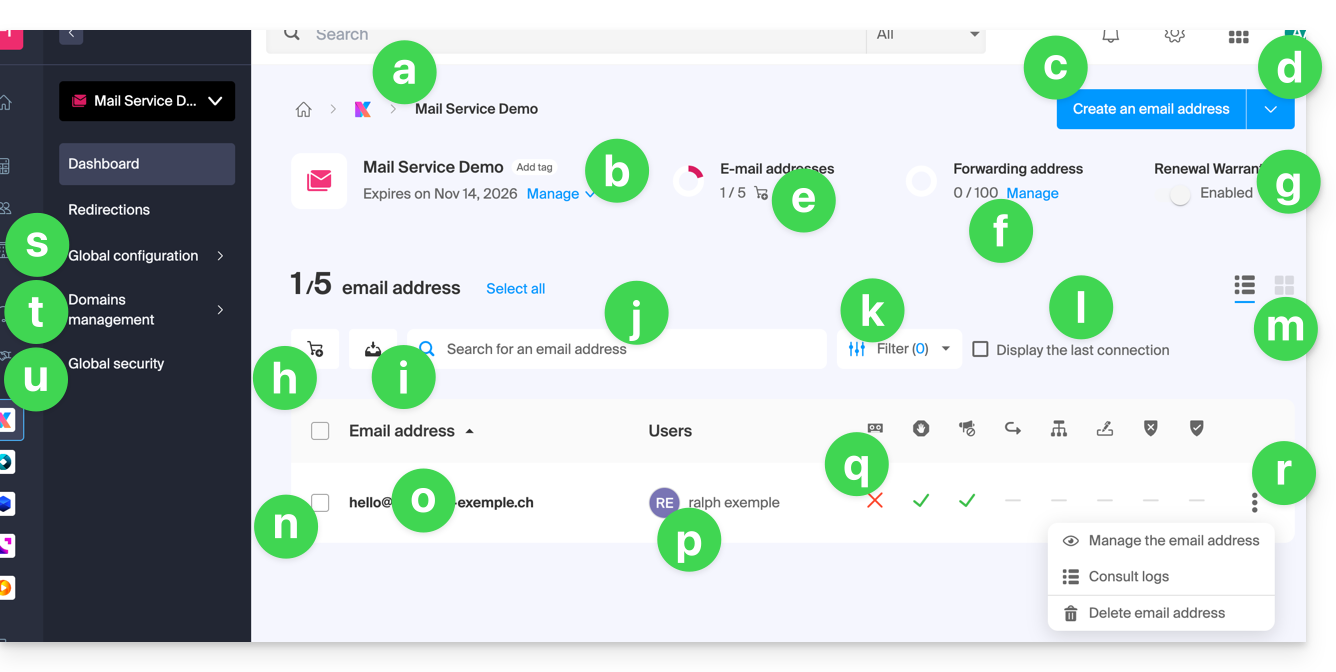
- Breadcrumb and denomination of the Mail Service (possibly renamed as in this example).
- Mail Service management menu, allows actions that point j of the previous table does not allow.
- Create additional email addresses (or order first if the quota is not sufficient) on the same domain.
- Additional menu to, among other things, create addresses in bulk or generic.
- Current quota (you can modify it).
- Create virtual addresses (redirection addresses).
- See point h of the previous table.
- Order additional email addresses.
- Download the list of addresses in a CSV file (format
.csv). - Search among the addresses of the Mail Service (unlike the search bar above which allows searching among all the products of the Organization).
- Filter the display according to different criteria, including the connection dates of the users.
- Display in the table the last connection of a user to the Infomaniak Mail interface to which the email address in question is attached.
- Table presentation options.
- In front of each email address is a small square that can be clicked and allows selecting multiple addresses at the same time to perform actions (offered at the bottom of the page as soon as the selection is made).
- Click directly on the denomination of the email address to configure it (see next table).
- The user(s) of the Infomaniak Mail interface who have attached the email address in question.
- By clicking on the boxes in the table, you can access the options; a sign indicates if the option in question is not activated.
- Actions on the email address.
- Global configuration (concerns the entire Mail Service in question) to apply, for example, a signature or anti-spam to the entire Mail Service.
- Actions on the domain(s) linked to the Mail Service.
- Global security to perform a technical diagnosis and, if possible, correct errors automatically.
Access details and settings of an email address
To access the settings and information related to the email address (storage, password, etc.) and the users of the Infomaniak Mail app (i.e., outside of IMAP use) who use the email address:
- Click directly on the email address concerned in the table.
- You arrive on this type of page:
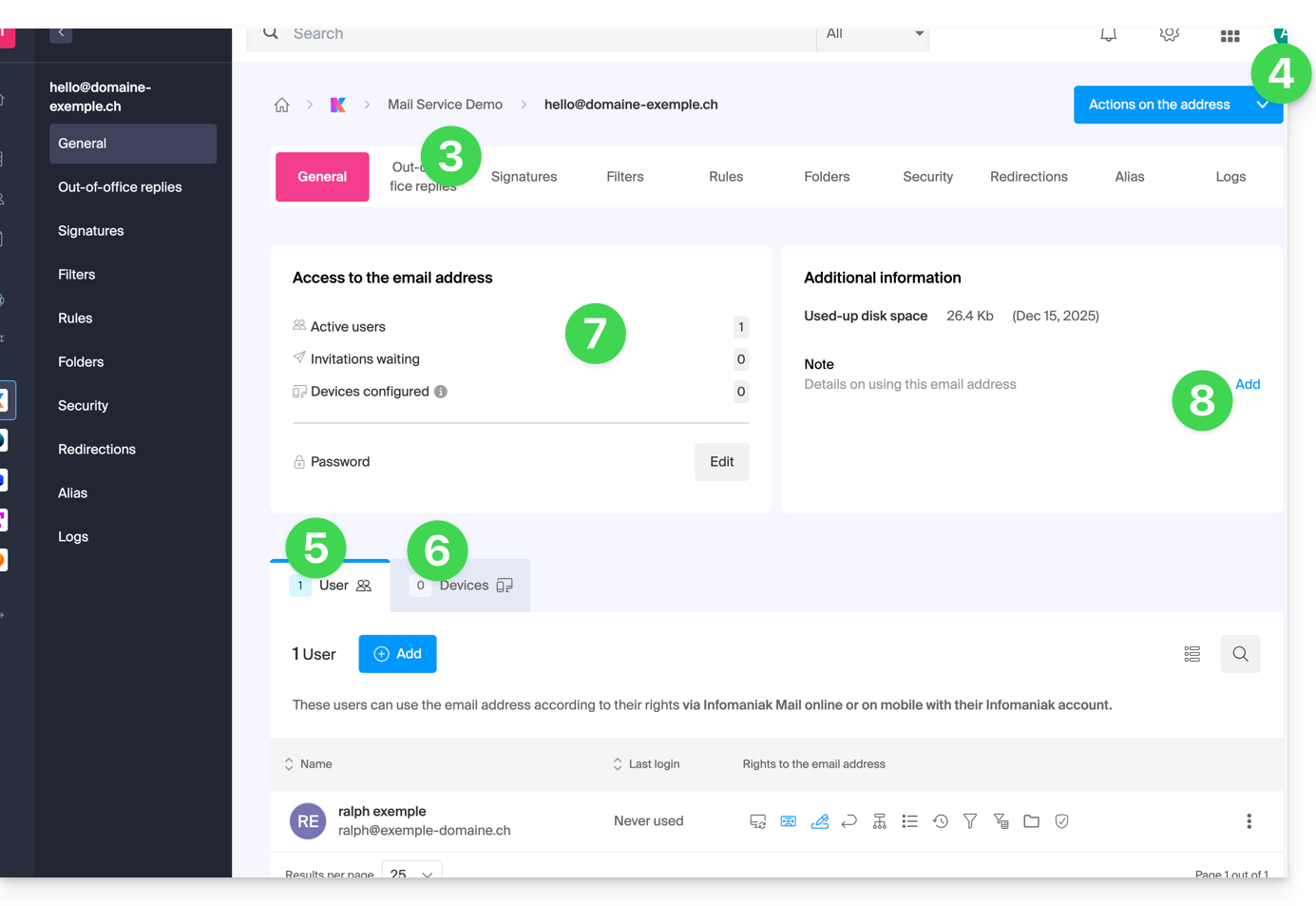
- Click on the different tabs at the top of the page (or in the left sidebar menu) to set the different settings for your email address.
- Additional actions such as restoration are accessible with the Actions button.
- Tab for users of the address (allows inviting and authorizing users to use the address).
- Tab for devices (allows adding a password to the address to use the address on a specific device).
- Summary of current accesses on the address (see points 5 & 6).
- Allows adding free text that will be displayed on the left.
Link to this FAQ: https://faq.infomaniak.com/2435
Has this FAQ been helpful?