1000 FAQs, 500 tutorials and explanatory videos. Here, there are only solutions!
Connect to kDrive via WebDAV (get the kDrive ID)
This guide provides instructions for connecting to kDrive using the WebDAV connection protocol.
β UNAVAILABLE with
Free kSuite / Standard kSuite
my kSuite / my kSuite+ (ik.me, etik.com, ikmail.com)
Preamble
- Connecting via WebDAV allows for:
- Using the WebDAV application of your choice instead of the official kDrive application (only solution if this one is unavailable on your OS, for example macOS 10.14.6),
- Using kDrive as a synchronization base for a tool that would allow this via WebDAV (Joplin for example),
- Accessing kDrive from your operating system's file manager.
Obtaining the identifier (kDrive ID)
To find out your kDriveID, kDrive client ID:
- Click here to access the Infomaniak kDrive Web app (online service ksuite.infomaniak.com/kdrive).
- The kDrive directory structure is displayed in the left sidebar.
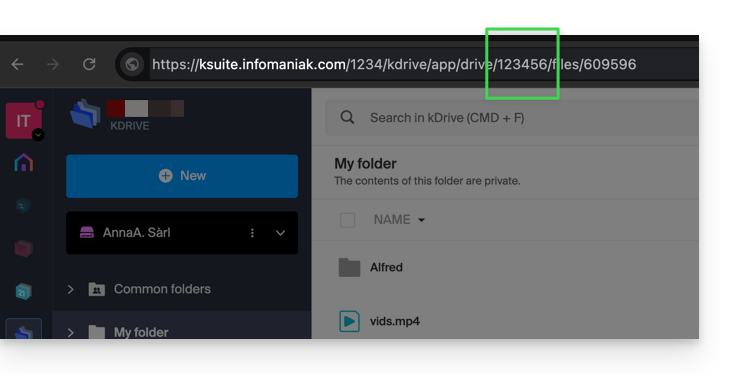
- The URL
https://ksuite.infomaniak.com/kdrive/app/drive/123456/displayed at the top of your browser contains a number:
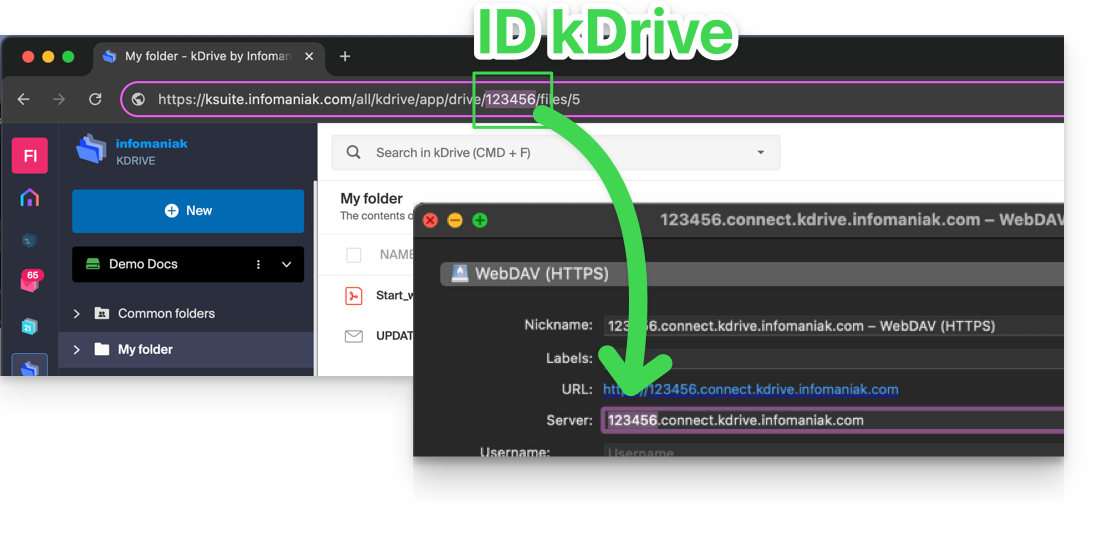
- In some cases, especially when the Organization ID is mentioned in the URL, there may be several series of numbers, but the principle remains the same, you need to take the number displayed after the term β
/drive/β:
This number (in the example 123456) is your kDrive identifier (IDkDrive).
You will therefore need to write https://IDkDriveβ.connect.kdrive.infomaniak.com whenever necessary (https://123456.connect.kdrive.infomaniak.com for example as a WebDAV address).
Connecting to kDrive via WebDAVβ¦
Not all offers are WebDAV compatible. See the box at the top of the page.
β¦ on Windows
To do this:
- Open File Explorer from the taskbar or Start menu.
- Select This PC in the left pane.
- In the Computer tab, select Add a network location:

- Click on Next.
- Click on Choose a custom network location:

- Click on Next.
- Enter the server address:
https://IDkDrive.connect.kdrive.infomaniak.com(read the ID kDrive chapter above). - Click on Next.
- For the account settings, use the following information:
- Server address:
https://IDkDrive.connect.kdrive.infomaniak.com(read the ID kDrive chapter above). - Username: email address to log in to the Infomaniak account
- Password: create an application password for this specific use.
- Server address:
- If desired, click the box to save the login information.
- Enter a name for this connection or leave the default indication.
- Click on Finish.
- Two folders will appear, one containing deleted files & folders, the other with the name of your kDrive and containing your data.
... on macOS
For a computer on macOS, follow the Apple instructions, which can result in this:
- Click on the Go menu from the Finder.
- Click on Connect to server:

- Enter the server address:
https://IDkDrive.connect.kdrive.infomaniak.com(read the ID kDrive chapter above). - Click on Connect:

- Confirm the connection by clicking the blue button.
- Enter the following information:
- Username: email address to log in to the Infomaniak account
- Password: create an application password for this specific use.
- If desired, click the box to save the login information.
- Click on the blue button to log in:

- Here it is, the kDrive content is displayed on the Finder:

... on Linux (Gnome)
To do this:
- Open Files.
- In the sidebar, click on Network:

- Enter the server address:
davs://IDkDrive.connect.kdrive.infomaniak.com(read the ID kDrive chapter above). - Click on Connect.
- For the account settings, use the following information:
- Username: email address to log in to the Infomaniak account
- Password: create an application password for this specific use.
- Click on Login.
... with a Windows software
Use the software RaiDrive for quick access to your hosted data. Complete the fields as in the image below:
... with a Windows / macOS software
Use the software Cyberduck for quick access to your hosted data:
- Open Cyberduck.
- In the software menu, go to Bookmark then New bookmark.
- Choose the WebDAV (https) protocol.
- Enter the following information:
- Server address:
https://IDkDrive.connect.kdrive.infomaniak.com(read the ID kDrive chapter above) - Username: email address to log in to the Infomaniak account
- Password: create an application password for this specific use.
- Download folder: the folder where the downloaded files will be stored
- Server address:
Most recent software supporting the WebDAV protocol are compatible with the kDrive offers among those also supporting WebDAV. Infomaniak cannot guarantee the compatibility of the service with external applications and does not provide support on this protocol. It is recommended to install the kDrive application to avoid any file loss.
Direct WebDAV connection URL to a specific folder
To facilitate a direct connection via WebDAV to a specific folder, you can use the following URL:
https://IDkDrive.connect.kdrive.infomaniak.com/Common documents/Nom du dossier
This simple method allows you to quickly access the desired folder without manually navigating the directory structure. Simply replace "Folder Name" with the exact name of the target folder to establish a direct and secure WebDAV connection. Also, refer to the last part of this other guide for other examples.