Knowledge base
1000 FAQs, 500 tutorials and instructional videos. Here, there are only solutions!
Manage read receipts on the Infomaniak Webmail app
This guide explains how to enable or disable read receipt requests from the Web app Mail Infomaniak (online service ksuite.infomaniak.com/mail).
Preamble
- Read receipt requests are compatible with most email systems.
- However, they depend on the user's actions and the settings of their email system.
- The receipt (or non-receipt) of a read receipt does not guarantee anything (the logs may be better suited for certain cases).
Request a read receipt
To allow your correspondent to easily confirm receipt of your message sent from the Web app Mail Infomaniak (online service ksuite.infomaniak.com/mail):
- Click here to access the Web app Mail Infomaniak (online service ksuite.infomaniak.com/mail).
- Click on the Settings icon in the top right of the interface.
- Click on Send in the left sidebar.
- Enable the toggle switch to request a read receipt:
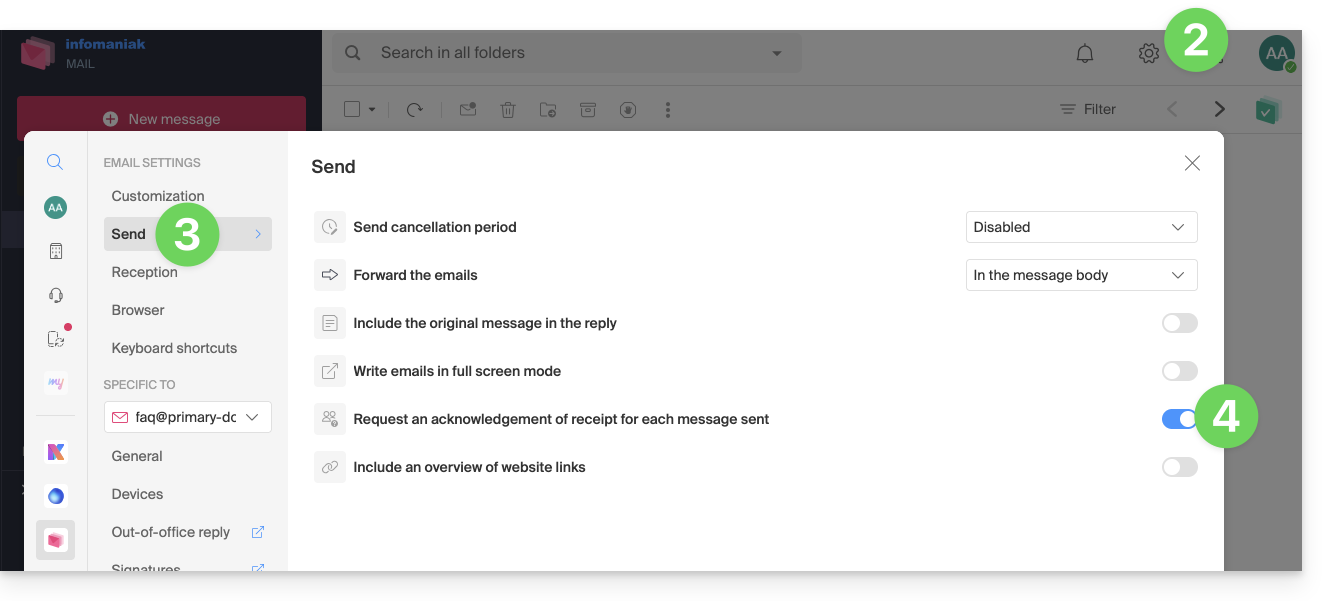
Note that it is also possible to enable it on a case-by-case basis when sending your message on Mail, from the composition options by clicking on ⋮ then on the option in question: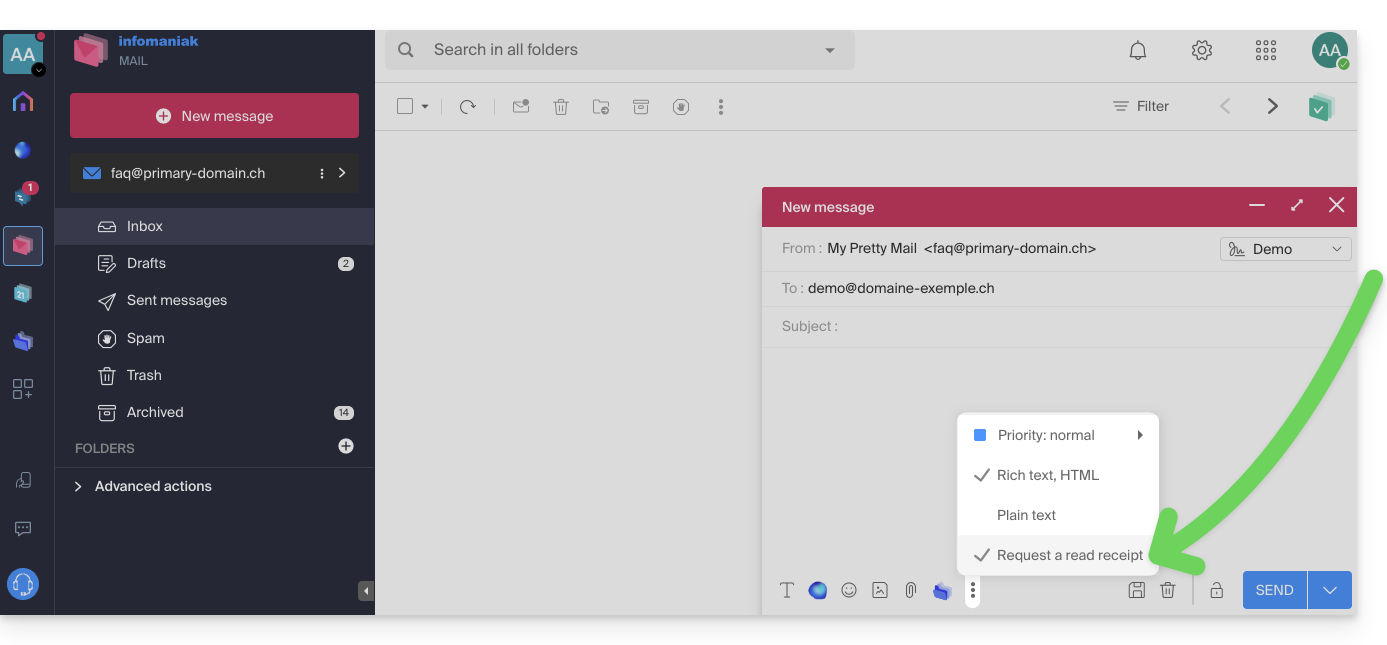
Confirm receipt of the message
If you receive an email and view it on the Web app Mail Infomaniak (online service ksuite.infomaniak.com/mail) while its sender has specifically requested to be notified, you can confirm receipt of the message when reading it: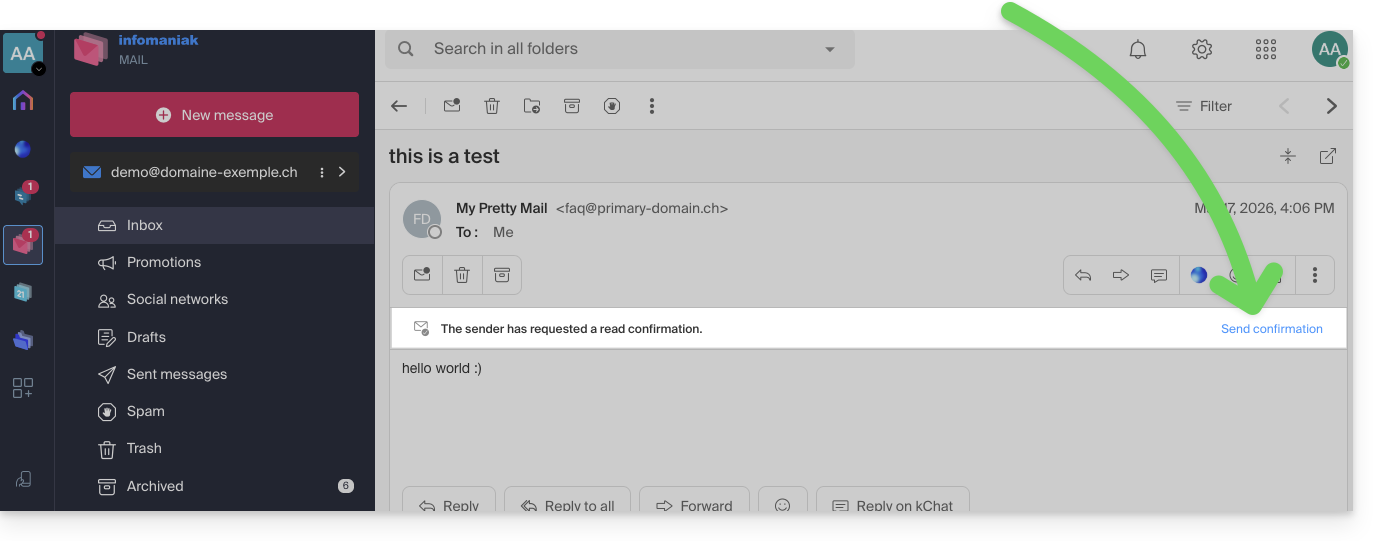
Link to this FAQ: https://faq.infomaniak.com/240
Has this FAQ been helpful?