Knowledge base
1000 FAQs, 500 tutorials and instructional videos. Here, there are only solutions!
Edit an Office file with the native editor on kDrive
This guide explains how to create, save, and edit Office-type files (text, spreadsheet, presentation, etc.) on the web app kDrive (online service ksuite.infomaniak.com/kdrive) and on the mobile app kDrive (application for iOS/Android smartphones or tablets) using the native editor.
Edit a text file, spreadsheet, presentation…
Prerequisites
- To create and collaborate on a spreadsheet or text document, etc. directly on the web app, the file size must be less than
100 MB; otherwise, the document will be downloaded, and you will need to edit it locally on your computer using an Office-type application (OnlyOffice, for example).- Therefore, be mindful of the images you insert into your documents (compress them to reduce their size and quality if necessary).
The web app kDrive (online service ksuite.infomaniak.com/kdrive) natively integrates the Docs, Grids, and Points applications, which allow you to create, modify, and collaborate online on Word .docx, Excel .xlsx, and PowerPoint .ppsx documents:
- Click here to access the web app kDrive (online service ksuite.infomaniak.com/kdrive).
- If necessary, open the folder in which to create an Office document.
- Click the New button in the upper left corner.
- Choose the type of document to create:
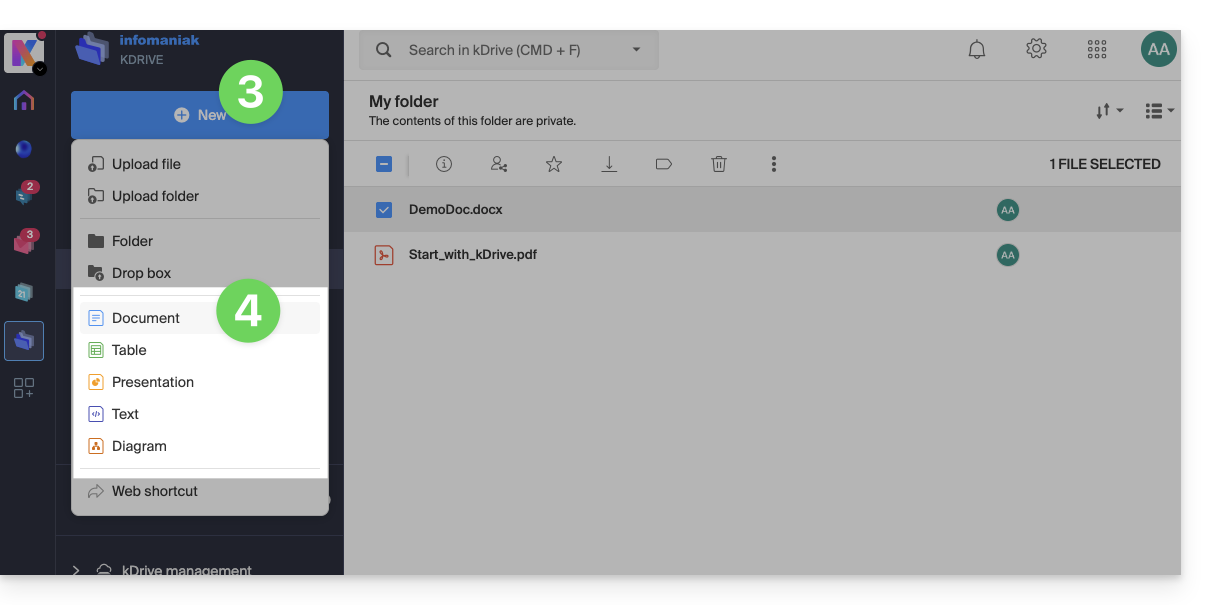
- text document
- spreadsheet
- presentation
- plain text (notepad)
- draw.io document for diagrams, flowcharts, and wireframes
- Give the file a name.
To set a default editor, refer to this other guide.
Find and Replace Function
To work with and replace all occurrences of a text in a few clicks, once the document is created:
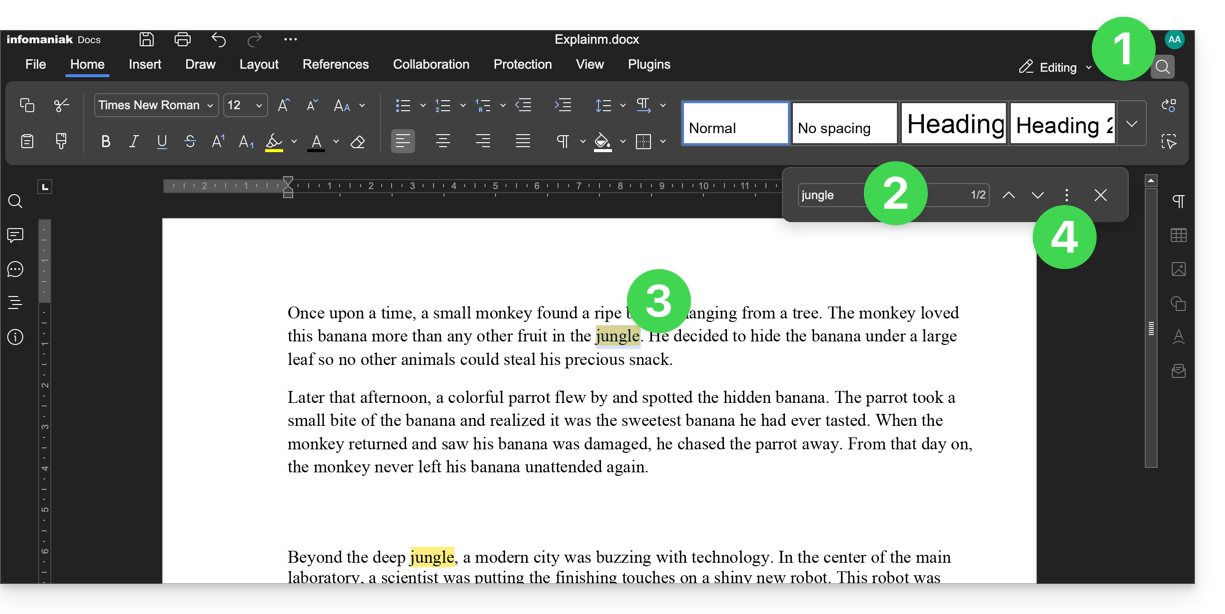
- Click on the search function (magnifying glass icon in the top right corner).
- Search for the term to be replaced throughout the text.
- Check the selection of occurrences in the text.
- Click on the action menu ⋮ to the right of the search field:
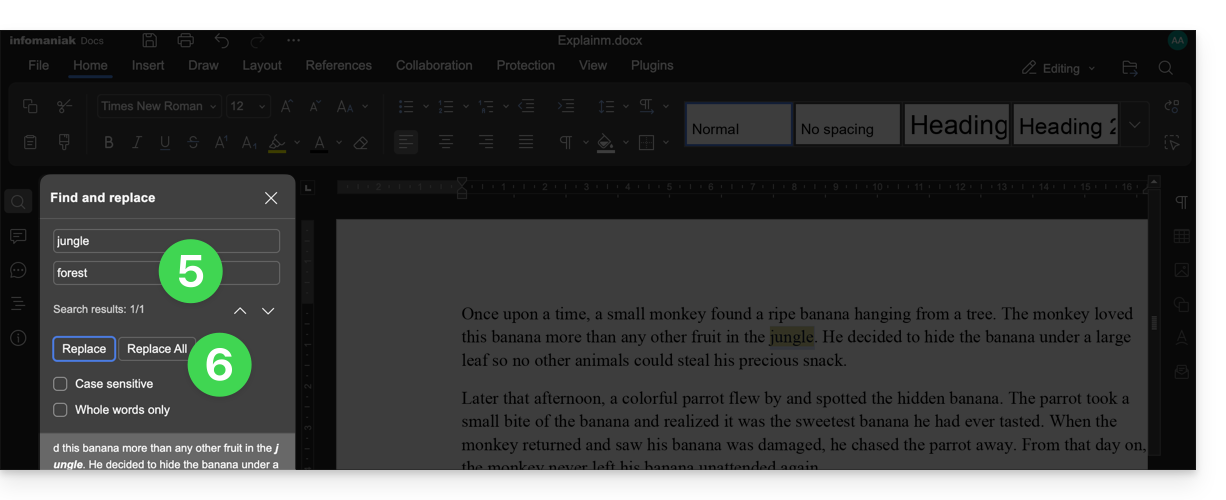
- Enter the text that should replace the selection.
- Click on Replace (to replace one by one) or Replace All (the text replaces all identical occurrences):
Save the File
When you work online on your Word, Excel, or PowerPoint files, they are automatically saved each time you make changes.
If in doubt, you can manually save a document:
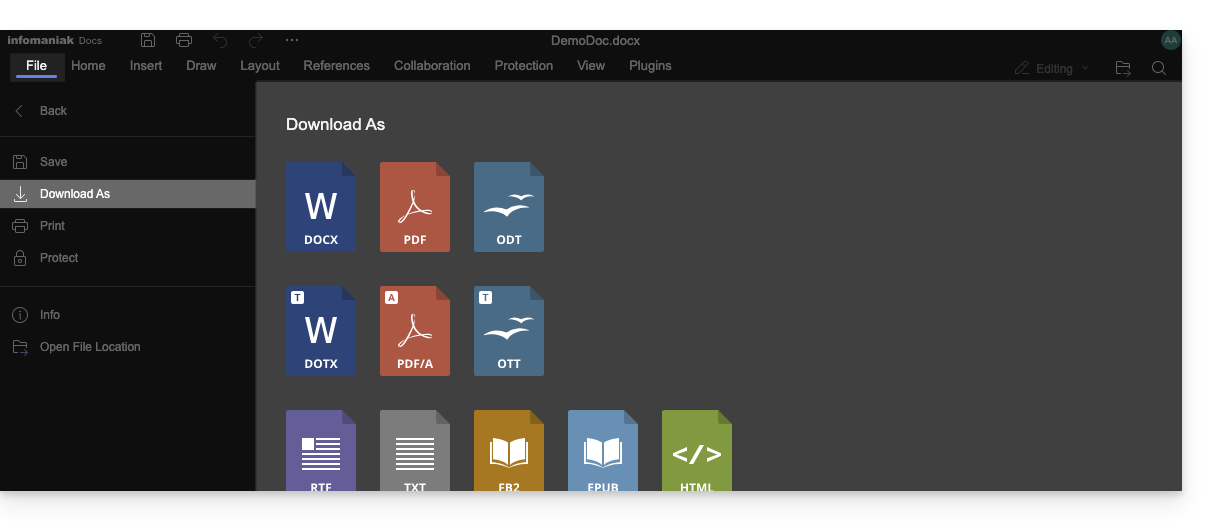
- Click on File then on Save (if "Save" is disabled, it means the file has already been saved).
- If needed, you can download a copy of your file in your preferred format (docx, pdf, rtf, epub, html, jpg, png…) by clicking on Download as...
Password-protected files
When working online on your Word, Excel, or PowerPoint files, these can be pre-protected with a password. Therefore, the password will be requested when opening the file in the Infomaniak interface, but it will disappear when saving your document in kDrive.
Indeed, it is not possible to set a password when saving a document to kDrive, nor to keep the existing password. You should consider using another editor available in kDrive, but only with certain paid plans.
Add a bookmark
A feature allows you to add a bookmark, which is a kind of shortcut to a favorite passage in your document, or the equivalent of a web page anchor:
- Edit a text document on kDrive.
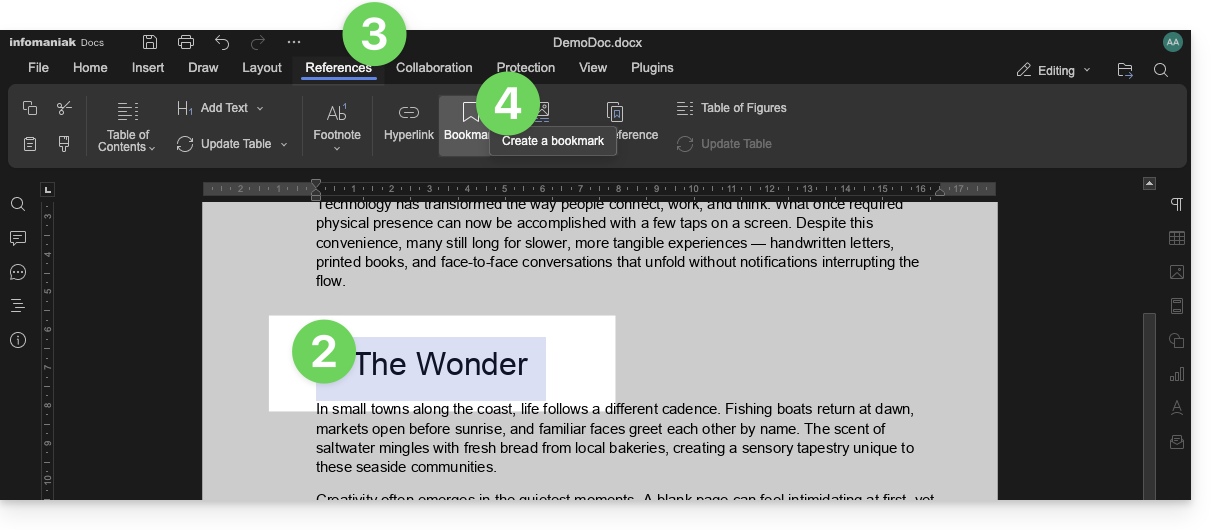
- Select the text that will serve as the reference point.
- Click on the References tab.
- Click on Bookmark:
- Name your bookmark.
- Click on the Add button:
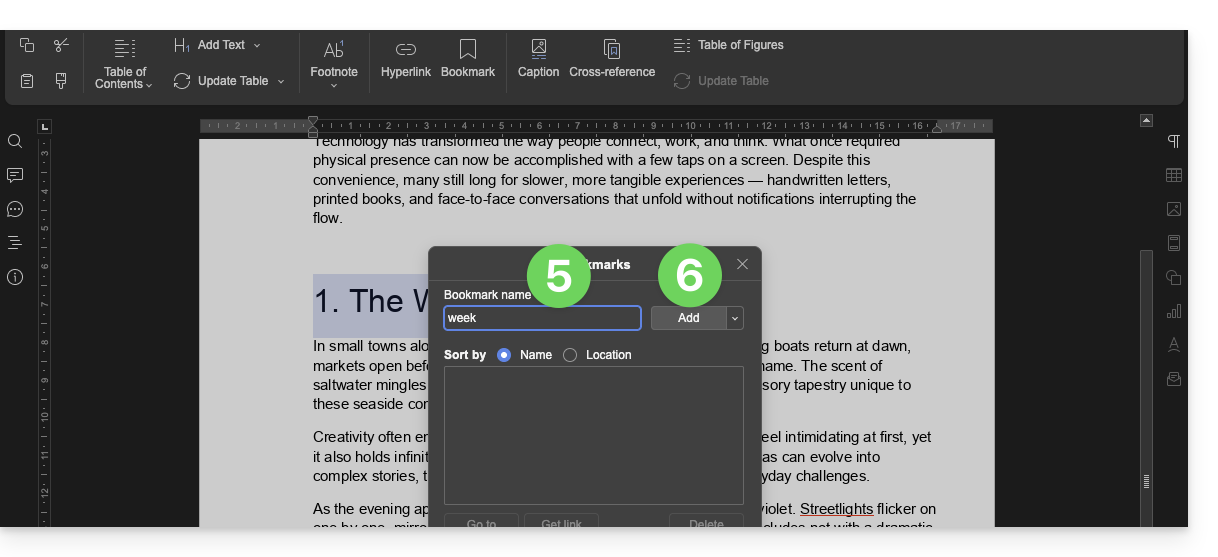
- The window closes, your favorite location is created and saved in the document.
Create a share link that leads directly to the bookmark
Once the document is open:
- Click on the References tab.
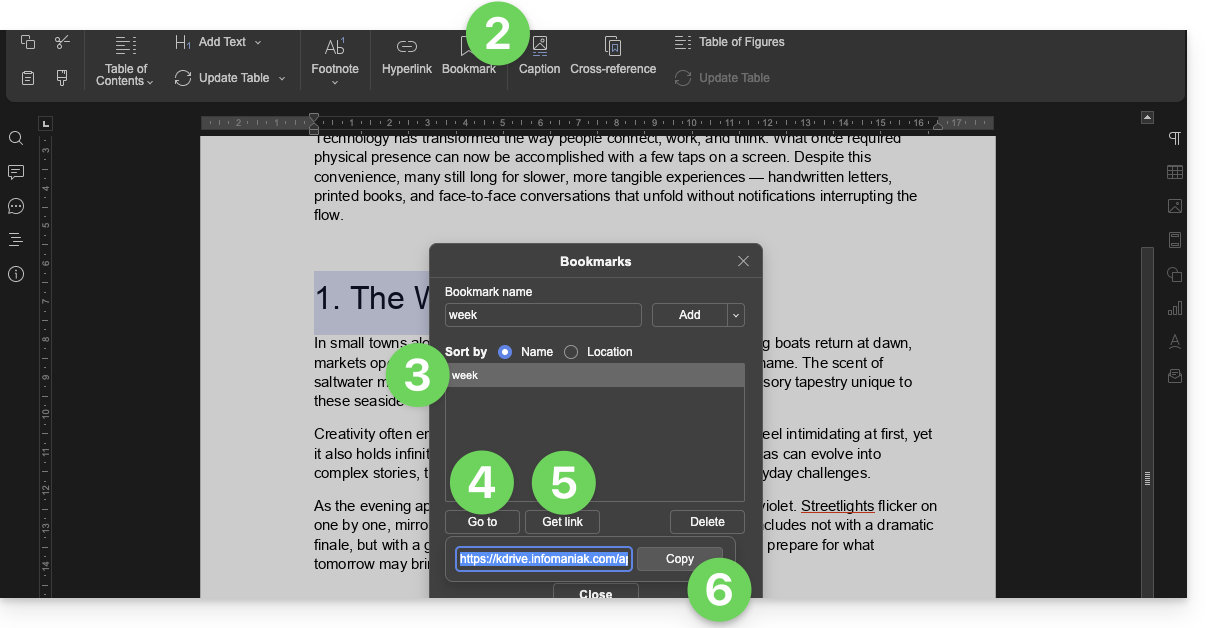
- Click on Bookmark.
- Click on the bookmark name to reach.
- Optional: Click on the Go to button so that the document open in the background displays exactly at the previously defined location.
- Click on the Get link button to share your document and obtain a link that will lead the user to the exact location of your bookmark.
- Click on the Copy button to directly place it in the clipboard:
kSuite users: be notified on kChat
A feature allows users to tag (mention) collaborators in the comments of a document via a "+" followed by the user's name:
- Edit a document on kDrive.
- Click on the Collaboration tab.
- Click on Add a comment.
- Enter your comment, mentioning a user if necessary: type the
+sign followed by the name: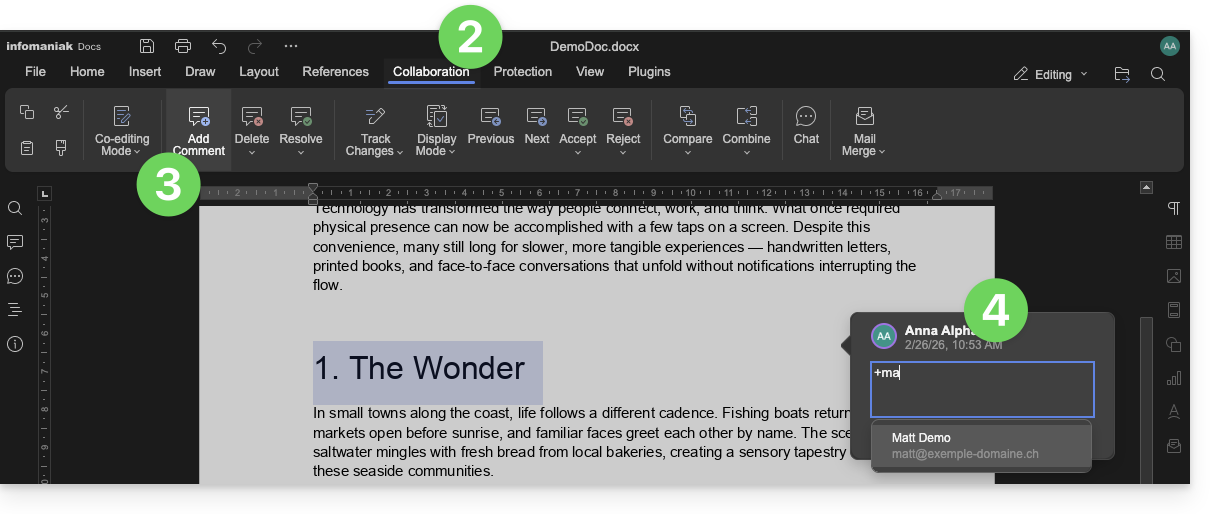
The tagged user receives an email with the relevant details: name of the comment author, link to the document, date and time of the comment.
If the user in question is online on kChat (within the relevant kSuite), instead of receiving an email, they will receive a notification via the kChat Bot. If the user is offline or in "Do Not Disturb" mode, the system will send an email.
Edit an Office-type document on mobile
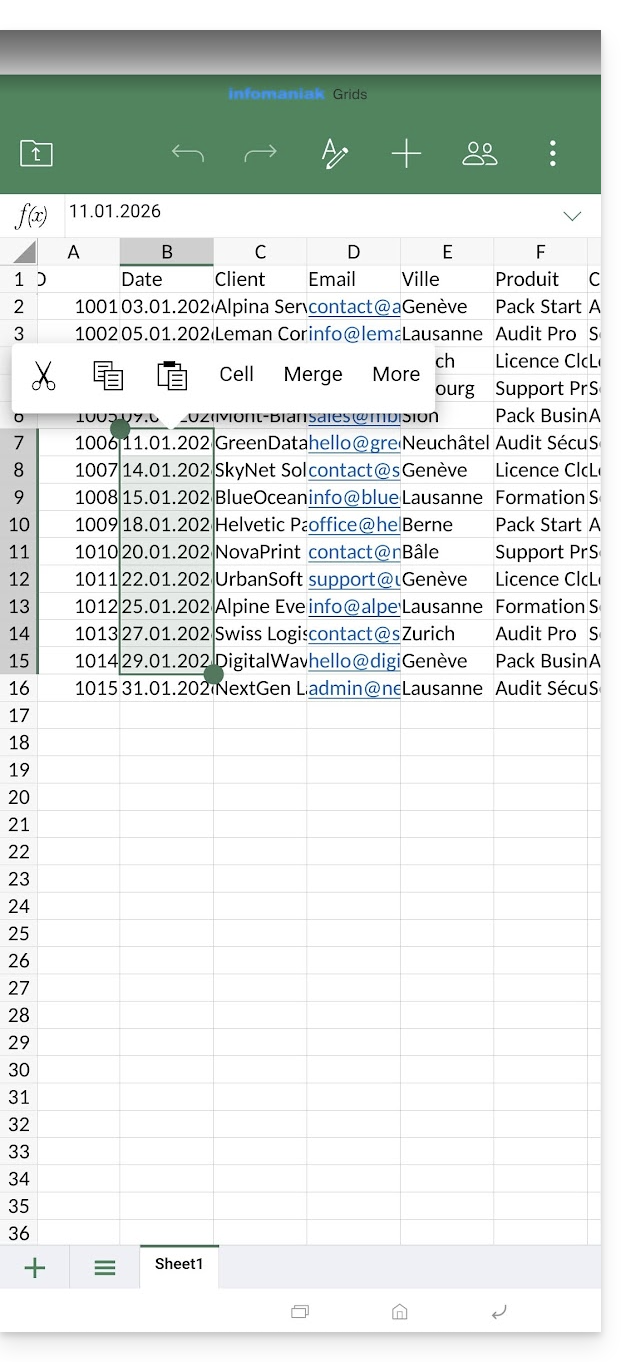
The kDrive mobile app (application for iOS/Android smartphones or tablets) natively integrates the Docs, Grids, and Points applications, which allow you to create, edit, and collaborate online on Word .docx, Excel .xlsx, and PowerPoint .ppsx documents: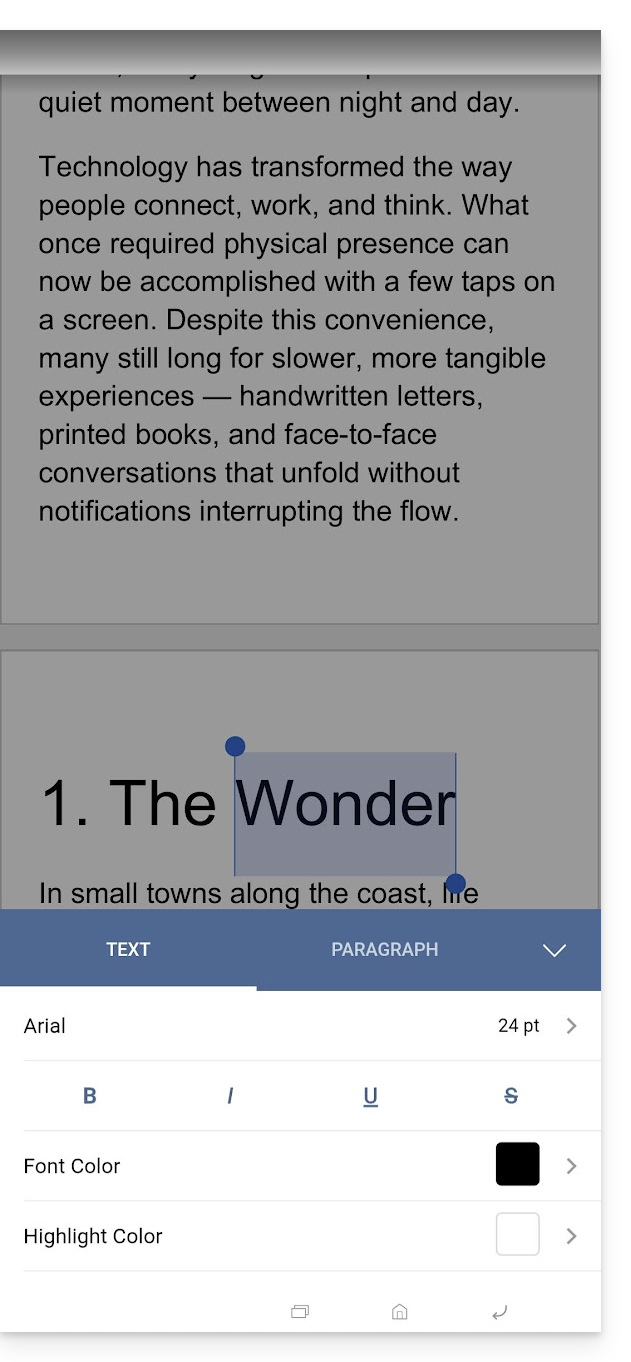
Link to this FAQ: https://faq.infomaniak.com/2399
Has this FAQ been helpful?